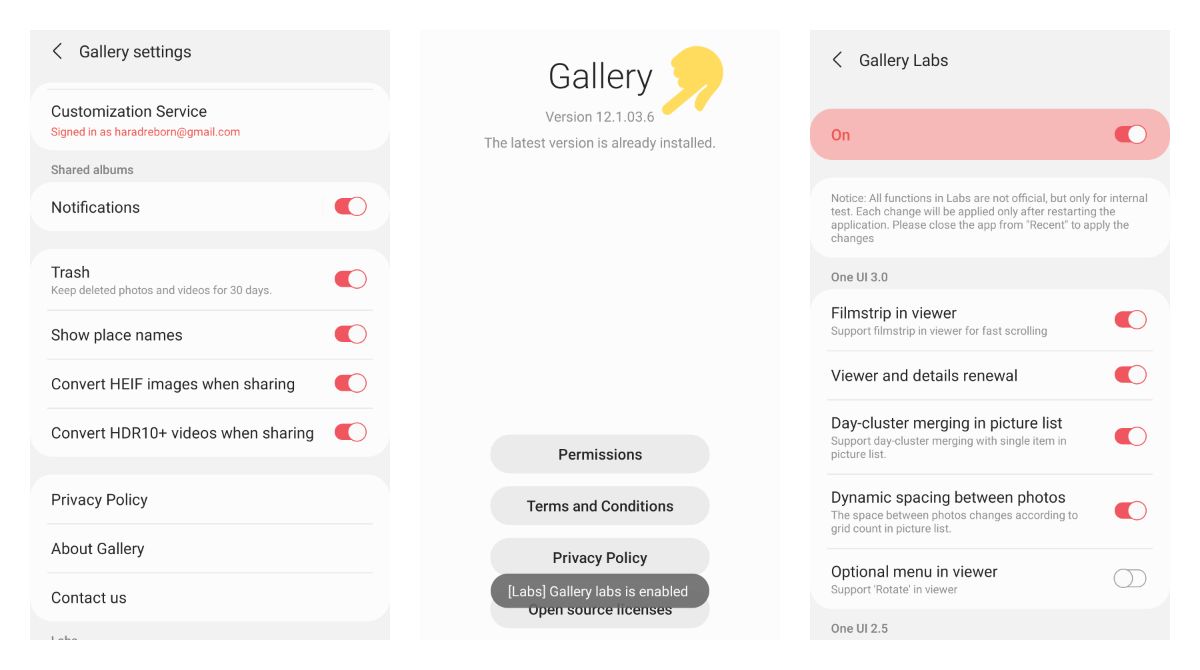
To enable Samsung Gallery Labs, open the Samsung Gallery app, tap the menu icon in the bottom-right corner, go to Settings > About Gallery, and tap the version number repeatedly until you see the message “[Labs] Gallery Labs is enabled.” This hidden experimental menu unlocks beta features in the stock Gallery app on Galaxy phones and tablets, giving you early access to tools that aren’t part of the standard release. If you’ve ever wanted to take a screenshot on my Android and manage it with more control, or you’re trying to retrieve photos from old Samsung phone and want better sorting options, Gallery Labs is worth switching on.
How to enable Samsung Gallery Labs
Follow these steps to turn on the hidden Gallery Labs menu in the Samsung Gallery app. The whole process takes less than a minute, and you only need to do it once.
- Open the Samsung Gallery app on your Galaxy phone or tablet.
- Tap the menu icon in the bottom-right corner of the screen.
- Tap Settings.
- Tap About Gallery near the bottom of the Settings page.
- Tap the version number repeatedly, usually about 10 times, until the message “[Labs] Gallery Labs is enabled” appears.
- Go back to the main Gallery Settings screen and open Gallery Labs, which now appears at the bottom.
After enabling it, the Gallery Labs menu stays in your Settings, so you can jump back in any time to turn individual experimental features on or off. The exact wording of the menu items can vary slightly depending on your device’s One UI version, but the common path is always Gallery > Settings > About Gallery > tap version number repeatedly. You may be prompted to download additional files or update the Gallery app to access the experimental features.
What is Samsung Gallery Labs
Samsung Gallery Labs is an experimental menu inside the Samsung Gallery app that unlocks hidden features and beta app functions that have not been officially published yet. Samsung Members describes it as a special menu that gives you access to features still in testing, making it a playground for trying out new functionality before it rolls out to everyone. Instead of waiting for a stable update, you can enable these options yourself and see what Samsung is working on.
What Gallery Labs features can you unlock
Once Gallery Labs is enabled, you’ll find a handful of experimental options in the Labs section of Gallery Settings. These are the documented features you can try:
- Album-entry lock, so you can lock individual albums with authentication.
- Saving images as PDF directly from the Gallery app.
- Timeline view in albums, which changes how your photos are organized by date.
- Slideshow with selected items, giving you more control over which photos play in a slideshow.
- Auto-play next video, so videos continue playing one after another.
- Legacy video seek bar, which restores the older video progress bar design.
These options are meant for testing, so they may not behave perfectly in every situation. But they give you a real look at features Samsung is experimenting with, and you can toggle them off just as easily if one doesn’t suit your workflow.
Which devices support Gallery Labs
Samsung doesn’t publish an official supported device list for Gallery Labs, so there’s no definitive compatibility chart to check. The reporting indicates that it works in the stock Samsung Gallery app on Galaxy phones and tablets, and one source says the hidden menu has been available from Android 10 onward, starting with One UI 2.5. Other sources don’t give an official minimum Android, One UI, or Gallery app version, so the safest approach is to check your own device by following the enablement steps above. If you see the Labs message after tapping the version number, your device supports it. Before enabling Gallery Labs, make sure your Samsung device is compatible with this feature. To check compatibility, go to the Galaxy Store on your Samsung device, search for the Gallery app, and see if the Gallery Labs option is available for you to download. Keep in mind that this feature may not be available on older or entry-level Samsung models.
What to know before using Gallery Labs
Gallery Labs is experimental, so Samsung positions it as a hidden menu for beta-style features rather than standard published functions. That means you shouldn’t expect the same stability you get from the regular Gallery app, and some features might feel rough around the edges. Still, because these features are in testing, it’s smart to treat them as optional extras rather than core tools you rely on daily. It is recommended to create a backup of your important gallery data before enabling Gallery Labs, just in case you need to revert back to the stable version. If you’re also wondering how to back up Samsung notes? before making changes to your device, that’s a separate process that lives outside Gallery Labs, so enabling this menu won’t affect your notes or their backups.
Frequently Asked Questions
Is Gallery Labs available on iPhone?
No. Samsung Gallery Labs is described only in Samsung’s Gallery app on Galaxy devices, and no source documents an iPhone version. Apple’s Photos app doesn’t have an equivalent hidden Labs menu.
Do you need a special app or carrier version to use Gallery Labs?
No. If your Galaxy device has the stock Gallery app, you can try the enablement steps.
Where does the Gallery Labs menu appear after enabling it?
After you tap the version number and see the confirmation message, Gallery Labs appears at the bottom of the main Gallery Settings screen. Open it from there to access all the experimental features.
Can the exact steps to enable Gallery Labs vary by device?
Yes. Some sources say menu icon or hamburger icon, and some say About Gallery versus About.
Will enabling Gallery Labs void my device's warranty?
No, enabling Gallery Labs on your Samsung device will not void your warranty.