To detect data exfiltration on your phone, check whether an app is secretly sending out your private data like photos, location, or contacts by reviewing app permissions, network activity, and data usage in your phone's built-in settings. On an iPhone, this means using the App Privacy Report and Safety Check; on an Android phone, it means checking Usage & diagnostics and setting a data warning limit.
What is data exfiltration on your phone
Data exfiltration is the unauthorized transfer of data out of a device, account, app, or network. For iPhone and Android users, this means an app you installed could be quietly copying your photos, contacts, location, or other personal information and sending it to a server you did not approve. The most practical built-in checks are privacy-permission review, network-activity review, diagnostics and analytics controls, and data-usage monitoring.
Signs an app may be taking your data
Phone-specific warning signs include unexpected permission use, such as an app accessing your camera, microphone, location, or contacts when it has no reason to. Unexpected access to sensitive permissions such as camera, microphone, location, contacts, photos, calendars, or motion data is a warning sign on iPhone because Apple exposes those access lists directly in Privacy & Security. On iPhone, the App Privacy Report can show frequent access to location, camera, microphone, photos, contacts, and network activity by apps that should not need them. Another indicator is unusual mobile data growth, which you can spot by monitoring your data usage over time.
How to detect data exfiltration on iPhone
iPhone provides several built-in tools to check for unauthorized data transfer. Apple says iPhone privacy controls let you manage which apps can access categories of information stored on the device, and App Privacy Report shows how often apps access data and their network activity.
- Review app permissions by category: Go to Settings > Privacy & Security, then tap a category such as Calendars, Reminders, or Motion & Fitness. The page lists every app that has requested access and lets you turn access on or off for each app.
- Turn on and read App Privacy Report: Go to Settings > Privacy & Security > App Privacy Report, then tap Turn On App Privacy Report. This report shows how often apps access your data and what network activity they perform. Apple’s privacy pages say you can see how many apps are accessing each data type, which helps identify unexpected access patterns. To stop and clear the report, go back to the same menu and tap Turn Off App Privacy Report. App Privacy Report is available on iOS 15.2 or later and iPadOS 15.2 or later.
- Use Safety Check for containment: Go to Settings > Privacy & Security > Safety Check, tap Emergency Reset, then tap Start Emergency Reset. This stops sharing device access and personal information with others, including location, Messages, FaceTime, passcode, and Apple Account password changes.
How to check for data exfiltration on Android
Android does not have a full App Privacy Report equivalent, but you can still perform important checks.
- Check Usage & diagnostics: Open Settings, tap your profile, tap All Services, then under Privacy & Security tap Usage & diagnostics. Turn it on or off. Note that this only covers diagnostic data sharing, not full exfiltration detection, it is a privacy control rather than a detector.
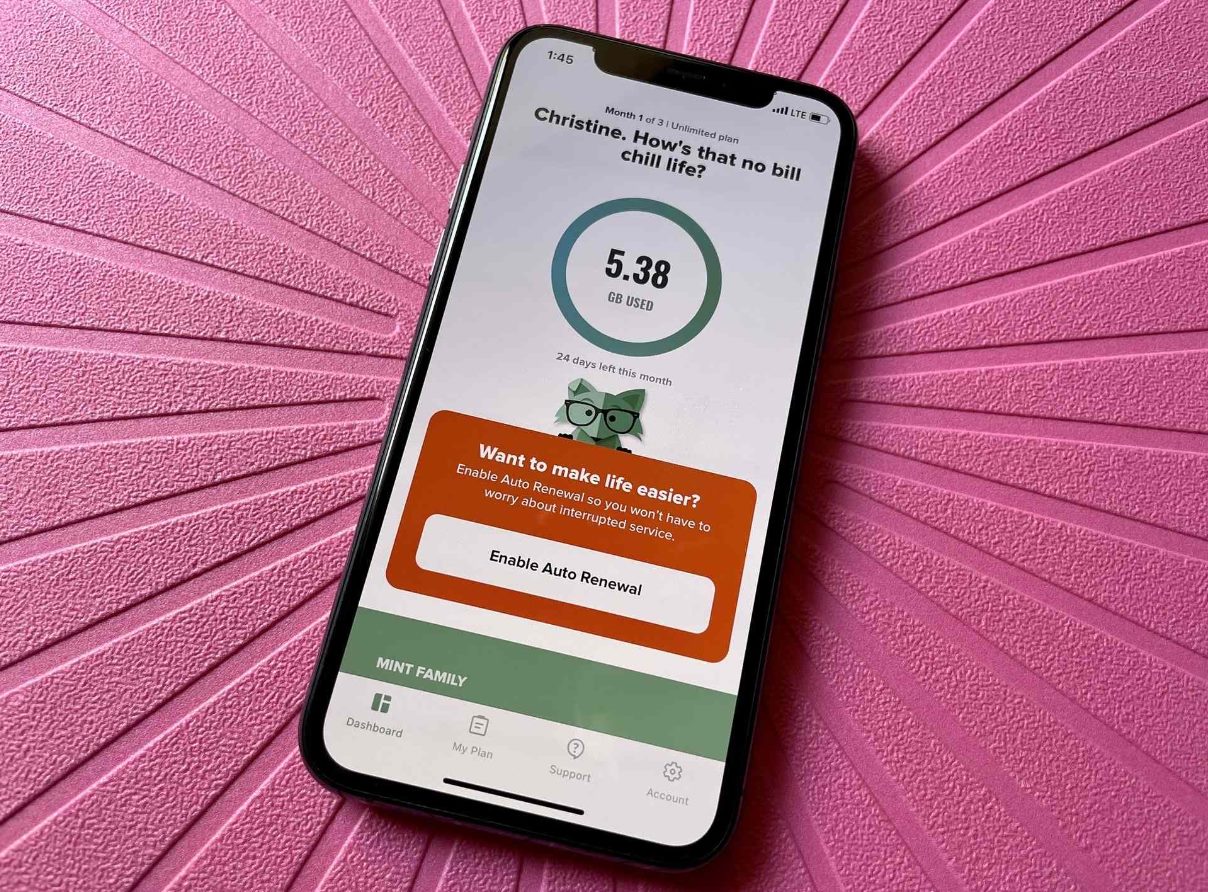
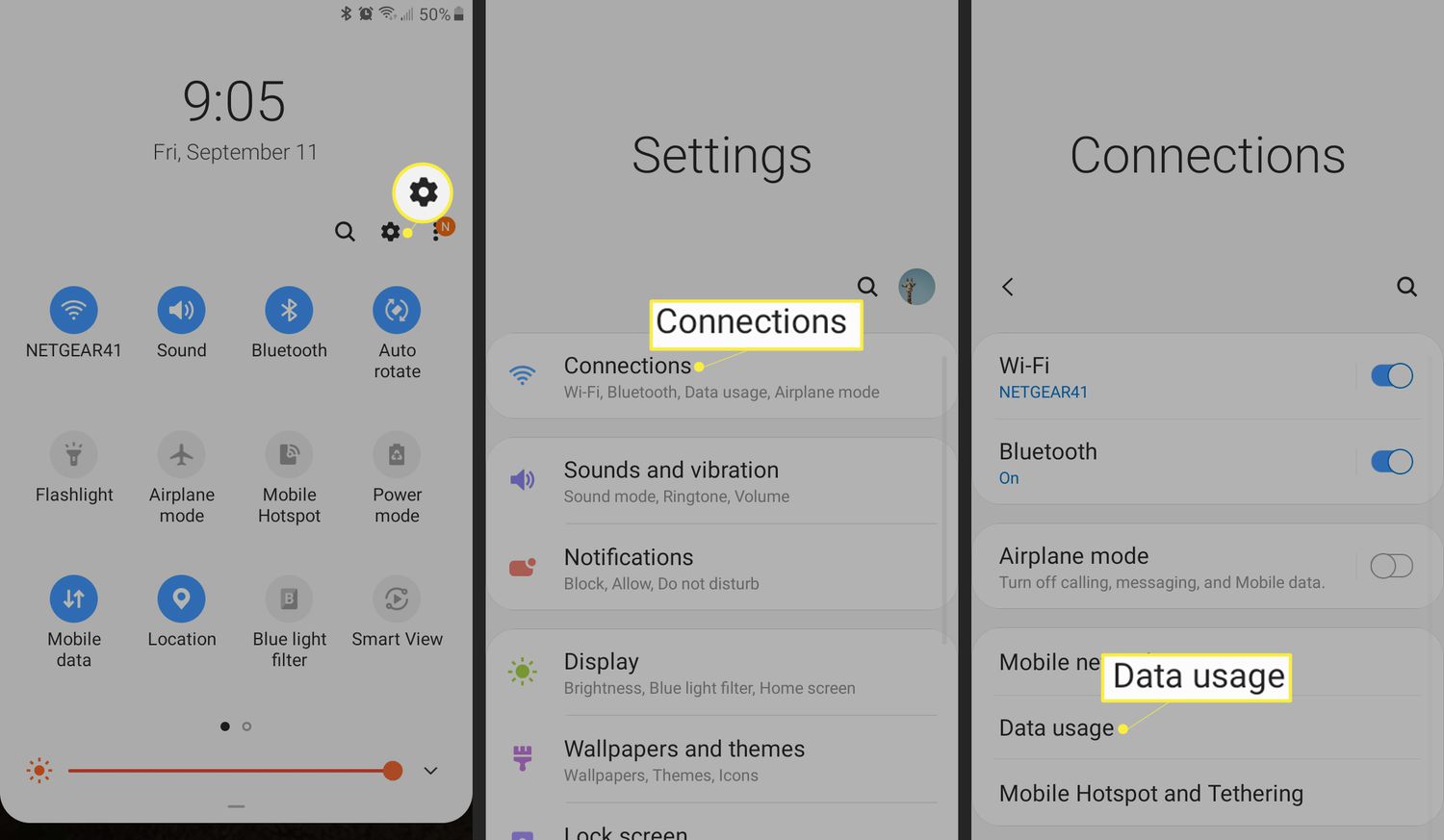
- Monitor mobile data usage: Open Settings, tap Data warning & limit to reduce and manage mobile data usage. The retrieved Google Fi help page does not specify a device model limit, only that the feature is in the phone’s Settings app. Unusual data spikes can be a practical indicator that an app is sending data in the background.
What to do if you spot suspicious activity
If you see unexpected permission use, unusual network activity, or unexplained data spikes, take these immediate actions:
- Revoke app permissions: On iPhone, go to Settings > Privacy & Security and turn off access for the suspicious app. On Android, go to Settings > Apps, select the app, and tap Permissions to deny access.
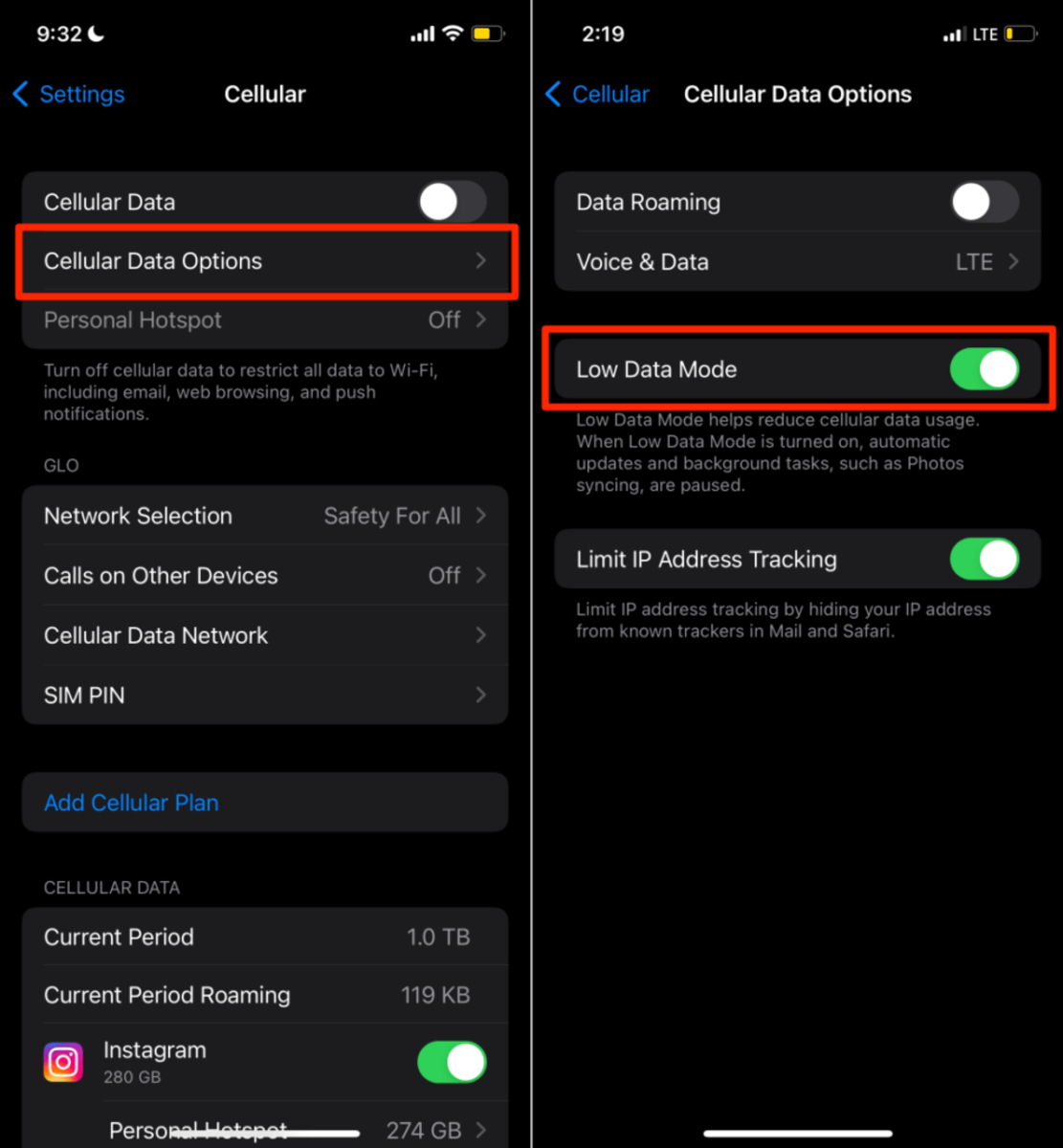
- Turn off network access: For iPhone, you can restrict an app's cellular data use in Settings > Cellular. For Android, go to Settings > Apps, select the app, and tap Mobile data & Wi-Fi to disable background data.
- Run Safety Check on iPhone: Use the Emergency Reset option in Settings > Privacy & Security > Safety Check to immediately stop sharing your data with other people and apps.
- Consider removing the app or resetting the device: If the suspicious activity persists after revoking permissions and network access, delete the app entirely. For severe cases, a factory reset may be necessary, but back up your data first.
Frequently Asked Questions
What is data exfiltration on a phone?
Data exfiltration on a phone is the unauthorized transfer of your personal data, such as photos, contacts, location, or messages, from your device to an external server or account without your knowledge or consent.
How does data exfiltration happen on iPhones and Android phones?
It typically happens through a malicious or poorly coded app that requests excessive permissions. The app then collects your data and sends it over the network, often in the background, using techniques like regular network requests or data uploads disguised as normal app activity.
What are the most common signs that an app is stealing my data?
The most common signs are unexpected permission requests (like a flashlight app asking for your contacts), frequent background data usage shown in your phone's data monitor, and, on iPhone, a long list of access events in the App Privacy Report for an app that should not need that data.
Are the built-in tools on iPhone and Android enough to detect data exfiltration?
For most regular users, yes. iPhone's App Privacy Report and Safety Check, combined with permission reviews, are very effective. Android's tools are more limited, it lacks a full network-activity report, but monitoring data usage and reviewing permissions still catches many common exfiltration attempts. For advanced threats, third-party security apps may offer additional protection, but the built-in tools are a strong first line of defense.
What should I do if I find an app accessing data it shouldn't?
Immediately revoke that app's permissions in your phone's settings. Then check the app's network activity, on iPhone, use the App Privacy Report; on Android, check data usage. If the app continues to access data after you remove permissions, delete the app. For extra safety, run the TikTok Tips and Settings guide to review your social media app permissions.
Related reading: How To Block Wireless Camera Signal.