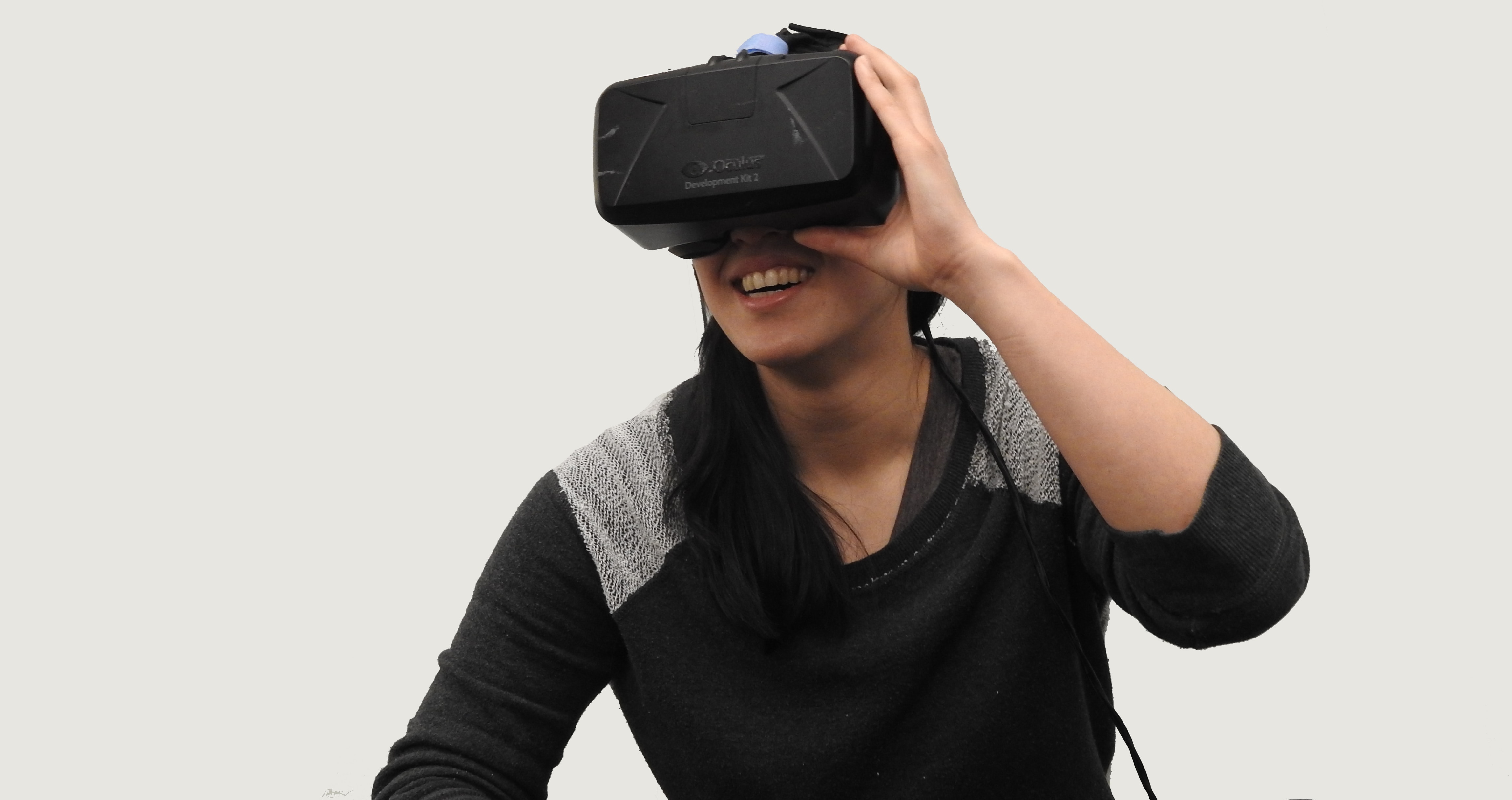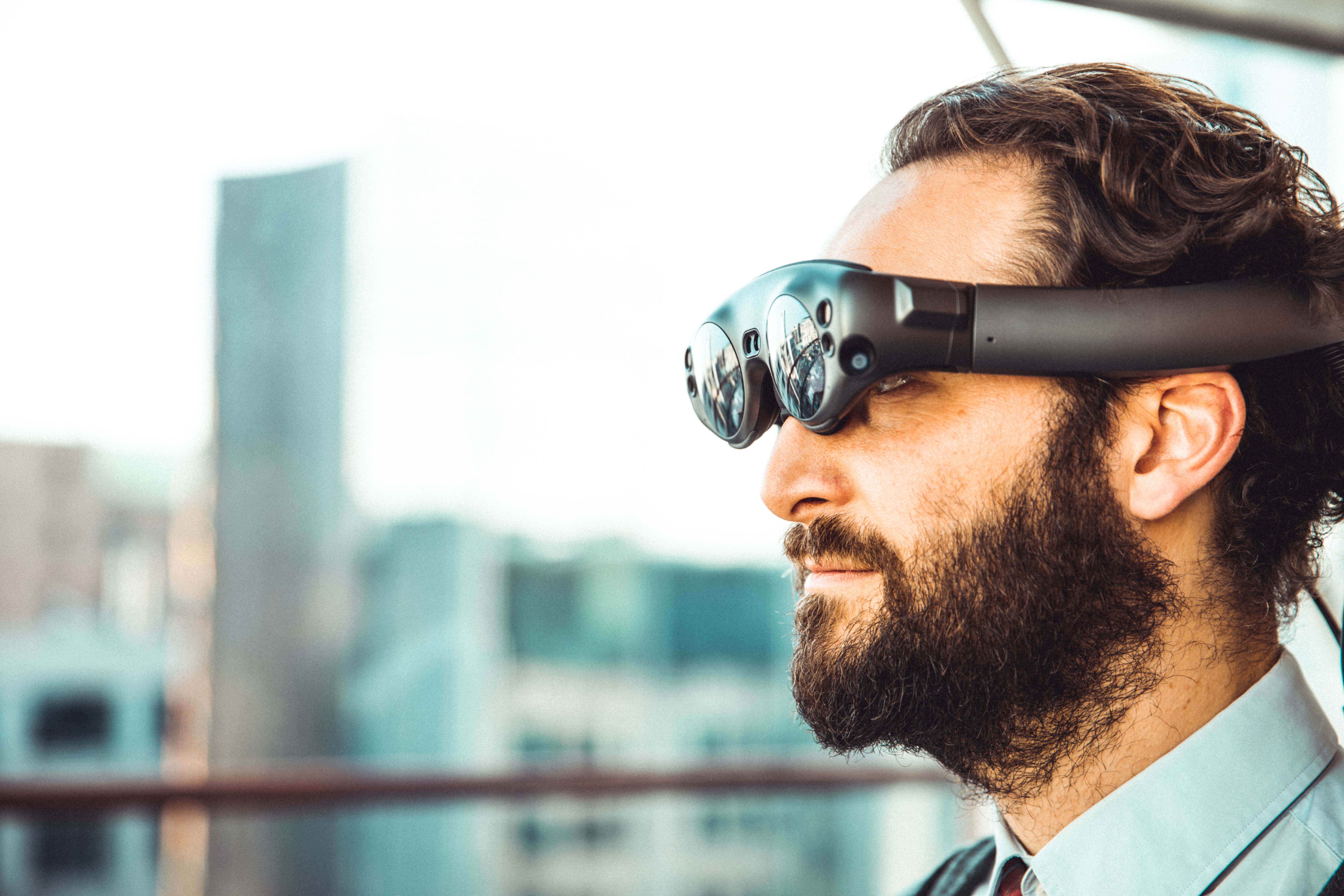
This direct method for how to launch Steam VR works for all compatible headsets, including HTC Vive, Oculus Rift, and Windows Mixed Reality devices, provided your system meets the minimum requirements and your graphics drivers are up to date.
Before You Launch Steam VR: System Prep
Checking your PC specs against minimum requirements and updating graphics drivers are essential first steps before attempting to launch Steam VR. Your computer must meet or exceed the following minimum specifications: Windows 7 SP1, 8.1, or 10; an Intel Core i5-4590 or AMD FX 8350 equivalent or better CPU; 4 GB of RAM; and an NVIDIA GeForce GTX 970 or AMD Radeon R9 290 equivalent or better graphics card. Outdated graphics drivers are a common cause of Steam VR launch failures, so visit your graphics card manufacturer's website and install the latest driver version for your specific model. Clear up disk space and defragment your hard drive to optimize loading times for VR games.
How to Install SteamVR Correctly
The verified method to install SteamVR from the Steam Library's Tools section replaces the inaccurate dropdown menu instruction found in older guides. Open Steam, navigate to the Library tab, and select Tools from the drop-down menu. Find SteamVR in the list, right-click it, and select Install Game or Install. Alternatively, if you connect your VR headset before SteamVR is installed, a popup may prompt you to install it automatically. Once installed, SteamVR will appear in your Steam library under the VR category.
How to Launch Steam VR: The Main Methods
There are two primary ways to start the software: clicking the VR button in the Steam client and pressing the system button on the headset. Alternatively, if Steam is open, pressing the system button on your VR headset will automatically launch SteamVR. Both methods activate your headset and open the SteamVR dashboard, where you can access your library of VR games and applications.
Setting Up Your Play Area and Hardware
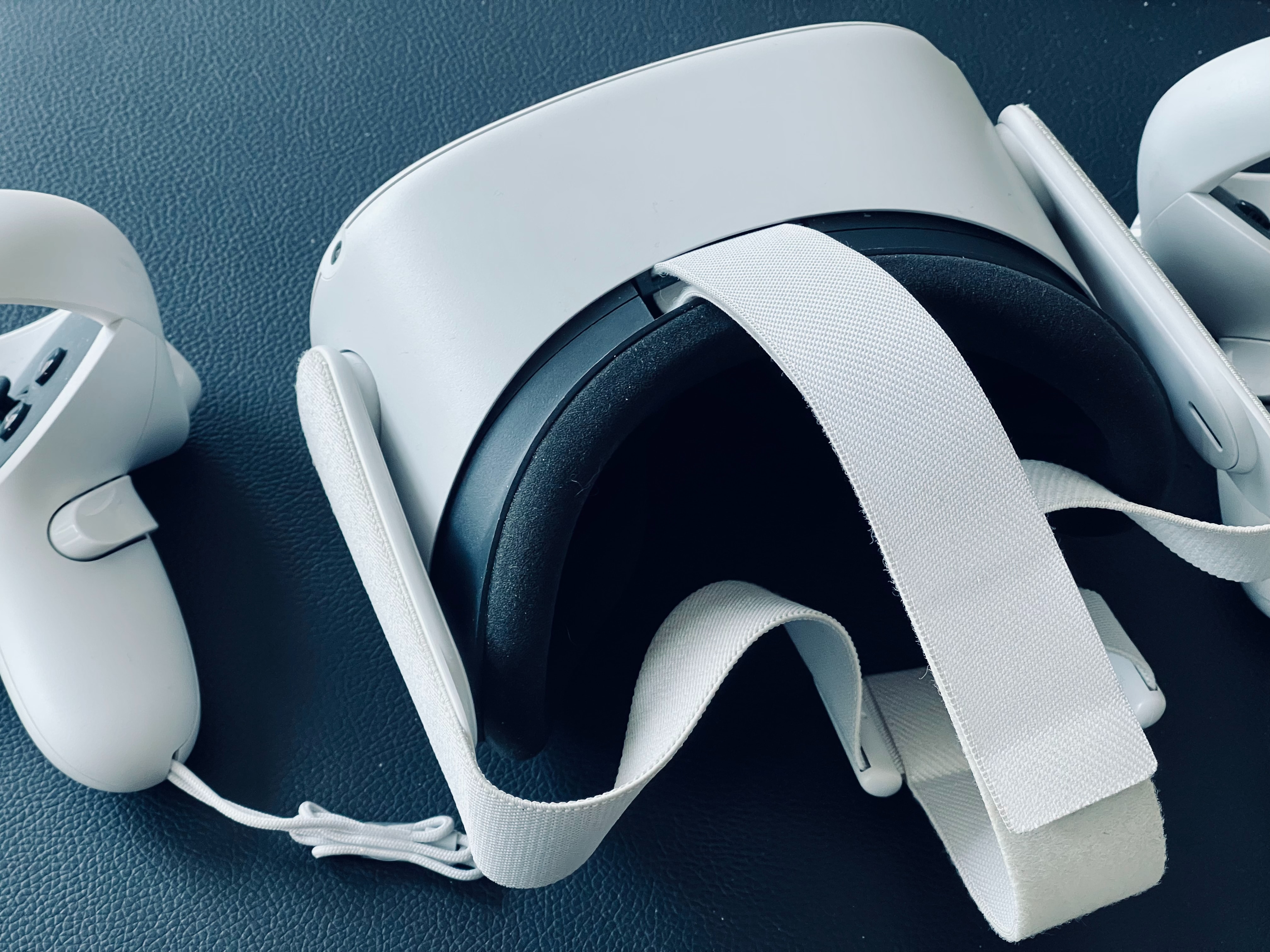
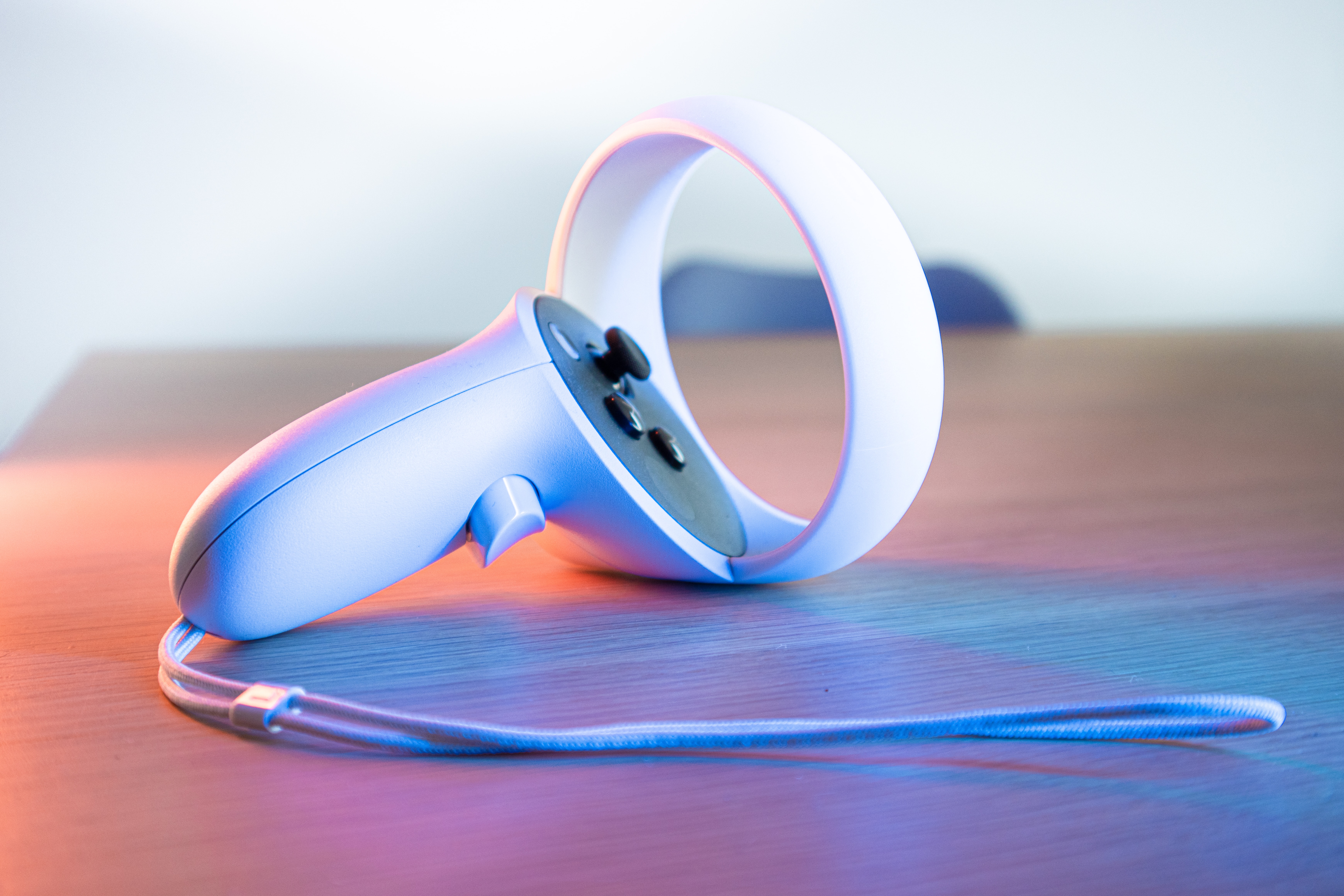
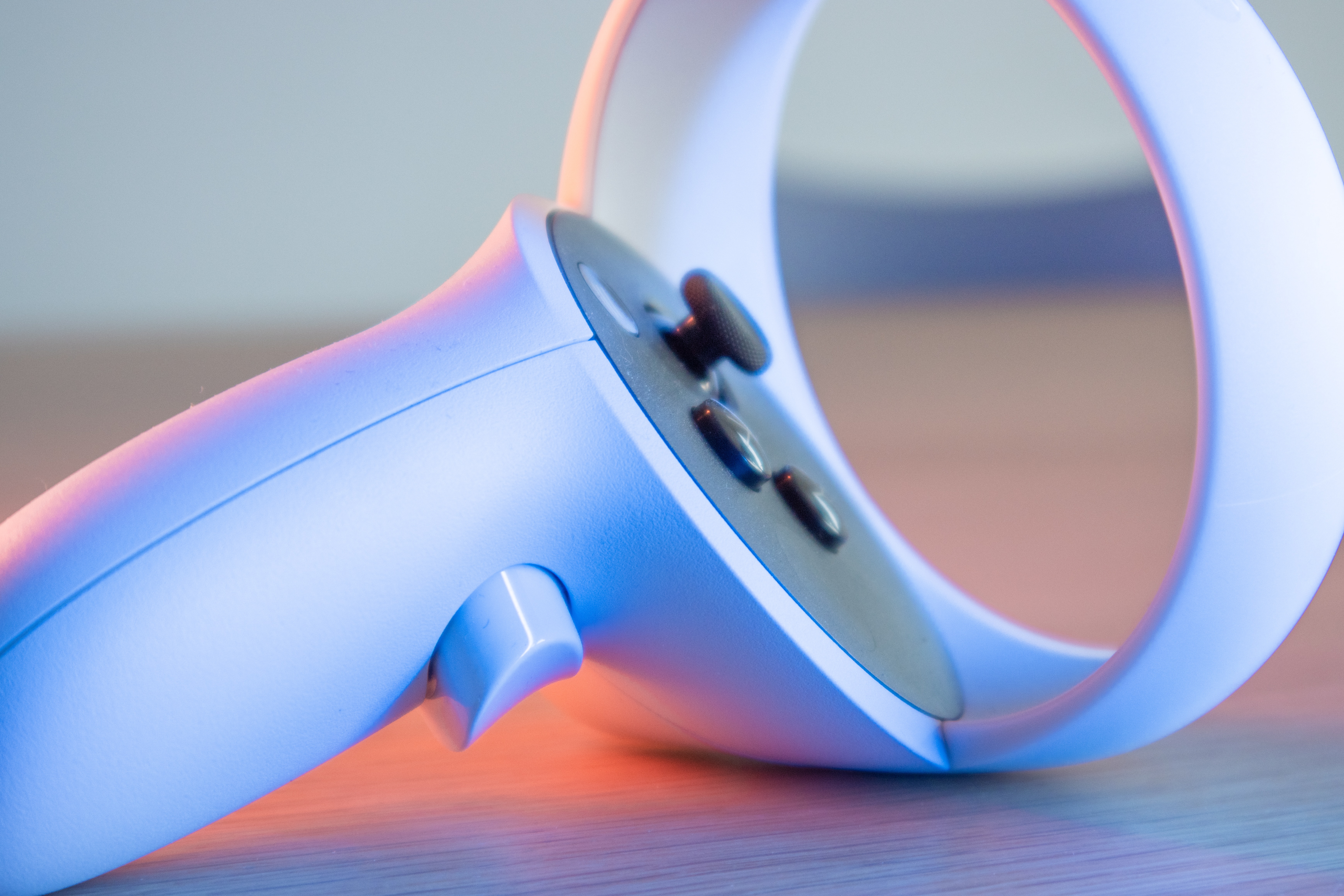
Connect your VR headset, controllers, and any necessary base stations or trackers to your PC, following the manufacturer's instructions for cable connections and sensor placement. Ensure your VR headset firmware is up to date to avoid compatibility issues. Ensure headset straps are properly adjusted for a secure and comfortable fit. Upon launching SteamVR for the first time, follow the on-screen Room Setup wizard to calibrate your hardware and define your play area. For Room Scale VR, a minimum play area of 2m x 1.5m (6.5ft x 5ft) is recommended, and it must be free of obstacles, stairs, or windows. The wizard will guide you through setting up the Chaperone system, which creates visible safety boundaries in VR to prevent you from bumping into walls or furniture. This setup also enables VR setup and TV casting, allowing you to mirror your VR view to a television or monitor so others can see what you experience.
Testing Your Setup and Fixing Launch Problems
After completing Room Setup, verify tracking and performance by moving your headset and controllers within the play area. Adjust the IPD (Interpupillary Distance) setting on your VR headset to match your eye distance if you experience discomfort. If SteamVR fails to start or becomes unresponsive, try these specific troubleshooting steps. First, verify the integrity of SteamVR tool files by right-clicking SteamVR in your Steam Library, selecting Properties, then Installed Files, and clicking Verify integrity of tool files. Second, running Steam as an administrator can resolve issues caused by insufficient permissions. Third, if SteamVR launches but behaves erratically, disable SteamVR add-ons one by one to identify conflicts that may be causing malfunctions. Keep your graphics drivers updated and ensure your PC still meets the minimum system requirements, as performance issues can also prevent successful launches.
Frequently Asked Questions
Can I use SteamVR with a Windows Mixed Reality headset?
Yes, Windows Mixed Reality for SteamVR allows you to run SteamVR experiences on Windows Mixed Reality headsets. However, note that Windows Mixed Reality is deprecated and will be removed in Windows 11, version 24H2, with existing devices supported through November 2026.
Do I need base stations for SteamVR?
Base stations are required for headsets like the HTC Vive and Valve Index, which use external sensors for tracking. Headsets like the Oculus Rift S and Windows Mixed Reality devices use inside-out tracking and do not require base stations.
Why is my SteamVR display showing a gray or black screen?
A gray or black screen in the headset usually indicates a tracking or connection issue. Check that your base stations are powered on and have a clear line of sight, and ensure all cables connecting your headset to the PC are securely plugged in.
Can I play SteamVR games without a VR headset?
No, SteamVR requires a compatible VR headset to function. You cannot launch or play SteamVR games using only a standard monitor and keyboard.
How do I update SteamVR?
SteamVR updates automatically through the Steam client when updates are available. You can also manually check for updates by right-clicking SteamVR in your Library, selecting Properties, then Updates, and ensuring automatic updates are enabled.
Related reading: How Much Is Hard Bullet VR and How Much Does Pavlov VR Cost.