






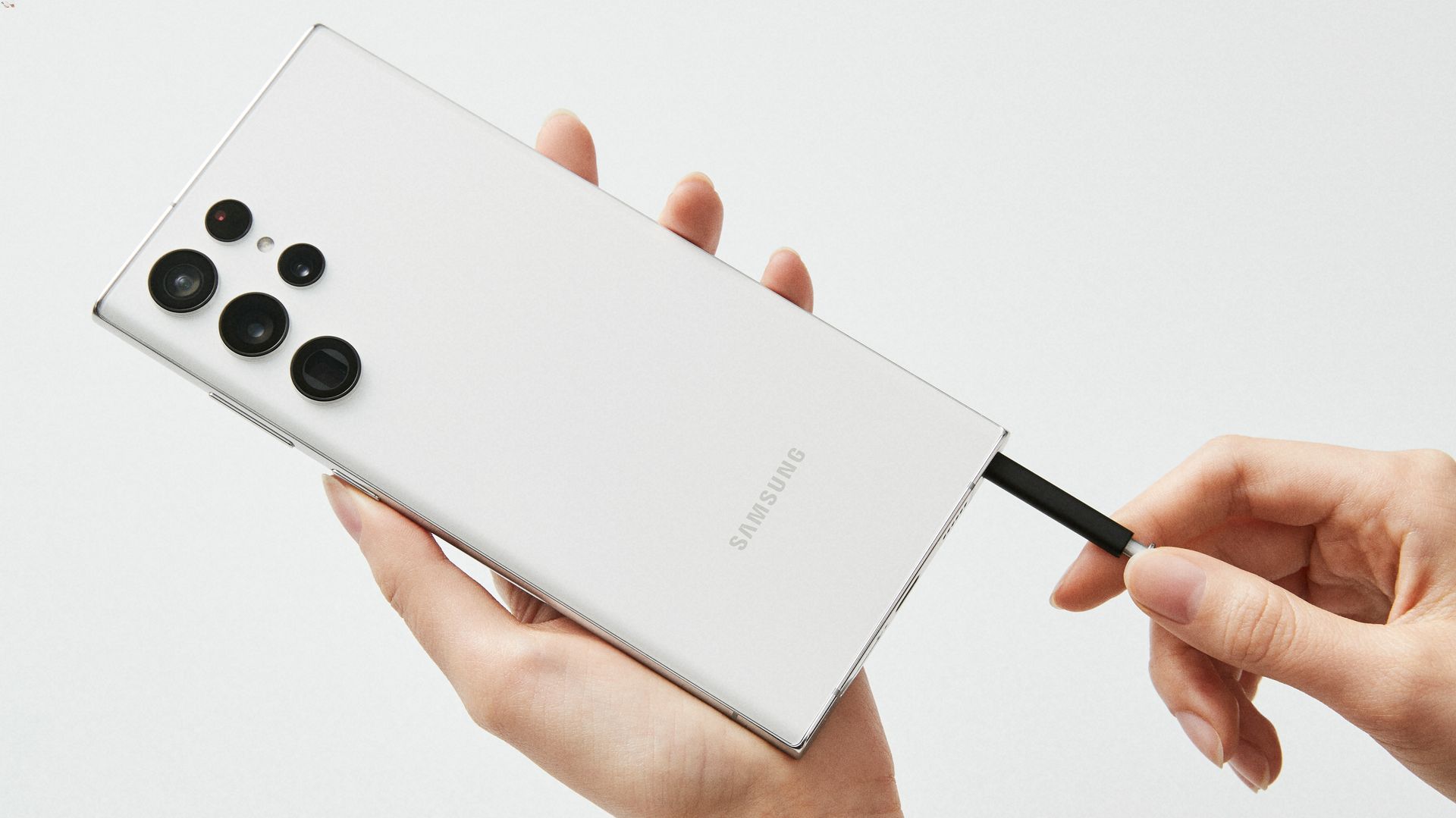
Only two types of Samsung phones have a stylus: the Galaxy Note series and the Galaxy S21 Ultra. The Galaxy Note series includes a built-in S Pen, while the Galaxy S21 Ultra supports an S Pen that is sold separately, making these the only Samsung phones with stylus support currently documented by Samsung.
Samsung phones with stylus: Galaxy Note series
The Galaxy Note line is the classic Samsung phone family with a built-in S Pen. Samsung’s compatibility overview groups Note devices under the series that support S Pen input, meaning the stylus is an integral part of the device experience. Stylus support varies by tablet line and model family, and it is not universal across all Galaxy Tab devices. Samsung’s compatibility overview shows Tab models as S Pen-compatible devices, but it also states that Tab A Series do not support S Pen. Popular models include the Galaxy Note 20, Galaxy Note 10, and Galaxy Note 9, each offering seamless integration for tasks like handwritten notes, drawing, and navigation. The S Pen’s pressure sensitivity and Air Actions, gesture controls, add precision for productivity and gaming.
Samsung Galaxy S21 Ultra: Optional S Pen support
The Galaxy S21 Ultra can be used with an S Pen, but it is optional, sold separately, and not included with the phone. Samsung’s support article lists these functions: handwritten notes in Samsung Notes, screenshots and GIFs with Smart select, and drawing on photos with AR Doodle. The S Pen is not compatible with any other models in the Galaxy S series besides the S21 Ultra. Unlike the Note series, the S21 Ultra lacks a built-in silo for the S Pen, so you must purchase the accessory separately to use it.
What the S Pen can do on these phones
On both the Galaxy Note series and the Galaxy S21 Ultra, the S Pen enables practical use cases that go beyond basic touch input. You can write handwritten notes in Samsung Notes, capture screenshots or create GIFs using Smart select, and draw directly on photos with AR Doodle. On Note models, Air Actions let you control apps with gestures, like waving the S Pen to switch camera modes or scroll through music tracks. These features make the S Pen a versatile tool for note-taking, creative work, and quick annotations.
For those new to the feature, stylus pen usage and basics involve simply removing the S Pen from its silo (on Note models) or pairing it via Bluetooth (on the S21 Ultra), then tapping the screen to start writing or selecting. No additional settings or app toggles are needed; the phone recognizes the S Pen automatically.
Frequently Asked Questions
Does the Galaxy S21 Ultra come with an S Pen?
No. Samsung says the S Pen is an optional accessory sold separately and is not included in the box with the Galaxy S21 Ultra.
Can the S21 Ultra use an old Note S Pen?
Yes. Samsung’s support page does not list a restriction to only one S Pen model, so an S Pen from a previous Galaxy Note device should work with the S21 Ultra.
Do Galaxy A series phones support an S Pen?
No. Samsung’s compatibility overview does not list Galaxy A52 or A72 phones as supported stylus models, and the S Pen is not compatible with those devices. No Samsung support page found here documents S Pen support for the Galaxy A52 or A72 series. The current Samsung support page retrieved for the S21 Ultra says the S Pen is not compatible with other Galaxy S models, and it does not mention A52 or A72 support.
Do I need to enable a setting to use the S Pen?
No. The S Pen works immediately when removed from its silo (on Note models) or paired via Bluetooth (on the S21 Ultra). No phone menu path, app toggle, or carrier setting is required.
Do all Galaxy Tab models support S Pen?
No. Samsung says Tab A Series do not support S Pen.

















