The best cellphone signal isn't tied to a single carrier; the documented truth is that no cellphone company is universally best, and signal quality depends entirely on your location and network conditions. The most reliable way to get a strong connection in weak areas is to use Wi‑Fi Calling, which routes your calls over the internet when cellular coverage is poor.
What gives you the best cellphone signal
Official documentation from Apple and Google Fi confirms that carrier signal varies by location, network technology, and whether you use cellular service or Wi‑Fi Calling. carriers by "best signal," and none gave a universal best-network verdict. The practical takeaway is that the most dependable solution in weak-signal areas is a carrier and device combination that supports Wi‑Fi Calling, with the exact setup path depending on whether you use an iPhone or an Android phone.
Apple states that Wi‑Fi Calling is used when an iPhone has a low cellular signal or little or no cellular coverage. Google Fi similarly says that if there is no coverage in your location, you can connect to Wi‑Fi and use Wi‑Fi calling if available. This means you don't have to switch carriers to fix a weak signal; you simply need to enable the feature your phone already supports.
How to turn on Wi‑Fi Calling on iPhone
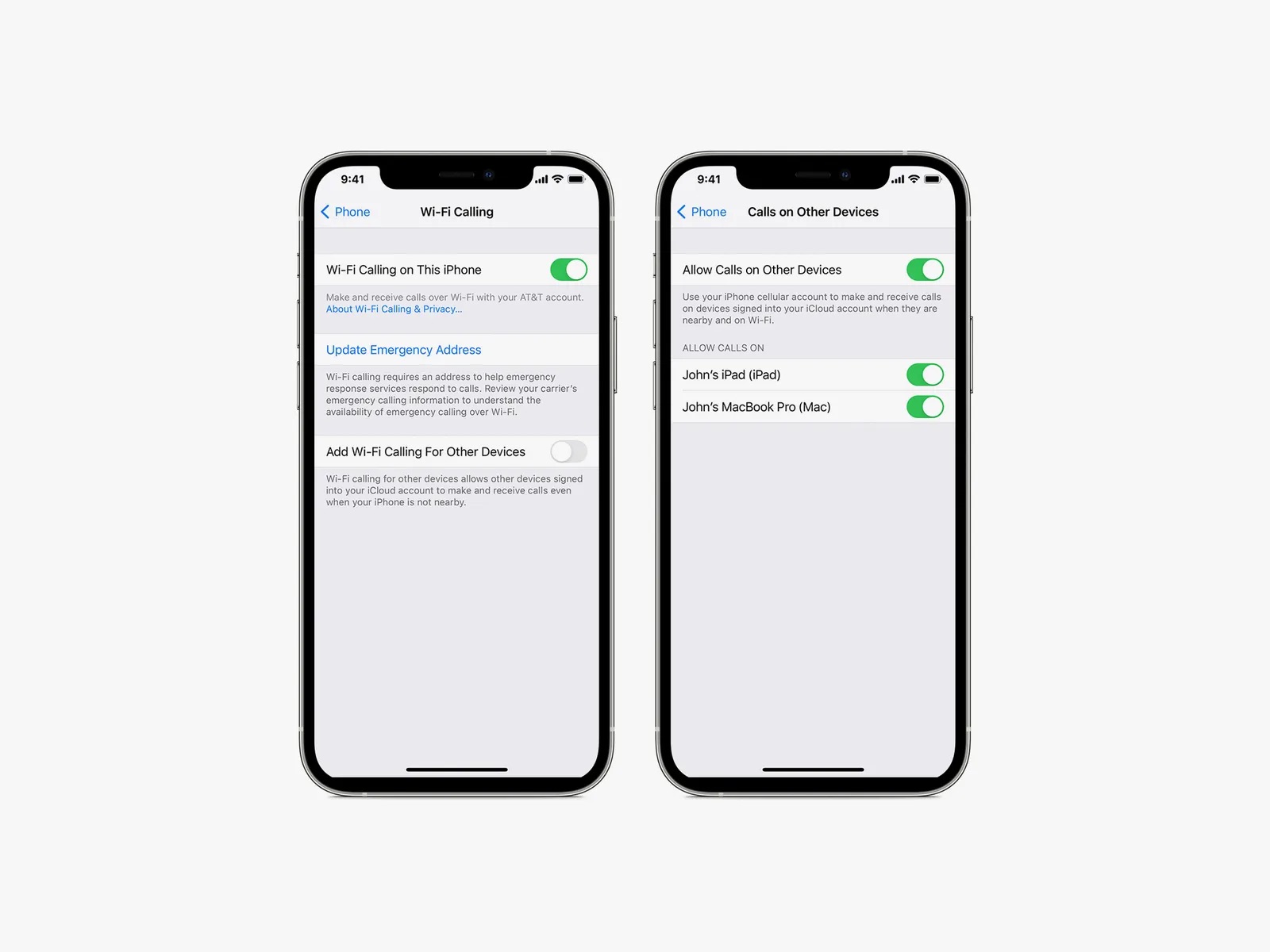
Apple documents this path: Settings > Cellular > Wi‑Fi Calling > Wi‑Fi Calling on This iPhone. Follow these steps exactly as provided in Apple's support pages:
- Open the Settings app.
- Tap Cellular.
- Tap Wi‑Fi Calling.
- Toggle Wi‑Fi Calling on This iPhone to the on position.
If your iPhone has Dual SIM or multiple SIMs, Apple says to choose the line you want to use before turning on Wi‑Fi Calling. After enabling the feature, you may need to tap Enable and enter or confirm your emergency services address. This address is used when you make emergency calls over Wi‑Fi, so it must be accurate.
Apple also documents that Wi‑Fi Calling requires iOS 9 or later for iPhone calling, and OS X 10.10 or later for other Apple devices on the same Apple ID. If you meet these requirements, the feature will appear in your settings.
How to turn on Wi‑Fi Calling on Android
Android devices offer two documented paths for enabling Wi‑Fi Calling, depending on the device manufacturer and software version. Google's Phone app help for Android shows this path: Phone app > More > Settings > Calls > Wi‑Fi calling. On some Android devices, the path is Settings > Network & internet > SIMs > Carrier SIM > Wi‑Fi calling.
For the Google Phone app, follow these steps:
- Open the Phone app.
- Tap More (the three-dot menu).
- Go to Settings.
- Tap Calls.
- Select Wi‑Fi calling and toggle it on.
On some Android devices, the path is different:
- Open Settings.
- Tap Network & internet.
- Tap SIMs.
- Select your Carrier SIM.
- Tap Wi‑Fi calling and enable it.
One important note from AT&T's Pixel support page: the device chooses Wi‑Fi or cellular based on which signal is stronger at the time. This means your Android phone will automatically switch to Wi‑Fi Calling when the cellular signal is weaker, and back to cellular when it is stronger, without any manual intervention.
How to test your Wi‑Fi Calling setup
Google Fi provides a documented method to verify that your Wi‑Fi Calling is working correctly. This test ensures you know whether your calls are actually routing over Wi‑Fi when cellular coverage is poor.
First, test your cellular calls with Wi‑Fi turned off. Make a call and confirm it connects normally through the cellular network. Then, turn on Airplane mode and connect to Wi‑Fi. Make another call; if it connects successfully, your Wi‑Fi Calling is working as intended. This two-step test confirms both your cellular and Wi‑Fi calling paths are functional.
Frequently Asked Questions
How do you check your current signal strength?
On both iPhone and Android, you can find signal strength indicators in the status bar, but for a more precise reading, open the settings menu. On iPhone, go to Settings > General > About, and on Android, go to Settings > About Phone > Status or Network. Some apps provide detailed signal measurements, but the built-in indicators are sufficient for most users.
What factors affect cellphone signal strength?
Distance from cell towers, physical barriers like buildings and terrain, weather conditions, and the type of device you use all affect signal strength. The quality of your carrier's network infrastructure and the number of users in your area also play a role. Older or damaged devices and wireless interference from other electronics can further weaken signals.
How can you improve cellphone signal at home?
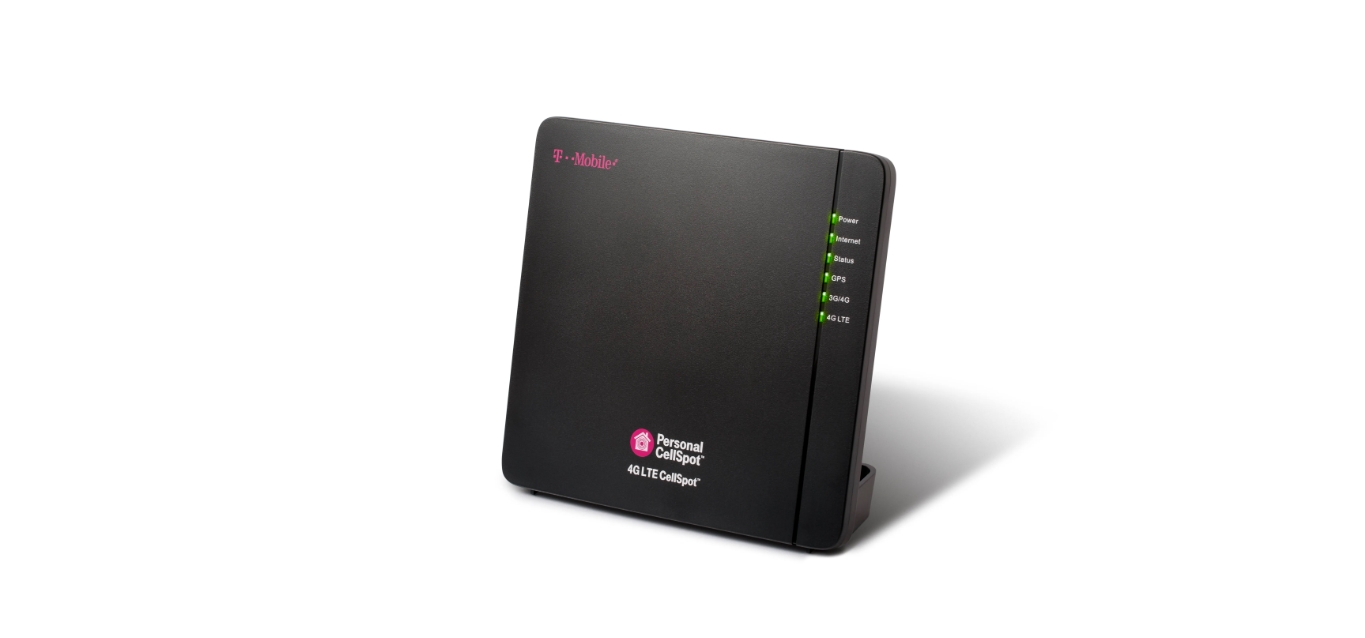
Besides enabling Wi‑Fi Calling, you can relocate your wireless router to a more central location or remove obstacles like metal objects and thick walls that block signals. Some carriers offer femtocell or microcell devices that create a mini cellular tower in your home. A signal booster or repeater can amplify the existing signal, but Wi‑Fi Calling is the most direct software solution.
Does the type of cellphone affect signal strength?
Yes, different devices have varying antenna designs and technologies that impact how effectively they receive and transmit signals. Newer smartphones generally have better signal reception capabilities than older models. However, carrier network and location play a larger role in determining signal strength than the specific phone model.
What is a cell phone signal booster and how does it work?
A cell phone signal booster captures the existing outdoor signal, amplifies it, and rebroadcasts it inside your home or vehicle. It requires an outside antenna, an amplifier, and an inside antenna to function. This is different from Wi‑Fi Calling, which uses your internet connection instead of the cellular network.
Does Wi‑Fi Calling work when cellular signal is weak?
Yes, Apple says Wi‑Fi Calling is specifically for low cellular signal or little or no cellular coverage, and Google Fi says it can be used when coverage is unavailable and Wi‑Fi is available. The feature automatically engages when your phone detects a weak cellular signal, provided your carrier and device support it. This makes it the most practical solution for staying connected in areas with poor coverage.
For the wider topic, see boosting mobile signal.
Related reading: How To Boost T-Mobile Signal.