Practical guides for anyone who wants to use a wireless keyboard with a device other than a standard computer. This section is built for phone users, console gamers, and smart TV owners who need to type comfortably on their screens, whether for messaging, browsing, or entering login details. The articles here focus on making connections happen, solving the common frustration of pairing a peripheral with a non-PC device.
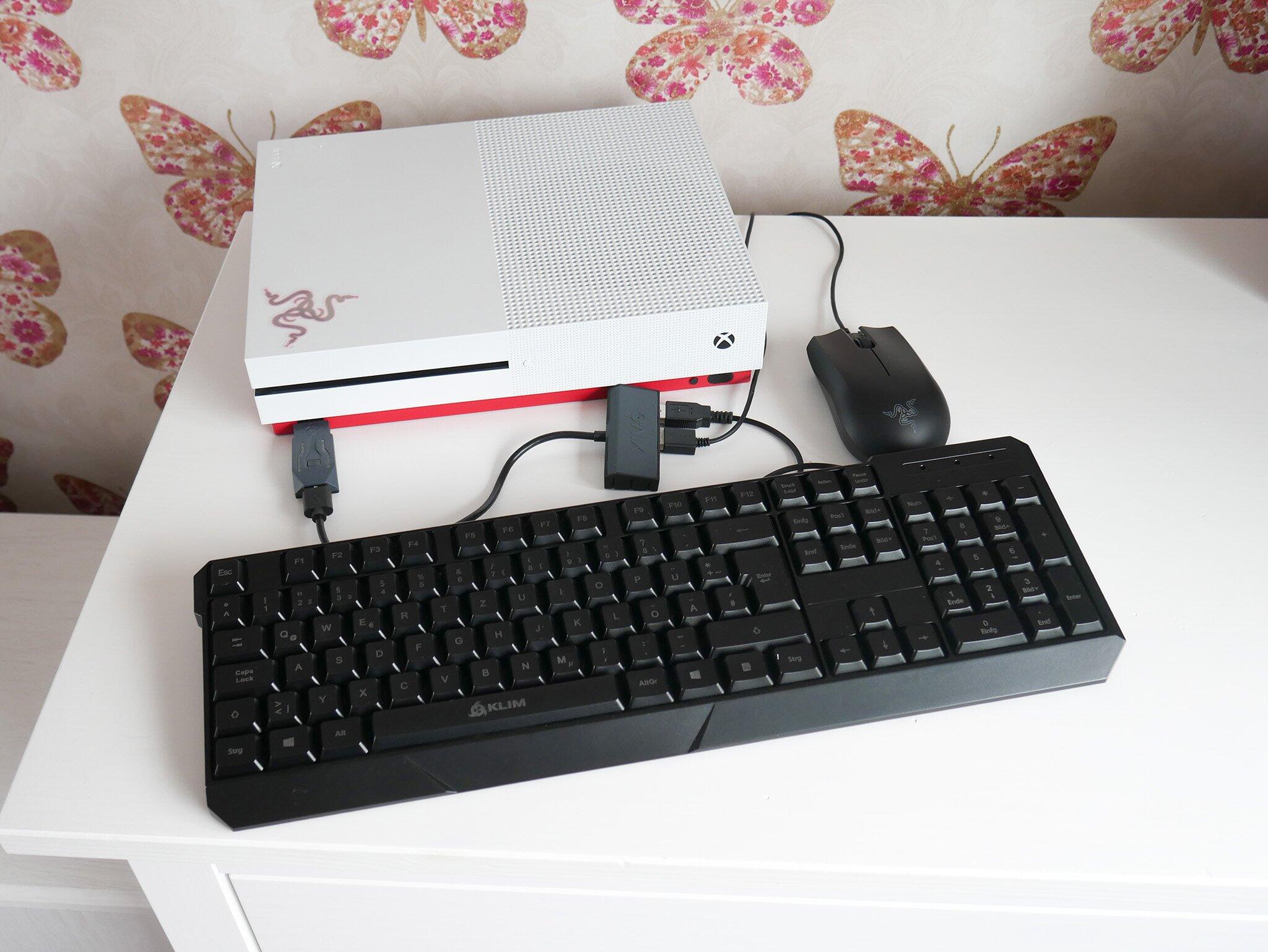
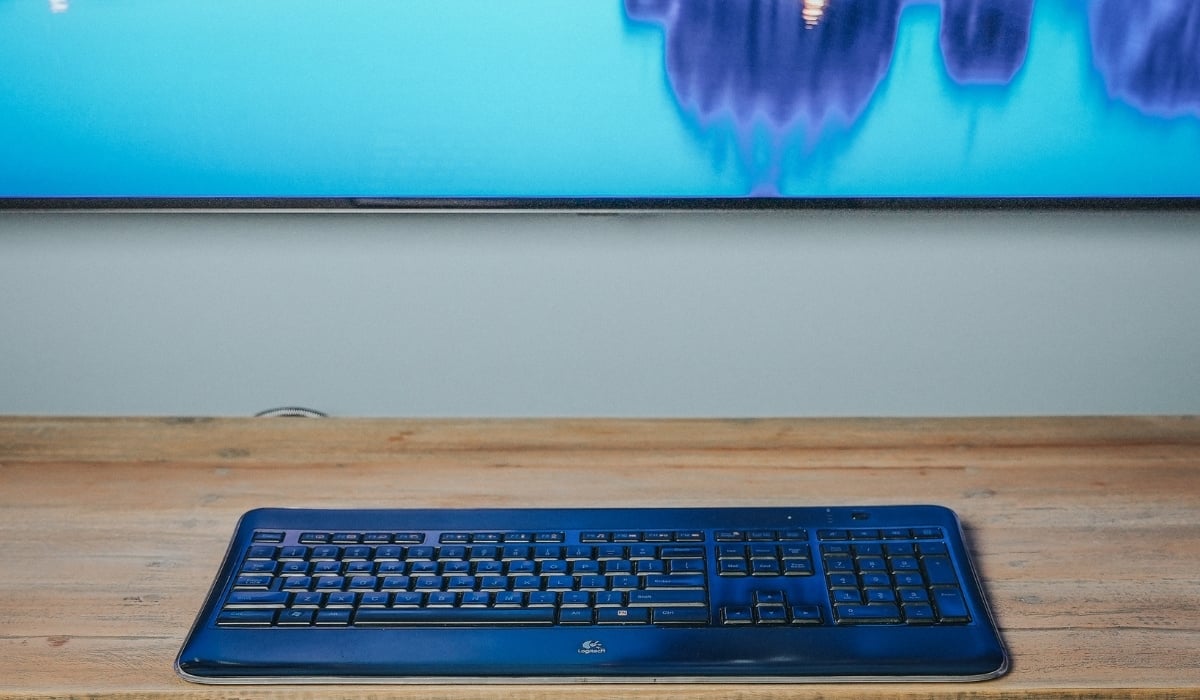
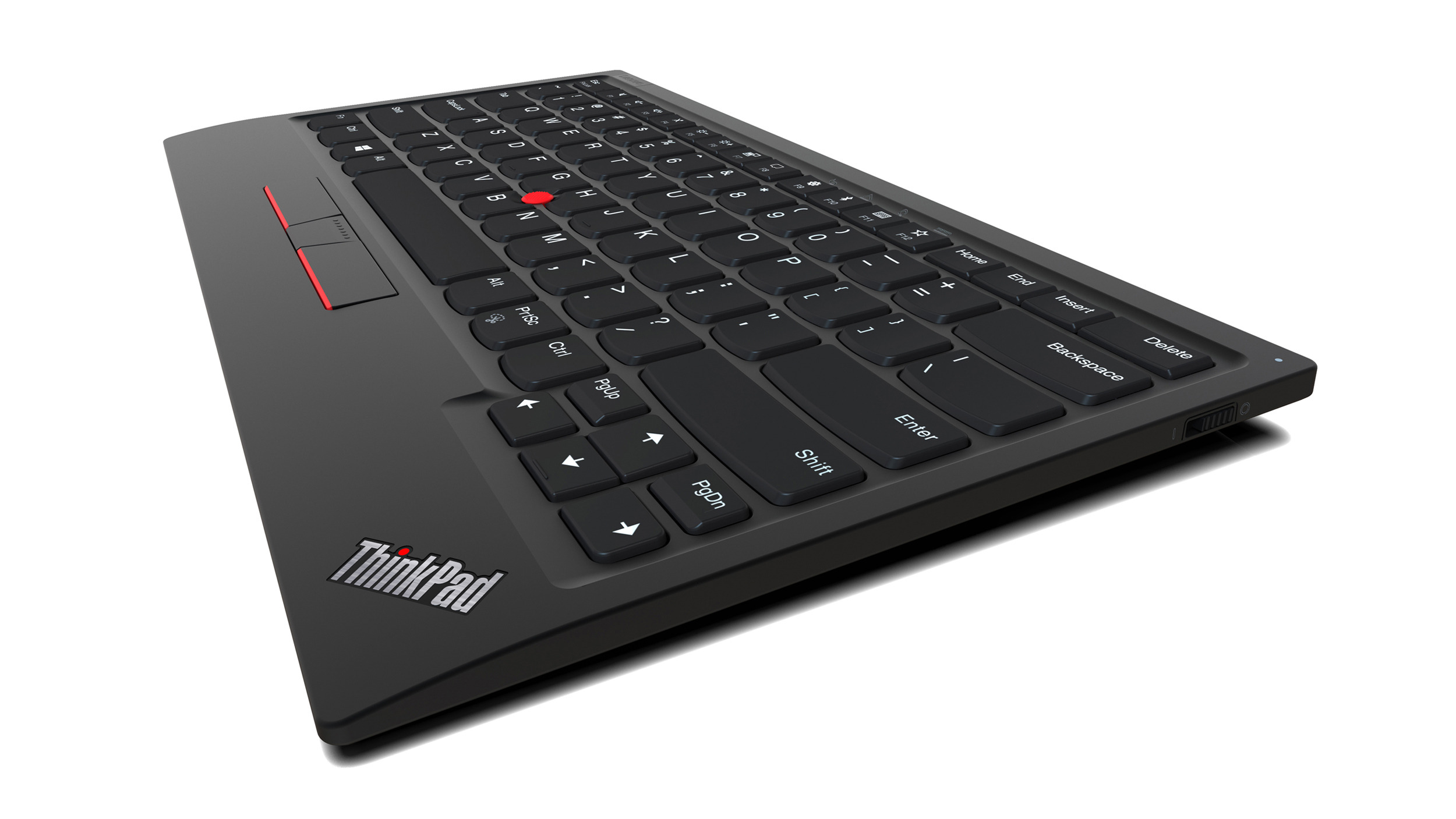
The problems these articles solve fall into two clear themes: connecting to gaming consoles and pairing with smart TVs. For console owners, you will find step-by-step instructions for linking a wireless keyboard to both a PlayStation 4 and an Xbox, helping you chat in games or navigate menus faster. For TV users, the guide on connecting a wireless keyboard to a Samsung TV shows how to turn your television into a more productive display for web searches or app inputs. A third, smaller theme covers basic device setup, such as how to turn on a Lenovo wireless keyboard when the power switch or pairing button is not obvious.
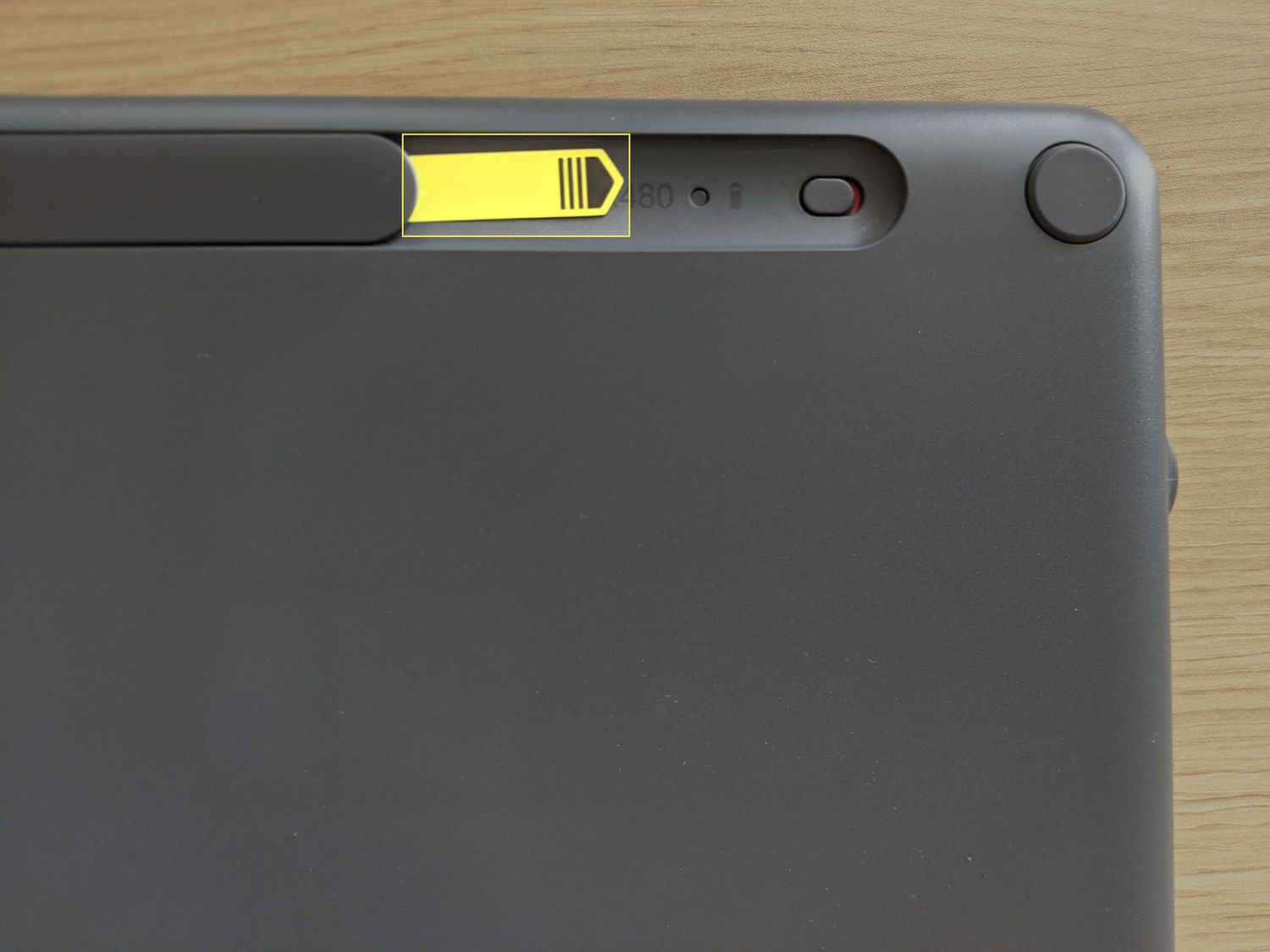
Specific topics include the Logitech Wireless Keyboard K540 connection process, which addresses a popular model’s pairing quirks, and the Lenovo keyboard power-on procedure. Each article helps the reader do one thing: establish a working link between their keyboard and a specific device, so they can stop hunting for settings and start typing.