Hue is the color attribute that distinguishes red, green, blue, and other color families, separate from a color's brightness or saturation. If you are searching for "what is hue" because you want to adjust the color on your Samsung Galaxy phone, the setting you need is not literally named "Hue" but is instead found under Screen mode in your display settings.
What is hue?
Hue is the basic color family or tint of a color, what makes red look red and blue look blue. It is distinct from brightness (how light or dark a color appears) and saturation (how intense or muted it is). Primary hues (red, yellow, blue) cannot be created by mixing other colors; they are the basis from which all other colors are achieved. Mixing primary hues creates secondary hues (e.g., red + yellow = orange, yellow + blue = green). Tertiary hues are created by combining a primary hue with a secondary hue. Warm hues like red and orange can signify energy and excitement; cool hues like blue and green can invoke calmness and trust. Cultural and personal experiences can influence how hues are interpreted; a positive hue in one culture could have a negative connotation in another. In practical terms, when you want to change the overall color tone of your phone's display, you are adjusting controls related to hue, even though Samsung does not label any setting with that exact word.
Where is the hue setting on a Samsung Galaxy phone?
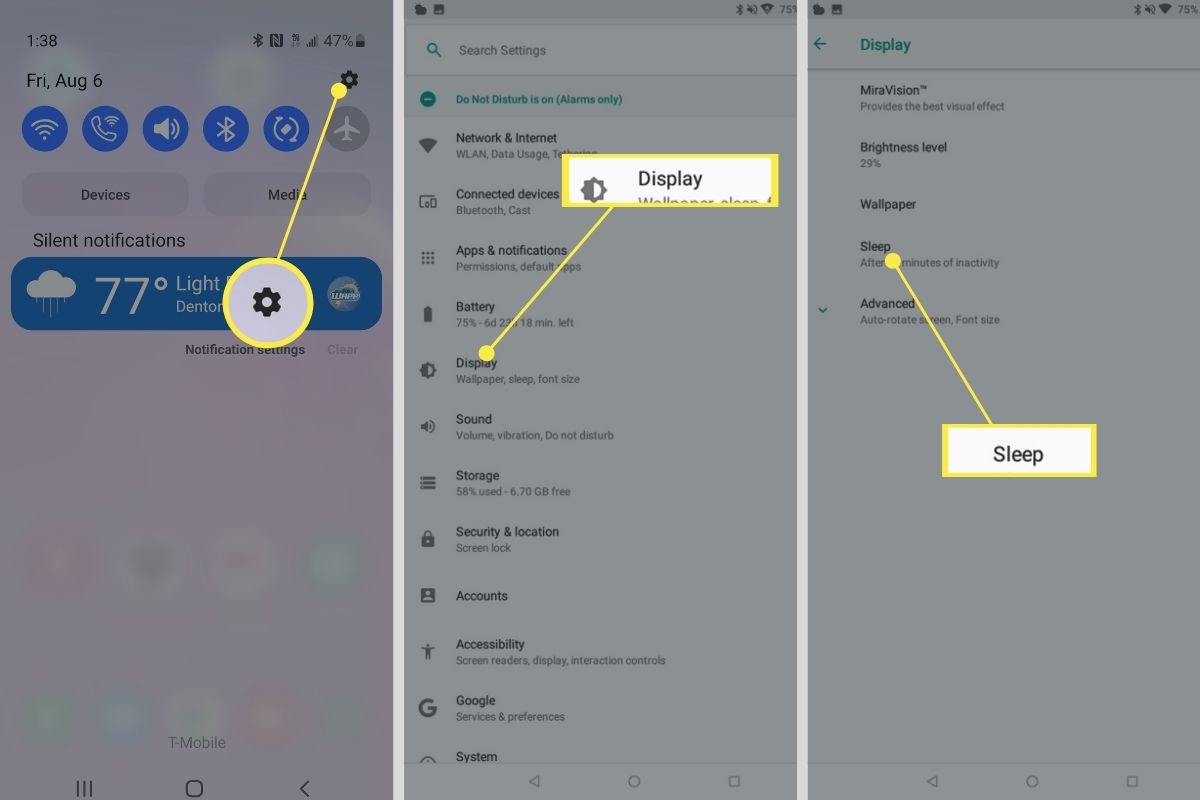
Samsung Galaxy phones do not include a setting literally named "Hue." Instead, the documented path for adjusting display color is Settings > Display > Screen mode. This is where you will find all the controls that affect the color balance and tone of your screen.
How to adjust display colors using Screen mode
- Open Settings on your Samsung Galaxy phone.
- Tap Display.
- Select Screen mode.
- Choose either Vivid or Natural.
- If you selected Vivid, you can move the White balance slider to make the display cooler (more blue) or warmer (more yellow).
The White balance slider is only available when Vivid mode is active. Natural mode provides a more accurate, calibrated color profile without this adjustment.
Fine-tuning color with advanced RGB settings
For more precise control over hue, Samsung documents Advanced settings under Screen mode. Once you are in Screen mode, tap Advanced settings to access individual R (red), G (green), and B (blue) sliders. Adjusting these sliders lets you fine-tune the color balance beyond what the White balance slider offers, giving you direct control over the hue mix of your display.
What to expect across different Galaxy models
The exact wording and screenshots for these settings vary by country page and language. For wireless audio connections, the same display settings apply regardless of whether you use headphones or speakers.
Frequently Asked Questions
What is the difference between hue and saturation?
Hue is the pure color family (like red or blue), while saturation refers to the intensity or purity of that hue. A highly saturated red looks vivid and strong, while a desaturated red appears grayish or washed out.
Can I adjust hue on an iPhone or other Android phone?
No Apple or Google support page retrieved documents a system setting named "Hue" for display color adjustment on iPhones or standard Android phones.
Why does my Samsung Galaxy not show a White balance slider?
The White balance slider appears only when Vivid mode is selected under Screen mode. If you are in Natural mode, the slider is not available because Natural mode locks the display to a calibrated color profile.
Will adjusting RGB sliders affect battery life?
These settings change how colors are rendered on the screen, but they do not alter the display's power consumption in a documented way.
Do these settings apply to all apps and videos?
Yes, the Screen mode and White balance settings affect the entire display, including apps, videos, and photos. However, some apps or video players may have their own color adjustments that override the system settings.
Related reading: What Is A Handheld?, How To Zoom On Samsung Phone, and How To Make Phone Brighter.