






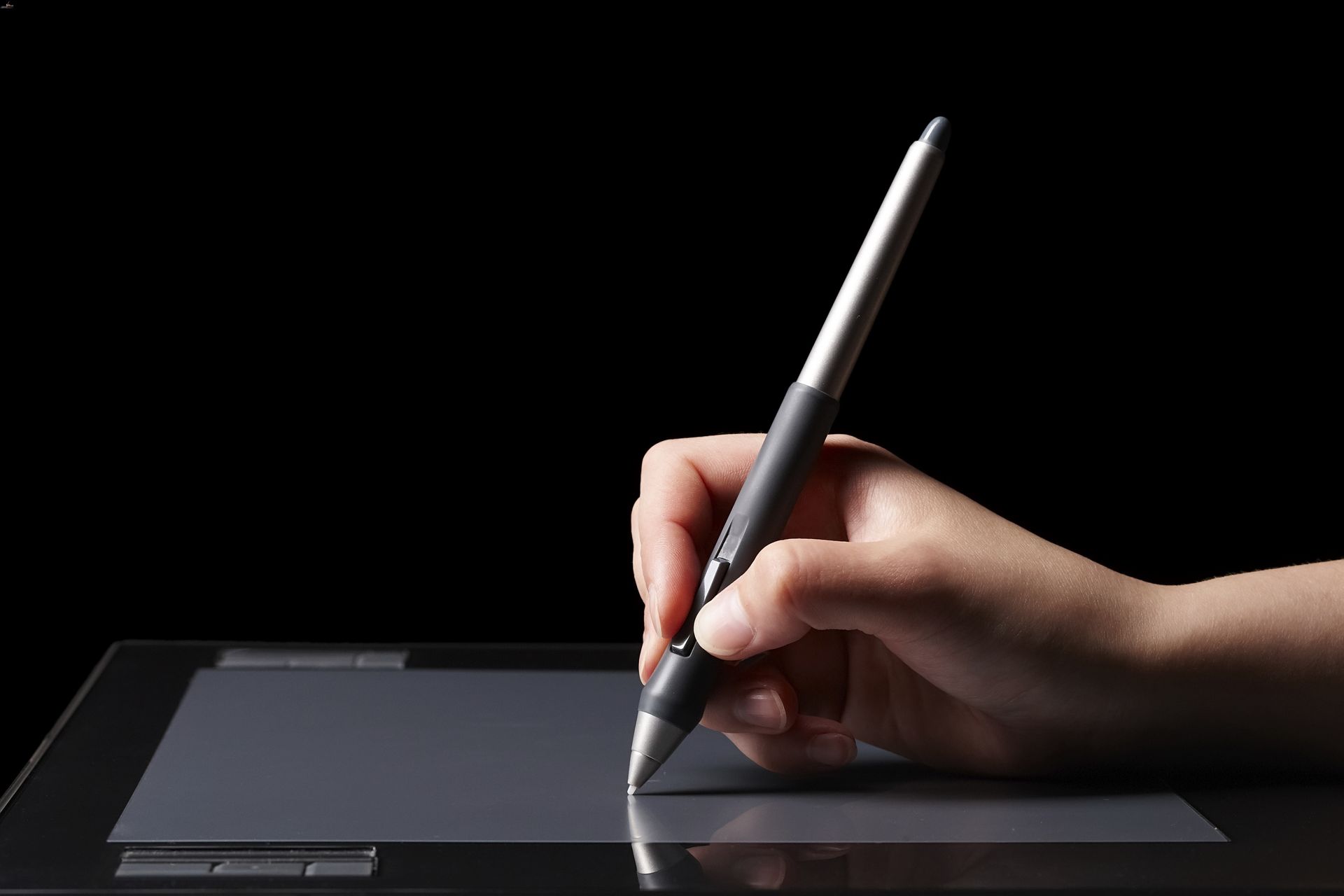
Using a stylus pen correctly starts with a proper grip and, for active pens, a one-time setup. Mastering how to use a stylus pen involves holding it like a regular pen with a relaxed grip and, if your stylus is active, pairing it with your device to unlock features like pressure sensitivity and palm rejection.
Setting up an active stylus pen
Active styluses often require charging and pairing via Bluetooth to enable features like pressure sensitivity and palm rejection. Some stylus pens come with extra features, such as programmable buttons or shortcuts. To pair a Microsoft Surface Pen, go to Start, then Settings, then Bluetooth and devices, select Add device, and choose Bluetooth. Press and hold the pen's top button for 5-7 seconds until the LED flashes white, then select it from the device list. Samsung S Pens typically pair and charge automatically by placing them in the designated magnetic spot on the back of a compatible Galaxy tablet. The top button on a Surface Pen can be configured for shortcuts, such as a single click to open OneNote, a double-click for screen capture, and a press-and-hold for Sticky Notes. These settings are adjusted in the Bluetooth and devices menu after pairing.
Proper grip and hand positioning
Hold the stylus pen like a pen, gripping it between your thumb and index finger while your other fingers rest comfortably on the barrel. Maintain a relaxed grip to avoid hand fatigue and allow for easy movement. Rest your palm lightly on the screen for stability and support, which also helps with palm rejection on compatible devices. Experiment with the angle of the stylus to find what feels most natural, whether slightly tilted or more vertical, and practice smooth, controlled movements rather than quick, jerky motions for better precision.
Navigating and writing on the screen
Start with a clean, smudge-free screen by wiping it with a soft cloth. Use light pressure when writing or drawing, as a gentle touch is sufficient for accurate input and prevents screen damage. For precise tasks like writing or sketching, use the finer tip of the stylus; for navigating and scrolling, you can use the broader end if your stylus has one. Rubber tips provide better precision and accuracy, while mesh tips offer a smoother gliding experience. Disc tips are ideal for drawing or sketching with greater precision. Some touchscreen devices allow you to adjust the sensitivity of the stylus input. Some touchscreen devices have on-screen markers or indicators that guide you when using a stylus. Practice smooth, deliberate movements to improve control and accuracy. Many apps are optimized for stylus input, so exploring those can enhance your experience. This is where understanding stylus pen usage and basics pays off, as consistent practice with light pressure and proper angle leads to the best results.
Maintaining your stylus pen
Clean the tip of your stylus regularly with a soft, lint-free cloth to remove dirt and debris that can affect performance. Avoid using abrasive materials or harsh chemicals that may damage the surface of the stylus when cleaning. Avoid exposing the stylus to extreme temperatures, as heat or cold can damage internal components. Protect the pen from drops and impacts by storing it in a dedicated pouch or case when not in use, and consider using a protective cap or cover for the tip. If you notice any signs of damage, such as a loose or wobbly tip, consider replacing it to maintain optimal performance. If your stylus uses a replaceable battery, check its power level periodically and replace it with a high-quality battery to avoid leakage. For active styluses, check the manufacturer's website for firmware updates to maintain compatibility and performance.
Frequently Asked Questions
Can I use any stylus pen on any device?
Not all styluses work with every device. Passive styluses work on any capacitive touchscreen, but active styluses require specific compatibility with your device's digitizer, such as Microsoft Surface or Samsung Galaxy tablets. Always check the manufacturer's specifications before purchasing.
Why is my stylus pen not working on my screen?
If your stylus is not responding, first ensure it is charged and paired if it is an active stylus. Clean the tip and the screen, as dirt can interfere. For passive styluses, verify that the tip is not damaged and that your screen is a capacitive touchscreen.
Do I need to calibrate my stylus pen?
Most modern devices do not require manual calibration for stylus use. However, some operating systems offer pen calibration settings in the device's pen or input settings menu, which can help if you notice offset between the tip and the on-screen cursor.
How do I replace the tip of my stylus pen?
Many stylus pens come with replacement tips. To replace one, gently pull the old tip straight out using your fingers or a small tool, then insert the new tip by pressing it firmly into the barrel until it is secure. Check your stylus manual for tip compatibility.

















