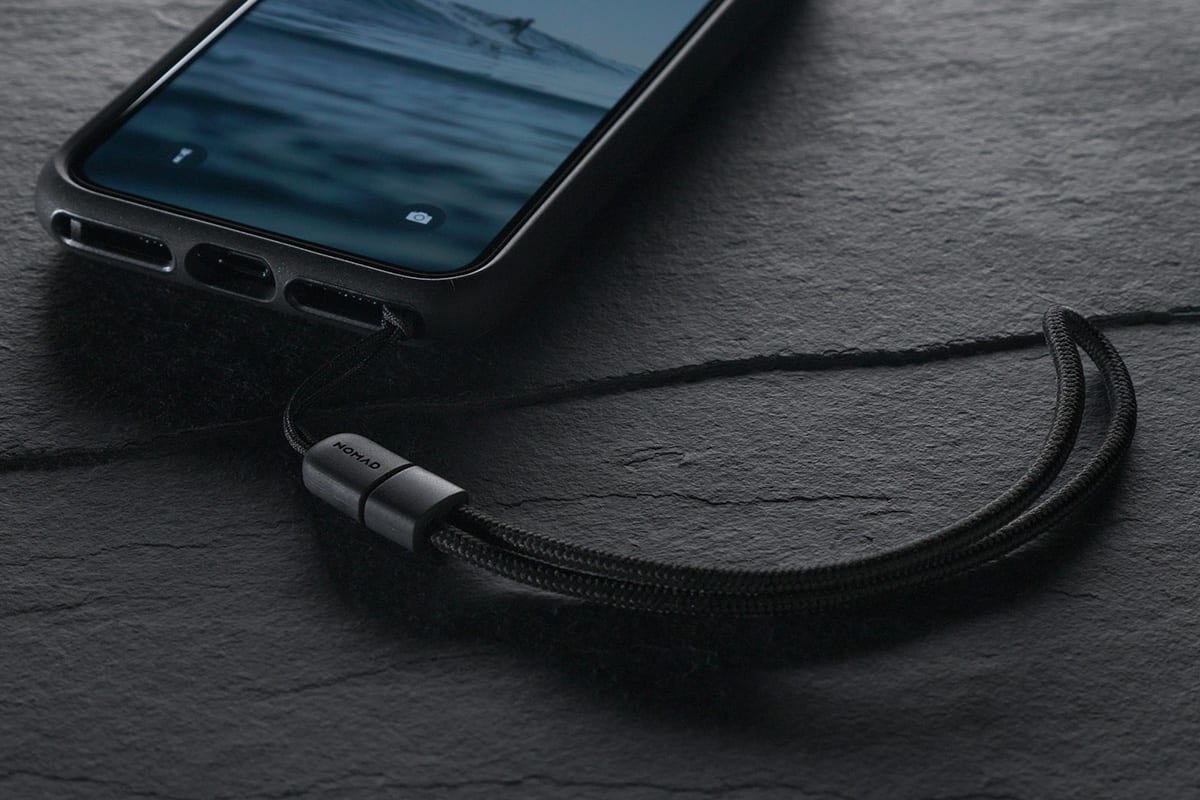
To attach a wrist strap to a phone case securely, you need to use the manufacturer-documented cord-and-ring method, which works with cases that have built-in openings at the bottom corners. Whether you are using an Apple case with the official Wrist Strap or a compatible third-party option, the core principle is the same: thread the connector through the case, lock it with the metal ring, and snap the strap into place.
How to attach a wrist strap to a phone case the secure way
There are two main types of phone cases when it comes to wrist strap attachment: those with built-in openings designed for a connector cord, and those without any dedicated attachment points. For cases with built-in openings, the manufacturer-documented method is the only reliable way to ensure a secure fit. Apple, for example, documents this exact process for its own cases, and the same connector method works for both the Wrist Strap and the Crossbody Strap.
What you need before you start
Before you begin, gather only the essential items. You will need a compatible phone case that has small openings on the bottom corners, the wrist strap itself which includes its connector cord and metal ring, and your phone. You do not need any adhesive, tools, or additional hardware for this method. The entire process relies on the physical design of the case and the strap’s connector components.
Step 1: Remove the case and thread the connector
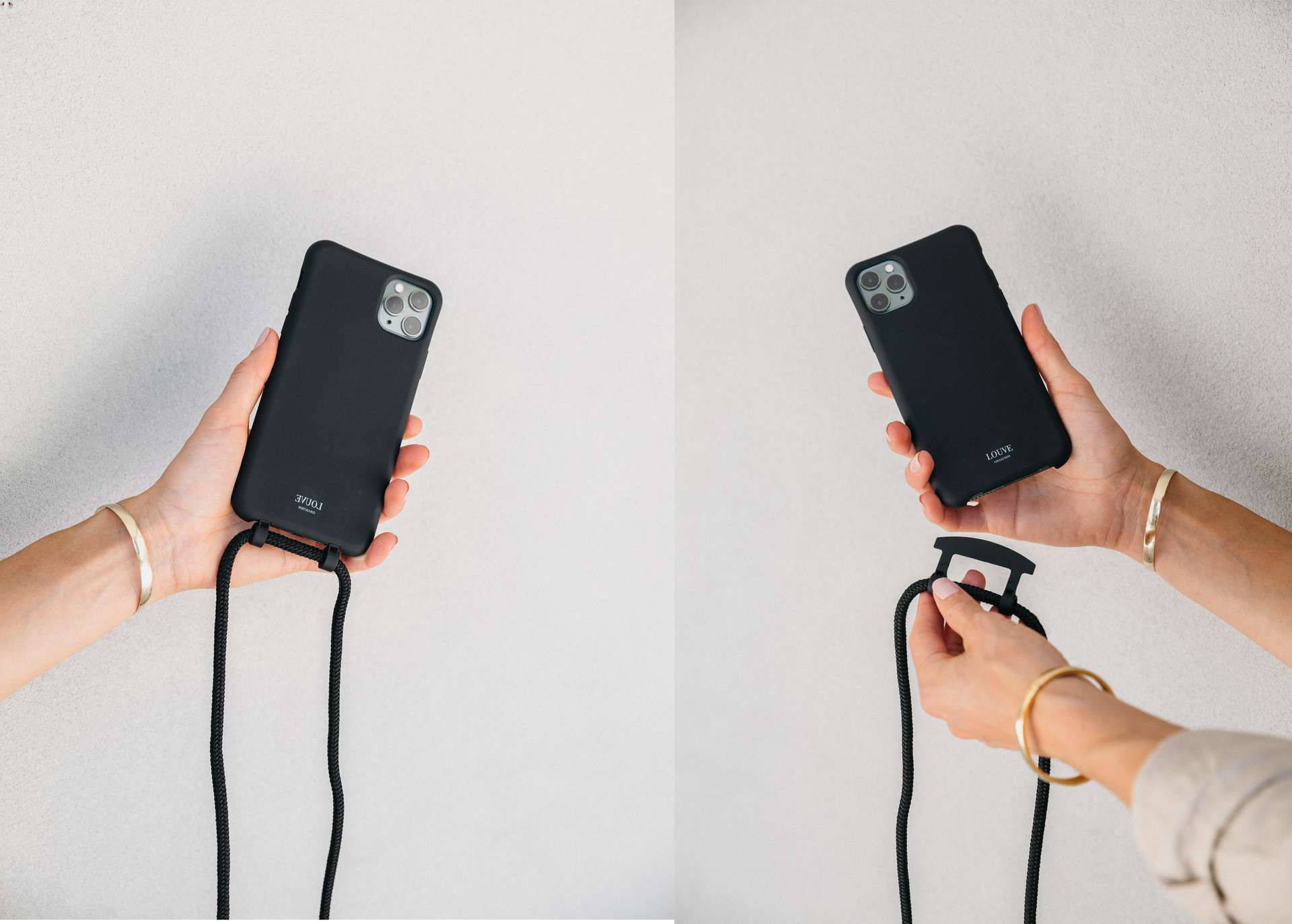
The first step is to take the case off your phone. This is important because you need full access to the inside and outside of the case to thread the connector properly. With the case removed, locate the small openings on the bottom corners. Take the connector cord loop and thread it from the outside of the case through one opening, then through the second hole. This creates a loop on the inside of the case that will hold the metal ring.
Step 2: Lock the connector with the metal ring
Once the connector cord loop is threaded through both openings, take the metal ring and slip it through the exposed loop of cord. Then, pull the ring gently to tighten the loop and lock the connector securely against the case. This step is critical because the metal ring is what keeps the connector from pulling back out through the openings. Make sure the ring is seated firmly against the case before moving on.
Step 3: Attach the wrist strap to the ring
Now that the connector is locked in place, you can attach the wrist strap itself. Take the short end of the strap and loop it through the metal ring. Then, place the long end of the strap inside the snap closure. Align the short end on top of the long end, and press the layers together until they snap shut. This creates a secure loop that connects the strap to the ring, and the snap closure ensures the strap stays attached during use.
Step 4: Reattach the case and check security
Before putting the case back on your phone, double-check that the connector is locked securely in place. The manufacturer documentation specifically says to make sure the connectors are securely attached before reattaching the case. Once you have confirmed this, snap the case back onto your phone. Finally, give the strap a firm tug to test that everything is secure. This final check ensures that the strap will hold your phone if you ever lose your grip.
What if my case doesn't have built-in openings?
If your phone case does not have built-in openings for a wrist strap, the verified method above will not work. The documented process from Apple applies only to select iPhone cases and AirPods Pro cases, with the openings on the bottom corners for iPhone and on the side for AirPods Pro. Apple documents wrist-strap attachment only for its own cases. For cases without these openings, your best option is to purchase a case that has dedicated strap openings, or use a third-party adapter system that attaches to the case. Avoid adhesive-only solutions, as they are not reliable enough to hold your phone securely and can fail when you need them most. If you are dealing with a case that has no attachment points, you may also want to consider professional services like Popsocket installation and repair for alternative grip solutions, but for a wrist strap, a compatible case is the only safe choice.
Tips for long-lasting use
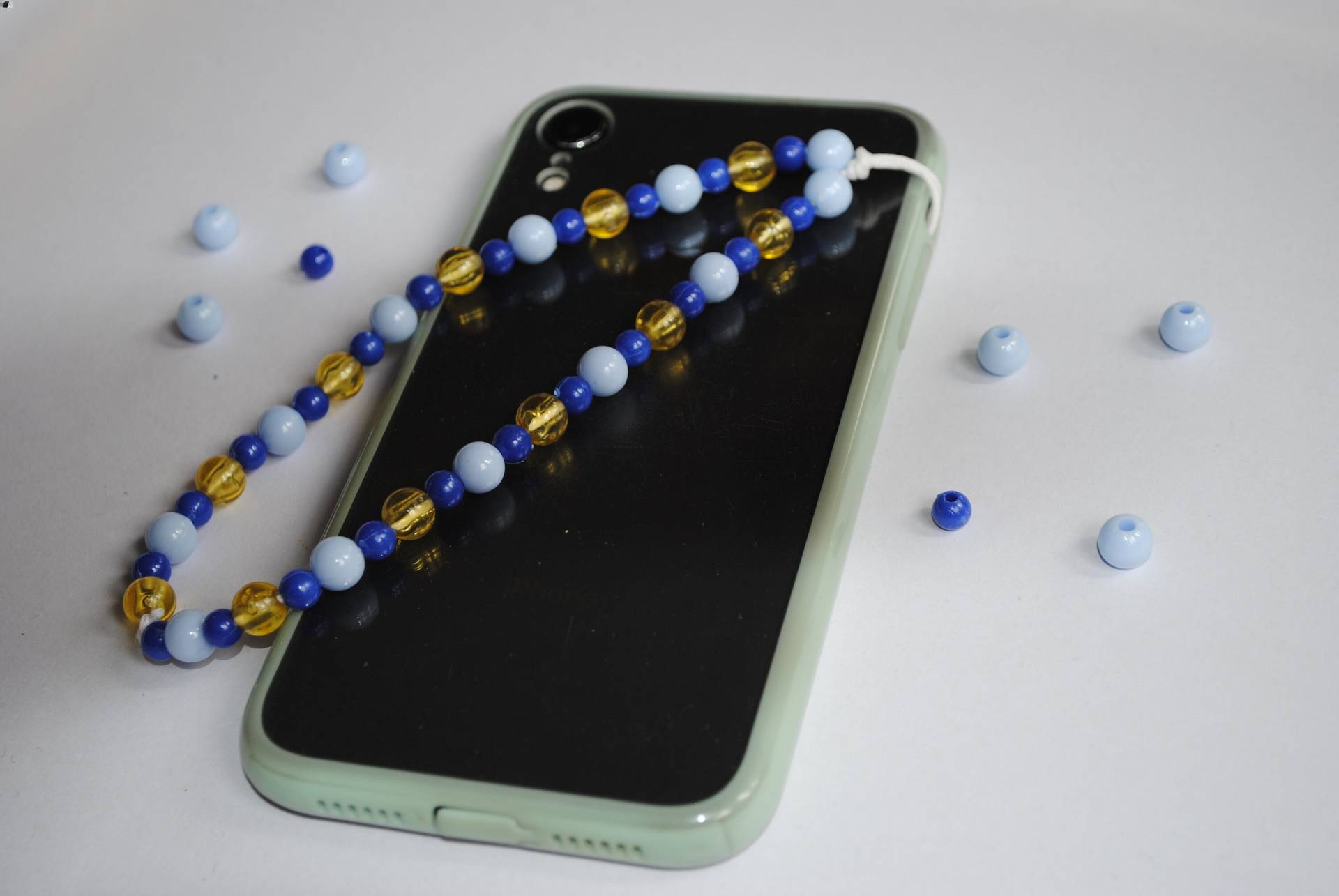
To get the most out of your wrist strap, choose a durable strap made from high-quality materials that can withstand daily wear. Regularly check the connector cord, metal ring, and snap closure for signs of wear and tear, and replace any component that looks frayed or weakened. Keep the strap clean by wiping it down occasionally, as dirt and grime can degrade the material over time. By maintaining your strap and its attachments, you can rely on it to protect your phone for a long time.
Frequently Asked Questions
Can I use a wrist strap with any phone case?
No, the secure connector method only works with cases that have built-in openings designed for a strap. Cases without these openings will require a different solution, such as a third-party adapter or a case with dedicated attachment points.
Is the wrist strap attachment the same for Android phones?
The documented process from Apple applies only to its own cases and does not cover Android-specific steps. However, the same general principle of threading a connector through a case opening and locking it with a ring applies to any case that has compatible attachment points.
How do I know if my case has the right openings?
Look for small holes or slots on the bottom corners of your case. These are the designated attachment points for the connector cord. If your case does not have these openings, it is not compatible with the secure cord-and-ring method. The support page does not list a menu path, app setting, or carrier setting because this is a physical accessory attachment, not a software feature.
What should I do if the strap feels loose after attachment?
If the strap feels loose, remove the case and check that the connector cord is threaded through both openings and that the metal ring is fully seated. Reattach the strap and ensure the snap closure is pressed together firmly until it clicks.
Related reading: How To Attach A Phone Strap and How Do Cell Phone Charms Attach.