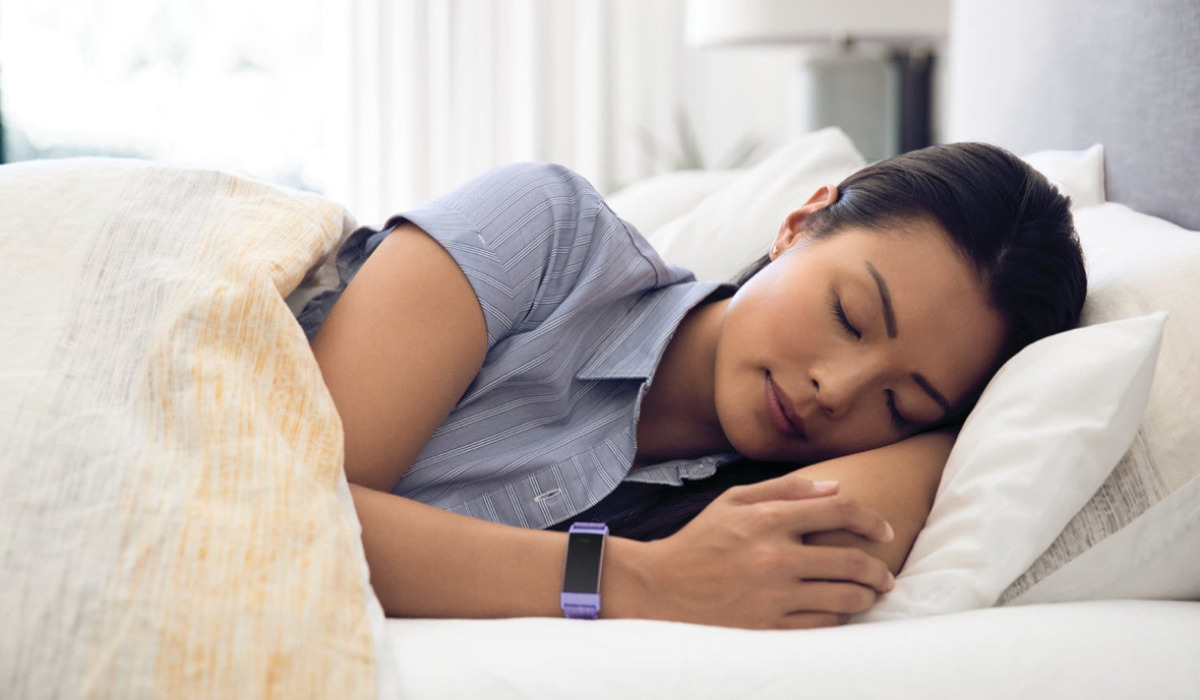
Fitbit sleep mode is a quiet mode that dims the display and suppresses alerts so the device is less likely to disturb your sleep. It is not the same as sleep tracking; sleep mode controls the device’s behavior while you sleep, while sleep tracking records your sleep data automatically.
What is Fitbit sleep mode?
Fitbit sleep mode is a setting that makes your Fitbit device less intrusive during bedtime. When activated, it dims the screen, stops notifications from vibrating or lighting up the display, and prevents the screen from waking when you turn your wrist. This ensures the device does not disturb your sleep, while still allowing it to continue recording your sleep data. It is important to understand that sleep mode is separate from sleep tracking, the device tracks your sleep automatically whenever you wear it to bed, regardless of whether sleep mode is on.
Key features of sleep mode
- Notifications do not vibrate the tracker or turn on the screen when sleep mode is on.
- Screen brightness is set to dim.
- Wrist turns do not wake the screen while sleep mode is on.
- Sleep mode does not automatically turn off unless a sleep schedule is set.
- Sleep mode cannot be used at the same time as Do Not Disturb.
These features help you understand the full range of Fitbit features and metrics available for a restful night.
How to activate sleep mode on Fitbit
The steps to turn on sleep mode depend on your Fitbit device’s interface. Follow the path that matches your device:
- Open the Settings app on your Fitbit device.
- Tap Sleep Mode, then tap Schedule to turn it on.
- Tap Sleep Interval and set the start and stop times for your sleep schedule.
On some newer Fitbit interfaces, the path is slightly different:
- Open Settings, then tap Quiet modes.
- Under Sleep mode, tap Schedule mode and then Off-hours to set your start and stop times.
To adjust the schedule, tap the start or stop time, then swipe up or down to change the time, and tap the time to select it.
The official help page states these Sleep Mode steps apply to Fitbit devices that use the Settings app path and to devices that use Quiet modes. The behavior is available on devices such as Charge 4, Charge 5, Inspire 2, and other Fitbit trackers with Sleep Mode support. A separate manual for older Fitbit devices shows a different sleep-recording flow: press and hold the device button for 2+ seconds to enter sleep mode, then press and hold again to exit.
How the sleep mode schedule works
When you set a schedule, sleep mode turns on automatically at the scheduled start time and turns off automatically at the scheduled end time. If you manually turn on sleep mode outside of the schedule, it will still turn off at the scheduled end time. Without a schedule, sleep mode stays on until you turn it off manually. If scheduled, it turns off automatically at the scheduled end time even if it was turned on manually.
Does sleep mode stop sleep tracking?
No. Sleep mode does not stop or change sleep tracking. Your Fitbit device continues to record your sleep automatically while you wear it, including sleep duration, sleep stages, and other sleep data. Sleep mode only affects the device’s display and alerts, not its ability to track your sleep. Sleep sensitivity can be set to Normal or Sensitive in Fitbit account settings for some models.
Frequently Asked Questions
Does sleep mode turn off by itself?
Only if a schedule is set. With a schedule, sleep mode turns off automatically at the scheduled end time. Without a schedule, it stays on until you turn it off manually.
Can sleep mode and Do Not Disturb be used together?
No. Sleep mode and Do Not Disturb cannot be used at the same time on Fitbit devices.
Does sleep mode save battery?
Sleep mode can help conserve battery by dimming the screen and preventing unnecessary vibrations and screen wake-ups during sleep, though its primary purpose is to avoid disturbing your rest.
For the wider topic, see Fitbit features and metrics.