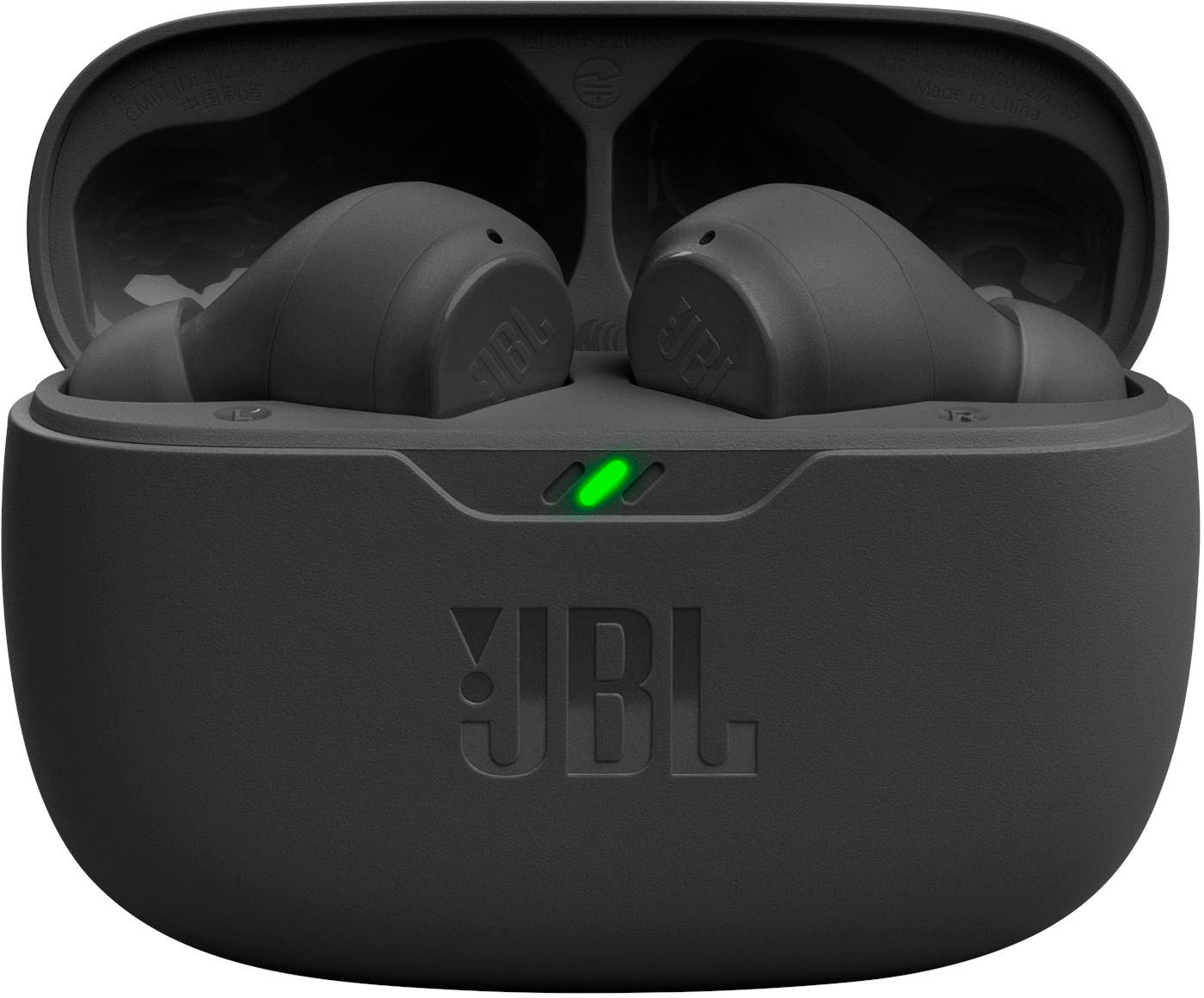
To connect JBL wireless earphones, you simply need to put the earphones into Bluetooth pairing mode and then select them from your device's Bluetooth menu. The exact process varies slightly by model, but the core steps remain the same across all JBL wireless earbuds and headphones. Below, we provide detailed instructions for pairing with phones, computers, and TVs, along with troubleshooting tips for common connection problems.
How to put JBL earphones in pairing mode
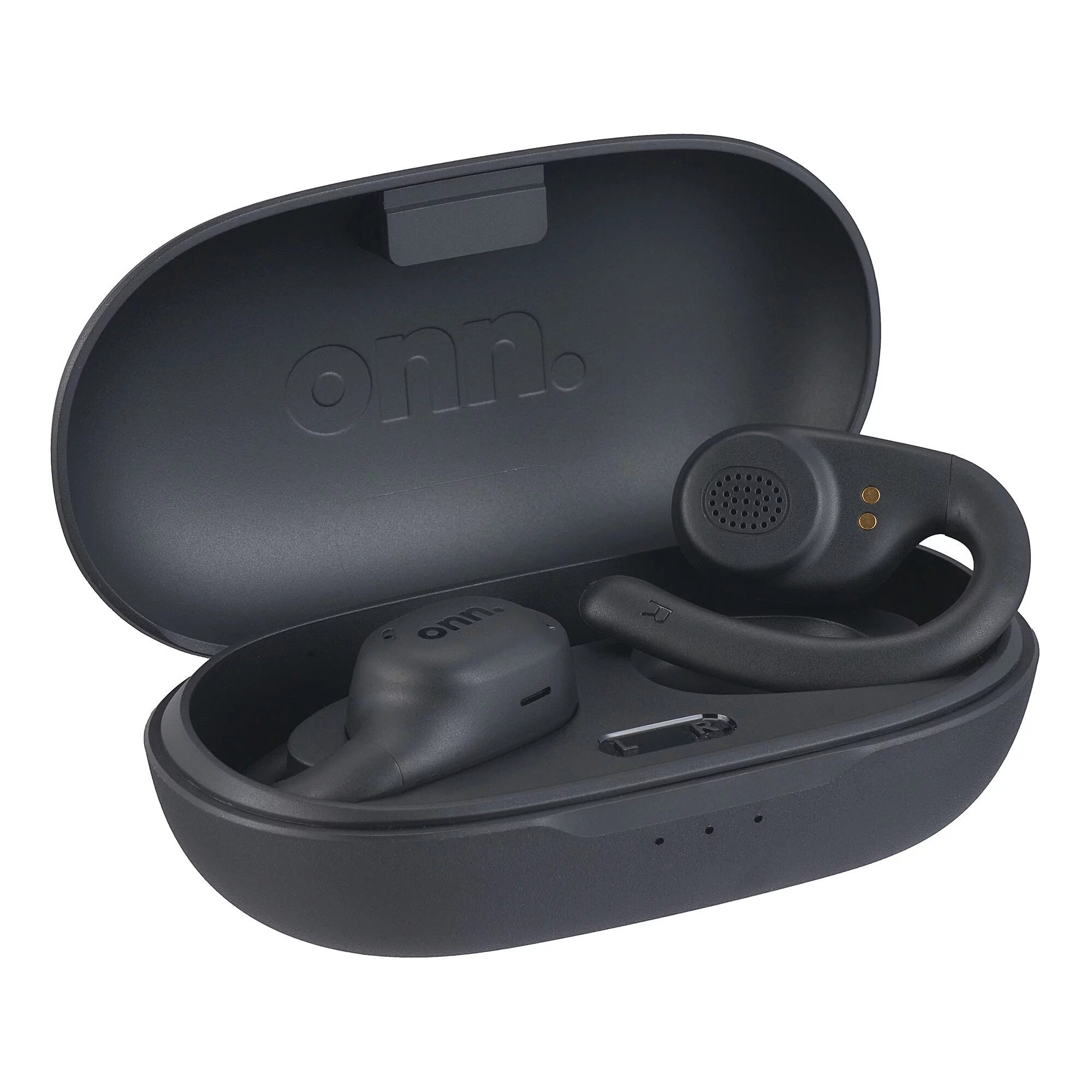
Before you can connect your JBL earphones, you must activate pairing mode. For true wireless earbuds (like JBL Tune, Wave, or Live series), simply remove them from the charging case, they will typically enter pairing mode automatically, indicated by a fast blinking blue or white LED light. If they don't, manually press and hold the touch control on either earbud for 3-5 seconds until the LED flashes.
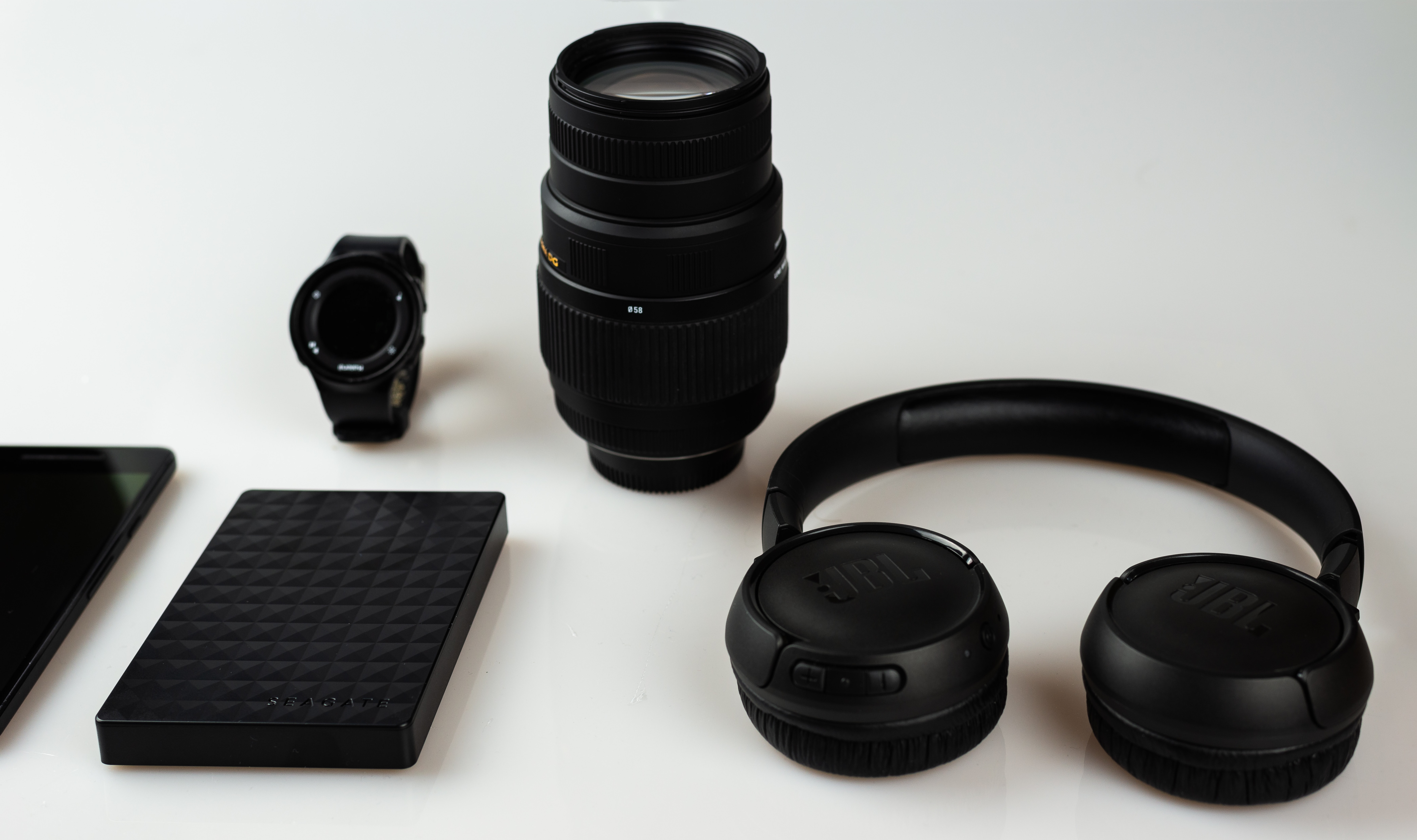
For over-ear or on-ear JBL headphones, start with the power off. Press and hold the power button for approximately 5 seconds until the LED flashes blue or white. Some models have a dedicated Bluetooth button; press and hold it until the light blinks. A fast-blinking blue or white LED confirms the earphones are in pairing mode and ready to connect.
For JBL LIVE headphones (e.g., Live 220BT, Live 400BT, Live 650BTNC, Live 500BT), for first-time pairing, switch the headphone on and look for the blinking blue light. For subsequent pairings or to connect to a different device, press and hold the power button until the blue flashing light is visible.
For JBL E500BT, press the Bluetooth button on the bottom of the right headphone to activate Bluetooth pairing mode.
For JBL Quantum 810 Wireless headset, hold the power button for more than 2 seconds to enter Bluetooth pairing mode.
Connecting to an Android phone
To connect JBL wireless earphones to an Android device, open Settings and go to Connected devices (or Bluetooth on some models). Ensure Bluetooth is toggled on, then tap Pair new device. Your phone will scan for nearby devices, tap your JBL model from the list to complete the connection. A confirmation sound or solid LED indicates success.
Connecting to an iPhone
On your iPhone, open Settings and tap Bluetooth. Make sure Bluetooth is enabled. Your JBL earphones should appear under Other Devices, tap the JBL model name to pair. Once connected, the LED on the earphones will turn solid, and you may hear a chime. No passcode is needed for modern JBL models.
Connecting to a Windows PC or laptop
For Windows, go to Settings > Bluetooth & devices and click Add device. Select Bluetooth from the options. Your PC will search for devices, choose your JBL earphones from the list and click to pair. The connection is complete when the earphones show as "Connected" in the Bluetooth settings.
Connecting to a Mac
On a Mac, open System Settings (or System Preferences on older macOS) and click Bluetooth. Ensure Bluetooth is on, then put your JBL earphones in pairing mode. They will appear in the list of nearby devices, click Connect next to your JBL model. A solid LED and a sound confirm the pairing.
Connecting to a smart TV
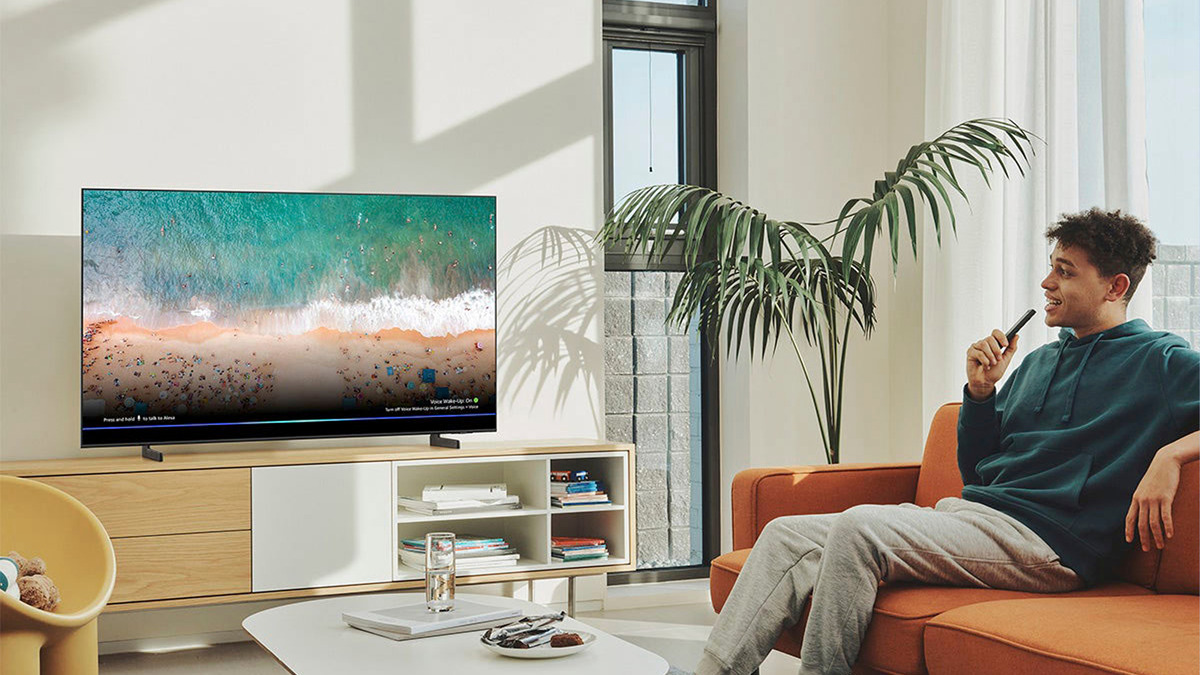
To connect JBL earphones to a smart TV, put the earphones in pairing mode. On your TV, navigate to Settings > Sound > Bluetooth audio devices. Select Pair new device or Add device, then choose your JBL headphones from the list. Confirm the pairing on the TV screen. The earphones will connect, and audio will route through them.
Troubleshooting JBL earphone connection problems
If your JBL earphones fail to connect, follow these steps in order. First, ensure the battery is above 20%, low power can prevent pairing. Next, clear old pairings by going to your device's Bluetooth settings and tapping Forget This Device (or "Unpair") for the JBL earphones. Multiple remembered Bluetooth connections on nearby devices can prevent new pairing; clear old Bluetooth entries on all devices. Restart both the earphones and the device you're connecting to, then try again. Move closer to the device to rule out range issues.
If problems persist, check for firmware updates via the JBL Headphones app or the JBL website. Outdated firmware can cause connection issues. As a last resort, perform a factory reset: turn off the earphones, then press and hold the power button for at least 10 seconds until the LED flashes different colors. Release and wait for the earphones to power off, then power them on and re-pair. If individual earbuds are not pairing together, try manually pairing them or performing a product reset, which will clear all previous settings and pairings. A solid LED and a chime confirm a successful connection. If the volume control on the headset does not work for a Bluetooth-connected device, this is not a malfunction.
Frequently Asked Questions about JBL wireless earphones
Can I connect my JBL earphones to two devices at once? Yes, many JBL models support multi-point connection, allowing them to pair with two devices simultaneously. Check your model's manual to confirm this feature and how to switch between devices.
How do I know if my JBL earphones are connected? A solid LED light on the earphones and a confirmation chime indicate a successful connection. You can also check your device's Bluetooth settings, the JBL model will be listed as "Connected."
How do I disconnect my JBL earphones? Turn off Bluetooth on your device, or go to Bluetooth settings and select "Disconnect" or "Forget" for your JBL earphones. Disconnecting does not delete the pairing, so you can reconnect easily later.
Release, wait for them to power off, then turn them on and pair again. This clears all previous pairings.
For the wider topic, see pairing wireless earbuds.
Related reading: How To Connect A JBL Speaker To An IPhone?.