You can make a projector wireless by using a wireless HDMI transmitter, a media streaming device like Apple TV or Chromecast, or by using screen mirroring with AirPlay or Google Cast. Each method works with your existing projector and removes the need to run a long HDMI cable across the room.
Why Make a Projector Wireless
A wireless setup avoids running a long HDMI cable between the source device and the projector. This gives you more freedom in where you place the projector, reduces cable clutter, and makes it easier to switch between different devices like a laptop, phone, or tablet. For example, you can use the same wireless connection to send content to a projector that you would otherwise use for connecting wireless audio for your TV.
Method 1: Using a Wireless HDMI Transmitter
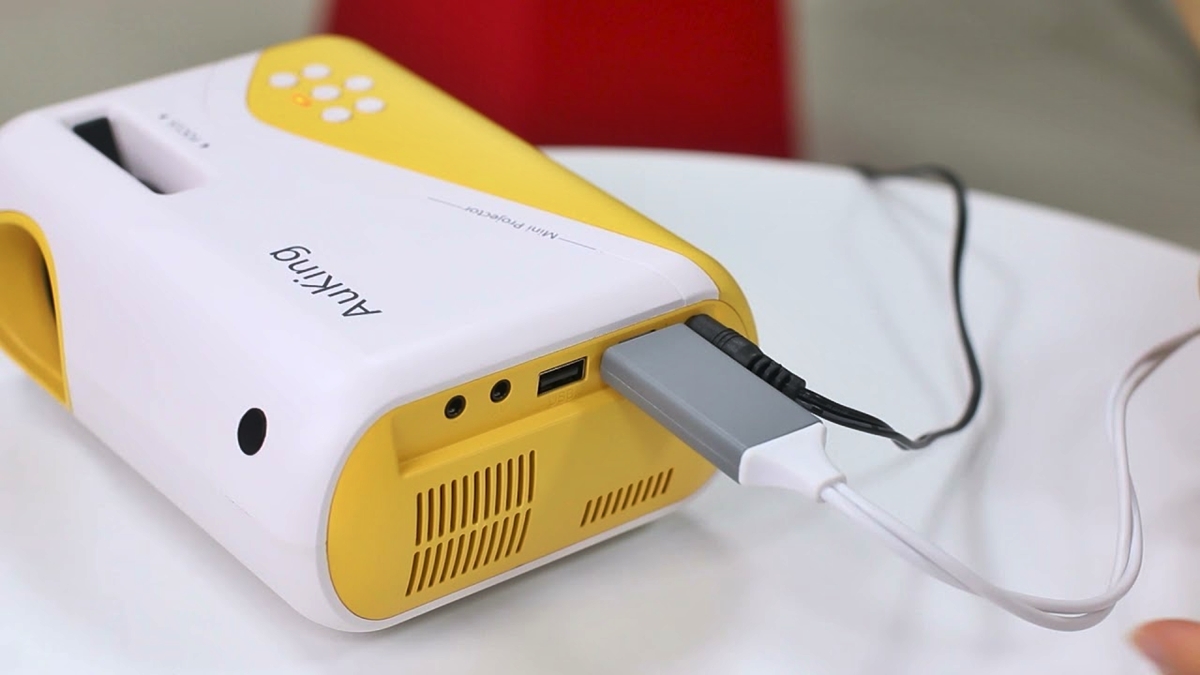
A wireless HDMI transmitter is a hardware link between an HDMI source and the projector. You plug the source device, such as a laptop or media player, into the transmitter, and the receiver plugs into the projector’s HDMI input. The transmitter and receiver then create a wireless connection between the two, so you can send video and audio from your source to the projector without a cable running between them.
Specific resolution and latency specifications vary by model, so you will need to check the details for the particular transmitter kit you choose. This method is best if you want to connect a laptop or other HDMI device directly to the projector and keep the signal as close to a wired connection as possible.
Method 2: Using a Media Streaming Device
A media streaming device such as Apple TV or Chromecast turns your projector into a smart display. You plug the streaming device into the projector’s HDMI port, connect it to your Wi-Fi network, and then send content to it from your phone, tablet, or computer.
- Connect the streaming device to the projector’s HDMI port.
- Connect the streaming device to your Wi-Fi network.
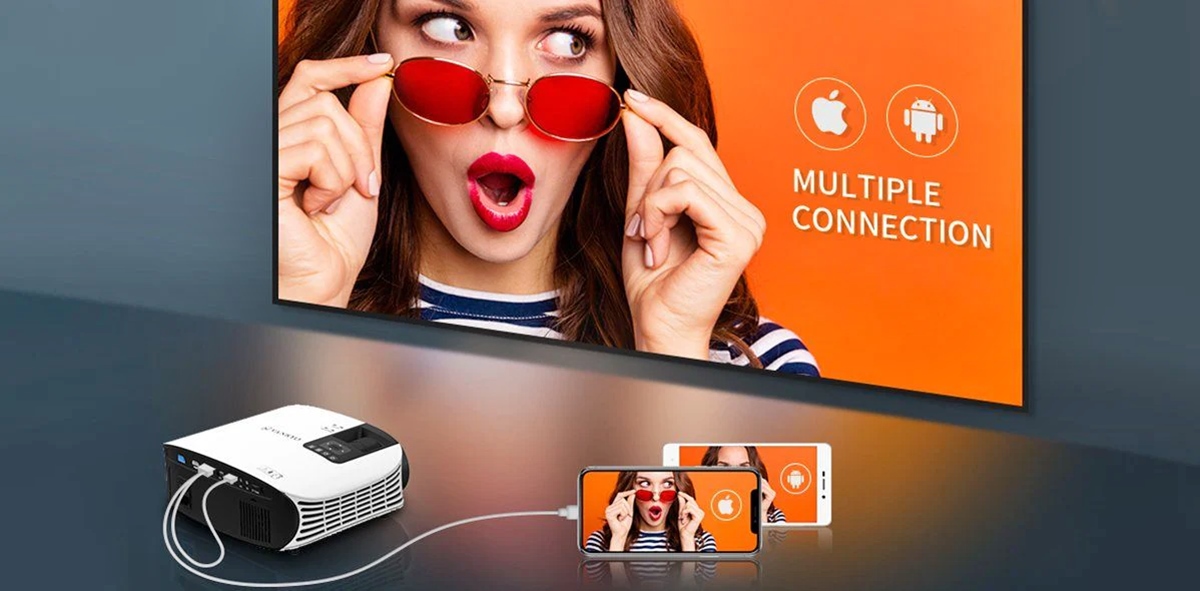
- Use AirPlay from an iPhone or iPad, or Google Cast from an Android device, to send content to the streaming device.
This method is best if you want to stream from apps like Netflix or YouTube, or if you want to mirror your phone or tablet screen without needing a separate transmitter.
Method 3: Using Screen Mirroring
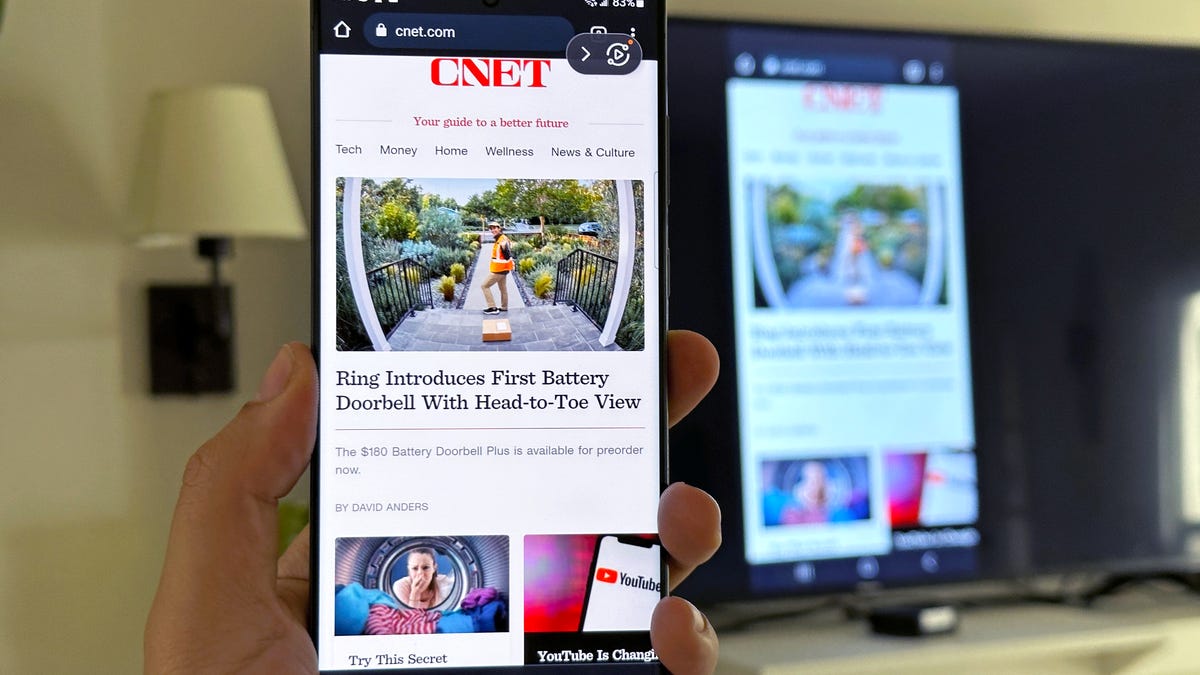
Screen mirroring lets you display your phone, tablet, or computer screen on the projector. This works over your Wi-Fi network and requires no extra hardware beyond a compatible display or receiver.
Apple AirPlay on iPhone and iPad
- Connect the iPhone or iPad to the same Wi-Fi network as the Apple TV, AirPlay-compatible smart TV, or Mac.
- Open Control Center.
- On iPhone X or later or iPad with iPadOS 13 or later, swipe down from the upper-right corner.
- On iPhone 8 or earlier or iOS 11 or earlier, swipe up from the bottom edge.
- Tap the Screen Mirroring button.
- Select the TV or Mac from the list.
- Enter the AirPlay passcode if one appears on the screen.
Apple documents Control Center gestures for iPhone X or later, iPad with iPadOS 13 or later, iPhone 8 or earlier, and iOS 11 or earlier. Note that iPhone models with USB-C can mirror to external displays over USB-C at up to 4K and 60 Hz, but that is a wired connection, not wireless.
Google Cast on Android
- Open the Google Home app.
- Tap and hold the device tile you want to cast to.
Google's retrieved result documents screen casting from the Google Home app to a Cast device, but the snippet does not provide model-specific supported models or version limits.
What to Expect: Latency and Quality
Wireless projection is convenient, but it is not identical to a wired connection. You may experience some latency, which can matter for gaming or presentations where timing is important. The quality of the connection depends on your Wi-Fi network’s stability, and a weak or congested network can cause buffering or lower video quality. For the highest possible quality and the lowest latency, a wired HDMI connection is still the best option, but the three wireless methods above offer a practical way to avoid running cables across the room.
Frequently Asked Questions
Can any projector be made wireless?
Most projectors can be made wireless with an external device. A wireless HDMI transmitter, a streaming device, or a screen mirroring adapter will add wireless capability to a projector that does not have it built in.
Do I need a Wi-Fi network to make my projector wireless?
Not always. Some wireless HDMI transmitters create their own connection between the transmitter and receiver, so they do not require a home Wi-Fi network. Streaming devices and screen mirroring, however, typically require both the source device and the display to be on the same Wi-Fi network.
What is the difference between a wireless HDMI transmitter and a streaming device?
A wireless HDMI transmitter sends the exact video and audio signal from a source device, like a laptop, to the projector. A streaming device connects to your Wi-Fi network and receives content directly from apps or from your phone, so it does not need a separate source device plugged into it.
Will screen mirroring work if my projector does not support AirPlay or Google Cast?
Yes, if you add a compatible receiver. Plugging an Apple TV or Chromecast into the projector’s HDMI port gives it AirPlay or Google Cast support, so you can mirror from your phone or tablet.
Related reading: How To Connect A Phone To A Non-Smart TV Wirelessly and How To Connect Phone To Vankyo Projector.