Wireless file sharing and device-to-device transfers on iPhones, written for anyone who wants to move content quickly between Apple devices without cables or cloud services. These pieces are especially useful for iPhone users who frequently exchange photos, videos, or contact information and need practical, step-by-step guidance.
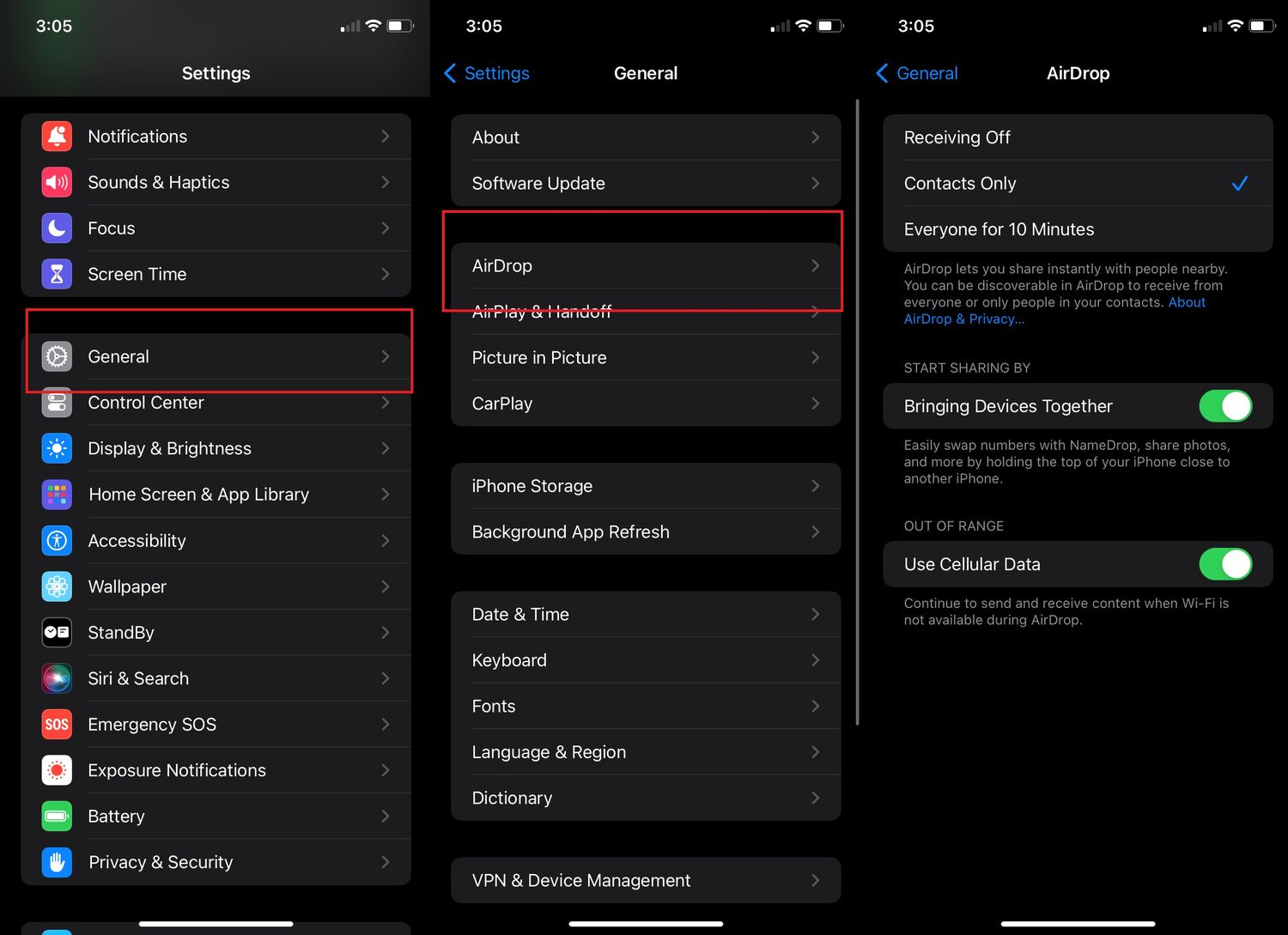
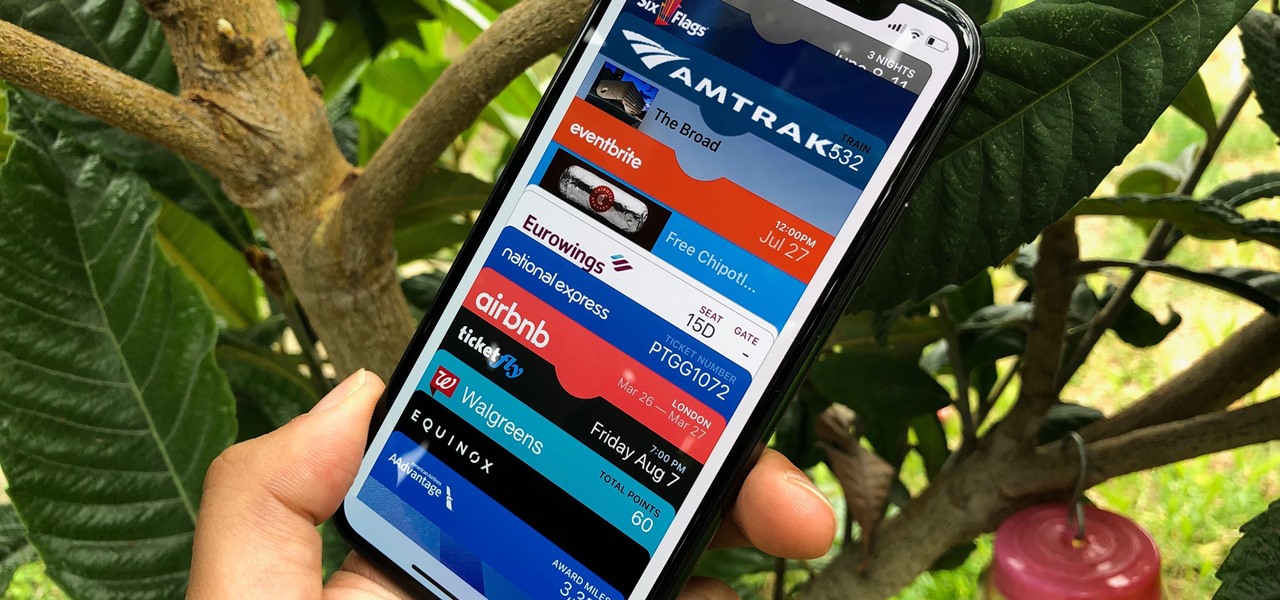
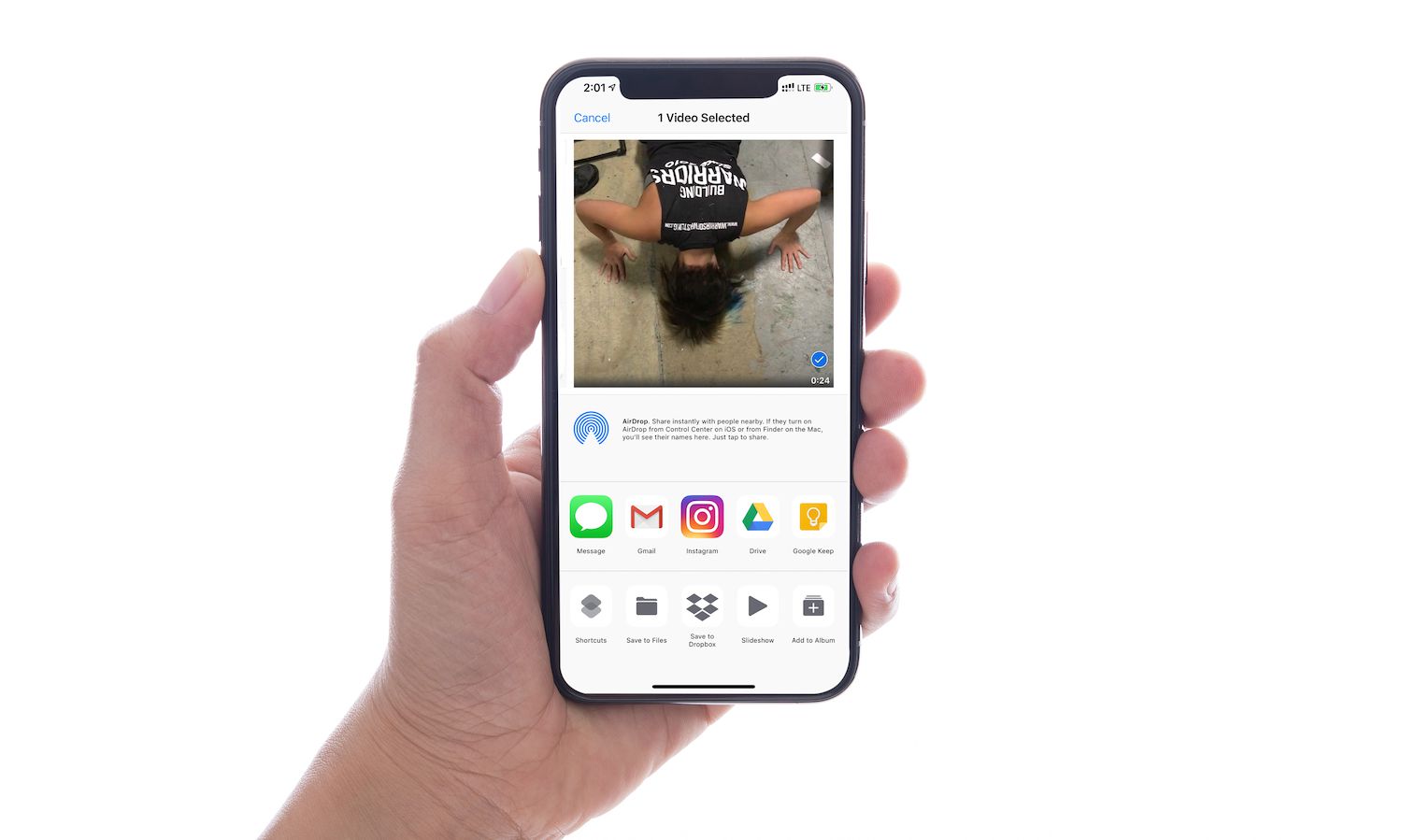
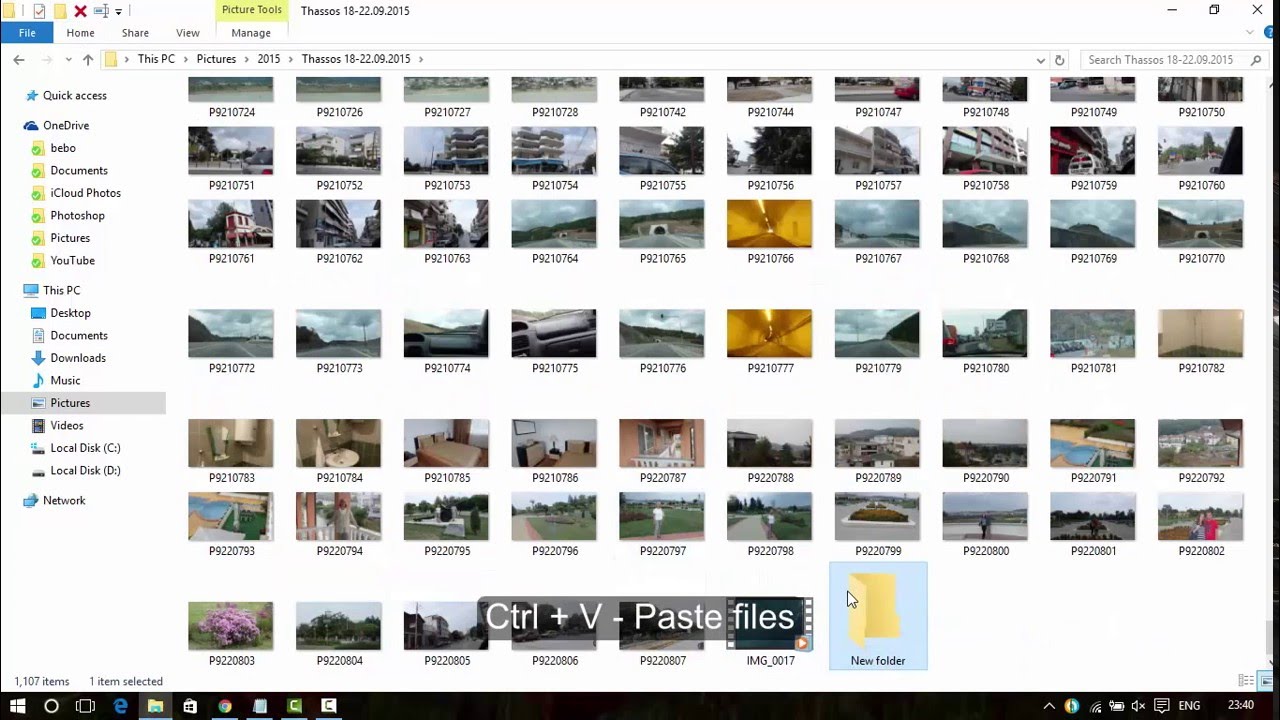
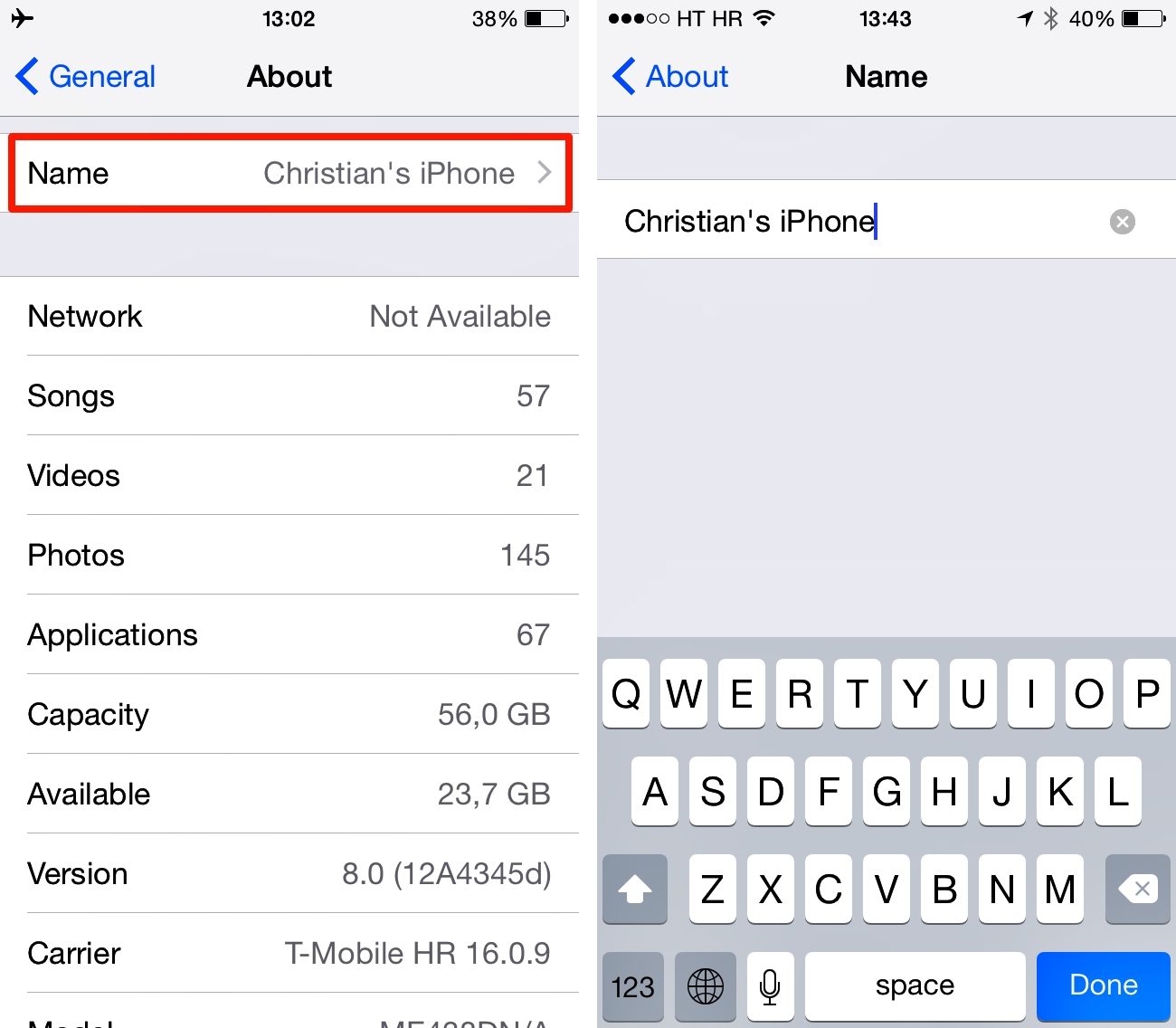
The articles here solve two main kinds of problems: bulk media handling and identity-based transfers. For bulk media, you can learn how to share or copy multiple photos and videos at once, and how to send long videos that might otherwise be too large for standard messaging. For identity-based transfers, the guides cover how to AirDrop a phone number directly, how to change the name of your iPhone so it shows correctly in AirDrop requests, and how to transfer tickets to Wallet on iPhone, a task that often relies on the same proximity-sharing technology.
Each article helps the reader perform a specific action: select multiple files for a single share, rename a device for clearer recognition, compress or send lengthy video clips, move digital tickets into the Wallet app, or send a contact’s phone number via AirDrop. The focus is on doing these tasks with the tools already on your phone, without extra software.