The App Switcher tag on CellularNews is a straightforward collection of guides for anyone who owns a modern iPhone and wants to manage their open applications more effectively. Whether you are a new user or someone looking to streamline your daily workflow, these articles are written for the person who wants practical, step-by-step instructions without unnecessary complexity.
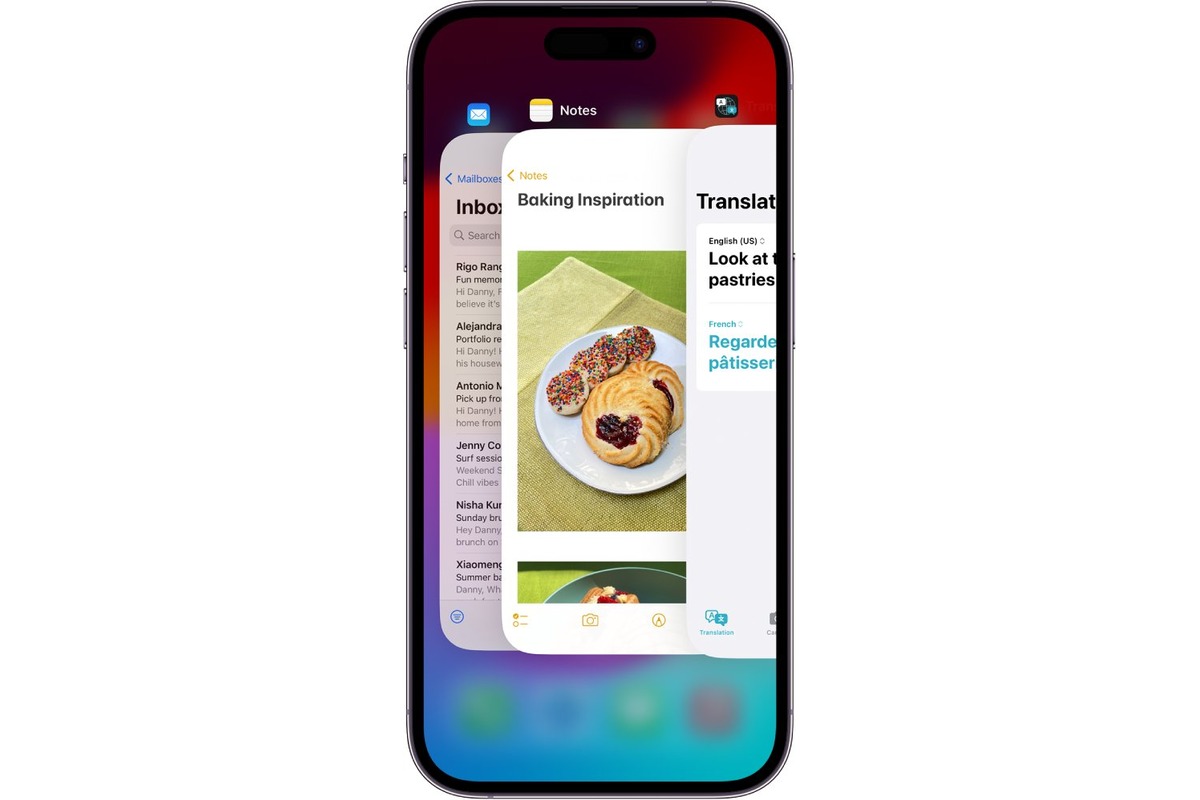
The content here tackles two main areas you encounter regularly. The first theme is clearing or closing specific apps, which helps when an application like Waze is running in the background and you want to stop it from using battery or location services. The second theme is simply seeing which apps are currently open on your device, a common need when you feel your phone is slowing down or you want to switch between tasks quickly. For example, the guides on how to close Waze on the iPhone 13 and iPhone 11 address a specific navigation app that often stays active, while the article on how to see open apps on the iPhone 11 helps you get a clear view of what is running.
These articles help you take direct action on your phone. You will learn the specific gestures and button presses needed to clear open apps on an iPhone 14, or how to navigate the home screen and app layout more efficiently. Each guide focuses on a single, clear task, so you can find the exact fix for your current situation without sifting through unrelated information.