Getting around the iPhone home screen without a button
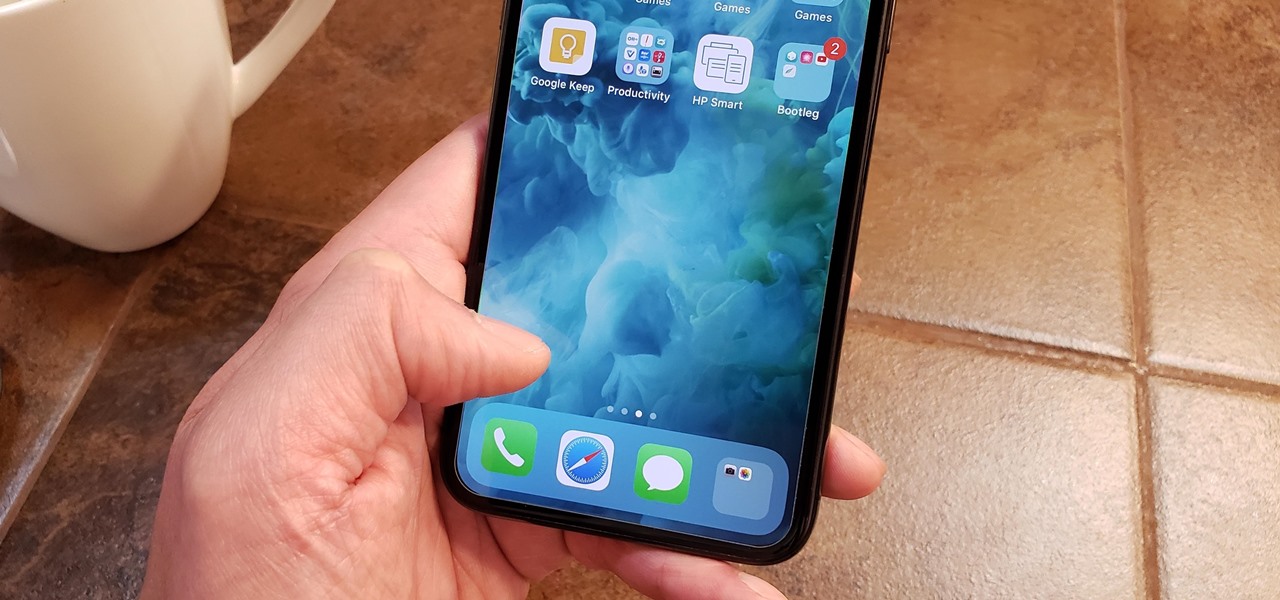
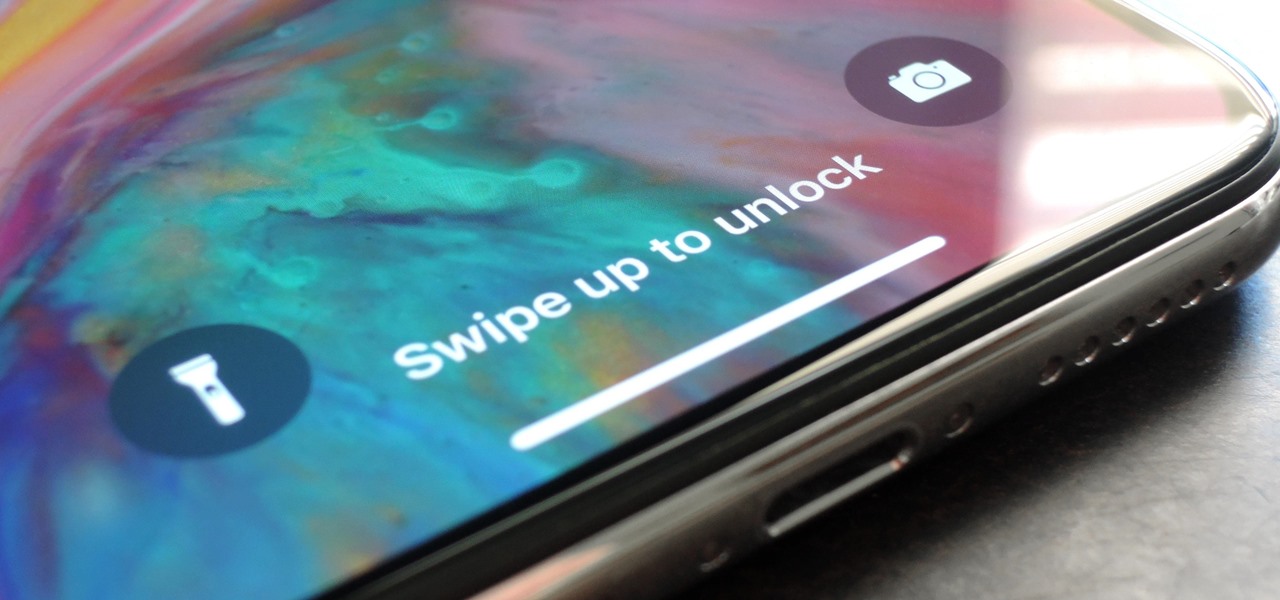
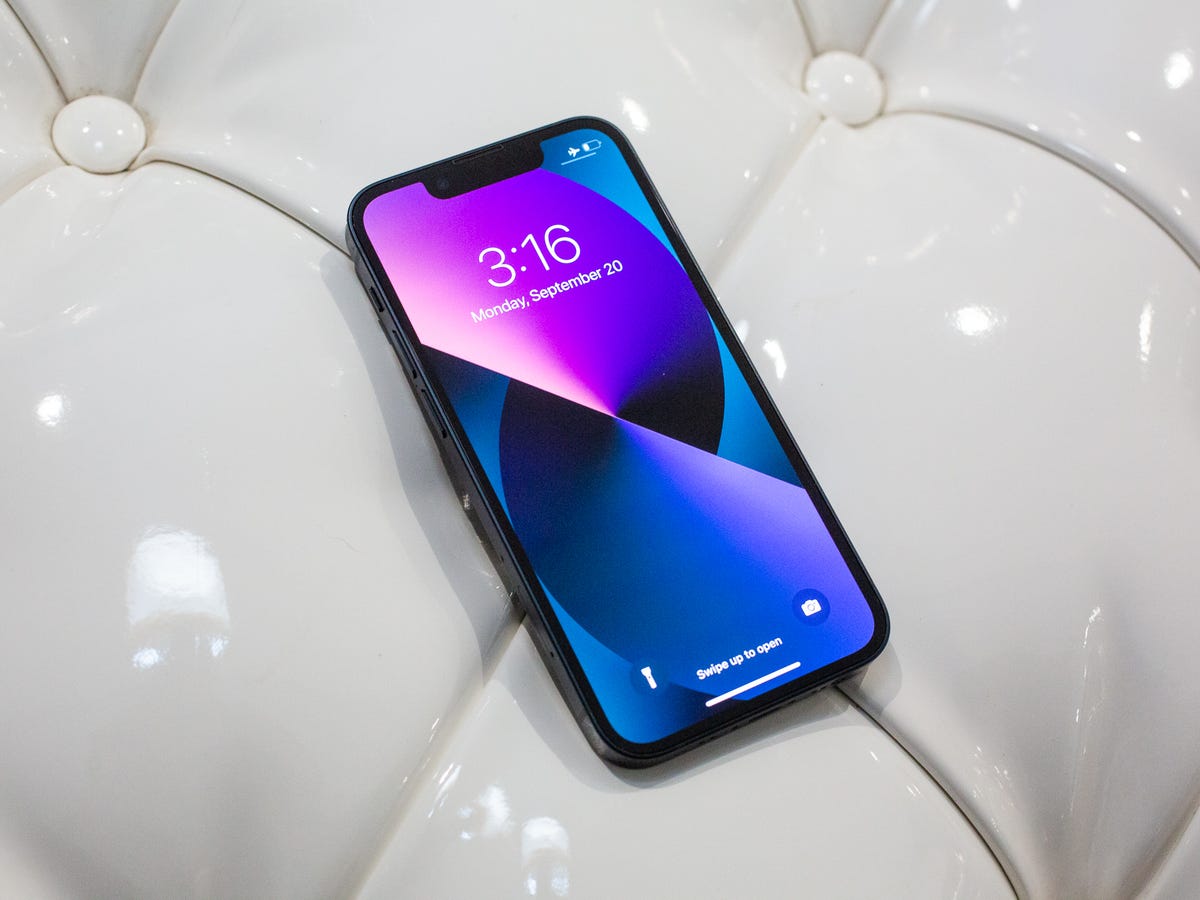
Navigating the iPhone home screen has changed dramatically if you’ve picked up a newer model and immediately looked for the home button on iPhone 11 or the home button on iPhone 13. That physical circle is gone for good. On any model with Face ID, the entire navigation system lives in a few swipes from the bottom edge. To get back to home screen on iPhone 11, place your finger just below the screen and swipe up in one smooth motion. The app shrinks back into its icon and you’re on familiar ground. The same gesture works when you need to go back to previous screen on iPhone 13. This doesn’t step you backward inside an app. It simply returns you to the Home Screen.
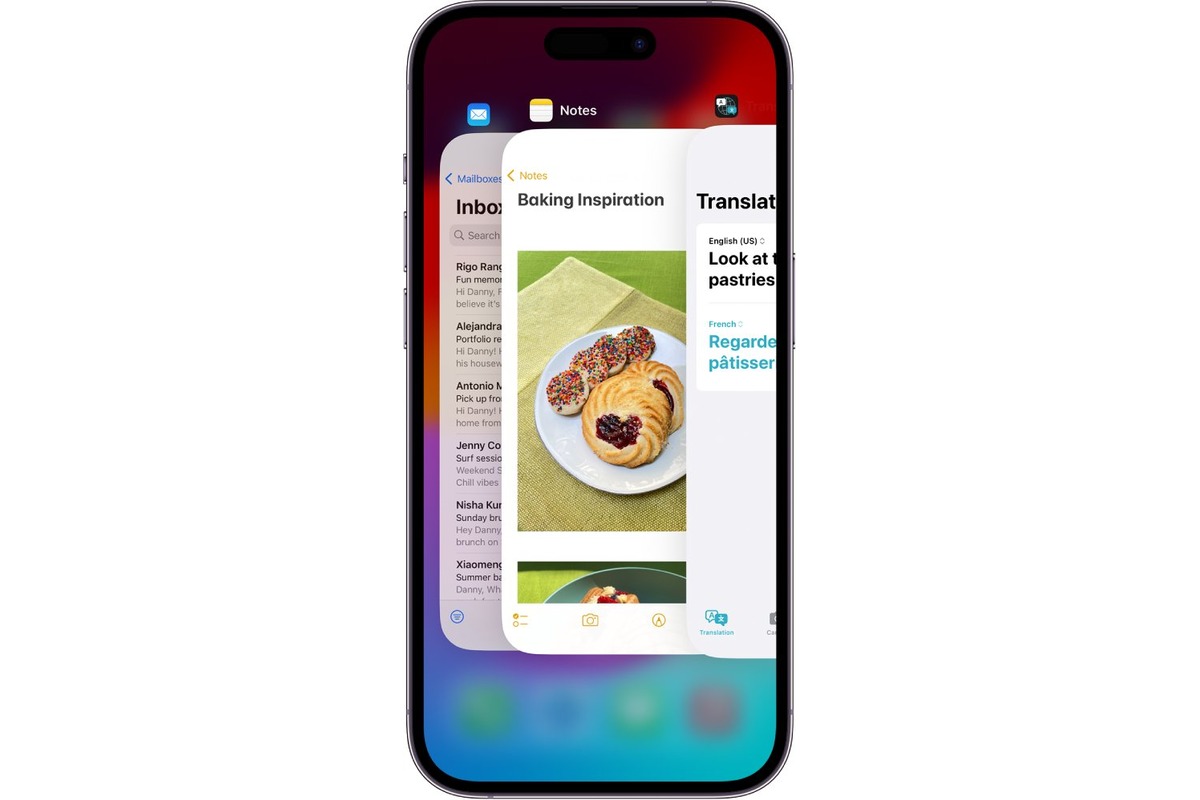
Multitasking works differently too. When you want to see open apps iPhone 11 displays, swipe up from the bottom and pause halfway. The App Switcher slides into view. Every suspended app appears as a card you can tap or flick through. A faster trick involves swiping right or left along the very bottom edge of the screen. This jumps you directly between your most recent apps without opening the switcher at all. If you’re trying to clear open pages on iPhone 13, a “close all” button doesn’t exist. iOS offers no such function. You can only swipe individual app cards upward to dismiss them one at a time. Apple’s guidance doesn’t recommend doing this routinely unless an app has frozen.
Finding and organizing your apps
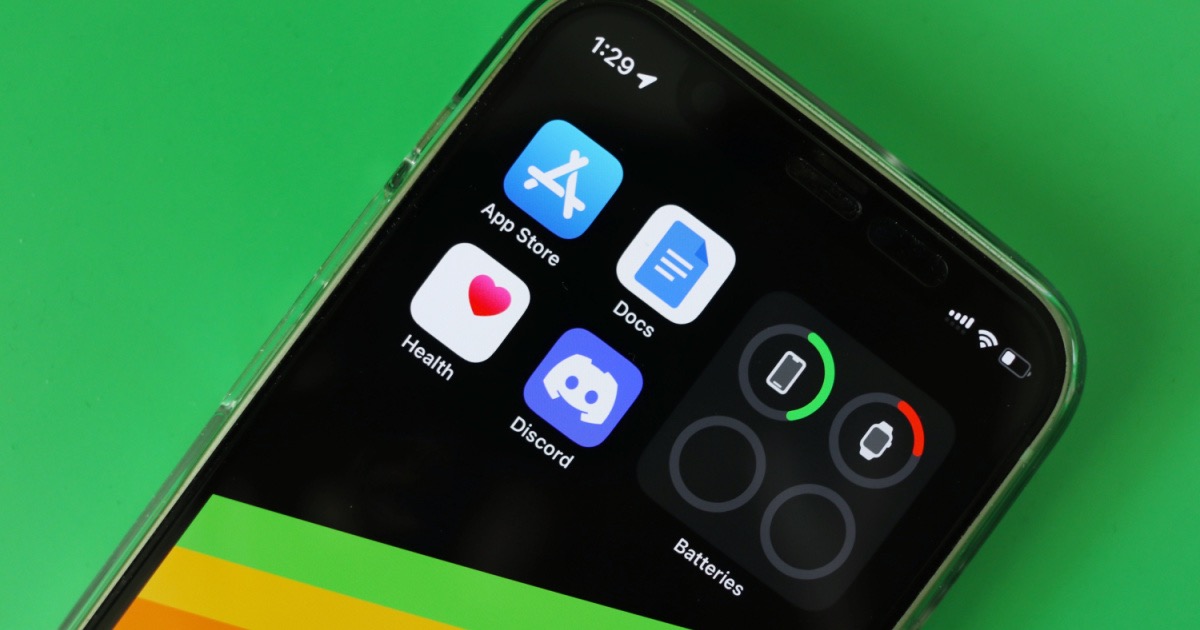
If a downloaded app not showing on iPhone? how to find apps iOS 16 can involve checking your Home Screen pages, which may be hidden, sending fresh installs straight to the App Library instead. Swipe left past your last Home Screen page to enter the App Library, where every app on your device lives, and pull down on the grid to see an alphabetical list. If the app still does not appear, use the search bar at the top of the App Library or check if the app is restricted in Screen Time settings. Understanding where is the app library on iPhone 12 is straightforward: a final leftward swipe beyond the last page brings you into the categorized view. Once there, you can drag any icon left to place it back on a Home Screen, which is how you add phone app back to home screen if it was accidentally removed. For those who prefer a strict layout, you cannot put apps in alphabetical order on iPhone 13 pro max across the Home Screen itself, so you must manually rearrange icons or rely on the App Library’s automatic alphabetical list for quick access. To get calculator on iPhone 13, locate it in the App Library or search for it, then pull it back to the Home Screen just like any other app. If you ever hide an app for privacy, you can locate it in the App Library or use the search bar to find it, then drag it back to the Home Screen.
Using search, Siri, and shortcuts
When a swipe isn’t enough, the quickest path to anything on your phone is asking for it. On Face ID models, you can access Siri on iPhone 11 by pressing and holding the side button. Hold until the Siri indicator appears at the bottom of the screen, then speak your request. The same approach lets you access Siri on iPhone 14. You may prefer to skip the button entirely by using voice activation if you’ve turned it on in Settings. Many people overlook the button on the side of the iPhone 13 as just a power key. A long press summons Siri. A double-click confirms Apple Pay purchases, and a quick press locks the screen. For anything you need repeatedly, Siri can jump you there without hunting through folders. If you’ve saved a specific webpage or a location in Maps and can’t remember where it landed, asking Siri to open your favorites on an iPhone 13 pulls them up instantly. This works even when the exact menu remains undocumented in Apple’s interface. This voice-forward approach replaces the physical shortcuts that older models relied on. The assistant becomes the fastest stand-in for features that no longer have a dedicated button.
Managing apps in the background
When you want to stop navigation completely, the gesture to close Waze on iPhone 11 is identical to every other modern iPhone, and you can find a dedicated guide if you need step-by-step instructions for that model. Swipe up from the bottom edge and pause until the App Switcher appears, then flick the Waze card upward until it vanishes. Because Apple’s swipe-based interface replaced the physical home button years ago and the quit-an-app gesture has not changed across Face ID models, the method is the same. What often surprises people is that swiping an app away does not necessarily stop it from working in the background. Waze can continue accessing your location and refreshing data unless you open Settings, tap Waze, and adjust location access to “While Using the App.” Without those changes, the phone may still report your position even after the app card is gone, and a seemingly closed navigation app can still affect battery life. Apple does not recommend force-quitting apps as a routine habit, though when an app misbehaves this is a built-in way to restart it cleanly.
Handling files, downloads, and the clipboard
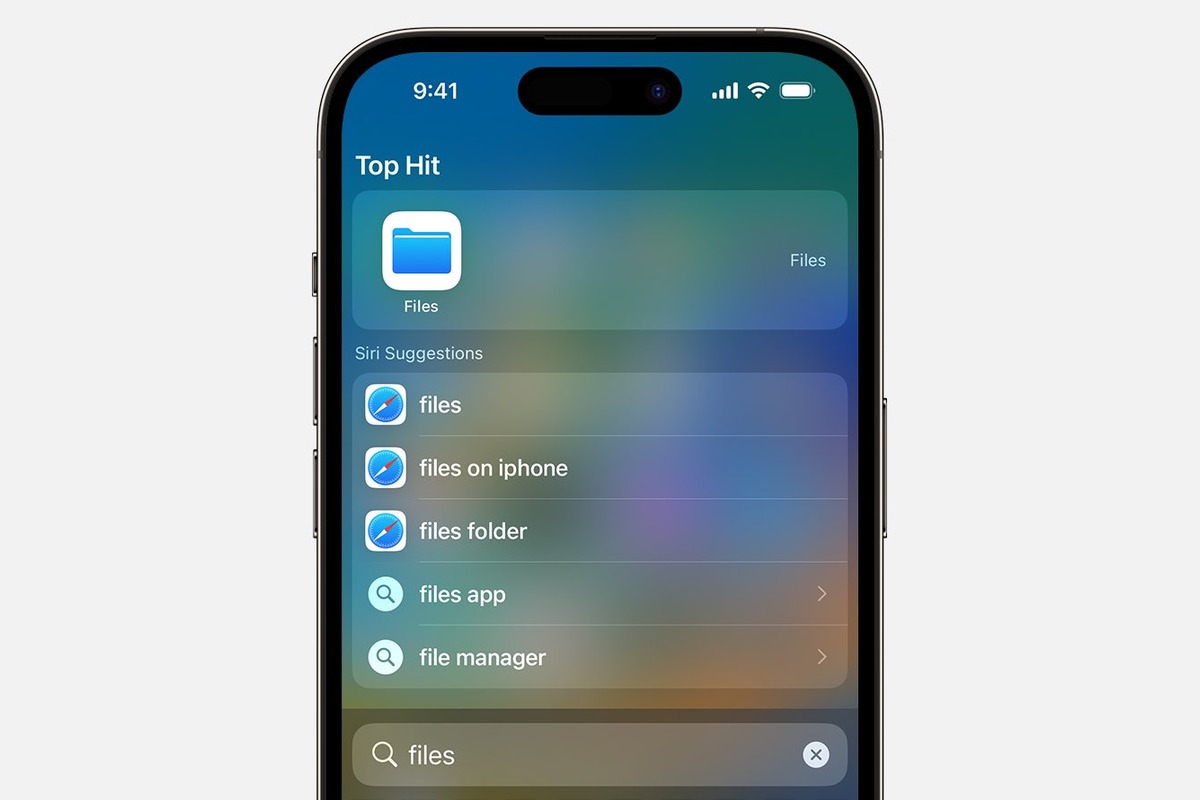
When you save a file from Safari or an email, it typically lands in the Files app, which is where you go to find downloads on iPhone 12 and other recent models, though images often save directly to the Photos app. Open Files, tap Browse at the bottom, then tap the Downloads folder. If you downloaded something in Safari moments ago, you can also tap the Downloads button next to the search field in Safari to see your recent items without digging through folders. The Files app is your one consistent repository for PDFs, images, and zip archives.
What confuses many people is the clipboard. There is no app, folder, or settings panel named my clipboard on iPhone 13 or any other model. When you copy text or an image, it sits invisibly in memory and stays there only until you copy something else, at which point the old content is replaced on that device, though it may still be available for pasting on other nearby Apple devices via Universal Clipboard. If you want to see what you just copied, paste it into a note or a text field immediately. The same invisible behavior applies if you are looking for the clipboard on my iPhone 11. Apple does not provide a visible clipboard history. Universal Clipboard lets you copy on your iPhone and paste on a nearby Mac or iPad. Both devices must be signed into the same Apple Account, have Bluetooth and Wi‑Fi turned on, and have Handoff enabled. Copying something new on either device replaces it instantly.
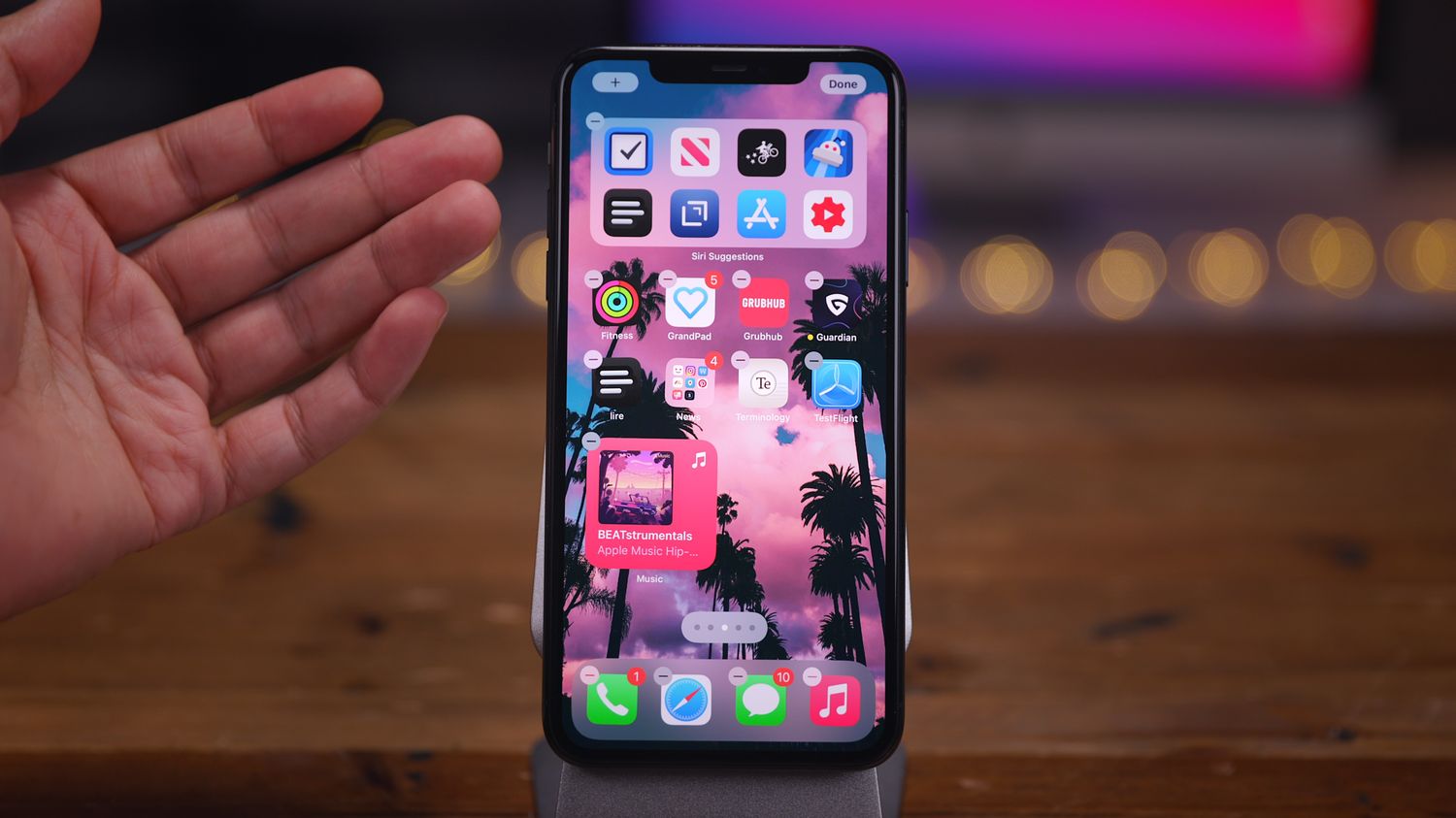
The Home Screen holds your apps, widgets, and the App Library. You can rearrange icons by touching and holding an empty area until they jiggle, then drag an app to a new spot and tap Done in the upper-right corner. To create a folder, drag one app on top of another. The system names the folder automatically based on the app category, though you can rename it by tapping the name field. Removing an app from the Home Screen does not delete it; the app stays in the App Library, where you can find it again by swiping left past your last Home Screen page. Widgets display timely information from your apps without opening them. Touch and hold a widget to choose a different size or drag it to a new position, and you can stack several widgets on top of each other and flip through them with a swipe.
Control Center gives you fast access to airplane mode, brightness, volume, and media playback. Swipe down from the top-right corner of the screen to open it. The top-left group of controls handles connectivity, where airplane mode, cellular data, Wi‑Fi, and Bluetooth appear. Press and hold that group to reveal AirDrop and Personal Hotspot. The playback tile shows what is playing and lets you route audio to a speaker. You can add more controls by going to Settings, then Control Center. The included controls cover screen recording, low power mode, notes, and the flashlight. Removing a control you never use keeps the panel compact. The camera and flashlight shortcuts also live on the Lock Screen, and you can touch and hold either one to open it instantly.
Notifications arrive as banners, alerts, or badges. A banner slides down from the top and goes away on its own, while an alert requires you to tap a button before it dismisses. Badges show a red number on an app icon to indicate unread items. You can see all your recent notifications by swiping down from the top center of the screen, then swipe left on a notification to clear it or tap it to open the app. Grouped notifications keep a conversation or thread together so your list stays readable. Scheduling a summary delivers non-urgent notifications at set times during the day. Choose which apps go into the summary by going to Settings, then Notifications, then Scheduled Summary. Time-sensitive notifications from people and apps you allow will still break through immediately.
Siri can send messages, set timers, and start calls hands-free. Say “Hey Siri” followed by your request, or press and hold the side button. On a HomePod or AirPods, the assistant responds the same way. Siri understands follow-up questions so you can ask about the weather and then say “What about tomorrow?” without repeating the city name. The assistant also runs shortcuts you build in the Shortcuts app, which combine multiple actions into one phrase. You might create one that texts your arrival time, starts a playlist, and sets a focus mode. Typing to Siri works when you cannot speak aloud. Turn that on in Settings, then Accessibility, then Siri, and enable Type to Siri.
Focus modes filter notifications and Home Screen pages based on what you are doing. Work Focus can show only your email and calendar apps while hiding social media, Sleep Focus dims the Lock Screen and silences calls, and Personal Focus lets through messages from your favorites list. You set up a Focus in Settings, then Focus, where you choose the allowed people and apps. A schedule turns the Focus on automatically at a set time, location, or when you open a particular app. Focus status shares with other people in Messages so they know you have notifications silenced, though they can still tap Notify Anyway if something is urgent. Your Focus settings sync across your iPhone, iPad, and Mac when you are signed into the same Apple Account.
Spotlight searches your device and the web from one field. Swipe down on the Home Screen to open it, then type a name to find a contact, a message thread, or a file. Spotlight also performs quick calculations and currency conversions right in the results. Tapping a result opens the corresponding app, and if you search for an app you rarely use, Spotlight shows it even when you cannot remember which folder holds it. You can drag the search field to the bottom of the screen or keep it at the top. Siri Suggestions appear below the field before you type, offering apps and actions based on your routine. Turning off suggestions for specific apps keeps the list relevant. Go to Settings, then Siri & Search, and tap the app to adjust its options.
Settings organizes every preference into a searchable list. The top section holds your Apple Account, where you manage iCloud, subscriptions, and family sharing. Below that, Airplane Mode, Wi‑Fi, Bluetooth, and Cellular appear. The main list groups system preferences and third-party app settings together. Tapping an app reveals its permissions for location, camera, and notifications. General houses software update, storage, and background app refresh. Accessibility contains display accommodations, voice control, and hearing device support.
Browsing with Safari
When you pick up an iPhone 11, Safari is already waiting on your Home Screen. If removed, you can find it in the App Library. It is the built-in browser and can be removed from the Home Screen, though it can be restored from the App Library. If it seems missing, you have likely moved it to a folder or off a visible page, or removed it from the Home Screen entirely, which is why you would want the article on "Safari on iPhone 11" to locate it again. Once you have a site open, the address bar holds more than a URL. Tapping the aA button on the left side of the search field reveals the option to view the desktop version of a website in Safari. This forces the site to serve its full layout instead of a mobile-optimized view. If you find yourself requesting the desktop view for the same sites repeatedly, you can change the default behavior by going to Settings, tapping Safari, selecting Request Desktop Website, and toggling the preference for all websites.
People sometimes stumble into a different problem entirely while trying to clean up their home screen, mistaking a cluttered news feed for a Safari issue. If you want to turn off Google news feed on iPhone 11, the control may live inside the Google app itself, not in any system setting. Open the Google app and tap your profile picture. Go to Settings, then General, where you can disable the Discover feed. The toggle is documented for Android. It stops those algorithmically chosen stories from appearing on your Google home page.
Configuring health and wellness features
When you want to track a measurement that the iPhone’s sensors cannot take directly, the Health app becomes a manual logbook. You can check blood pressure on iPhone 12 by opening Health and tapping Browse > Heart > Blood Pressure Log > Get Started, then enter your readings from an external cuff. Then enter your readings from an external cuff. The phone itself does not measure pressure, so this feature relies on consistent, self-reported data. The place where all of that data appears is the Summary tab. If you are running an older version of iOS, you can customize & use the summary tab in the iOS 13 health app by opening Health > Summary, then tapping Edit in the top‑right corner. Select which heart, activity, or sleep tiles to pin, though current software surfaces highlights automatically without that editing flow. A different kind of daily rhythm lives in the Clock app. The alarm’s default nine‑minute snooze is simply a built‑in behavior and not a labeled slider you can adjust. On newer software, a third‑party source notes that a Snooze Duration option appeared, though Apple's stock Clock app does not offer a custom snooze interval. If you want to change the snooze time on iPhone 11 with the stock Clock app, Apple's support documentation does not describe a custom interval. The gesture of hitting snooze will always give you the same fixed pause.
Customizing the display and special modes
When you glance at the top of a newer iPhone, the pill-shaped area is not just a camera cutout but an active display zone. To set up dynamic island iPhone 14, note that the feature is available on iPhone 14 Pro and iPhone 14 Pro Max and newer Pro models, appearing automatically whenever the device is unlocked. Touch and hold an activity to expand it, swipe from the center toward a side to collapse it, and switch between two live activities by swiping from one edge to the other. Many people look for a way to pin contacts on iPhone 13 for quick access, but the available system documentation does not confirm a native pinning mechanism, so third-party widget options are the typical workaround. Attempting to find split screen in iPhone 13 leads to the realization that the feature was never ported to the phone’s version of iOS, though the gesture-based app switcher is a built-in method for moving between apps. Similarly, iPhone 11 split screen functionality is not available. Locating the antenna on iPhone 11 is also not possible.
Frequently Asked Questions
How do I turn off Siri using the side button on iPhone 14?
Go to Settings, then Siri & Search, and turn off Press Side Button for Siri. This stops the side button from summoning the assistant while still letting you use voice activation if "Hey Siri" remains enabled.
Why does Waze still use my location after I close the app on iPhone 13?
Swiping Waze away in the App Switcher does not fully stop background activity. Open Settings, tap Waze, set location access to "While Using the App," and turn off Background App Refresh to prevent it from continuing to access your position.
How do I unhide an app I hid on my iPhone home screen?
Swipe left past all Home Screen pages to reach the App Library, scroll down to the Hidden folder, and authenticate with Face ID, Touch ID, or your passcode. Touch and hold the app, then tap "Don't Require Face ID" to return it to the App Library.