Practical guides focused on managing the physical hardware controls and wireless connectivity options on your devices. This page is for anyone who needs clear, step-by-step instructions for toggling specific hardware features, whether you are working with a laptop, a PC, or a phone. The articles here are built around real-world tasks, not abstract theory, so you can follow them directly on your own machine.
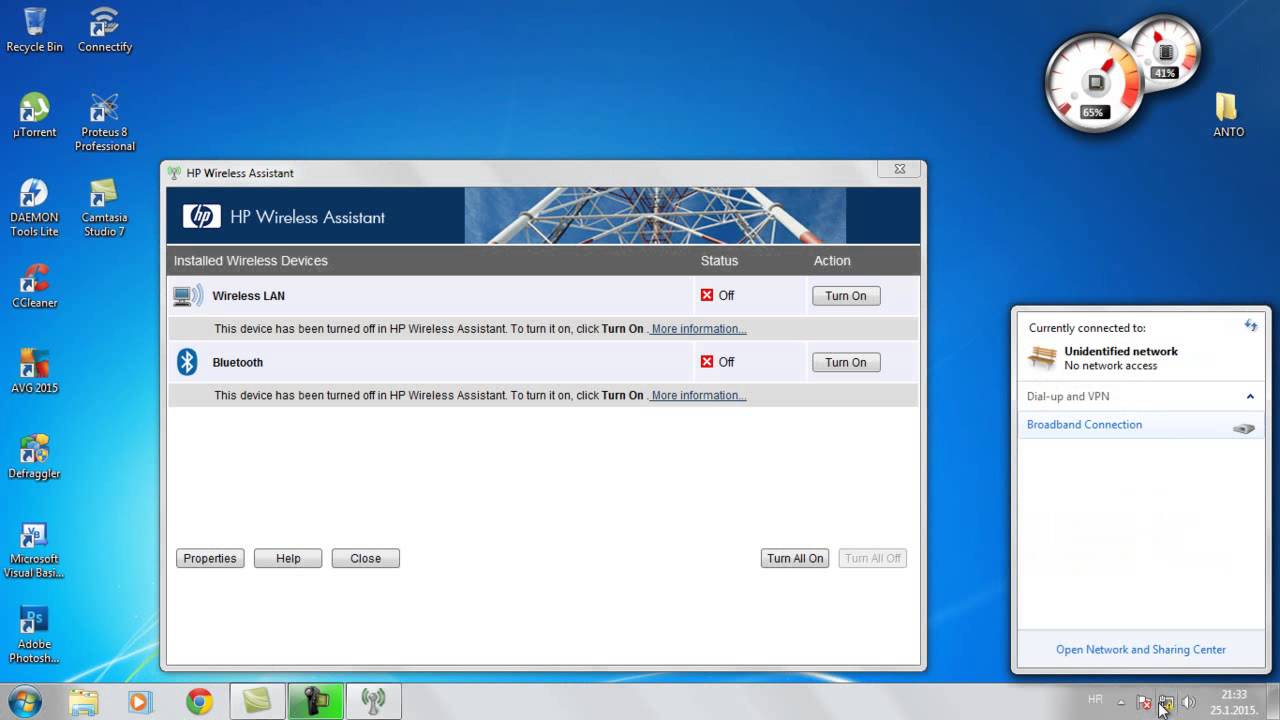
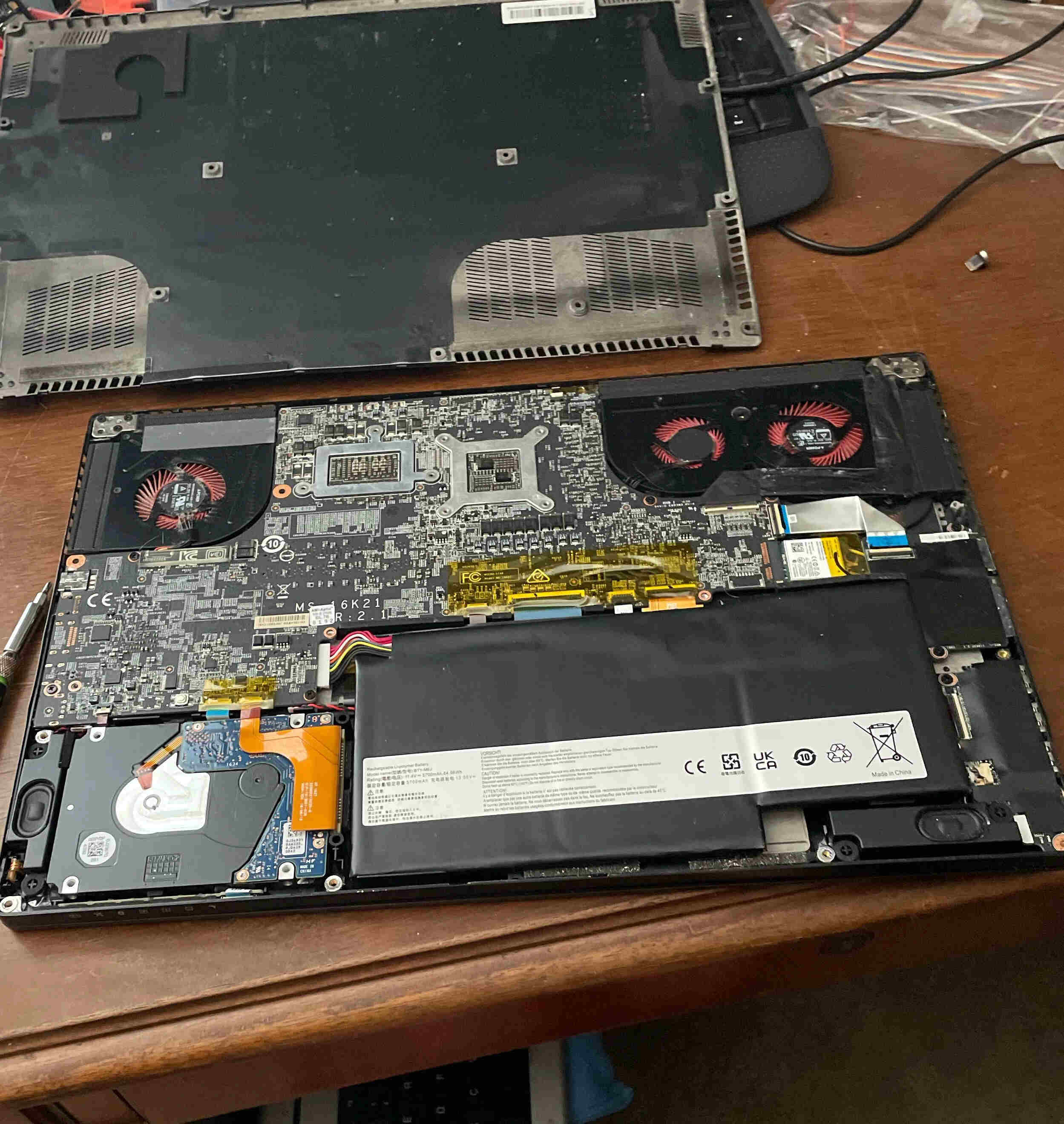
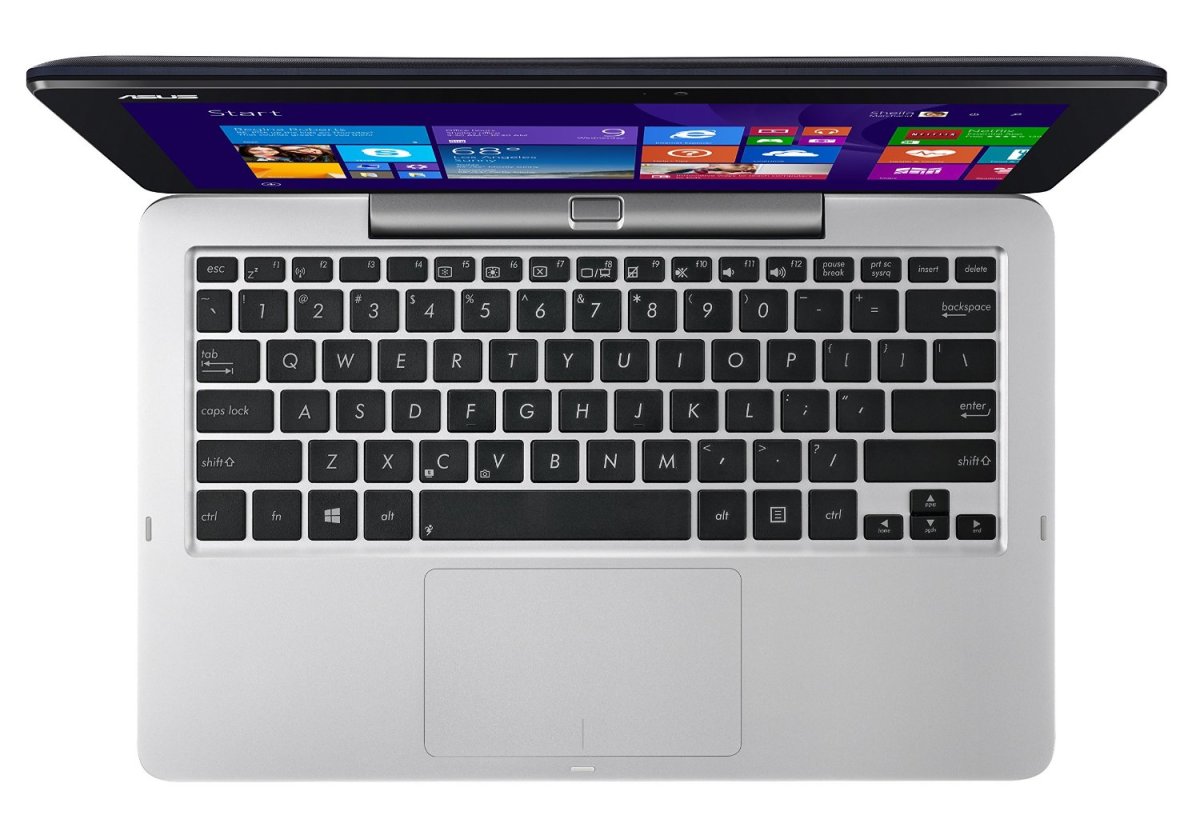
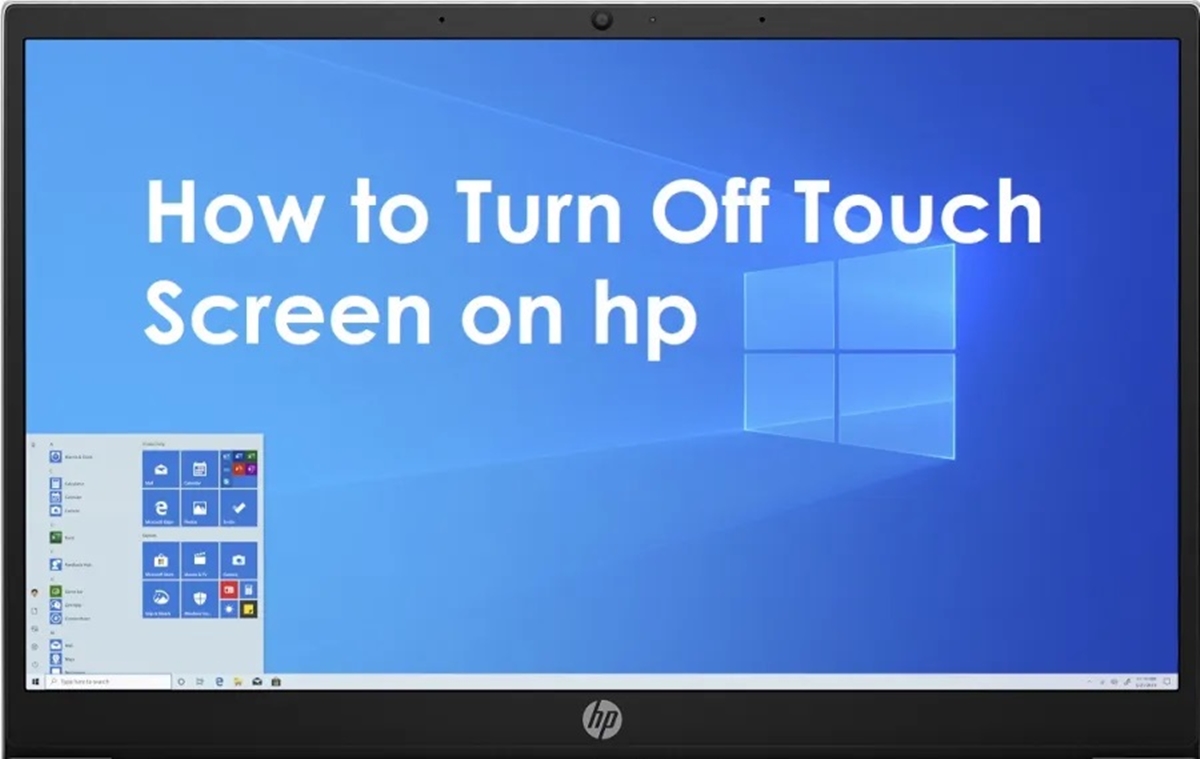
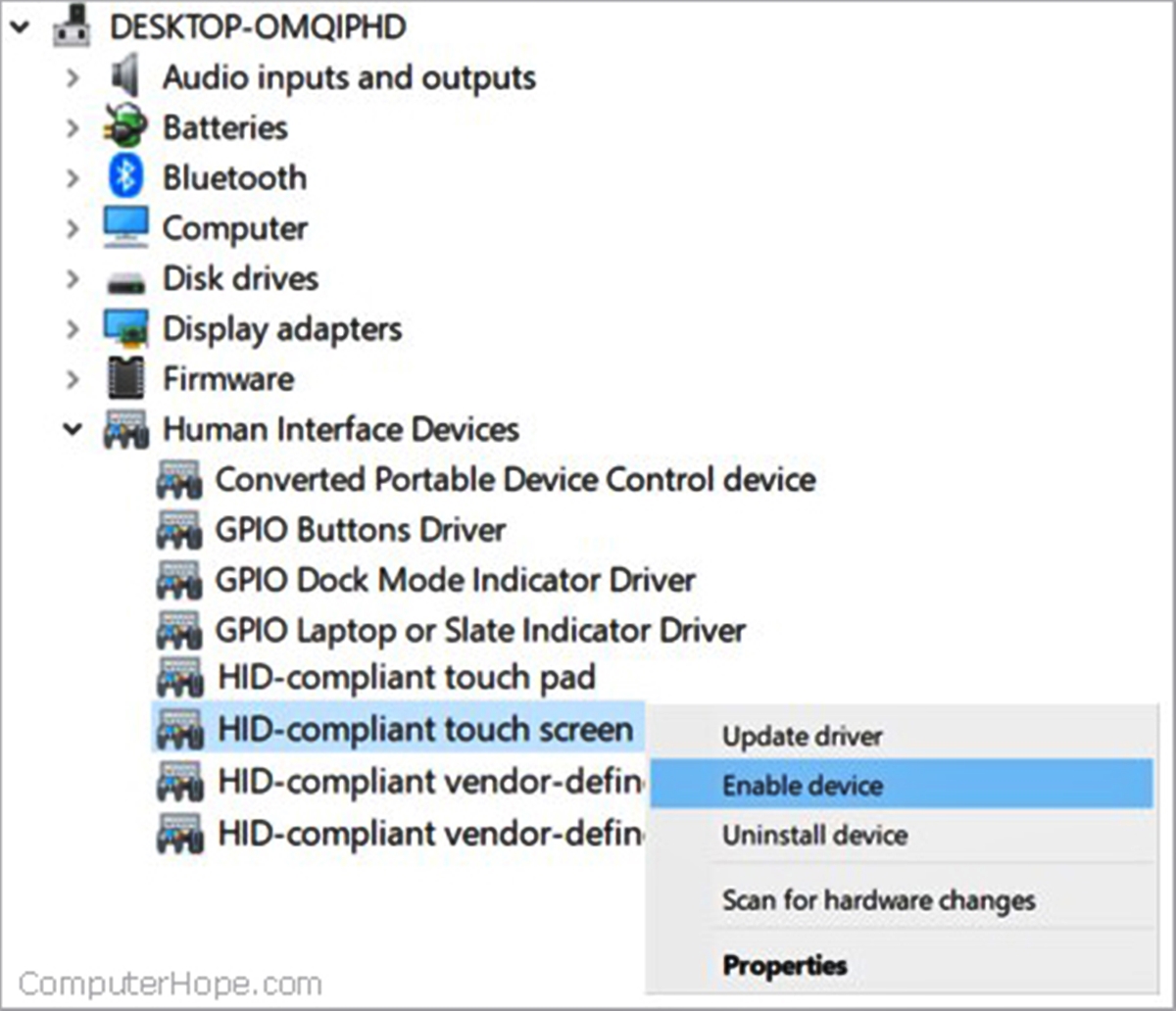
The articles solve two main kinds of problems. First, several guides address how to disable or enable a touchscreen. For example, you will find specific instructions for turning off the touchscreen on Lenovo, HP, and Asus laptops. These are helpful if you want to prevent accidental touches while using a stylus or an external monitor, or if you simply prefer a mouse-and-keyboard setup. Second, a group of articles focuses on wireless hardware. You can learn how to tell if your PC has a wireless card, and how to turn wireless capability on for an HP device. These solve the common issue of a missing Wi-Fi option or a disabled network adapter.
In short, these articles help you directly control your device’s physical hardware, turning a touchscreen on or off, checking for a wireless card, and enabling wireless functionality. Each guide is written to be followed step by step, with no extra fluff, so you can solve the problem at hand and get back to using your device.