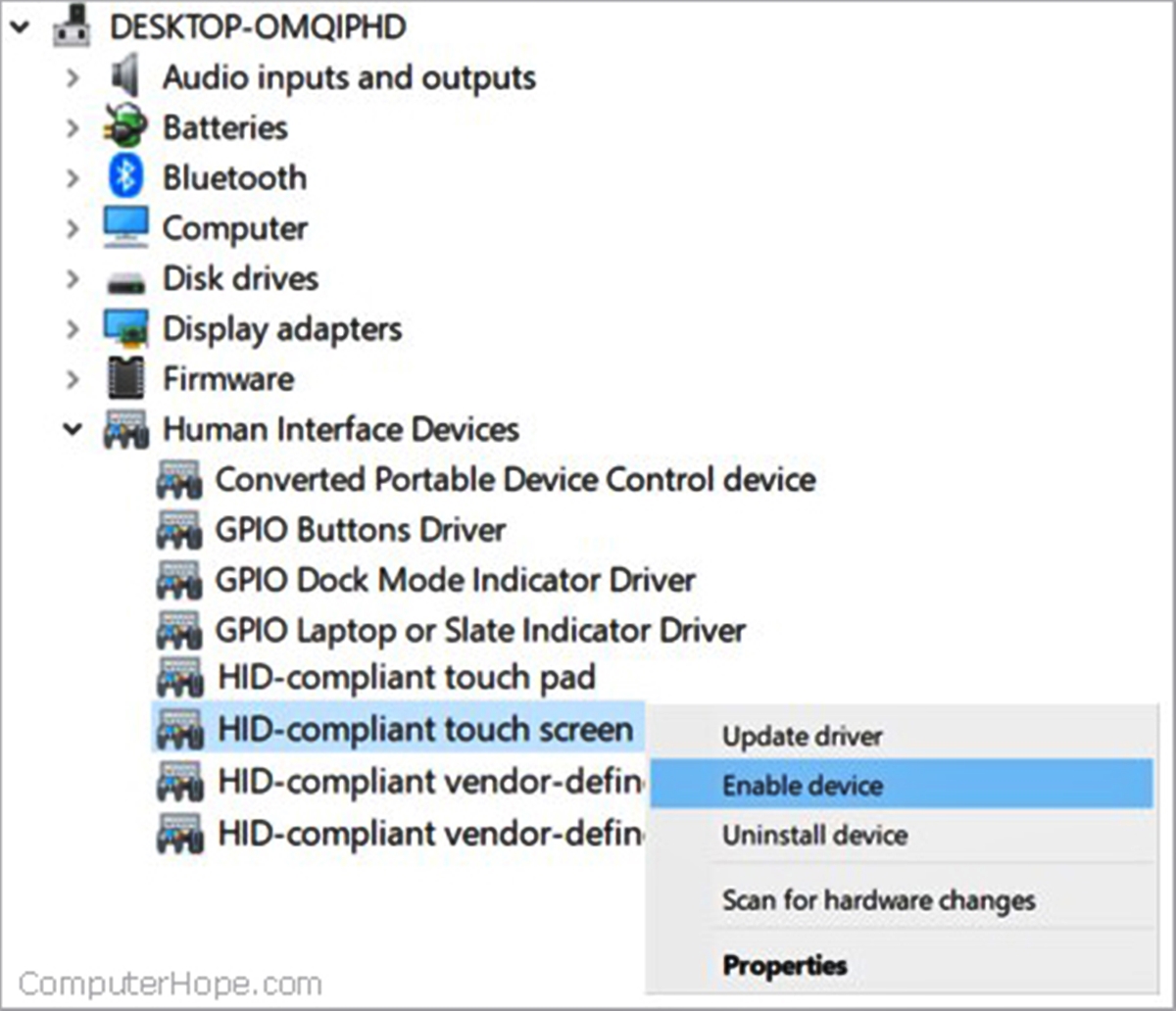
To turn touchscreen off on Lenovo, use the Device Manager. Press the Windows key + X, select Device Manager, expand Human Interface Devices, right-click HID-compliant touch screen, and choose Disable device.
How to turn touchscreen off on Lenovo
The primary and most reliable method to turn touchscreen off on Lenovo is through the Device Manager. This process works consistently across most Lenovo laptops running Windows.
- Press the Windows key + X on your keyboard and select Device Manager from the menu.
- In Device Manager, expand the Human Interface Devices section.
- Locate HID-compliant touch screen in the list. The exact driver name may vary; look for 'touchscreen' or 'digitizer' in the name.
- Right-click HID-compliant touch screen and select Disable device.
- Confirm the prompt if one appears. The touchscreen will stop responding immediately.
How to turn the touchscreen back on
Return to the same driver in Device Manager to re-enable the touchscreen. Navigate back to Human Interface Devices, right-click HID-compliant touch screen, and select Enable device. The touchscreen functionality resumes instantly without requiring a restart.
Why turn off your Lenovo touchscreen
Disabling the touchscreen delivers two verified benefits. First, it prevents accidental taps or unwanted interactions while typing or using an external mouse. Second, it can help save battery life on laptops or tablets without an external mouse or keyboard, since the touchscreen display consumes additional power when active.
Important note for stylus users
Disabling the HID-compliant touch screen driver also disables stylus input. If you rely on a stylus for drawing, note-taking, or precise navigation, this method will prevent the stylus from working. For guidance on using your stylus separately, refer to stylus pen usage and basics to understand how to manage touch and pen inputs independently.
Frequently Asked Questions
Will disabling the touchscreen turn off the display?
No. Disabling the touchscreen only stops touch input. The display continues to function normally, and you can still interact with it using a mouse, touchpad, or keyboard.
Does the touchscreen stay off after a restart?
No. You will need to repeat the Device Manager steps each time you want the touchscreen disabled after a reboot.
Can I use a keyboard shortcut instead of Device Manager?
Some Lenovo models include a dedicated function key with a touchscreen icon. Pressing Fn plus that key may toggle the touchscreen on and off. This method varies by model and is not available on all Lenovo devices.
Will disabling the touchscreen affect my warranty?
No. Using Device Manager to disable a driver is a standard software change and does not void the warranty. Physical disconnection of internal hardware, however, may affect warranty coverage. Physical disconnect method: you can physically disconnect the touchscreen from the motherboard as a last resort, though this may void your warranty.
How do I know if my Lenovo device supports touchscreen functionality?
Check specifications on the Lenovo website or user manual.
Can I still use my Lenovo device with the touchscreen turned off?
Yes, other input methods like mouse, touchpad, or stylus will continue to function normally.
Related reading: How To Turn Off The Touchscreen On Asus Laptop and How Do I Turn Off The Touchscreen On My Hp.