The "lock screen" tag on CellularNews gathers all our guides dedicated to the screen you see first when you pick up your phone. This collection is designed for anyone who wants to take control of that initial interaction, whether you own an iPhone, a Samsung, a Realme, a Pixel, or another Android device. These articles are for users who want to personalize their device, fix an unexpected problem, or simply understand how their phone’s security and interface work.
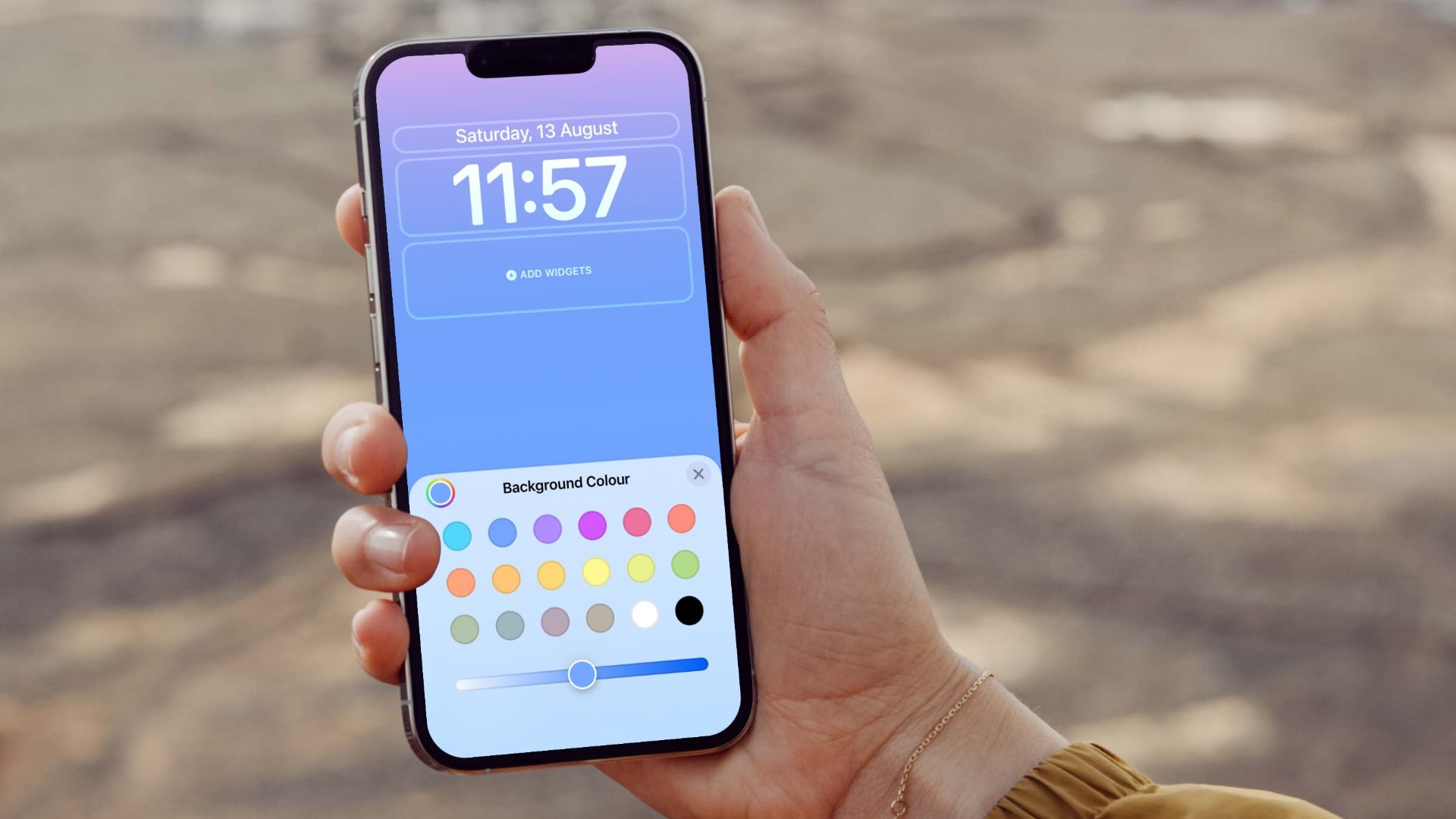
The articles here solve three main types of problems. The first group focuses on customization and personalization: you can learn how to change the wallpaper on Android, set a gradient color lock screen on an iPhone in iOS 16, or even add custom text and change the clock style on a Realme lock screen. The second group tackles security and access issues, offering clear steps for when you are locked out. You will find guides on how to unlock a Samsung phone without a PIN code, how to bypass a phone lock code, and how to take the passcode off your phone entirely. The third group deals with specific annoyances and settings, such as removing the camera icon from a Realme lock screen, stopping pocket dialing on an iPhone 12, or getting rid of the Verizon Wireless branding on your lock screen.
Whether you need to set up emergency contacts on Android or iPhone, move the clock on an iPhone 11 lock screen, or simply turn on your Android phone for the first time, these articles provide straightforward, actionable help. Each one is written to let you complete a specific task without confusion.