How fast is T-Mobile home internet: what to expect before you sign up
How fast is T-Mobile home internet? Real-world experience starts with understanding that T-Mobile internet quality depends almost entirely on two things you control: where you place the unit and how congested your nearby tower gets. Even if your phone shows full bars of 5G Ultra Capacity, home internet traffic is deprioritized below mobile data during peak times. A speed test on your handset will not predict what your household sees in the evening. When you read through any T-Mobile 5G home internet speeds documentation, you will notice the fine print emphasizes tower demand rather than a guaranteed number. That is why two neighbors can have drastically different results. A thorough T-Mobile home internet performance review will reinforce that positioning the device near a window facing the nearest tower often matters more than anything else in the setup.
The plan you pick imposes its own guardrails. If you opt for T-Mobile home internet Lite, customers who use more than 1.2 TB in a month may see lower speeds during congestion because of data prioritization. Heavy streaming households should factor that threshold into their decision. This deprioritization model is fundamentally different from what you get with Verizon 5G home internet. There, speed tiers are tied more explicitly to the plan you pay for and the connection type serving your address. Before committing, it helps to weigh the benefits of 5G? better coverage, speed, and more, against the reality that fixed wireless always shares capacity with every phone connected to the same tower. That is a tradeoff wired broadband simply does not make.
Placement is the single most effective tool you have for improving performance. The hardware pulls signal best when elevated near a window with the fewest walls between it and the tower. Even moving the appliance a few feet along the same wall can shift you from a congested band to a clearer one. Phones on the account can get stuck on an older signal. Real-time metrics from your connection can help guide placement. You should run it anytime you rearrange furniture or move the equipment to a different room.
Congestion follows predictable daily and seasonal rhythms. Evenings bring streaming and gaming peaks that stress any shared wireless infrastructure. A nearby tower serving a dense apartment complex will behave differently than one covering a spread-out suburban neighborhood. Your speeds may swing from excellent at noon to frustrating by dinner. This variability is baked into the service model. The same hardware in the same spot can deliver wildly different results depending on the hour.
Signal metrics offer a window into what your router is actually experiencing. These numbers matter more than the bar icon on your phone. A strong but noisy connection can perform worse than a weaker but cleaner one. Learning to read these values helps you troubleshoot without waiting on support. If your signal-to-noise ratio drops below single digits, repositioning the appliance becomes urgent. Small adjustments to rotation or height often clean up the noise floor enough to stabilize streaming.
Bands and carrier aggregation shape your speed ceiling more than any other technical factor. The modem inside your home unit tries to combine multiple frequency bands to multiply throughput. When it succeeds, you get the full promise of T-Mobile 5G home internet speeds. When it fails, you fall back to a single slower lane. Low-band signals travel farther but carry less data. Mid-band and high-band deliver the speed but struggle with walls. The ideal placement balances these tradeoffs. It lets the radio lock onto a mid-band anchor while adding capacity from other available bands.
Data management becomes essential once you understand the prioritization ladder. Mobile voice and data sit at the top during emergencies and peak hours. Home internet traffic fills whatever capacity remains. This is not a bug. It is the economic model that makes the service affordable. If your household regularly pushes past a terabyte of monthly usage, you will feel the squeeze during congestion before lighter users do. Scheduling large downloads overnight often sidesteps the worst slowdowns. The T-Mobile home internet Lite plan adds an explicit threshold that makes this scheduling even more important.
Comparing fixed wireless to wired alternatives clarifies where the service fits best. Cable and fiber dedicate capacity to your address in ways that wireless cannot match. The tradeoff is price and availability. Many addresses have no wired option that comes close to the monthly cost of this service. For those households, the benefits of 5G? better coverage, speed, and more, outweigh the evening slowdowns. Urban renters and rural residents often reach the same conclusion from opposite directions. One lacks wired competition, and the other lacks wired infrastructure entirely.
Environmental factors inside your home create a second layer of signal challenges. Low-emissivity window coatings block cellular frequencies almost as effectively as they block heat. Metal shelving, large appliances, and even thick stone countertops reflect and absorb signal. The placement assistant cannot see these obstacles. It only reads the resulting metrics. If every window-facing spot delivers poor numbers, try a non-coated window or an exterior wall without metal siding. Sometimes the best location is counterintuitive. It might be a hallway wall that happens to have a clear sightline through multiple doorways.
Long-term reliability depends on tower maintenance and network upgrades in your area. A tower that gets a mid-band upgrade will transform your speeds overnight. One that goes down for maintenance will leave you hunting for a backup connection. The service includes no service-level agreement for uptime or throughput. This is a reasonable tradeoff given the price. Keeping a mobile hotspot plan as a fallback gives you options when the home unit struggles. Many users find that reliability improves over months as the provider densifies its infrastructure.
Security and device management round out the ownership experience. You must get a T-Mobile ID to finish account setup and view billing.
Setting up your gateway and devices
Once you have the box in hand, setting up the T-Mobile 5G gateway begins with a physical placement decision that often matters more than any software step. A window facing the nearest tower can be the difference between stable streaming and evening buffering, even if the spot seems counterintuitive. Plug the device into power and let it boot while you download the T-Life app on your phone. Sign in with your T-Mobile ID. Select Home Internet from the T-Life Home screen. Then head into the More menu to launch the Gateway placement assistant. The assistant will walk you through repositioning the unit based on real signal readings, not guesswork, so you should run it anytime you rearrange furniture or move the device to a different room. If you want to hook up T-Mobile internet on your mobile, the same app can guide you through that process as well, ensuring you stay connected wherever you go. And if you need to set up a cellular trail camera for off-grid monitoring, the T-Mobile 5G gateway can serve as a reliable backhaul source for that device, too.
Understanding your connection and network features
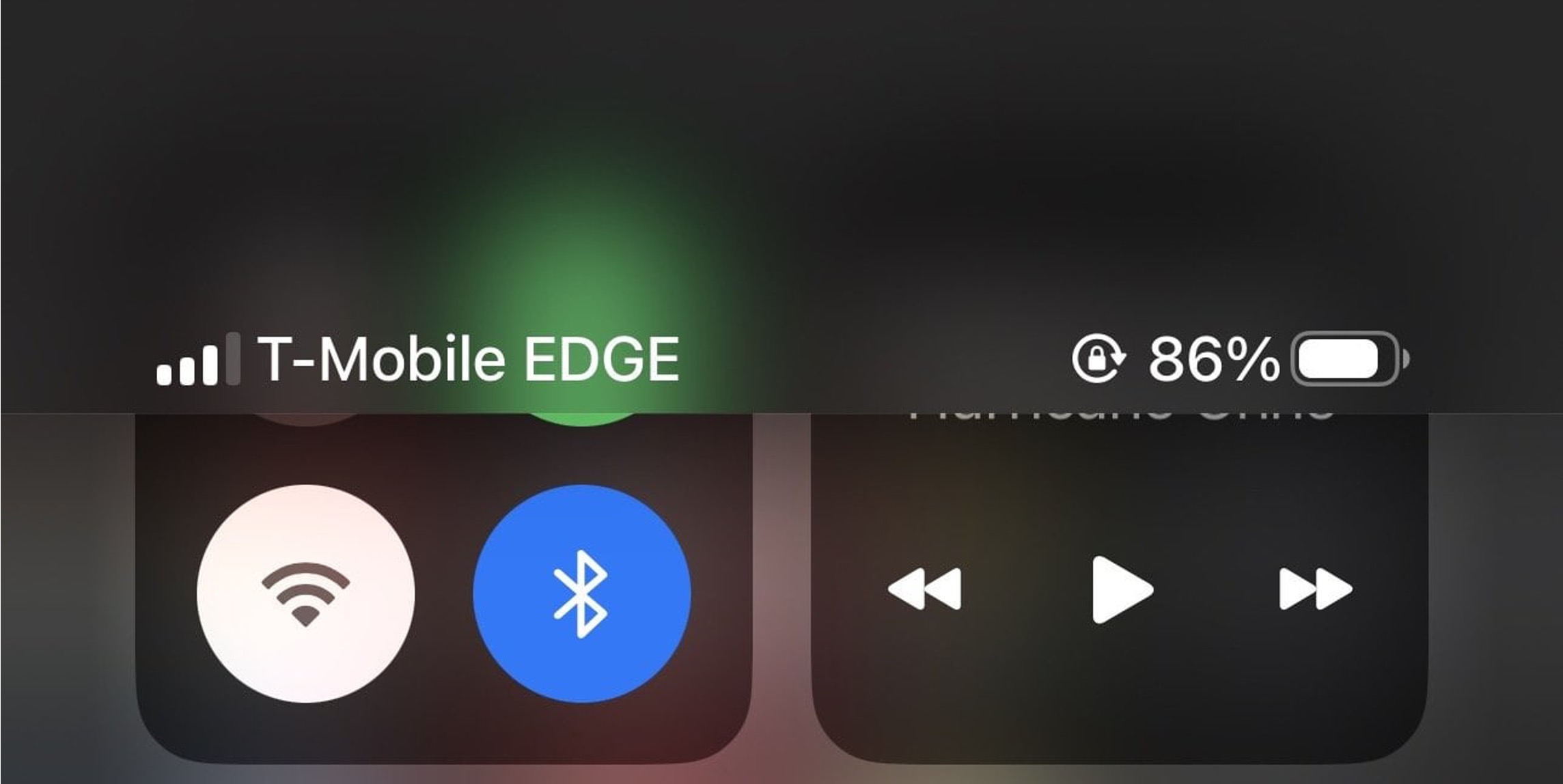
When your phone shows the 5G UC icon meaning you are connected to T-Mobile's mid-band or high-band spectrum, that indicator reflects your handset's priority on the tower. It does not reflect the experience your router will get during evening hours. The hardware itself is built to handle a busy household. Official documentation does not publish a hard T-Mobile home internet device limits number. The unit typically supports dozens of simultaneous connections across its Wi-Fi bands before you notice any strain. If you find yourself on the T-Mobile edge network while traveling, you are seeing a legacy fallback that the home internet router will almost never use. The service is designed to lock onto LTE and 5G signals only. For those weighing mobile plan options, you may want to read about which two features are included in T-Mobile essentials to understand the value of that phone plan, which operates independently from the home internet service and does not change how your router traffic is handled. Similarly, learning about the T-Mobile essential plan helps you see how a separate mobile plan can complement your home internet setup. Gamers trying to change NAT type on T-Mobile 5G home internet should know that the unit uses carrier-grade NAT with no supported method documented in the pages retrieved. This can cause strict NAT warnings in multiplayer lobbies without a workaround like a separate VPN router.
Fixing slow speeds and weak signal
Open the T-Life app and use the interactive placement assistant to scan for a spot near a window or on an upper floor facing the nearest tower, because moving the unit even a few feet can sidestep interference that kills your speeds.
If repositioning does not help, the unit itself may be latched onto a less-than-ideal band. While the home internet modem rarely drops to a legacy signal, phones on the account can get stuck.
- reasons for slow T-Mobile home internet — Why Is T-Mobile Internet Slow
- update towers on T-Mobile — How To Update Towers On T-Mobile
- T-Mobile service absence — Why Do I Have No Service On T-Mobile
- fix T-Mobile edge — How To Fix T-Mobile Edge
Solving disconnections and outages
When your connection drops completely, start with the simplest physical checks before you open the settings menus. Remove and reinsert the battery if your device has a removable one, or hold the power and volume down buttons until it resets if the battery is sealed, then turn the device back on and test again. Open the T-Life app and split your Wi‑Fi bands into separate 2.4 GHz and 5 GHz networks, then connect the troublesome device to each one individually to isolate whether one band is more stable.
For a router that shows no signal at all, basic T-Mobile home internet troubleshooting starts with a call to technical support from a different phone, while you reduce extra internet activity and disconnect unused devices, this is exactly the kind of guidance you will find in the article about why your T-Mobile home internet is not working. Try moving closer to the unit or plugging in with an Ethernet cable. During widespread T-Mobile home internet connectivity issues, your phone may still work fine as a hotspot, so you can tether essential devices while the outage clears; the article on why your T-Mobile internet is not working will walk you through these exact steps. Once service returns, power cycle your modem to force a fresh registration on the system rather than assuming it will reconnect on its own.
- T-Mobile home internet connectivity issues — Why Isn't My T-Mobile Internet Working
- T-Mobile home internet troubleshooting — Why Isn't My T-Mobile Home Internet Working
- T-Mobile WiFi disconnection problems — Why Does My T-Mobile WiFi Keep Disconnecting
Managing your account and perks
Managing your account opens up more than just billing, unlocking perks and controls that shape the whole household experience. If you need to separate lines, there is no self-service button to split T-Mobile phone plans; the official path is a Change of Responsibility that moves lines to a new account, and any device financing agreements may need fresh terms during the transfer, which is why you would want the article on how to split T-Mobile phone plans to understand the steps. On the entertainment side, you can get Paramount with T-Mobile only if you carry the All-In Home Internet plan by selecting the line in your account’s Shared Add-ons and submitting the order, with a limit of two claims per account, making the article on how to get Paramount with T-Mobile essential for claiming your subscription. When you travel, the ability to use T-Mobile in-flight WiFi depends on your plan’s current benefits, which is why you would want the article on how to use T-Mobile in-flight WiFi to confirm eligibility. Back on the ground, keeping an eye on younger family members means you can use it to monitor kids online through the Verizon Smart Family companion apps, where the parent app manages content filters and screen time once both devices are paired on the same account, making the article on how to use it to monitor kids online essential for setting up those controls.
- get T-Mobile in-flight WiFi — How To Get T-Mobile In-Flight WiFi
Using extra connectivity gear
Accessories can help stretch a signal to every corner of your home, but the available hardware is more straightforward than some older pilot programs might suggest. If you have come across references to T-Mobile Wingman, that name traces back to a limited in-flight connectivity trial and does not correspond to any current home internet product you can order or configure, which is why you would want to read the article about What Is T-Mobile Wingman to avoid confusion with legacy offerings. For extending your coverage on the ground, the practical tool is T-Mobile Wingman WiFi, and you would want to read the article about What Is T-Mobile Wingman WiFi to learn how this mesh extender integrates with your existing setup, though the official support pages simply refer to it as a mesh Wi‑Fi extender included with the All‑In plan at no extra charge. After you activate your 5G device, you can request the unit by calling, and T-Mobile may also email you a recommendation if its diagnostics detect weak spots in your layout. Once it arrives, the extender pairs with your existing hardware to push the signal into hard-to-reach rooms, but its performance still hinges on the same tower congestion and placement that shape your base speeds. If a far corner of the house struggles while your phone shows full bars on mobile data, remember that home internet traffic remains at a lower priority and the extender is solving a Wi‑Fi reach problem rather than bypassing management on the carrier side.
Comparing plans and competitors
When you line up T-Mobile’s home internet against the mobile carriers, the most important difference has nothing to do with the monthly price and everything to do with how the network treats your traffic. A phone on a premium unlimited plan and a 5G home internet device sitting on the same desk can pull from the exact same tower and still deliver wildly different speeds because home internet data is always at the back of the line during peak congestion. That reality makes direct plan-to-plan comparisons tricky. You might assume a similar monthly rate buys a similar experience, but Verizon’s smartphone plans include network-management thresholds that do not translate to fixed wireless. On Unlimited plans, Verizon says on-device and mobile hotspot data may be temporarily slower than other traffic during congestion after 50GB/mo of 5G Ultra Wideband, 5G, or 4G LTE data, and video typically streams at 720p on compatible devices. Those are mobile rules, not home broadband rules, and they highlight a split you need to keep in mind: a phone plan is engineered for one person moving through a cell site, while a home internet plan is engineered for a household that stays put and gets secondary access to capacity. Before you switch a whole family over, use a phone on each network to run speed tests at different times of day from the spot where the home internet unit would live, remembering that the numbers on the handset will almost always look rosier than what the dedicated home internet router will get once it is deprioritized. Verizon'S new Welcome unlimited plan makes 5G more affordable.
Frequently Asked Questions
How do I split my T-Mobile gateway Wi-Fi into 2.4 and 5 GHz bands?
Open the T-Life app and use its settings to separate the bands into distinct network names. This lets you test whether a troublesome device stays more stable on one band than the other.
What does the 5G UC icon on my phone actually mean?
It means your handset is connected to T-Mobile's Ultra Capacity 5G using mid-band or high-band spectrum. This icon reflects your phone's priority on the tower and does not predict the speeds your home internet gateway will receive.
Can I change the NAT type on my T-Mobile 5G gateway for gaming?
The gateway uses carrier-grade NAT with no supported method to change the type documented by T-Mobile. This often causes strict NAT warnings in multiplayer games unless you connect through a separate VPN router.