To recover deleted texts on Android, the most reliable built-in method is the Trash folder in Google Messages, which retains deleted conversations for 30 days. On iPhone, the Recently Deleted folder in the Messages app (iOS 16 or later) lets you recover deleted texts for up to 30 days, making these the first and best tools to check before trying anything else.
How to recover deleted texts on Android & iPhone: the first steps
Deleted texts are not always gone forever. On iPhone, Apple provides a built-in recovery path in the Messages app for devices running iOS 16 or later. On Android, the answer depends on which messaging app you use, whether you have a backup, and your carrier. The most reliable recovery paths are the built-in Recently Deleted folder on iPhone and the Trash or Archive folders in Google Messages on Android. These official methods should be your first stop, as they require no third-party software or device reset.
Recover deleted messages on iPhone using the Recently Deleted folder
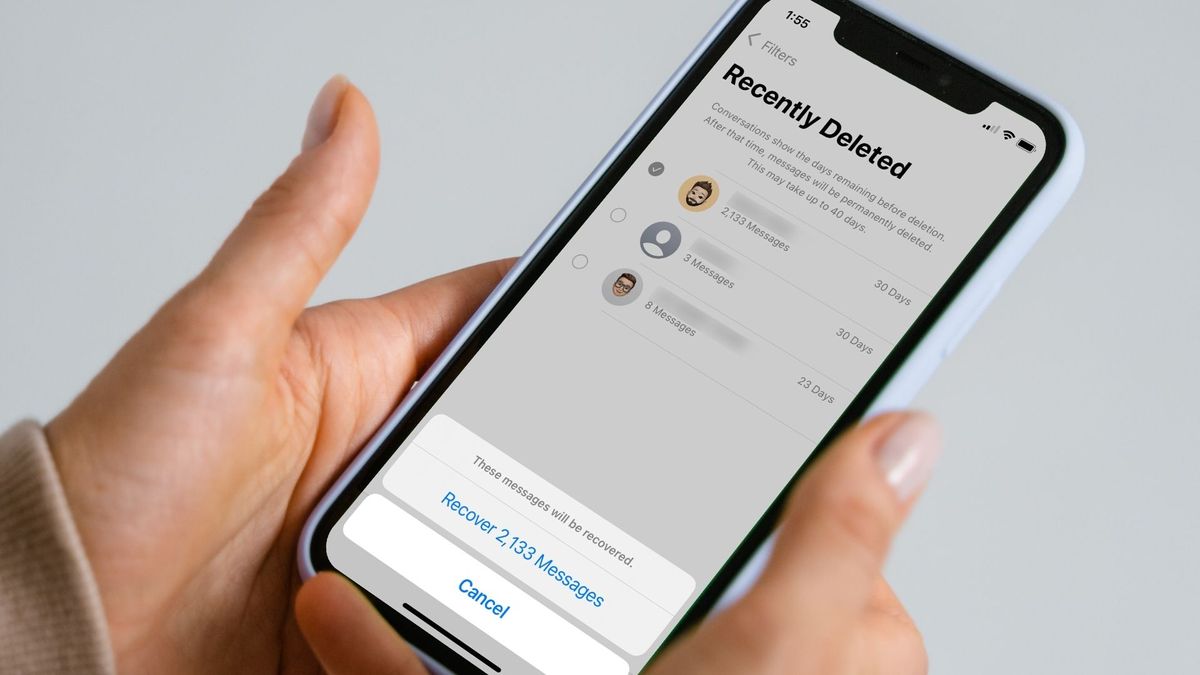
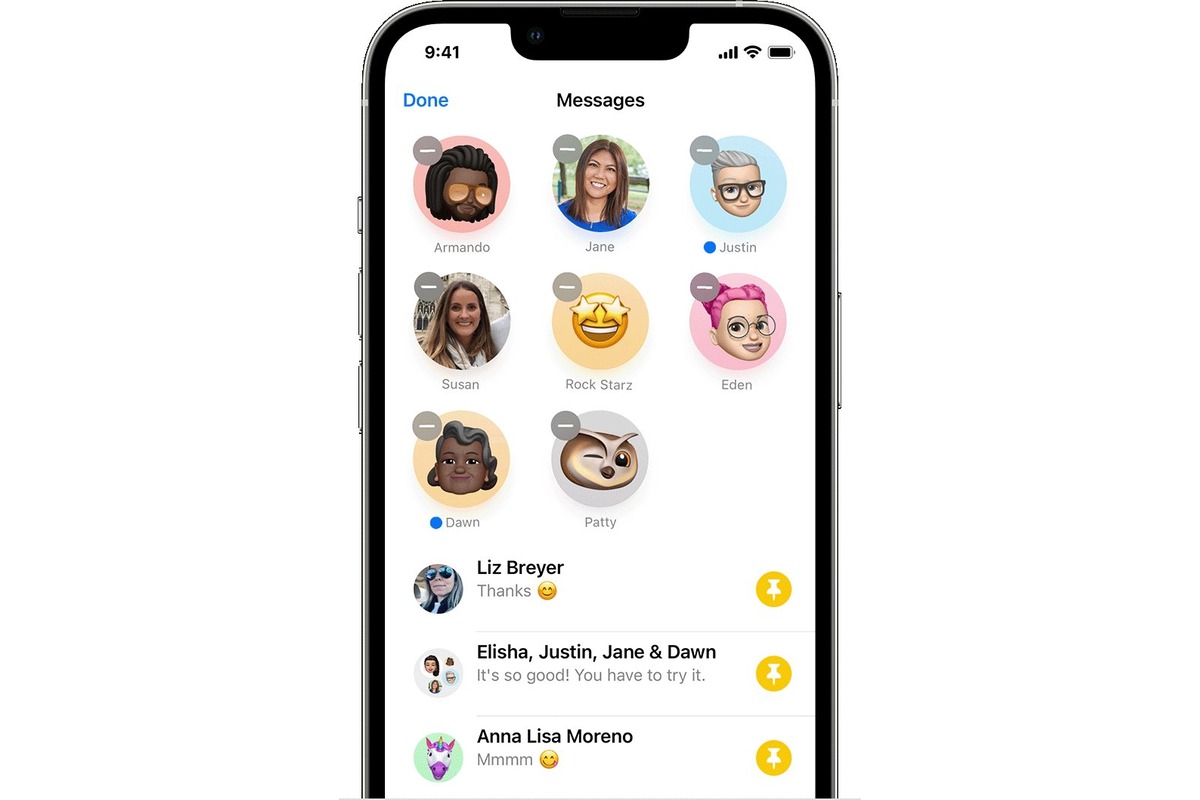
If you accidentally deleted a text or iMessage on an iPhone running iOS 16 or later, the Messages app stores it in a Recently Deleted folder for up to 30 days. Apple documents that this period is 30 days, though one support page mentions 30 to 40 days. Deleted messages are stored in an SQLite database until overwritten, with the space changing from 'allocated' to 'unallocated'. To recover:
- Open the Messages app.
- In the conversation list, tap Edit in the top-left corner.
- Tap Show Recently Deleted. On some iOS 18 screens, you tap Edit on the conversations page, then tap the Recently Deleted option.
- Select the conversations you want to restore.
- Tap Recover.
- Tap Recover Messages or Recover [Number] Messages.
If Messages in iCloud is turned on, recovering on one Apple device restores the messages on all other Apple devices signed in to the same Apple Account. Important limits: deleting or recovering affects only your own Messages conversations, not the recipient’s device. Messages removed with Undo Send are permanently deleted and cannot be recovered. Audio messages that expire before being saved are also not recoverable. If the message was deleted before updating to iOS 16 or iPadOS 16.1, this method will not work.
Recover deleted texts on Android using Google Messages Trash
For Android users who rely on the Google Messages app, there is a built-in Trash folder that stores deleted conversations for 30 days. This is the most straightforward way to retrieve deleted text messages on Android without needing a PC or backup. To use it:
- Open Google Messages.
- Open the Trash folder within the app.
- Find the conversation you want to recover and restore it.
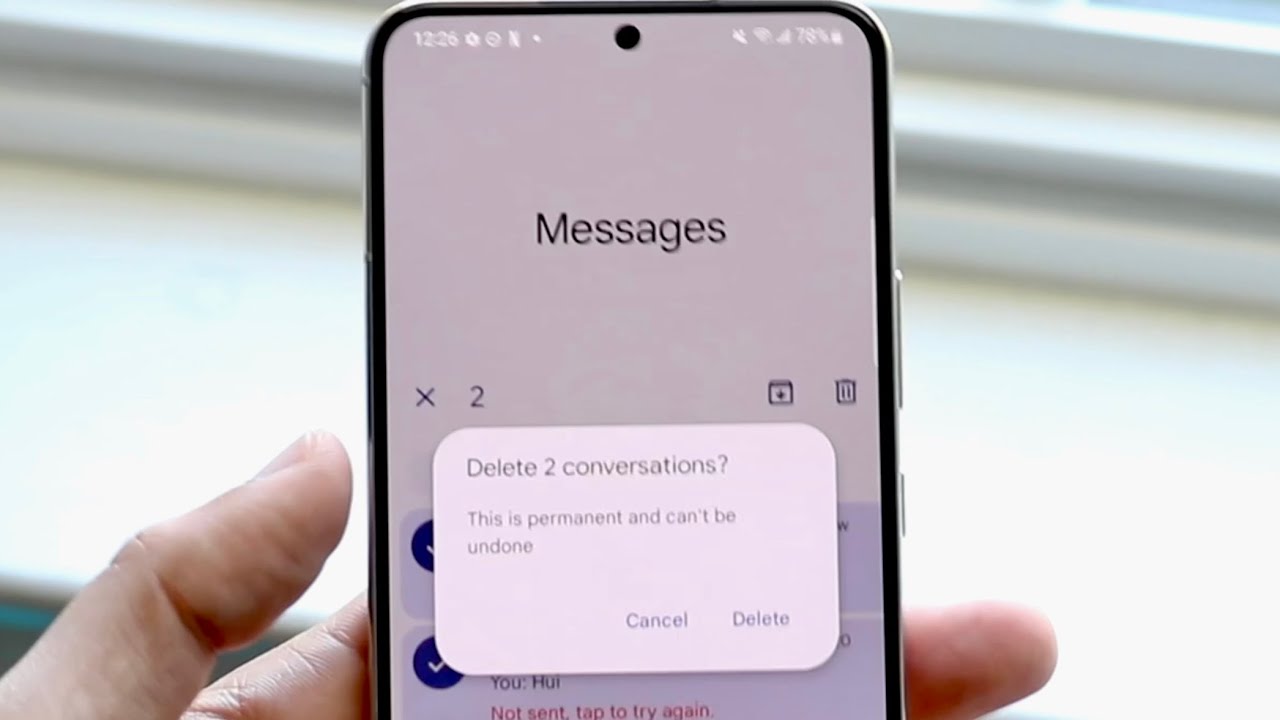
Once you delete a conversation from the Trash folder, you cannot restore it. Google also states that you cannot recover messages you delete permanently from the Trash folder. This method only works if you use Google Messages as your default SMS app; other messaging apps may not have a Trash feature.
Check the Archived folder on Android
Before assuming a message is deleted, check whether it was simply archived. Google’s help content recommends checking the Archived folder because a conversation may have been archived rather than deleted. Also, check other apps like Gallery or Calendar for missing data that may have been saved automatically, such as photos or appointments from the deleted conversation. Ask the friend you were texting to resend the information or check if they have the conversation backed up on their device. To do this:
- Open Messages.
- Tap your Profile icon or the three-line menu.
- Tap Archived.
- If the conversation is there, long-press it and tap Unarchive.
This is a quick check that can save you from unnecessary recovery steps. If you find the conversation here, you have effectively retrieved deleted text messages on Android without any data loss.
What to do if the built-in tools don’t work
If the Recently Deleted folder on iPhone or the Trash/Archive folder on Android does not contain your messages, the only other official method is a full device restore from a backup made before the deletion. Recovering via iCloud backup requires the SIM card that was used when the backup was made. On Android, Google’s help says that if you have a backup from before deletion, the only restore method is to factory reset the device and choose Restore from Backup during setup. This is destructive: it erases all current data on the phone and replaces it with the backup data, meaning any messages, photos, or settings created after the backup will be lost. On Android, when a text is deleted the space it occupied is tagged as 'unused' and new data will overwrite it; to improve chances of recovery, stop all phone activity immediately, turn off Wi-Fi and Bluetooth, and put the phone in airplane mode. For more advanced third-party recovery options, some Android recovery apps like DiskDigger do not require rooting the phone, but may yield limited results. Rooting an Android phone to use recovery software will void the phone’s warranty and gives the app access to all files on the device. Specific third-party recovery apps include Phone Rescue by iMobie ($49.99 single license, $69.99 family pack for five) and Enigma Recovery ($59.99 single license, $69.99 family pack for three, $199.99 unlimited downloads). Please see our sibling page on that topic.
How to protect your messages from accidental deletion
The most reliable long-term solution is to enable regular backups. On iPhone, turn on iCloud Backup so that your messages are saved automatically. On Android, use Google One or your device’s built-in backup service to back up your SMS and MMS data. If you need to retrieve deleted messages in phone memory, having a recent backup is the only way to guarantee recovery without relying on the 30-day window of the Trash or Recently Deleted folders. Prevention is always better than recovery: screen-capture important texts and back up regularly.
Frequently Asked Questions
Can I recover deleted texts if I don’t use Google Messages on Android?
Recovery depends entirely on your messaging app. Only apps with a built-in Trash or Archive folder, like Google Messages, offer a native recovery path. For other apps, you would need a prior backup or a third-party tool, which may require rooting your phone.
Does recovering a message on iPhone restore it for the other person?
No. The other person’s copy of the conversation remains unaffected.
What happens if I delete a message from the Recently Deleted folder on iPhone?
Once you delete a message from the Recently Deleted folder, it is permanently removed and cannot be recovered through any official Apple method. The same applies to the Trash folder in Google Messages on Android.
Can I recover texts from a carrier backup?
Some carriers may retain records of SMS messages for a limited time, but this is not guaranteed. Contact your service provider’s technical support team and ask if they have a backup of your messages. Success varies by carrier and region.
Will a factory reset help me recover deleted texts on Android?
A factory reset alone does not recover deleted texts. It only works if you restore from a backup made before the deletion during the setup process. Without a backup, a factory reset will erase all data permanently.