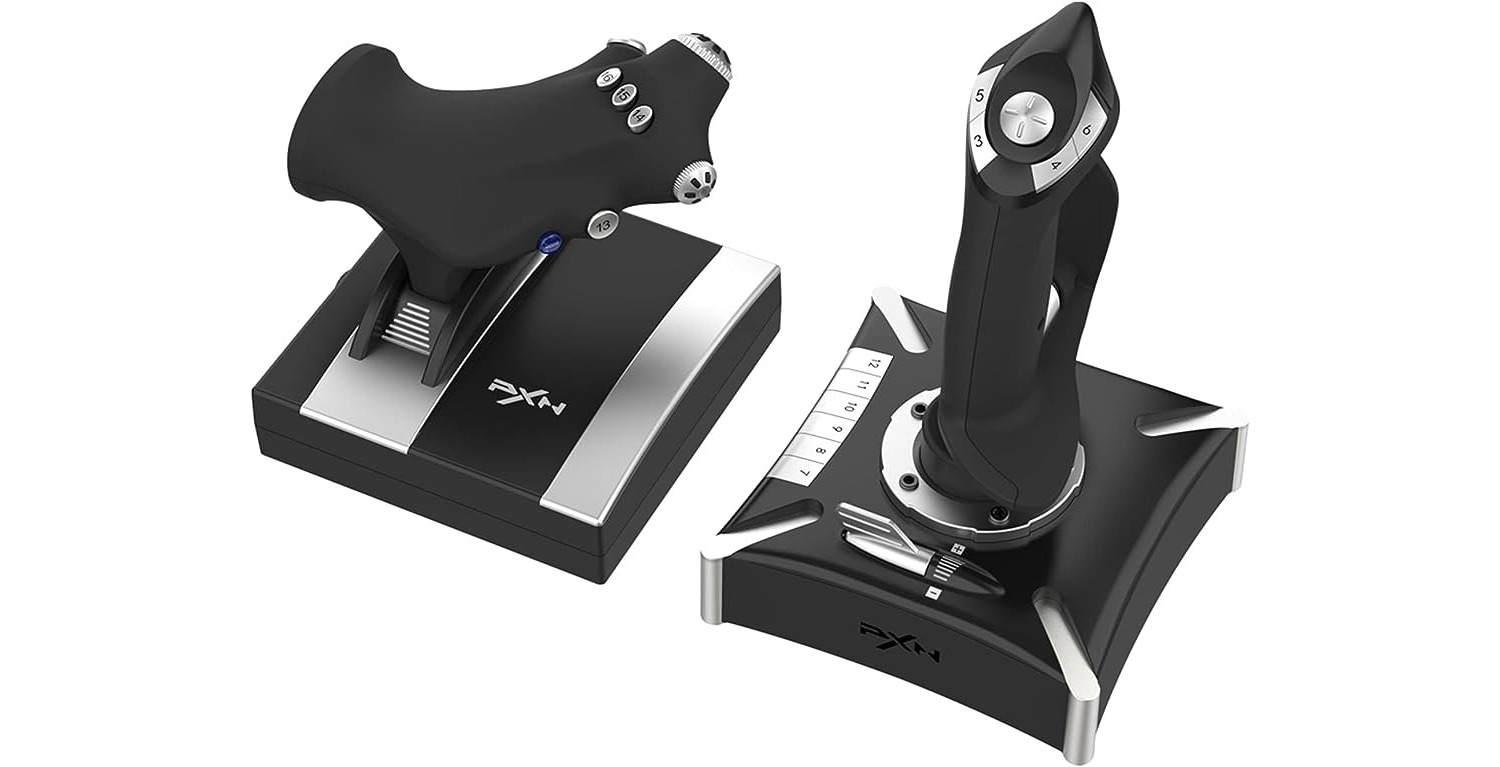
To use a joystick on Simple Planes, you need to connect a compatible USB or Bluetooth gamepad to your mobile device and map its controls inside the game's input settings.
What you need before you start
You will need a compatible USB or Bluetooth joystick or gamepad. For Android devices, a USB OTG adapter is required if you are using a wired connection. For iPhone, a Lightning or USB-C adapter may be needed depending on your iPhone model and the controller's connector type.
Connecting a joystick on Android
SimplePlanes supports USB gamepads and joysticks on Android and provides in-game input mapping for control surfaces, throttle, brakes, landing gear, pausing, and cameras. To connect a wired joystick, plug the USB OTG adapter into your Android device, then connect the joystick's USB cable to the adapter. The system should recognize the device automatically. For Bluetooth controllers, pair the joystick in your device's Bluetooth settings before launching the game. Before configuring in-game, calibrate the joystick via Control Panel > Game Controllers or Joystick Settings on the computer. Once connected, open SimplePlanes and access the in-game input mapping to assign controls.
Connecting a joystick on iPhone
For Bluetooth pairing on iPhone, open Settings, tap Bluetooth, turn Bluetooth on, and tap the controller name when it appears. For a wired connection, connect the controller via Lightning or USB-C, using an adapter if your iPhone model requires one. Apple documents that an adapter may be needed depending on the iPhone model and controller type.
Mapping joystick controls in SimplePlanes
After connecting the joystick, open the game's settings or options menu and look for the controller or input configuration section. Select the joystick as your input device, then assign each control by selecting the function and moving the joystick axis or pressing the button you want to map. Adjust sensitivity and deadzone settings to fine-tune joystick responsiveness and center-area input. This allows you to customize pitch, roll, yaw, throttle, and other functions to match your joystick's layout.
Customizing buttons on iPhone
After pairing a controller on iPhone, Apple provides a system-level customization path. Go to Settings, then General, then Game Controller to customize buttons. Tap Add App to create app-specific settings for SimplePlanes. You can also use the Buddy Controller feature by navigating to Settings, General, Game Controller, then Buddy Controller to combine two controllers for shared control.
Testing your joystick setup
Launch a flight in SimplePlanes to verify that all mapped controls respond correctly. Move the joystick in each direction and press each mapped button to confirm the aircraft reacts as expected. If any control feels off, return to the input mapping screen and make adjustments. Testing is especially important when using joysticks for PC gaming, as mobile setups may require fine-tuning to match your preferred responsiveness.
Troubleshooting common joystick issues
If your joystick is not recognized, re-pair the device via Bluetooth or check the USB OTG connection on Android. Driver installation may be required for older or specialized joysticks. Ensure any adapters are compatible with your iPhone model and controller type. If controls are not responding in SimplePlanes, verify that the joystick is selected as the active input device in the game's settings. When multiple controllers are connected, a controller conflict can occur; set the joystick as the primary controller. Check for physical damage or defects as a possible hardware issue. Restarting the game or reconnecting the controller often resolves recognition issues.
Frequently Asked Questions
What is a joystick?
A joystick is an input device consisting of a stick that pivots on a base, used to control movement or direction in games and simulations by translating physical movement into on-screen action.
Why would I want to use a joystick on Simple Planes?
Using a joystick provides greater immersion and precise control over your aircraft, allowing for smoother pitch, roll, and yaw inputs compared to touchscreen controls.
What joysticks work with SimplePlanes?
SimplePlanes supports USB gamepads and joysticks that are compatible with Android and iOS. Most standard Bluetooth and USB game controllers that work with mobile devices should function, but the official store listing does not provide a specific list of supported models.
Are wireless controllers supported?
Yes, wireless Bluetooth controllers are supported on both Android and iPhone. Pair the controller in your device's Bluetooth settings before launching SimplePlanes.
How do I reset button mappings?
To reset button mappings, open the in-game input mapping screen in SimplePlanes and clear or reassign each control. On iPhone, you can also remove app-specific settings under Settings, General, Game Controller by tapping the SimplePlanes entry and choosing Reset.