To pair BT600 to headset, plug the BT600 USB adapter into your computer, then put your headset into pairing mode, and finally press the BT600 Pair button to complete the wireless connection. This process lets you use a compatible Bluetooth headset with your laptop or PC for calls, audio, and general headset setup and use.
What you need to pair bt600 to headset
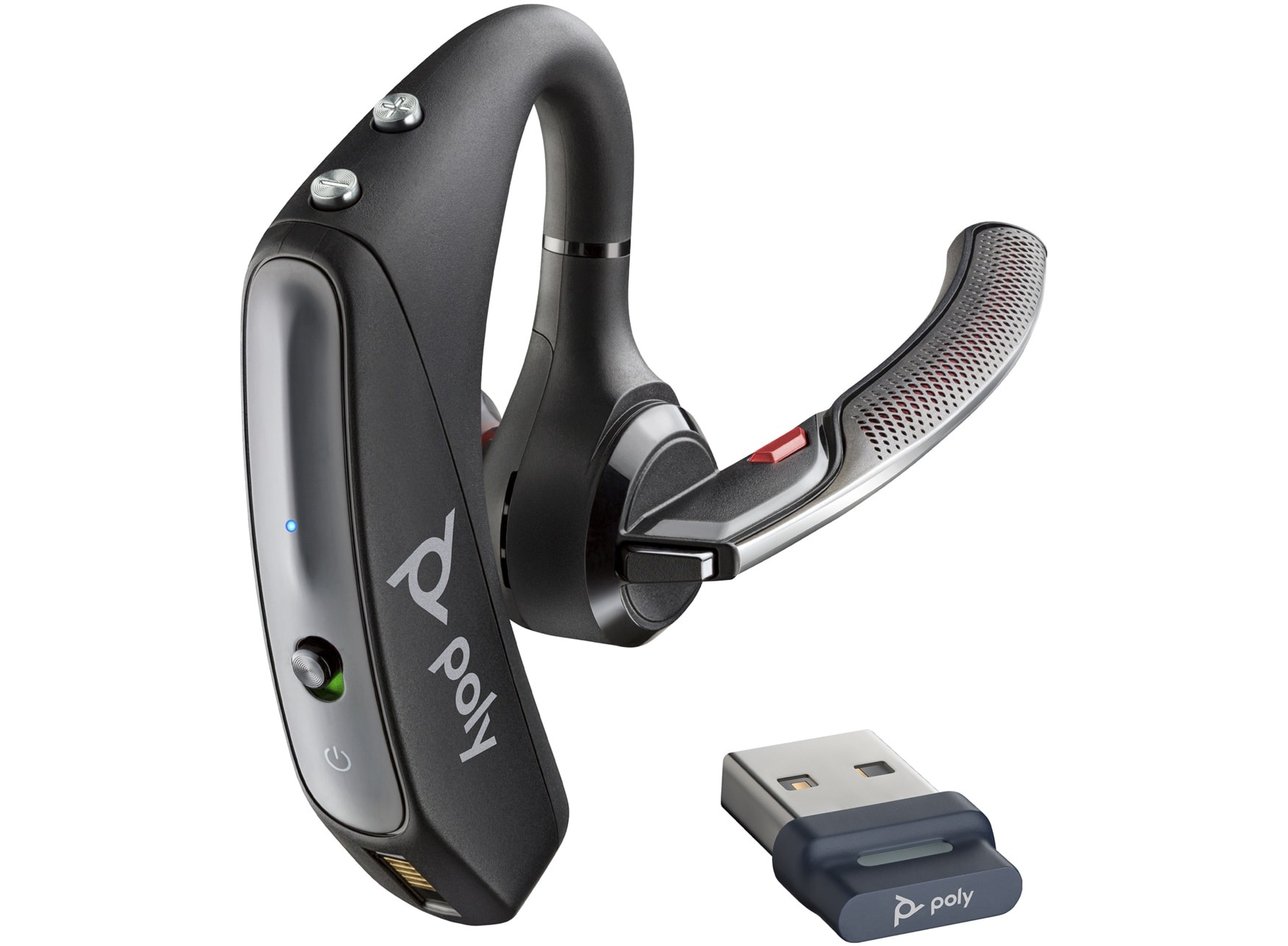
The BT600 is a USB Bluetooth adapter designed for computers, not phones. You need only two items: the BT600 adapter and a compatible Bluetooth headset. The adapter plugs into a USB port on your laptop or desktop and establishes a direct wireless link to your headset, eliminating the need for built-in computer Bluetooth.
Step 1: Plug the BT600 into your computer
Insert the BT600 into an available USB port on your laptop or computer. Wait a few moments for the operating system to recognize the adapter before proceeding to the next step. The computer does not require additional drivers for basic recognition.
Step 2: Put your headset into pairing mode
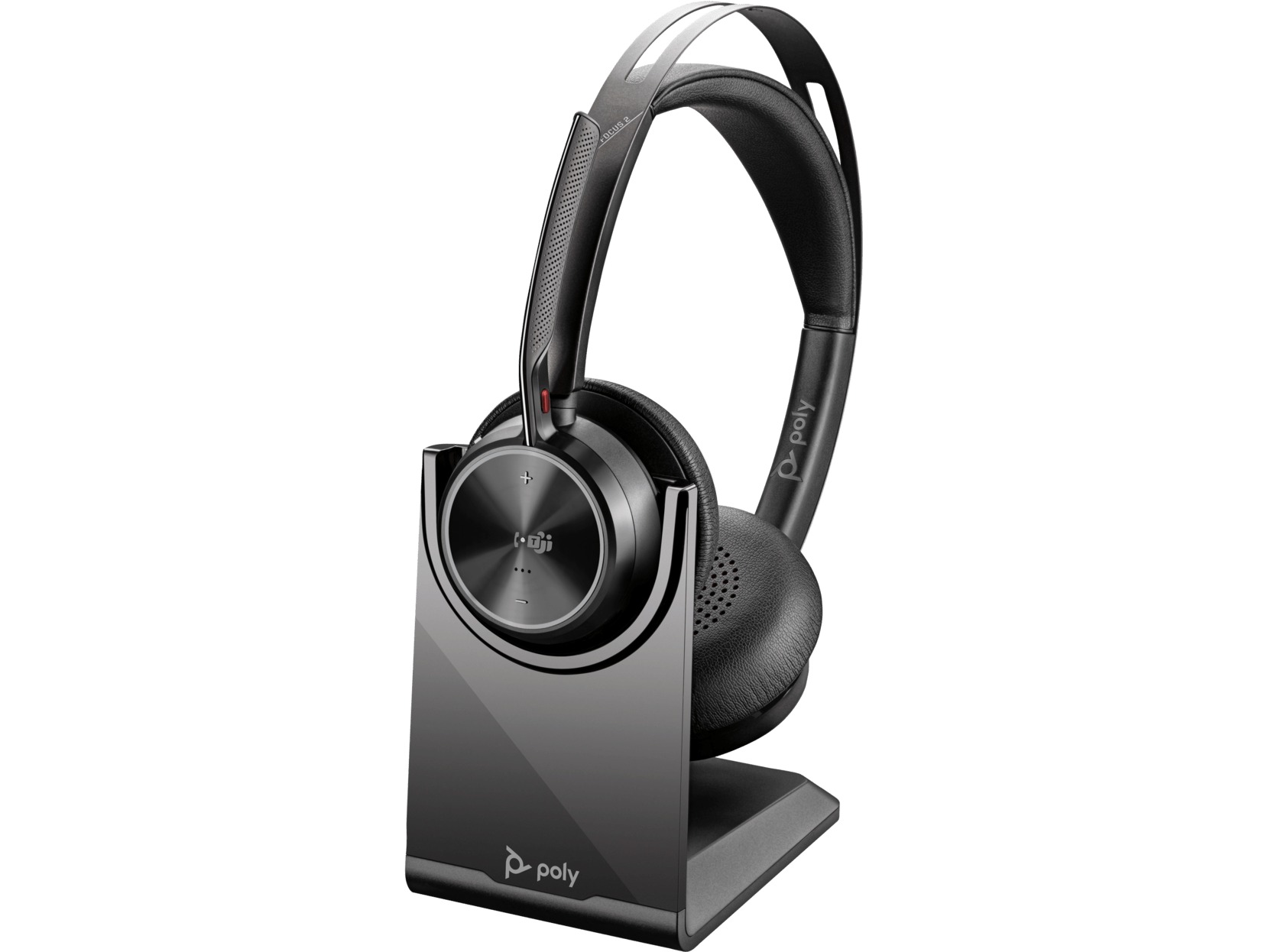
Activate Bluetooth pairing on your headset by following its own user guide. For many Poly Voyager models, press and hold the power switch or button toward the Bluetooth icon until the headset LEDs flash red and blue and you hear a voice prompt saying "pairing." The exact button sequence varies by headset model, so consult your headset's manual if needed.
Step 3: Press the BT600 Pair button
Locate the recessed Pair button on the BT600 adapter. Use a pen or paperclip to press and hold this button until the adapter's LED begins flashing red and blue. Once both devices are in pairing mode, the headset connects to the BT600 automatically without any further action on the computer.
How to confirm pairing was successful
When pairing succeeds, the BT600 LED turns solid blue. Success is confirmed by the voice prompts “pairing successful” and, in one guide, “PC connected,” plus a solid blue adapter LED. One official guide says the adapter LED flashes red and blue in pairing mode, then turns solid blue when paired successfully. Test the connection by playing audio or making a call to verify the headset works with your computer.
Troubleshooting BT600 pairing problems
If pairing fails, re-enter pairing mode on both the headset and the BT600 and try again. Ensure your headset is compatible with the BT600; for example, the Voyager 4300 UC works with this adapter, while the Savi 8200 UC is not supported in certain SIP software environments. One compatibility note in the retrieved material says the BT600 is not supported with Savi 8200 UC phones in a specific SIP software environment, and suggests using Bluetooth only instead. One compatibility guide says BT600 is not supported with a USB dongle for SIP 6.3.1 or SIP 6.3.2 on 6920w, 6930w, and 6940w phones. Always consult your headset's own user guide for its specific pairing procedure, as some models require unique button combinations or reset steps.
Frequently Asked Questions
Does the BT600 work with any Bluetooth headset?
The BT600 is designed for compatible Poly and Plantronics headsets. Check your headset's specifications or user guide to confirm support. Some models, like the Voyager 4300 UC, are verified to work, while others, such as the Savi 8200 UC in SIP environments, may not be supported.
Can I use the BT600 with a phone instead of a computer?
No. The BT600 is a USB adapter intended for use with a laptop or computer. It does not pair directly with smartphones. If you need Bluetooth for a phone, use the phone's built-in Bluetooth or a dedicated phone Bluetooth adapter. One BT600 guide includes phone pairing steps for the headset itself, not for the BT600 adapter: iPhone uses Settings > Bluetooth > On, and Android uses Settings > On > Scan for devices. That guide says menus may vary by device.
Why does my BT600 LED stay solid red or not flash at all?
A solid red LED or no flashing indicates the adapter is not in pairing mode. Press and hold the recessed Pair button with a pen or paperclip until the LED flashes red and blue. If the LED still does not respond, try removing and reinserting the BT600 into the USB port.
How do I reset the BT600 to factory settings?
The BT600 does not have a dedicated factory reset procedure documented in the official pairing guides. If you experience persistent issues, clear any existing pairings by re-entering pairing mode on both the adapter and headset, then attempt the pairing process from the beginning.
Does the BT600 require software or drivers to work?
No. The BT600 is recognized by the computer automatically when plugged in. No additional software, drivers, or app installations are needed for the pairing process described here.
Related reading: How To Connect Headset To PS5 and How Do I Connect My Turtle Beach Headset To My PC.