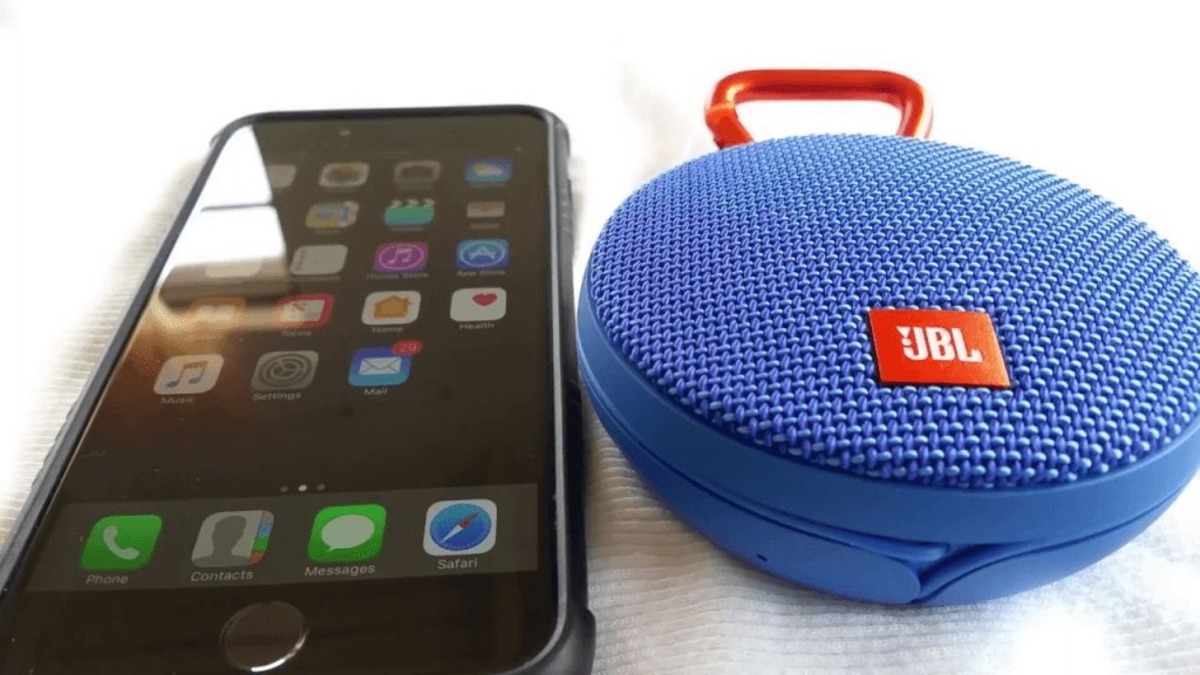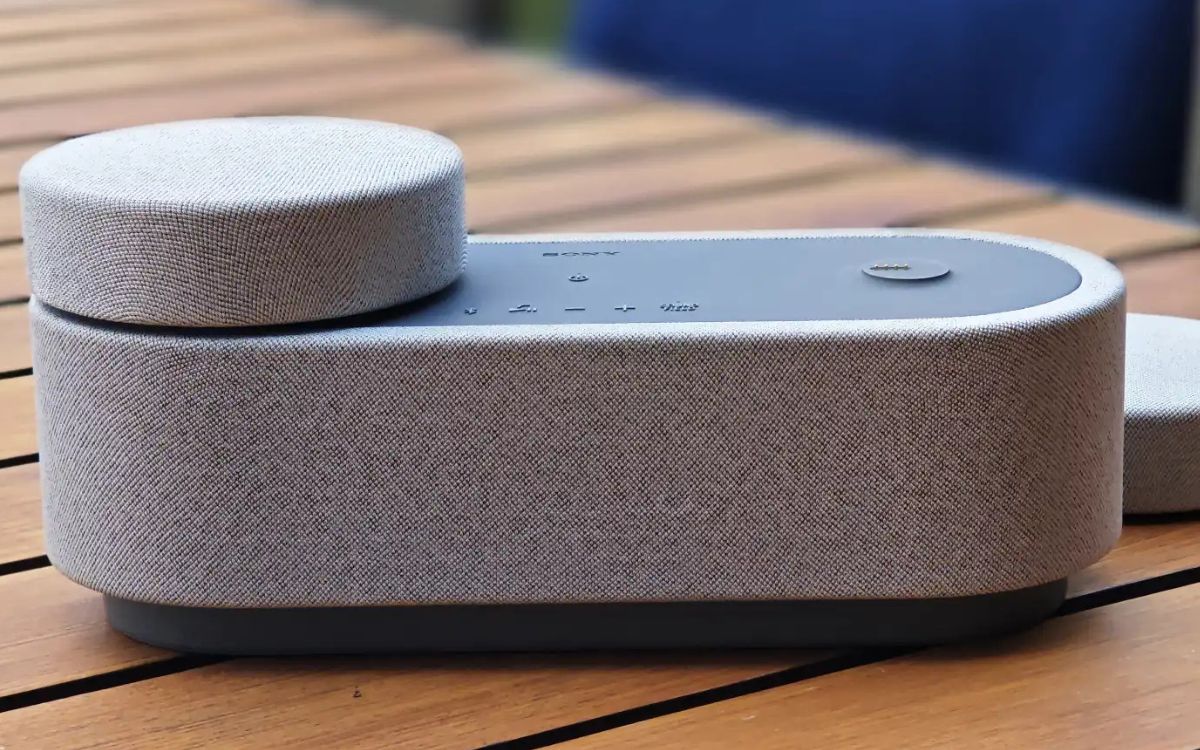
To pair a Sony wireless speaker, first ensure the speaker is turned on and sufficiently charged, then place your phone or computer within 1 meter of the speaker. Once the speaker is in pairing mode, select its model name from your device's Bluetooth list to complete the connection.
Before you pair your Sony wireless speaker
Before starting the pairing process, take these preparatory steps to ensure a smooth connection. First, make sure the speaker is turned on and has enough battery charge to complete the pairing. Place your Bluetooth source device, such as a smartphone, tablet, or laptop, within 1 meter (about 3 to 3.3 feet) of the speaker to ensure a strong signal. To avoid sudden loud sounds, it is recommended to turn down the volume on both the Bluetooth device and the speaker before connecting.
How to put a Sony speaker in pairing mode
For first-time use or after a factory reset, the speaker often enters pairing mode automatically when turned on. You will know this is happening because the Bluetooth indicator will flash rapidly. If the speaker does not enter pairing mode automatically, you can do so manually. Press and hold the PAIRING button (sometimes labeled Power/PAIRING) on the speaker until you hear beeps and the Bluetooth indicator flashes rapidly. This signals that the speaker is ready to connect.
How to connect your phone or laptop via Bluetooth
- On your mobile device, navigate to Settings, then Wireless and Networks (on Android) or directly to Bluetooth (on iOS), and turn Bluetooth on. On a computer, open the Bluetooth settings and ensure Bluetooth is enabled.
- Your device will begin scanning for available Bluetooth devices. From the list, select the model name of your Sony wireless speaker.
- If prompted for a passkey, passcode, PIN code, or password, enter "0000". The passkey '0000' is sometimes called Passcode, PIN code, PIN number, or Password.
- Once the connection is successful, the Bluetooth indicator on the speaker will stop flashing and remain steadily lit.
How to use NFC for a quick one-touch connection
If your Sony speaker supports NFC, you can use a one-touch connection for instant pairing. This works with NFC-compatible Android phones (version 4.1 or later) or compatible Walkman devices. Ensure NFC is enabled on your mobile device and that the speaker is powered on. Unlock your device, then touch its N-mark symbol to the N-mark symbol on the Sony speaker. Your device will vibrate to confirm the connection, and pairing completes automatically.
What to do after a successful connection
After a successful connection, the flashing Bluetooth indicator on the speaker turns solid, confirming the link is active. After initial pairing, the speaker will attempt to automatically reconnect to the last connected Bluetooth device when turned on, if that device is nearby and its Bluetooth function is active. Sony speakers can be paired with up to 4 to 8 Bluetooth devices, but can only play music from one connected device at a time. This makes managing a multi-speaker Bluetooth setup straightforward, as you can pair several devices and switch between them as needed.
Troubleshooting: Why won't my Sony speaker pair?
If pairing fails, check for these common issues. The speaker's pairing mode typically ends after about 5 minutes if no device connects; if this happens, you must repeat the pairing process from the beginning. If you want to connect a new device when the speaker is already connected to another, you must first terminate the current Bluetooth connection from the previously connected device. If the speaker is already connected to another device, you must first terminate that current Bluetooth connection from the previously connected device before you can pair a new one. As a last resort, you can factory reset the speaker, refer to your model's supplied manual or the Sony support page for the specific reset procedure, as it varies by model. For specific model information, always refer to the supplied manual or the model's support page on the Sony website.
Frequently Asked Questions
Can I use my Sony wireless speaker while it is charging?
Yes, you can use your Sony wireless speaker while it is charging. However, the charging time may be longer if the speaker is in use at the same time, and some speakers may have limited functionality during charging.
How do I improve the Bluetooth connection range?
Keep the devices within close proximity, ideally within 1 meter for initial pairing. Avoid obstructions such as walls or other electronic devices that may interfere with the Bluetooth signal, and ensure both devices have sufficient battery life.
What should I do if my speaker is not appearing in the Bluetooth list?
First, confirm the speaker is in pairing mode by checking for a rapidly flashing Bluetooth indicator. Restart both the speaker and your device, then try the pairing process again. If the issue persists, ensure no other device is currently connected to the speaker.
How do I switch between paired devices?
To switch to a different device, first disconnect the current device from the speaker by turning off Bluetooth on that device or using its Bluetooth settings to disconnect. Then, put the speaker back into pairing mode and connect the new device from its Bluetooth settings.
Does my Sony speaker support pairing with multiple speakers at once?
Some Sony models support a feature for connecting multiple speakers together, but this varies by model. Check your speaker's manual or the Sony support page for your specific model to see if it offers this capability.