Before you take out the CMOS battery: Safety prerequisites
To take out the CMOS battery, first shut down your computer completely, then unplug all power cables and disconnect every peripheral. After that, press and hold the power button for 10-15 seconds to discharge any residual electricity stored in the system’s capacitors. This step is essential because it eliminates the risk of electrical shock or shorting components while you handle the motherboard. Work on a static-free surface, ideally using an anti-static wrist strap, and avoid touching any metal contacts on the battery or the motherboard socket.
Locate the CMOS battery on the motherboard
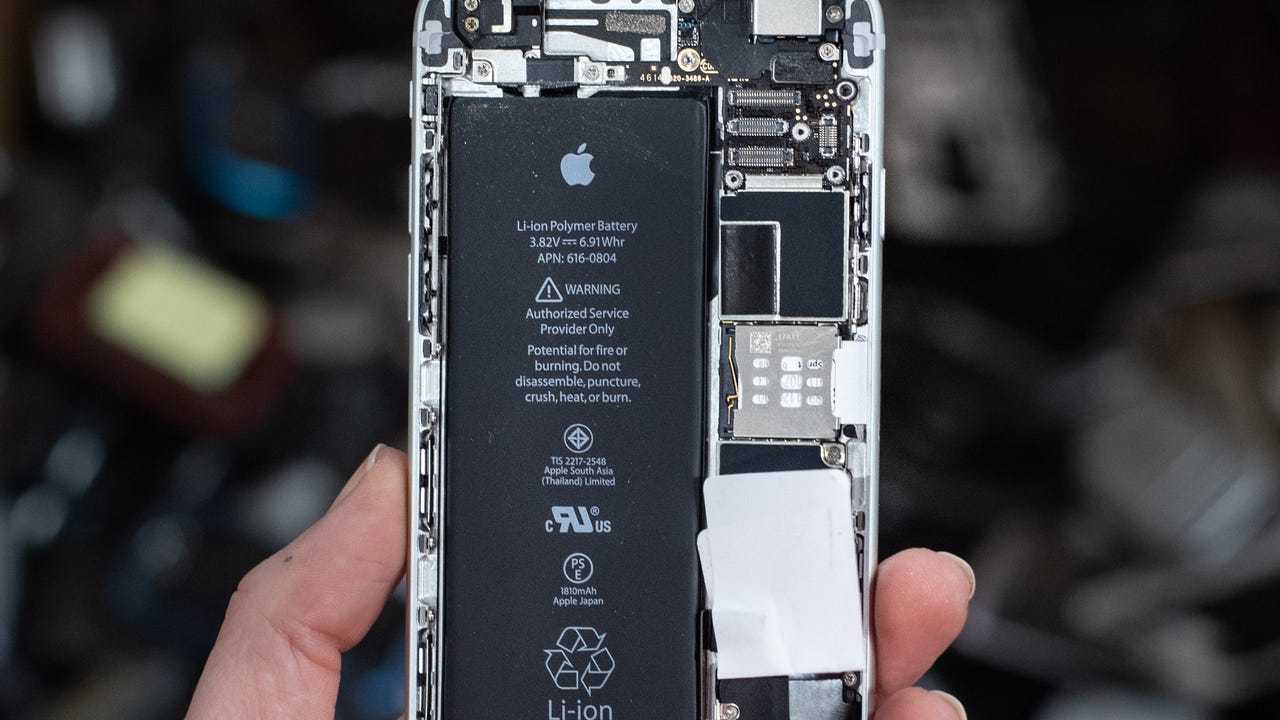
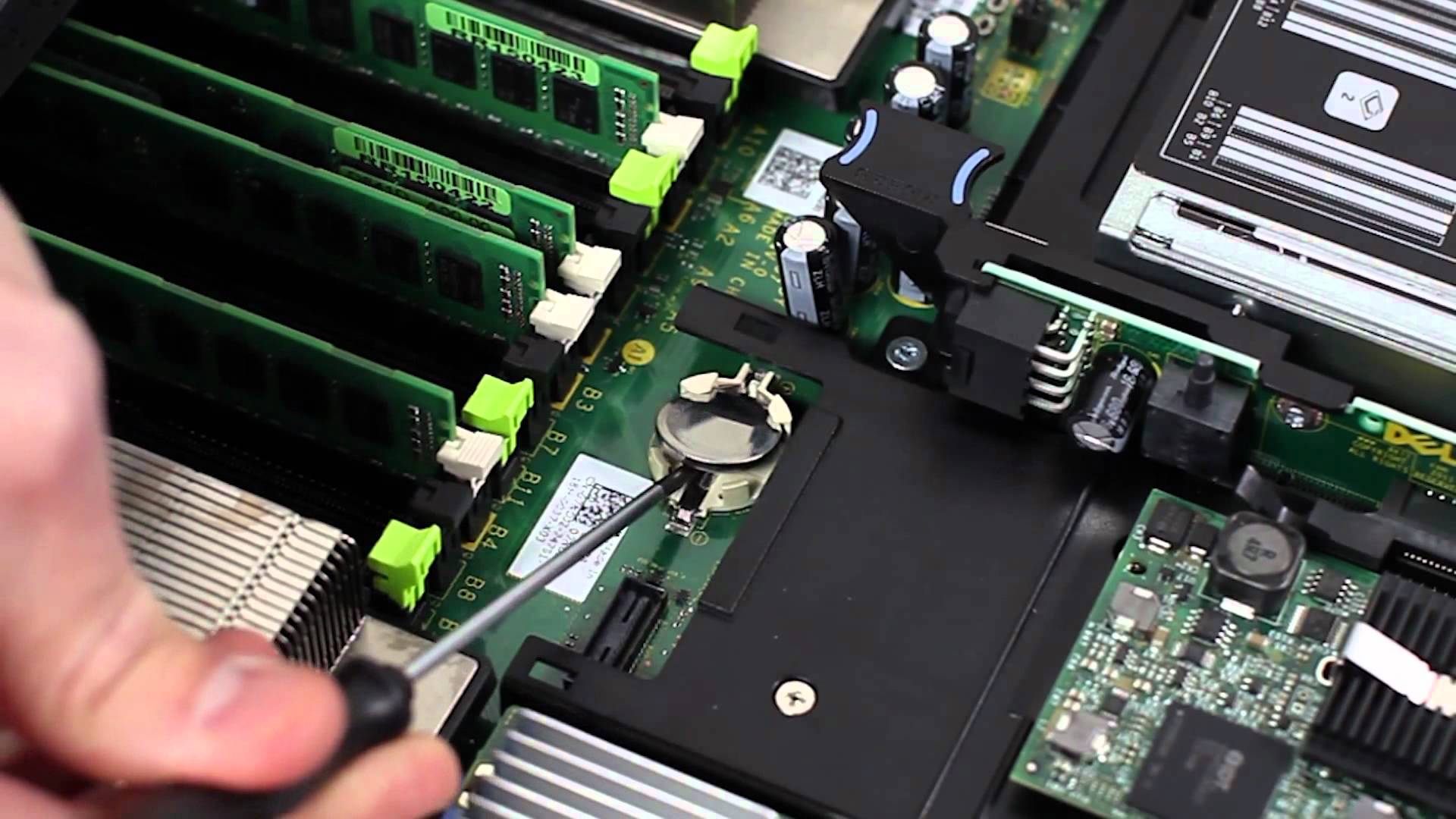
Open your computer case by removing the side panel (for desktops) or the bottom cover (for laptops) to access the motherboard. Some laptops may require you to remove the bottom cover to access the motherboard. The CMOS battery is a small, shiny, coin-shaped silver cell, typically a CR2032 3V lithium battery, and it sits in a dedicated socket on the board. On many desktops, you’ll find it near the center or edge of the motherboard, but it can be tucked under expansion cards like a graphics card or PCIe slots, if so, you may need to gently remove those cards to see it. On laptops, the battery is often under the keyboard, a service panel, or near the RAM, and it may be connected by a small wire harness. If you can’t spot it, consult your motherboard manual or look for a printed label near the socket; the battery is always the only coin-shaped object on the board.
Release the retaining clip and remove the battery
Once you’ve located the battery, examine how it’s held in place. Most sockets use a small metal retaining clip or latch on one side, while the opposite side has a fixed tab. Use a non-conductive tool like a plastic spudger, a wooden toothpick, or your fingernail to gently press the metal clip outward, away from the battery. Do not use a metal screwdriver unless you’re certain the system is fully discharged, as a slip could short-circuit the board. When the clip releases, the battery should pop up slightly on that side; if it doesn’t, carefully lift it with your tool, but never pry against the motherboard or the battery itself. If the battery feels stuck, gently wiggle it back and forth until it comes loose. Once loose, lift the battery straight out of its socket and set it aside on a clean, dry, non-conductive surface.
Wait, then reinsert the CMOS battery
After removing the battery, wait at least 1-5 minutes before reinstalling it. The waiting period can range from 10-20 seconds to 5-10 minutes depending on the motherboard. This waiting period allows any residual charge in the CMOS chip and the system’s capacitors to fully dissipate, ensuring a complete reset of the BIOS/UEFI settings. While you wait, inspect the battery for signs of damage such as leakage, corrosion, or a swollen casing, if you see any of these, replace it with a new CR2032 battery rather than reusing the old one. When you’re ready to reinsert, check the orientation: the positive (+) side, usually marked with a plus sign and a ring, should face upward or as indicated by the socket’s label. Slide the battery back into the socket at a slight angle, then press down gently on the side opposite the clip until you hear a click, confirming it’s seated securely. Ensure the clip is fully engaged and the battery doesn’t wobble.
Power on and reconfigure the BIOS
Reassemble your computer by reconnecting all cables, peripherals, and any expansion cards you removed, then plug the power cord back in. Turn on the power supply if your case has a switch, then press the power button. As the system boots, watch for a prompt that says “Press DEL” or “Press F2” (the exact key varies by manufacturer) to enter the BIOS/UEFI setup utility. Once inside, navigate to the date and time settings and set them correctly, as these are always cleared after a CMOS reset. Then re-apply any custom settings you had, such as boot order, XMP profiles for RAM, or fan curves, because the reset returns everything to factory defaults. Removing the CMOS battery can help resolve forgotten BIOS passwords. Save your changes (usually with F10) and exit; the system will reboot normally. If the system boots directly to your operating system without a prompt, you can still enter the BIOS using the same key after a restart.
What if the CMOS battery is soldered or won’t come out?
If you encounter a CMOS battery that is soldered directly to the motherboard, common in many ultra-thin laptops and some mini PCs, stop immediately. Do not attempt to desolder it with a heat gun or soldering iron unless you have professional repair experience, as you risk irreparably damaging the board. Similarly, if the retaining clip is stuck or the battery is wedged tightly, do not force it with excessive pressure; a broken clip can render the socket unusable. In either case, seek help from a qualified technician or an authorized service center. They can safely replace the battery or, if it’s soldered, replace the entire CMOS circuit or motherboard. For general guidance on handling batteries of this type, including proper disposal and recycling, refer to our hub on replacing watch and device batteries, which covers safety and best practices for lithium coin cells.
Frequently Asked Questions
Will removing the CMOS battery erase my hard drive data?
No. The CMOS battery only powers the chip that stores BIOS/UEFI settings and the system clock; it does not touch your hard drive or SSD. Your files, operating system, and installed programs remain completely intact.
How often should I replace the CMOS battery?
A CR2032 battery typically lasts 3 to 10 years depending on usage and how long the computer stays powered off. If you notice the system clock losing time or BIOS settings resetting every time you boot, it’s time to replace it.
Can I use any coin battery as a replacement?
No, you should use a CR2032 3V lithium cell specifically. Other coin batteries like CR2025 or CR2016 have different thicknesses and voltages, and they won’t fit or supply power correctly in the socket.
What does it mean if my computer still has BIOS issues after reinstalling the battery?
If the battery is new and correctly seated but problems persist, the CMOS chip itself or the motherboard’s power circuit may be faulty. In that case, update the BIOS firmware if possible, or consult a technician, as the motherboard might need repair or replacement.
For the wider topic, see replacing watch and device batteries.
Related reading: How To Un-Invite Someone From Your Facebook Event and How To Make An Album On Soundcloud Mobile.