To share a phone number, you can send a contact card via text, email, or messaging apps, or on iPhone use Apple's new Handoff feature to share one active number across two iPhones.
Inside this article
Use the navigation below to jump to the section that matches what you need:
- Sharing contact info: Sending your number as a contact card via text, email, messaging apps, Apple's Share Contact and NameDrop, or Android's Your info feature.
- Sharing one number across two iPhones: Apple Handoff setup steps, including eSIM requirements, same Apple Account, Messages in iCloud, and how calls, messages, and Find My move between devices.
How to share a phone number as a contact card
The most common way to share your number is by sending a contact card. On an iPhone, open the Contacts app, tap a contact, then tap Share Contact. Choose which fields to include, such as name, phone number, and email, then tap the share button and pick a method like Messages or Mail. This lets you control exactly what information you send, including different phone number formats and digits if you have multiple entries for the same person.
Apple also offers NameDrop for nearby sharing. Hold the top of your iPhone a few centimeters from the top of another person's iPhone or Apple Watch. Keep holding until NameDrop appears on both screens, then choose to share your contact card and receive theirs, or only receive theirs. Both devices must stay close until the transfer completes.
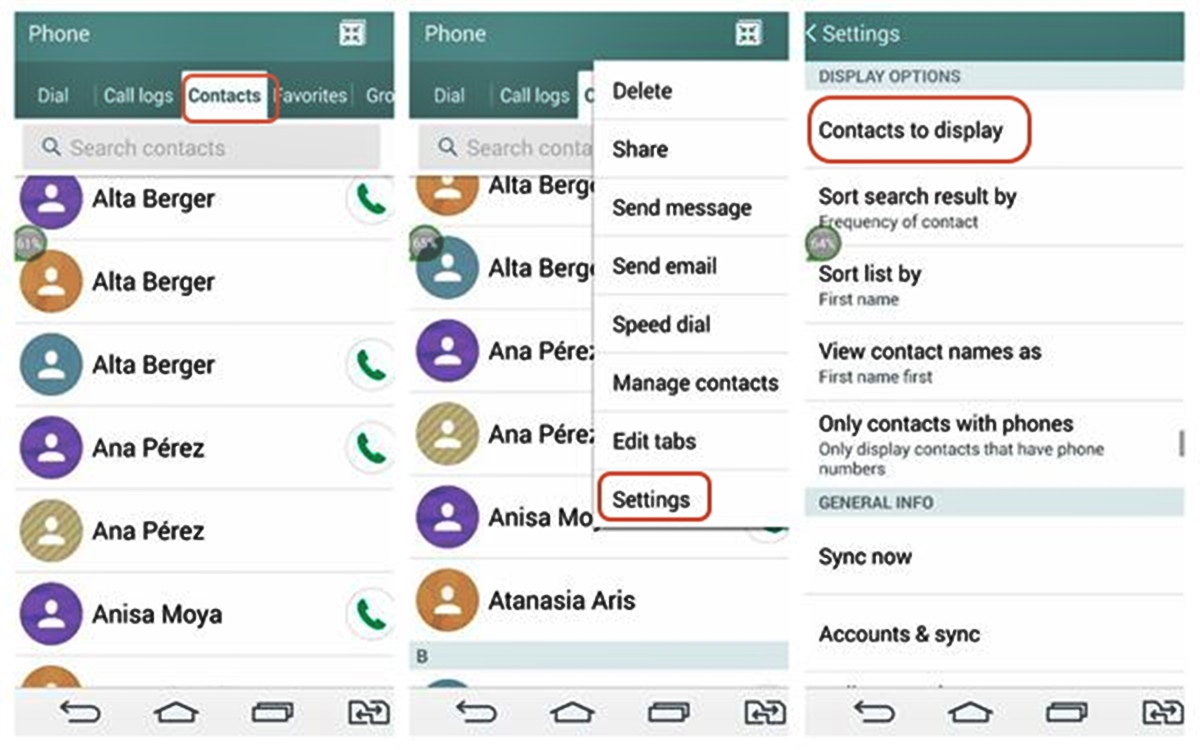
On an Android phone, open the Contacts app, tap Your info, then tap Share. This sends your own contact card via any installed sharing method. You can also go to your Google Account settings, open About me, and change the sharing preference under Personal contact info to control who sees your number across Google services.
How to share one phone number between two iPhones
Apple's iPhone Handoff feature lets two iPhones share one active phone number. This is designed for users who want one number to ring on both devices, such as a primary and secondary phone. The feature requires supported iPhones running iOS 27, and both devices must meet these conditions:
- Use an eSIM for the shared number (physical SIM cards are not supported).
- Be signed in to the same Apple Account.
- Have Messages in iCloud enabled.
- Be near each other during setup.
To set up the shared number:
- On the new iPhone, open Settings > Cellular > Set Up Cellular or Add eSIM.
- Tap Use Number on This iPhone and Another.
- Tap Continue and follow the prompts to choose the main iPhone (the one with the active number) and the secondary iPhone (the one that will share it).
After setup, Apple says the main iPhone keeps the active number and the secondary iPhone shares it. Calls, voicemail, messages (iMessage, RCS, or SMS/MMS), and Find My location move to whichever iPhone is being used, if you pick up the secondary phone, calls and texts arrive there instead.
Can you share a phone number on Android the same way?
Google's official help pages document only contact-info sharing, not a shared-number feature like Apple Handoff. While Android offers nearby Tap to share content with others and contact card sharing, there is no documented consumer feature that lets two Android phones share one active phone number.
Privacy concerns when sharing your number
Sharing your phone number exposes you to several risks. Unwanted marketing calls can increase if your number reaches telemarketers. You can add your number to the National Do Not Call Registry to reduce marketing calls. Data breaches may expose your number if it's stored on unsecured databases. Caller ID spoofing allows scammers to disguise their identity, making you more likely to answer suspicious calls. Consider using a caller ID app that screens and identifies unknown callers to mitigate caller ID spoofing risk. Solutions include using a temporary number for one-time interactions, enabling two-factor authentication for important accounts, and avoiding posting your number publicly on social media or websites. Consider using mobile security software with call blocking, spam detection, and privacy settings.
Best practices for sharing phone numbers safely
- Share selectively: Only give your number to trusted individuals or organizations. Avoid sharing it on public forums or unsecured websites.
- Use encrypted channels: When sending your number via messaging apps or email, choose services that offer end-to-end encryption.
- Review privacy settings: Check your phone and app settings to control who can see your number. On iPhone, you can choose which contact fields to share before sending. On Android, adjust the sharing preference under Personal contact info in your Google Account settings.
- Monitor for scams: Be cautious of phishing calls or messages asking for personal information. Never share your number with unknown callers, and report suspicious activity to your service provider.
- Be cautious with call forwarding: Unauthorized call forwarding can expose calls and messages to interception.
- Regularly monitor your phone bill: Check for unauthorized charges or unusual activity.
- Consider using virtual phone numbers: Use virtual phone numbers or temporary phone numbers for business or online activities to maintain privacy.
Frequently Asked Questions
Does Apple Handoff share one number across two iPhones?
Yes, Apple says iPhone Handoff lets two iPhones share one active phone number when both devices meet the requirements: eSIM, same Apple Account, and Messages in iCloud enabled.
Does it work without eSIM?
No, Apple says eSIM is required for the shared-number setup. Physical SIM cards are not supported for this feature.
Does it work on Android?
No Android consumer feature was found that allows two phones to share one active number.
Can you share just a contact instead of a full number setup?
Yes, both Apple and Android support sharing a contact card without setting up shared-number features. On iPhone, use Share Contact or NameDrop. On Android, use Your info > Share.
How can I share a phone number from a website or app?
Tap the number itself to bring up a menu with sharing options.
For the wider topic, see phone number formats and digits.
Readers comparing a separate eSIM can browse uPhone eSIM plans and verify destination coverage, data allowance, and validity before buying.
More eSIM resources: Browse our eSIM guides and troubleshooting resources for compatibility, setup, travel-data and account-safety advice.
Related reading: How To Put Extension In Phone Number and How To Recover Deleted Phone Number.