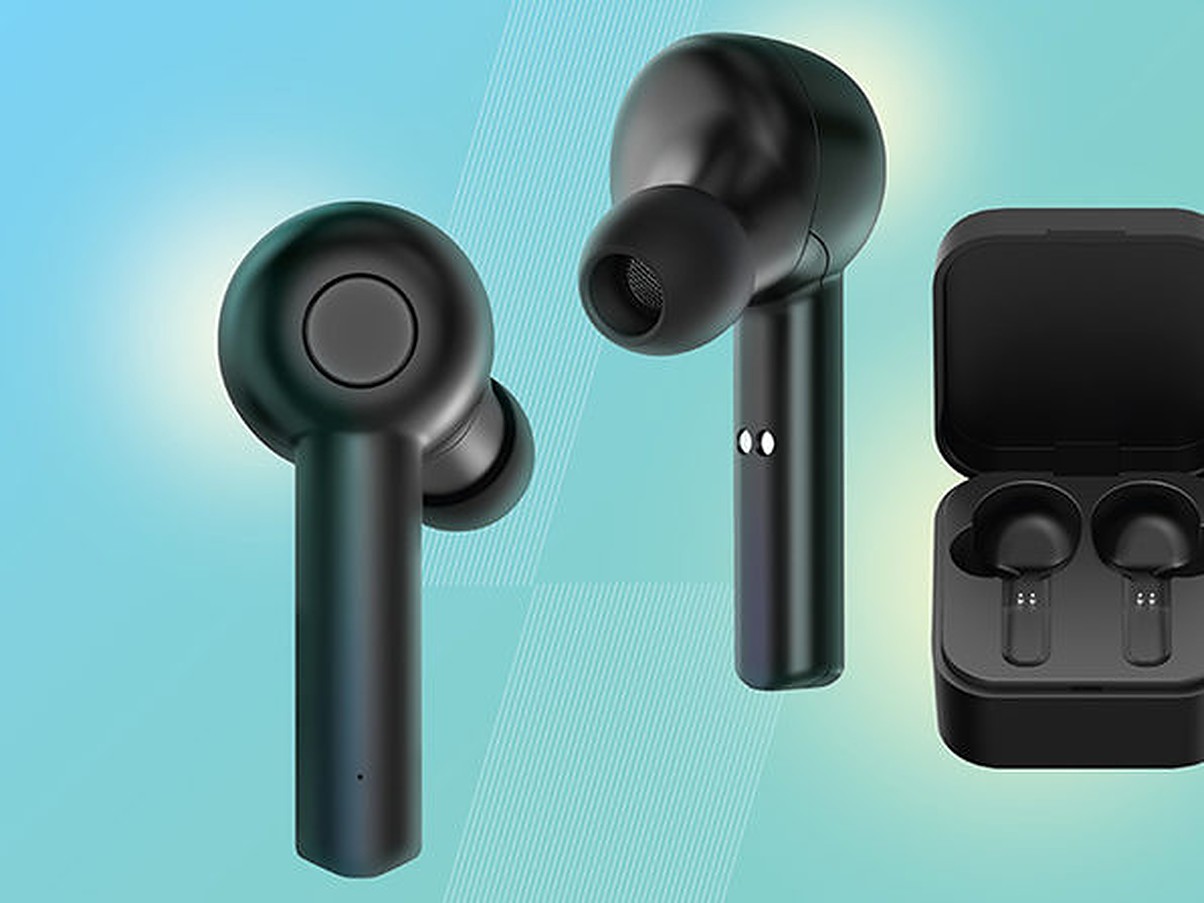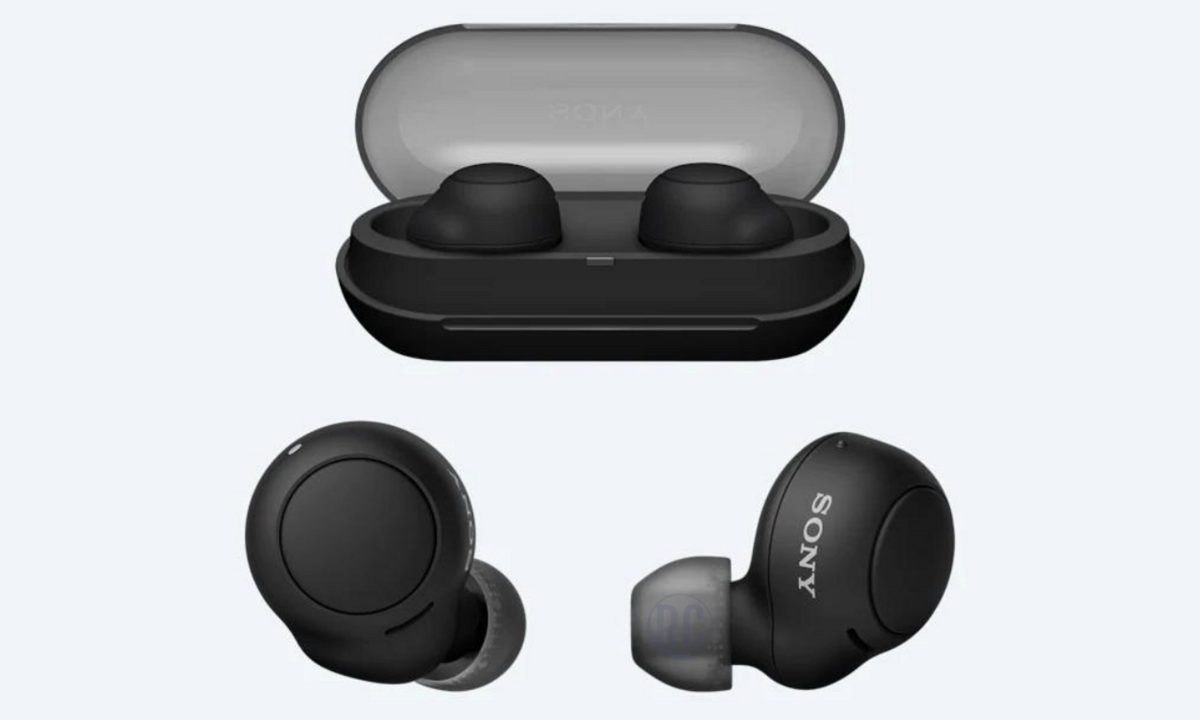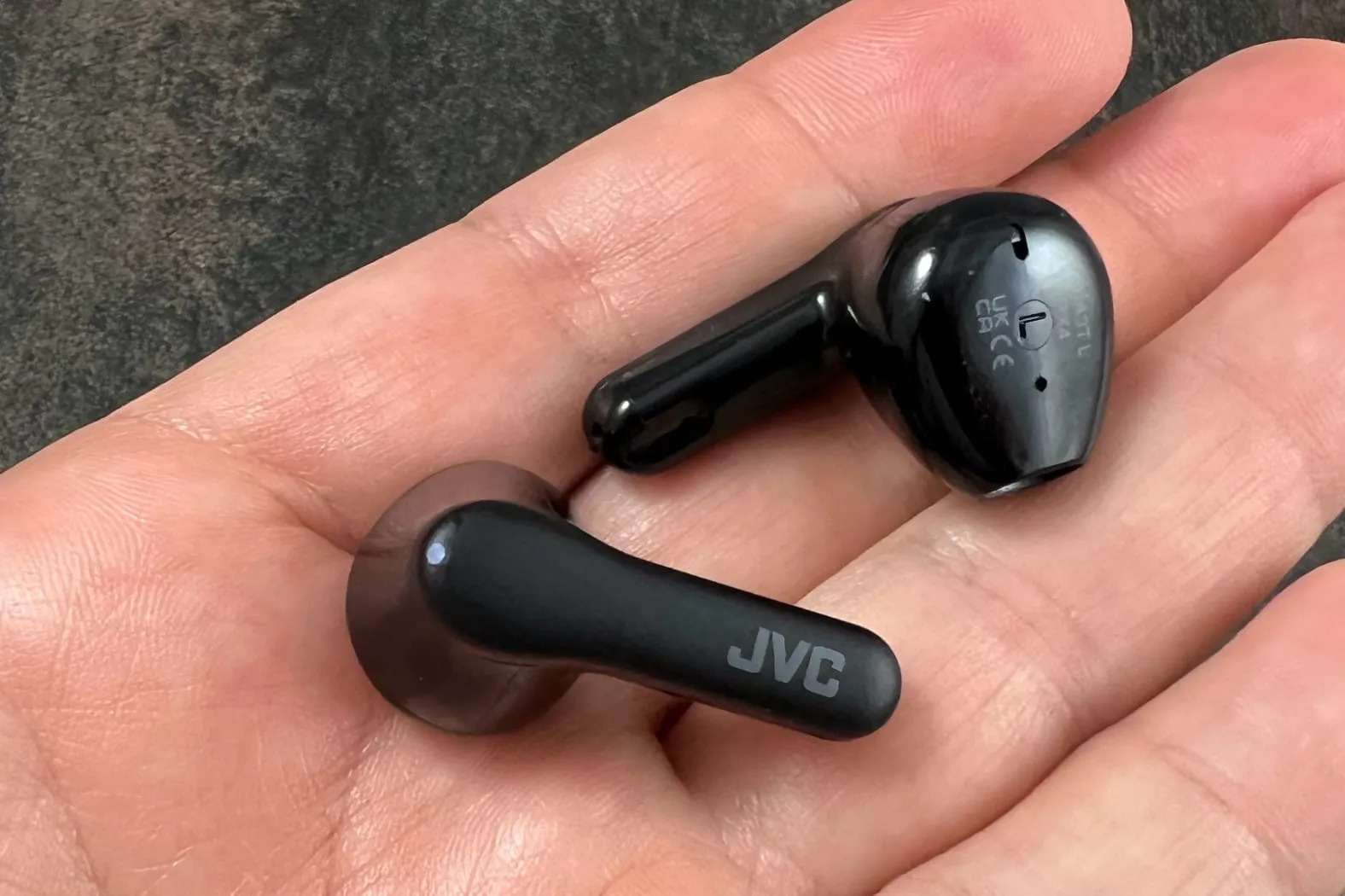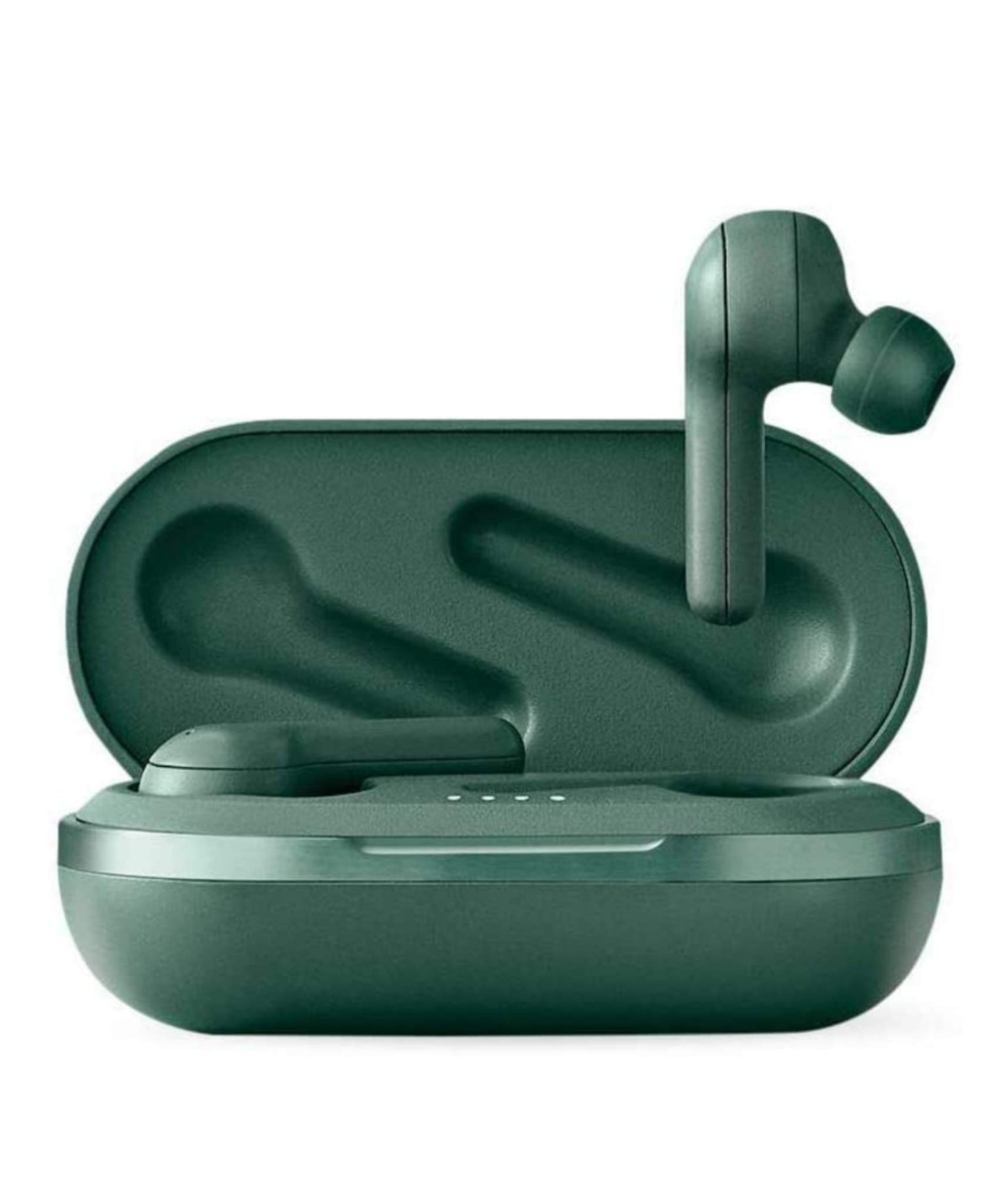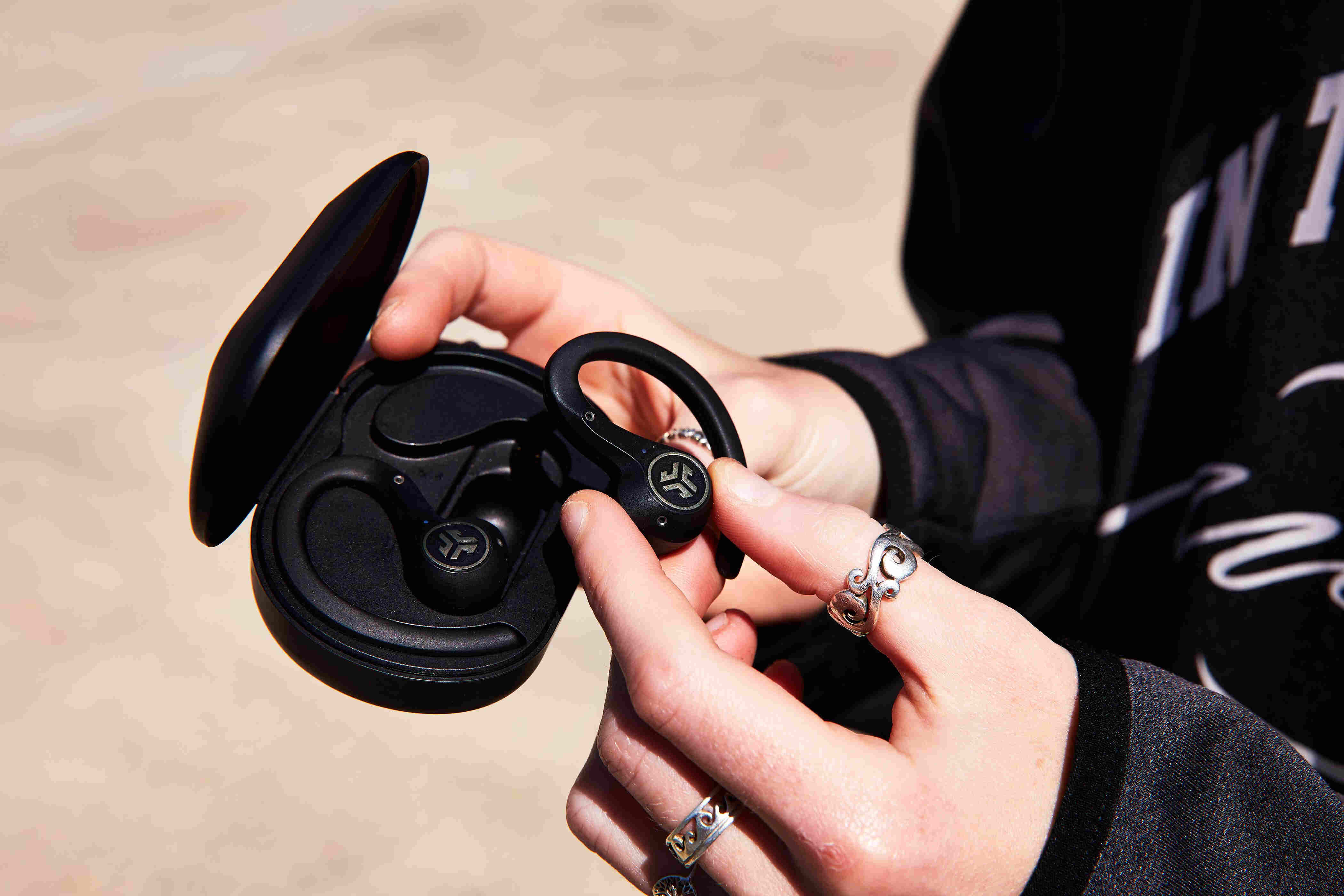
To pair 2 wireless earbuds, you first need to understand what that phrase actually means for your situation. The most common request is pairing a standard left-and-right set of true wireless earbuds to your phone for stereo sound, but it can also mean connecting two separate earbud sets to one device so two people can listen to the same audio.
What 'pair 2 wireless earbuds' actually means
When someone searches for how to pair 2 wireless earbuds, they usually have one of two goals. The first is pairing a single set of true wireless earbuds (the left and right earbud that came together) to a phone or tablet. The second is connecting two completely separate sets of earbuds to the same device so you and a friend can share audio.
How to pair 2 wireless earbuds (a standard set) to your device
The exact steps depend on your earbud brand, but the process is straightforward for most models. Below are specific instructions for Apple AirPods and Google Pixel Buds, followed by a universal method that works for other brands.
Apple AirPods
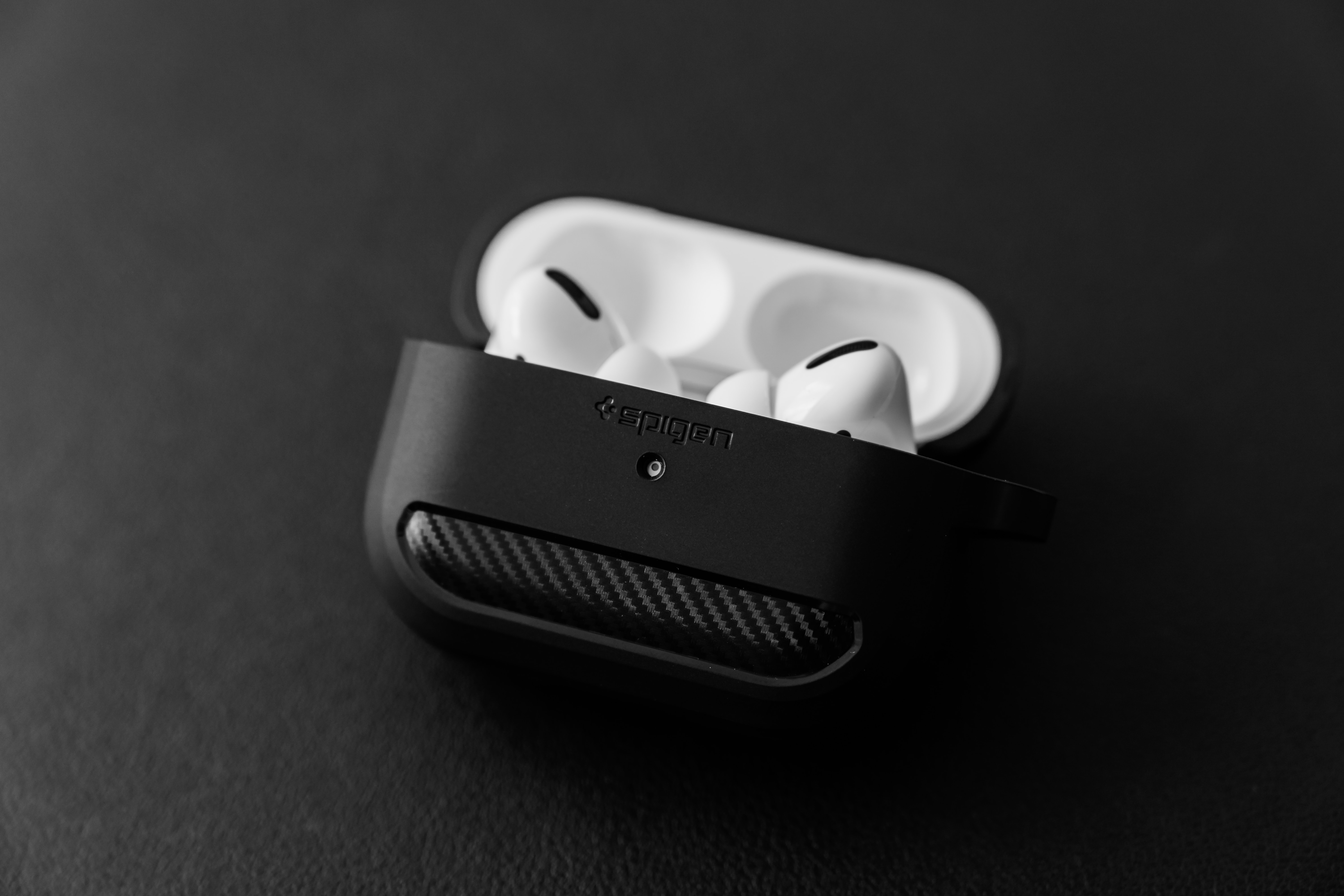
For the easiest pairing with an iPhone or iPad, open the charging case with the AirPods inside and hold it near your unlocked device. A setup animation should appear on the screen; tap "Connect" and follow the on-screen instructions. If you need to pair manually, or if you are connecting to a non-Apple device, open the case with the AirPods inside, then press and hold the setup button on the back of the case until the status light flashes white. Your AirPods will then appear in the Bluetooth menu of your device.
Google Pixel Buds
To pair Google Pixel Buds, place them in the charging case with the lid open. Press and hold the pairing button on the back of the case until the status light pulses white. Then, open the Bluetooth settings on your Android device and select the Pixel Buds from the list of available devices.
Universal method for other brands
For most other true wireless earbuds, the process follows a similar pattern. Start by placing both earbuds in the charging case and ensuring they have enough battery. Remove them from the case, which typically powers them on automatically. Some earbuds may have an automatic power-on feature when you take them out of the charging case or when they detect movement. If they do not, you may need to press and hold a button on each earbud to turn them on. Put both earbuds into pairing mode, usually by pressing and holding a button on each until the LED indicator flashes (often red and blue or white). On your phone or tablet, open the Bluetooth settings, ensure Bluetooth is enabled, and select your earbuds from the list of available devices. Once connected, the left and right earbuds should automatically link to each other for stereo sound.
How to connect two separate sets of earbuds for audio sharing
If you want to share audio with another person using their own earbuds, you need a device and earbuds that support this feature. This is not a universal Bluetooth capability; it depends on your phone's software.
Apple Audio Sharing
On an iPhone or iPad, you can share audio with another set of compatible wireless earbuds (like AirPods or Beats) using Apple's Audio Sharing feature. Connect your own earbuds to your device, then bring the second pair of earbuds near your device. A prompt will appear on your screen asking if you want to share audio. Tap "Share Audio" and follow the instructions. Both sets of earbuds will play the same audio simultaneously.
Samsung Dual Audio
Samsung Galaxy devices offer a similar feature called Dual Audio. Go to Settings, then Connections, then Bluetooth. Enable the feature, then connect your first set of earbuds. After that, put the second set of earbuds into pairing mode and connect them. Both pairs will play audio at the same time.
Other Android devices
Some other Android phones may have a similar feature, but it is not standard. If your device does not have this, you may need a Bluetooth transmitter that supports two connections, but that is a separate accessory.
Troubleshooting: earbuds not pairing together
If your left and right earbuds are not pairing with each other or with your device, try these fixes in order.
Reset the earbuds
Resetting earbuds typically clears all previous pairings and restores default settings, which can resolve connection problems, audio cutting out, or unresponsive controls. The reset method varies by brand, but it often involves holding a specific button or combination of buttons for several seconds. Check your earbuds' manual or the manufacturer's website for the exact reset procedure for your model.
Check for interference
Bluetooth signals can be disrupted by other electronic devices. Move away from Wi-Fi routers, microwave ovens, and cordless phones.
Update firmware
Outdated firmware can cause pairing issues. Check if there are any available firmware updates for your earbuds through the manufacturer's companion app or website. Installing the latest firmware can improve performance and compatibility.
Frequently Asked Questions
Can I use two different brands of wireless earbuds together?
Using two different brands of wireless earbuds together is generally not recommended. Each brand may use proprietary technology and connectivity protocols that are not compatible with other brands. Even if you manage to pair them, you may experience audio lag, distortion, or difficulty controlling both earbuds simultaneously.
Can I pair wireless earbuds to multiple devices simultaneously?
Some wireless earbuds support multi-point pairing, which allows them to connect to two devices at the same time, such as a phone and a laptop. This lets you switch between devices without re-pairing. Check your earbuds' specifications to see if they support this feature.
Can I pair wireless earbuds to a non-Bluetooth device?
Wireless earbuds use Bluetooth technology, so a non-Bluetooth device cannot pair with them directly. However, you can use a Bluetooth adapter or transmitter that plugs into the audio output of the non-Bluetooth device, such as a TV or stereo, to transmit the audio signal to your earbuds.
How do I turn on true wireless earbuds?
Most true wireless earbuds turn on automatically when you remove them from the charging case. If they do not, look for a physical button on each earbud or a touch-sensitive area. Press and hold the button or tap the touch area until you see an LED indicator or hear a power-on tone.
Why is only one earbud working?
This often happens when the earbuds are not paired with each other. Place both earbuds back in the charging case, close the lid, wait a few seconds, then take them out again. If that does not work, reset the earbuds to clear the previous pairing and start fresh.
Can you pair two wireless earbuds to one device?
This depends on whether your earbuds and device support a 'dual connect' or 'dual pairing' feature. Some earbuds allow each earbud to connect independently to the same device, while others require both earbuds to be linked together first, with only one connecting to the device. Check your earbuds' specifications to see if they support independent connections.
How do I pair two wireless earbuds together?
To pair two wireless earbuds to each other and your device, follow these general steps: 1. Place both earbuds in the charging case and ensure they are charged. 2. Remove both earbuds from the case; they should power on and may automatically enter pairing mode with each other. 3. If they do not link automatically, put both earbuds into pairing mode by pressing and holding the button on each until the LEDs flash. 4. Once the earbuds are linked to each other (often indicated by a solid light on one and a slow flash on the other), enable Bluetooth on your device. 5. Select your earbuds from the device's Bluetooth list to complete the connection.
For the wider topic, see pairing true wireless earbuds.