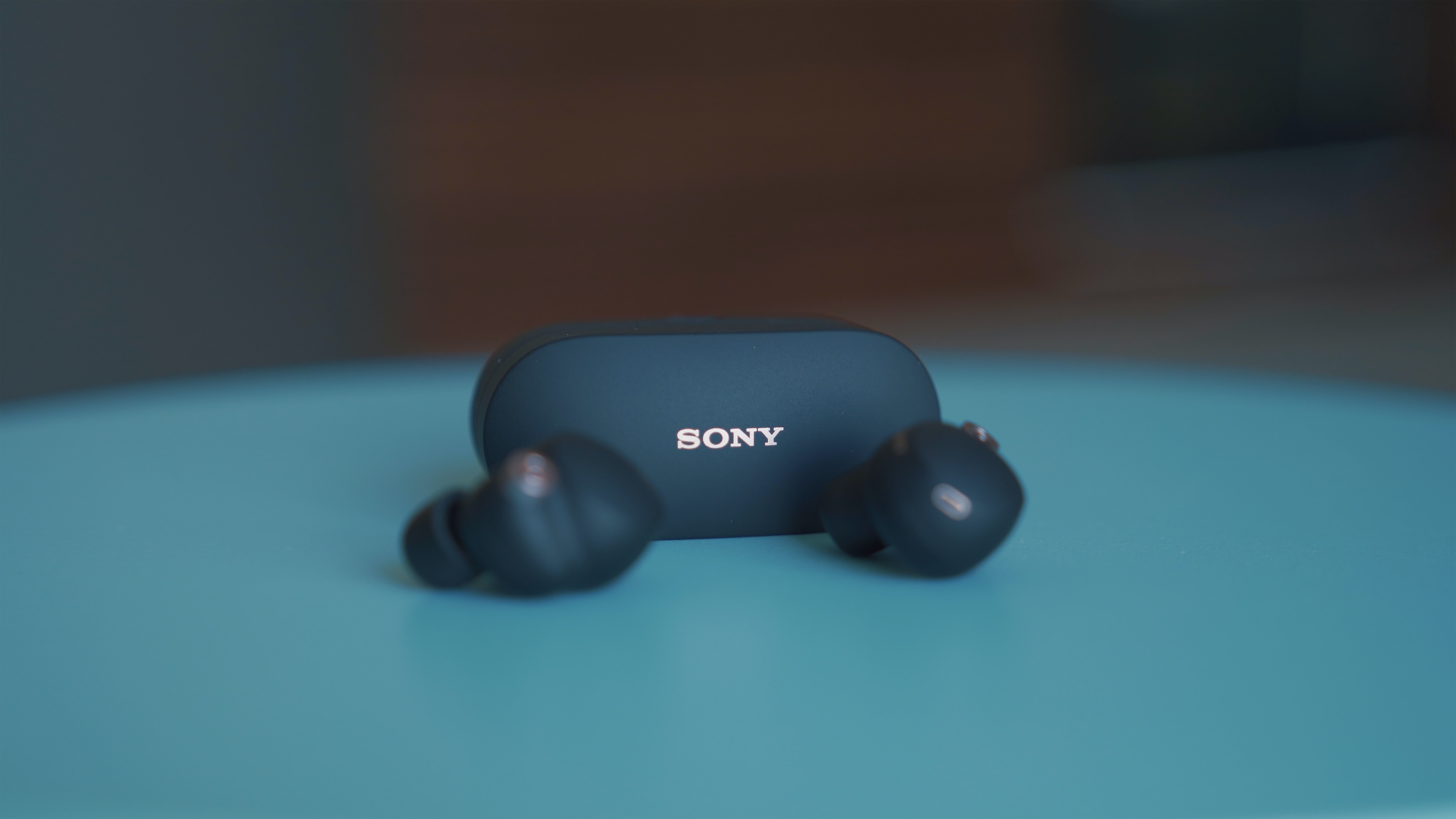
To pair Sony wireless earbuds with your phone or computer, start by charging the earbuds fully and placing them within 1 meter (3 feet) of your device. The exact method to enter pairing mode depends on your model, but once connected, you can enjoy wireless audio and access advanced features like multipoint connection.
Before you pair your Sony wireless earbuds
Two critical prerequisites ensure a smooth pairing process. First, make sure your Sony wireless earbuds are sufficiently charged before attempting to pair them. Second, place the device you wish to pair (smartphone, computer, etc.) within 1 meter (3 feet) of your earbuds during the pairing process.
How to put Sony wireless earbuds in pairing mode
For first-time pairing or after initializing, many Sony wireless earbuds automatically enter pairing mode when removed from their charging case. For first-time pairing of Sony wireless headphones (e.g., WH-1000XM5), they automatically enter pairing mode when turned on.
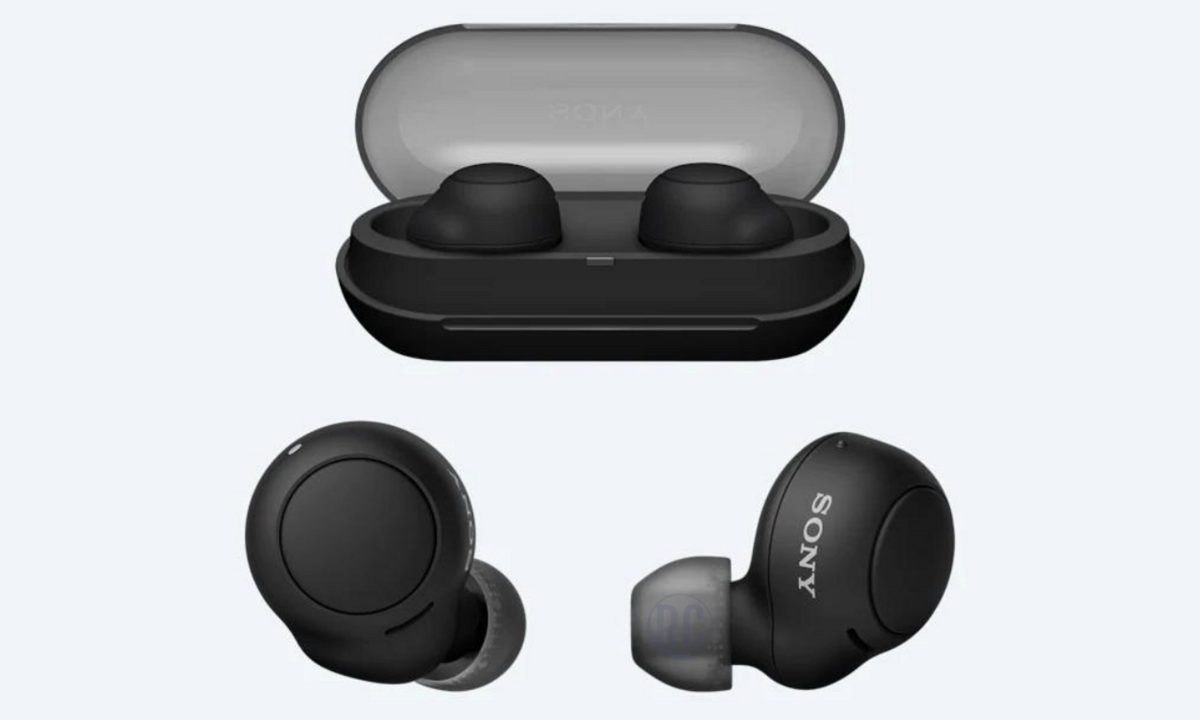
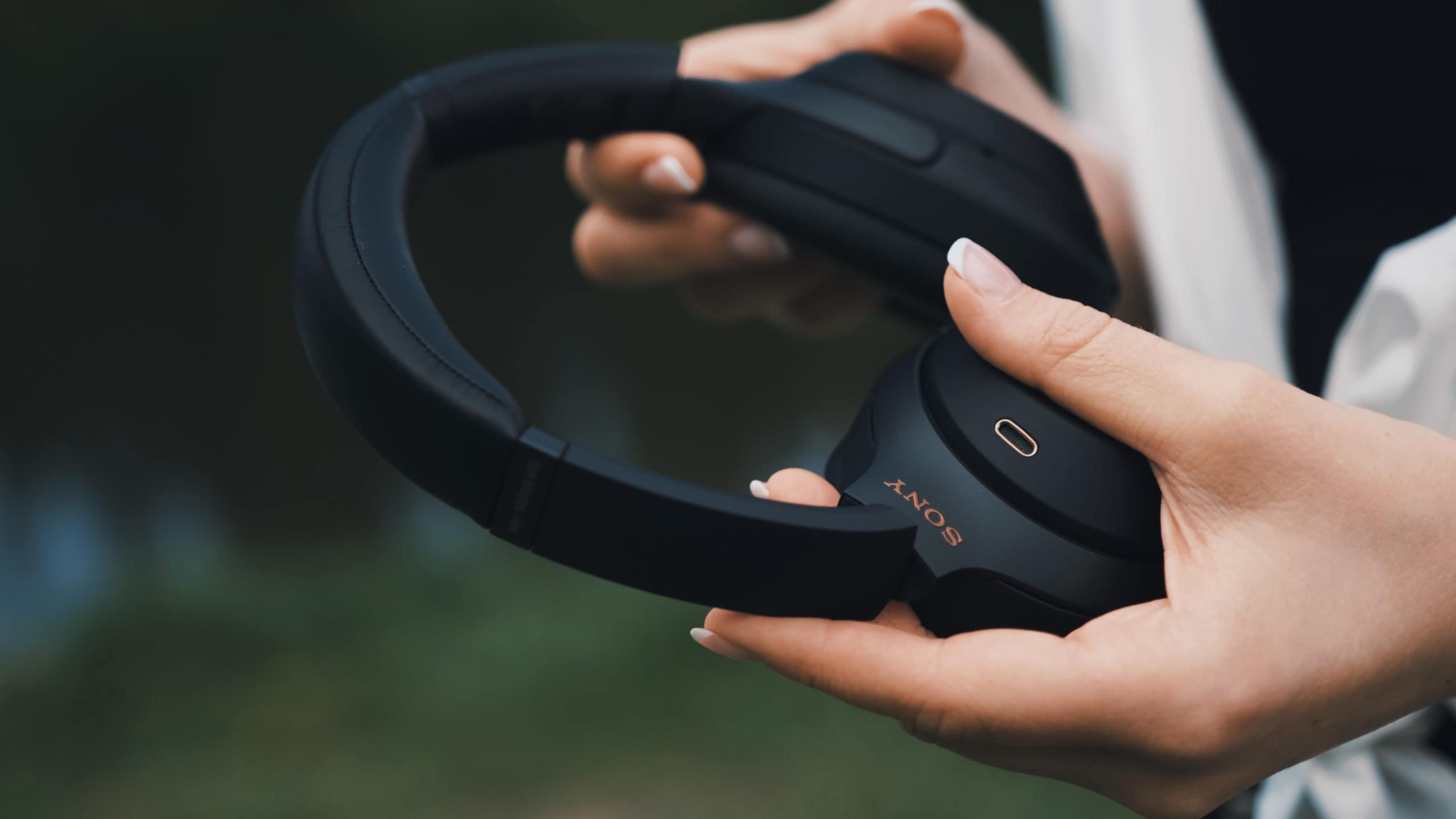
To manually enter pairing mode for most Sony wireless earbuds (e.g., WF-1000XM5, WF-C510, LinkBuds), place them in the charging case with the lid open, then press and hold the pairing button on the back of the case for approximately 5 seconds. To manually enter pairing mode for Sony wireless headphones (e.g., WH-1000XM5), press and hold the power button for about 5 to 7 seconds.
For older Sony WF-1000XM4 earbuds, put them in both ears, then hold your fingers to the touch sensors on both units for about 5 seconds to enter pairing mode.
You will know the earbuds are in pairing mode when the indicator light (typically blue) flashes and/or you hear a voice guidance saying "Bluetooth pairing" or "Pairing".
Connect your Sony earbuds to an Android device
- On your Android device, go to Settings > Connected devices (or Device connection).
- Tap Pair new device (or Bluetooth).
- Select your Sony earbud model from the list of available devices.
If prompted for a passkey (or passcode, PIN code, PIN number, password), enter "0000".
Connect your Sony earbuds to an iPhone or iPad
- On your iOS device, go to Settings > Bluetooth.
- Ensure Bluetooth is toggled ON.
- Select your Sony earbud model under "Other Devices".
If prompted for a passkey, enter "0000".
Connect your Sony earbuds to a Windows computer
- Navigate to Settings > Bluetooth & devices.
- Click Add device > Bluetooth.
- Select your Sony earbud model from the list.
If prompted for a passkey, enter "0000".
Connect your Sony earbuds to a Mac
- Click the Apple menu > System Settings > Bluetooth.
- Hover over your Sony earbud model and click "Connect".
If prompted for a passkey, enter "0000".
What to do if pairing fails
If you encounter pairing issues, try restarting your mobile device or earbuds, or "forgetting" (deleting) the earbuds from your device's Bluetooth settings and then re-pairing. Also, note that pairing mode will automatically cancel if a connection is not established within approximately 5 minutes. If the earbuds still do not connect, clear the Bluetooth device list on both the earbuds and your device, update the firmware using the Sony | Headphones Connect app, or reset the earbuds to factory settings.
Use the Sony Headphones Connect app for more features
For enhanced control and features, download and use the official "Sony | Headphones Connect" app, which can also assist with pairing. The app allows you to update firmware, adjust EQ settings, and enable multipoint connection to two devices simultaneously. To use multipoint connection, pair your earbuds with both devices, then enable "Connect to 2 devices simultaneously" within the app.
Frequently Asked Questions
Can I pair my Sony wireless earbuds with multiple devices at once?
Yes, with multipoint connection enabled in the Sony | Headphones Connect app, you can connect to two devices simultaneously. Without this feature, the earbuds can only be connected to one device at a time.
How do I reset my Sony wireless earbuds to factory settings?
Place both earbuds in the charging case and close the lid. Press and hold the button on the back of the case for about 20 seconds until the LED indicators flash in different patterns, then stop. The earbuds are now reset and ready to pair as new.
Are Sony wireless earbuds sweat-resistant?
Many Sony wireless earbud models are designed to be sweat-resistant, but not all. Check the product specifications for your specific model before using them during intense workouts or in wet conditions.
Can I use Sony wireless earbuds with non-Sony devices?
Yes, Sony wireless earbuds are compatible with any Bluetooth-enabled device, including smartphones, tablets, and laptops from other brands. Simply follow the standard pairing process to connect them.
For the wider topic, see pairing wireless earbuds.
Related reading: How To Sync Sony Wireless Earbuds and How To Pair Bytech Wireless Earbuds.