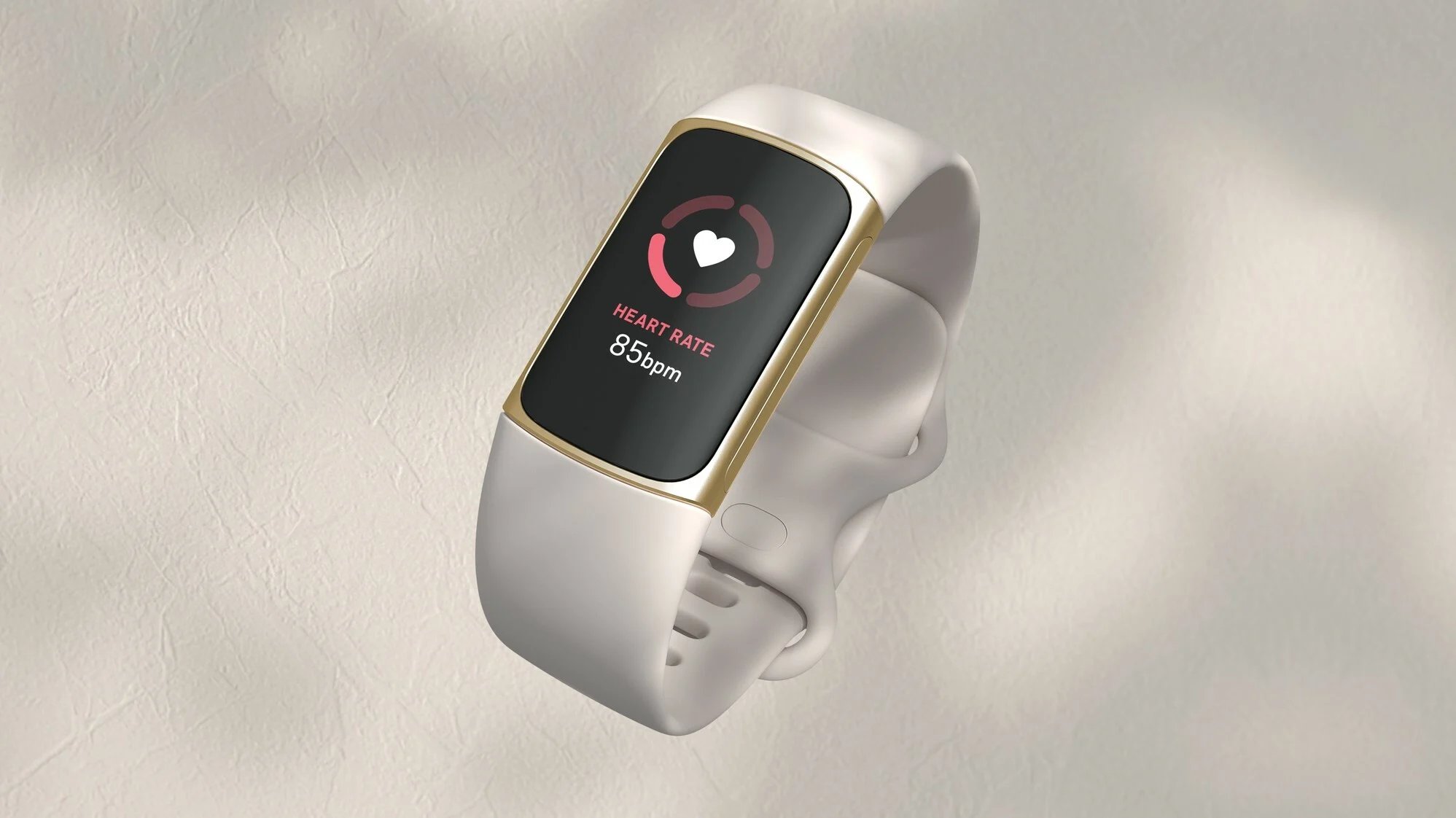
Articles focused specifically on customizing and troubleshooting the watch faces on Fitbit smartwatches and fitness trackers. This page is for Fitbit owners who want to personalize their device or resolve common display issues. The articles here address two main themes: changing the clock face on various models and understanding unusual on-screen messages.
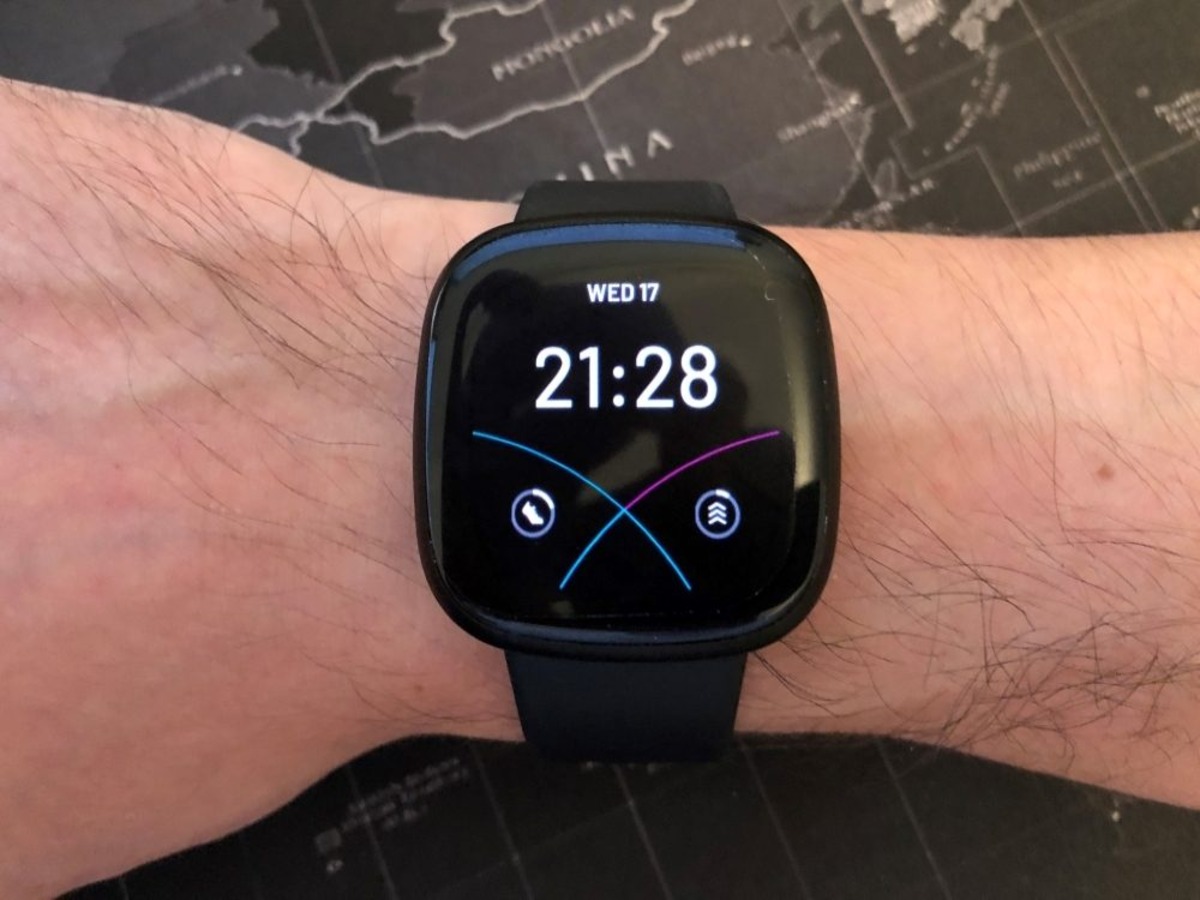
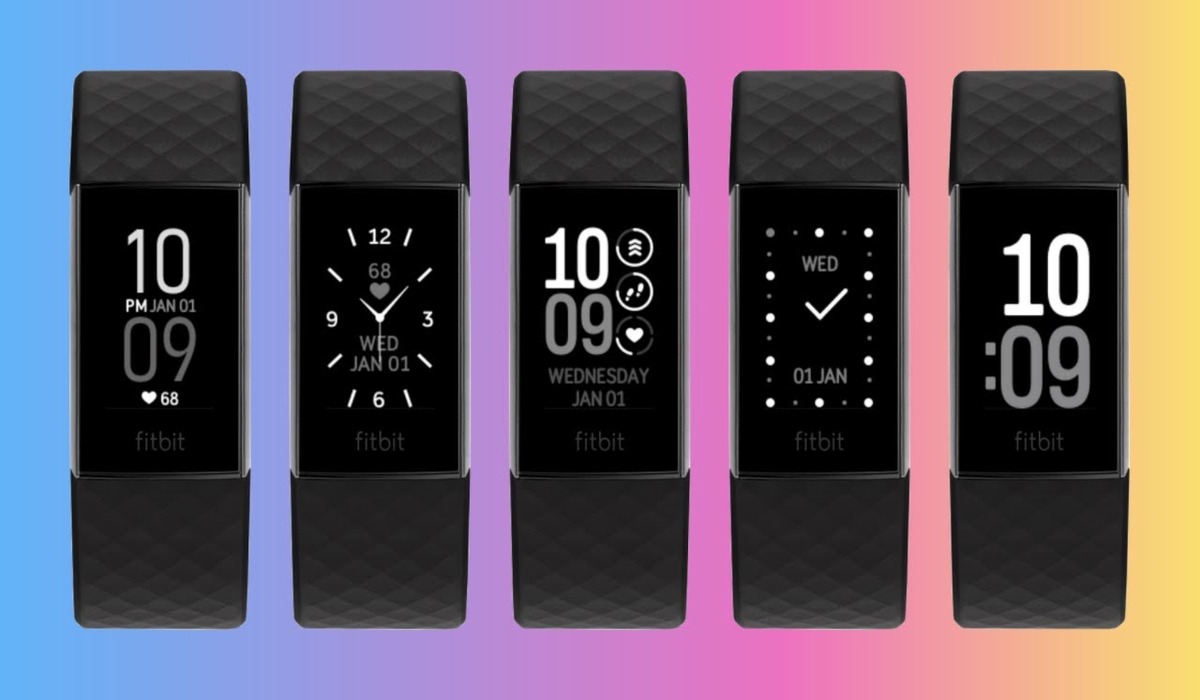
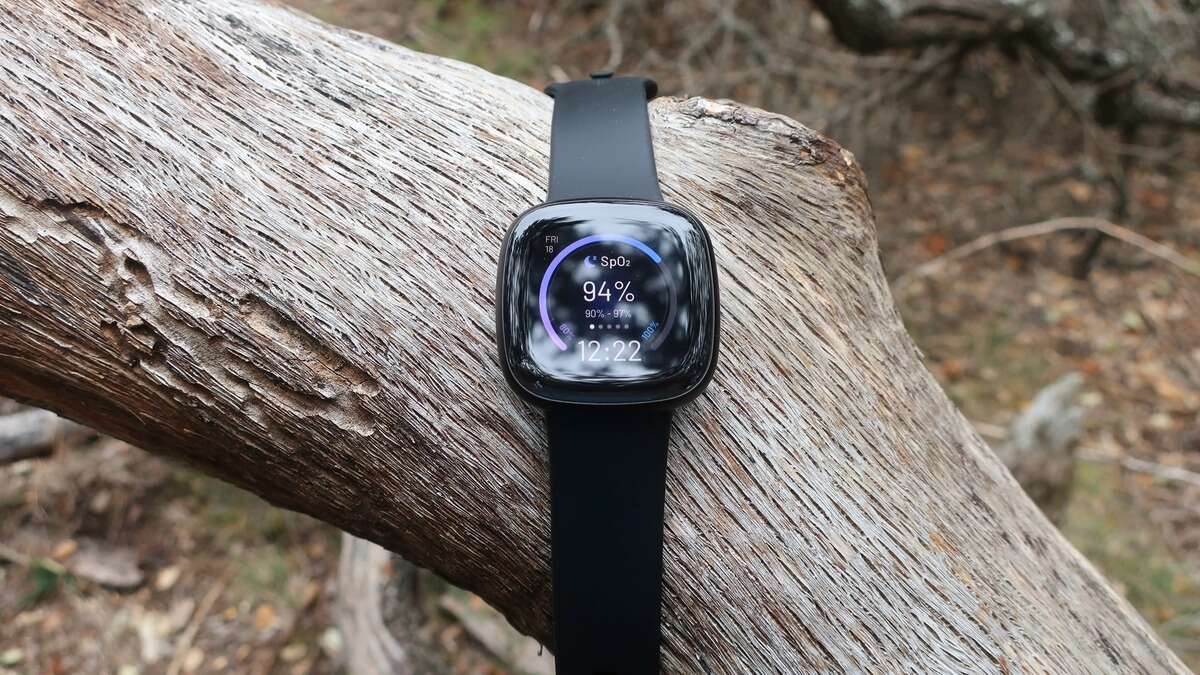
For users looking to update their device’s look, the articles walk through the steps for specific models. You will find guides on how to change the face on a Fitbit Sense, how to change the clock face on a Fitbit Charge 4, and how to change the Fitbit Versa 3 clock face. A separate article also covers the process for the newer Fitbit Charge 5. These guides help the reader navigate the Fitbit app or device settings to select and apply a new watch face.
The collection also solves a specific problem related to a confusing notification. The article titled "Why Does My Fitbit Say Look Alive" helps readers understand what this alert means and how to respond to it, addressing a common point of confusion that can occur after a clock face change or during inactivity. Overall, these articles help the reader take direct action to customize their Fitbit’s appearance or fix a perplexing screen message.