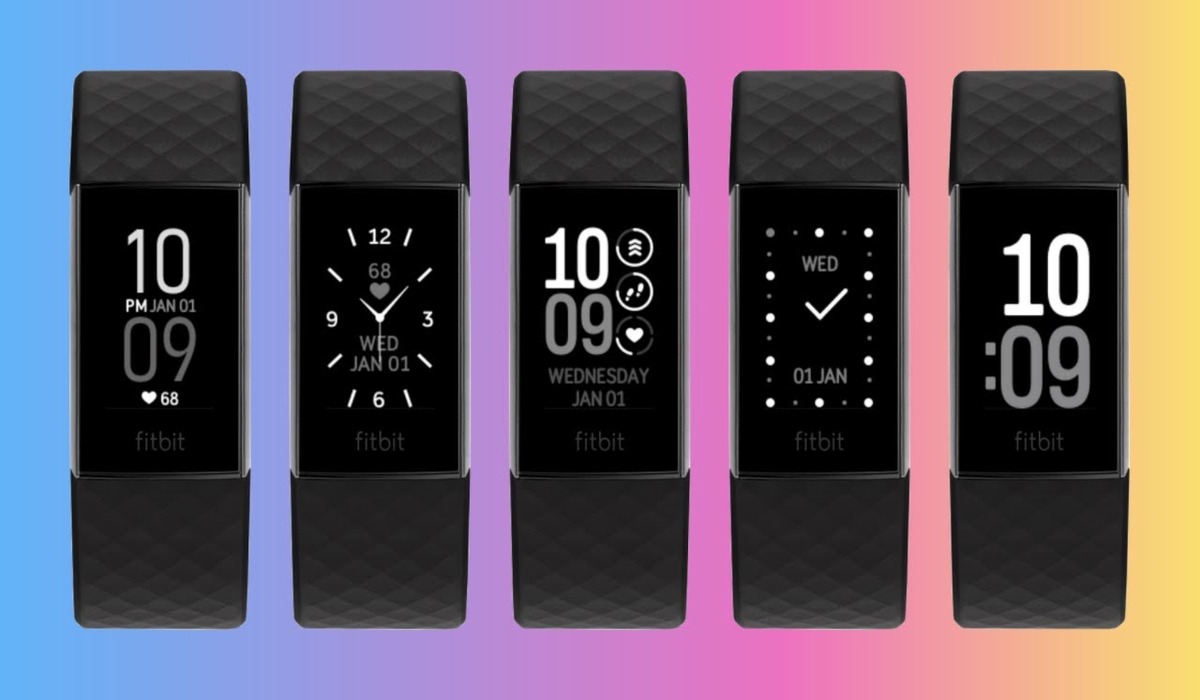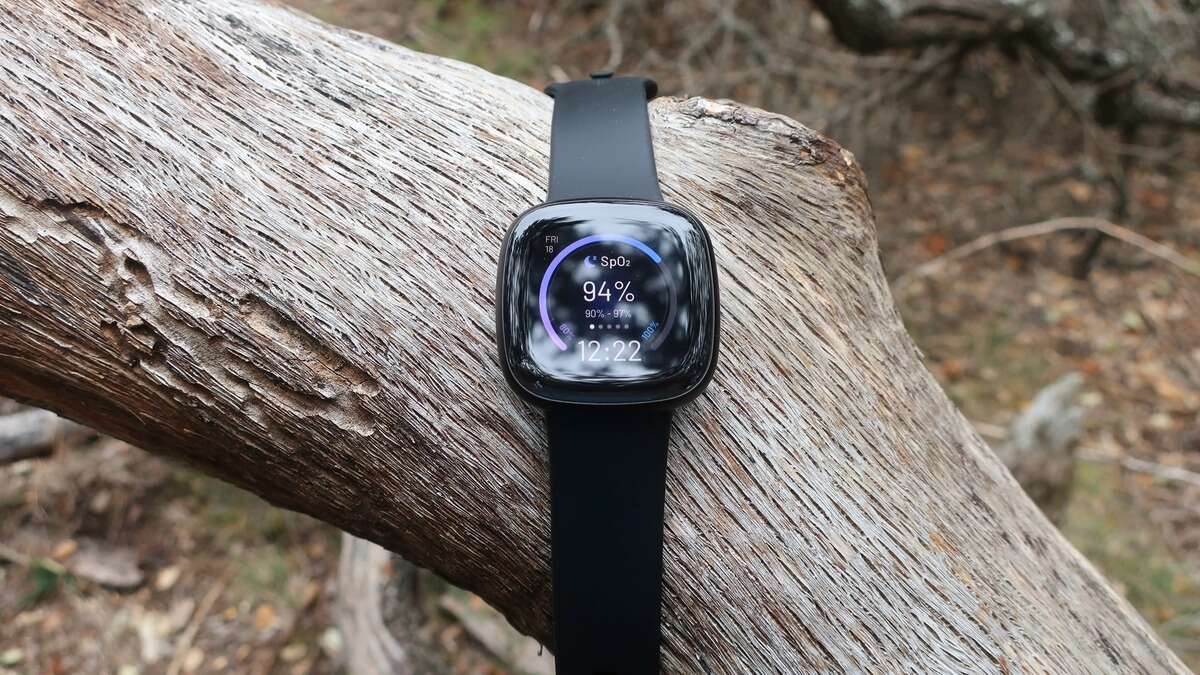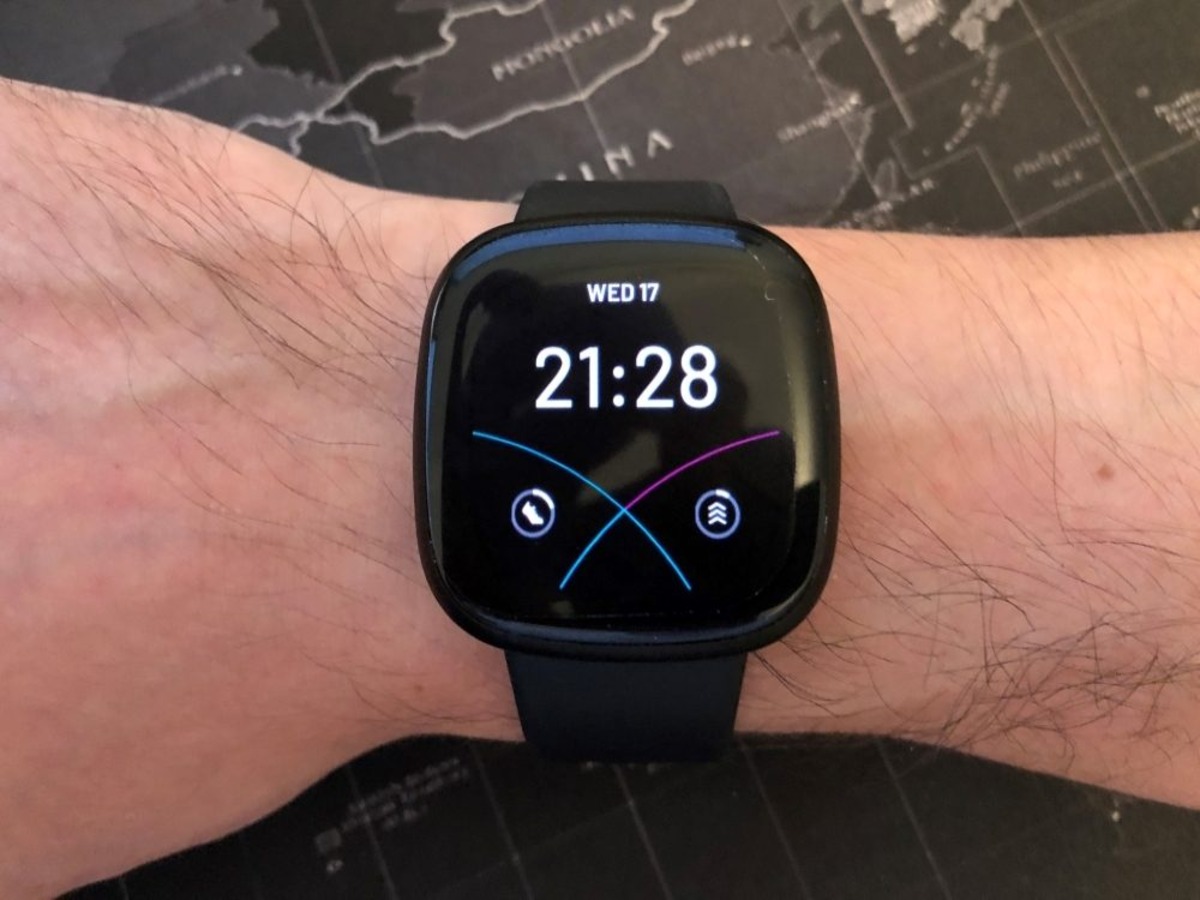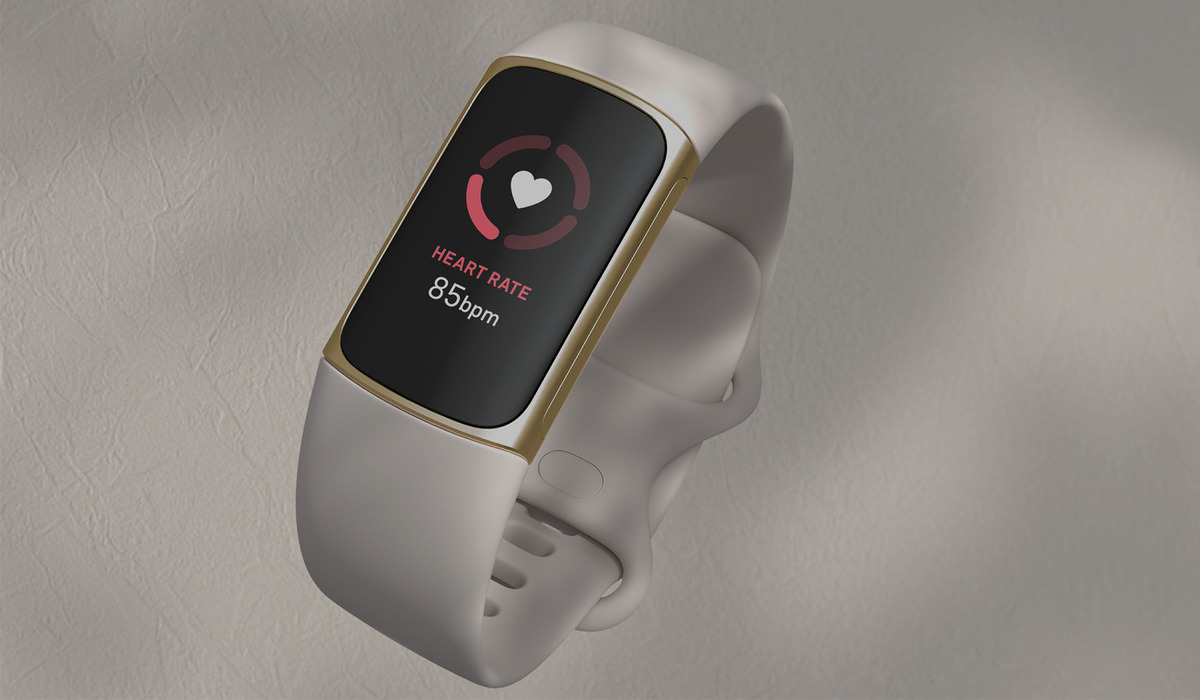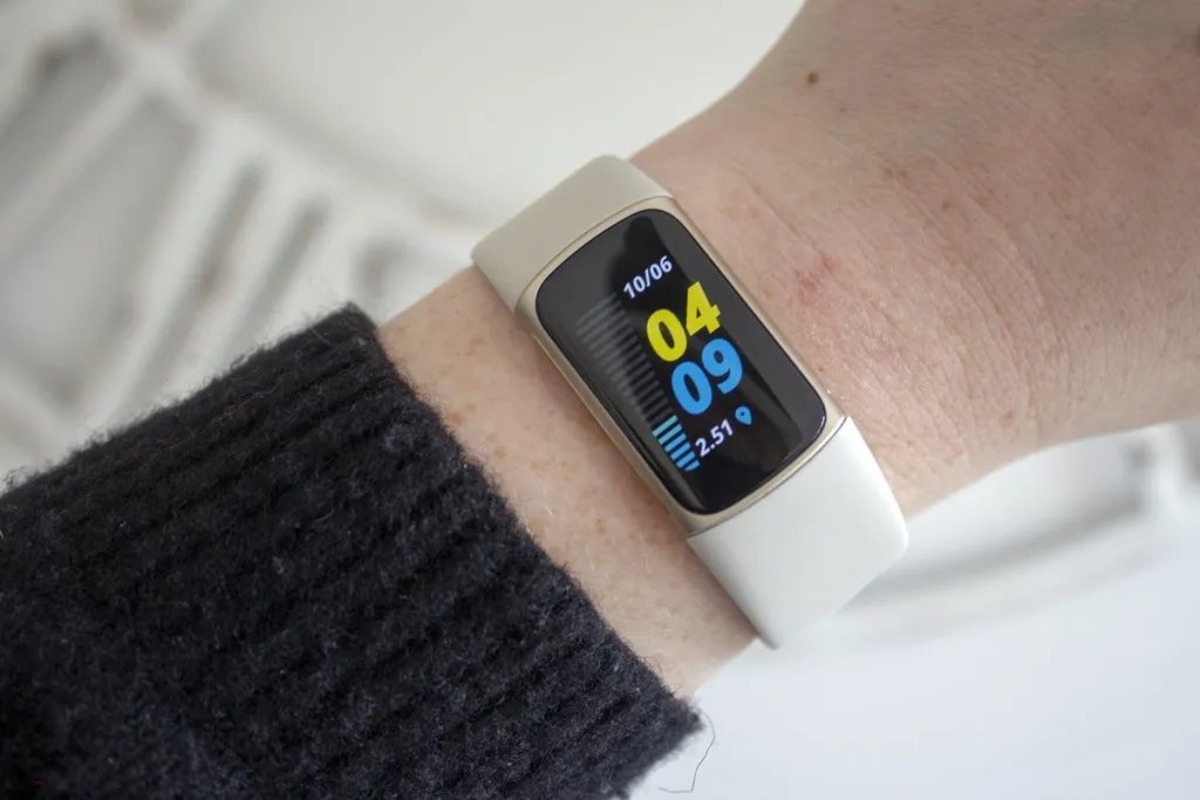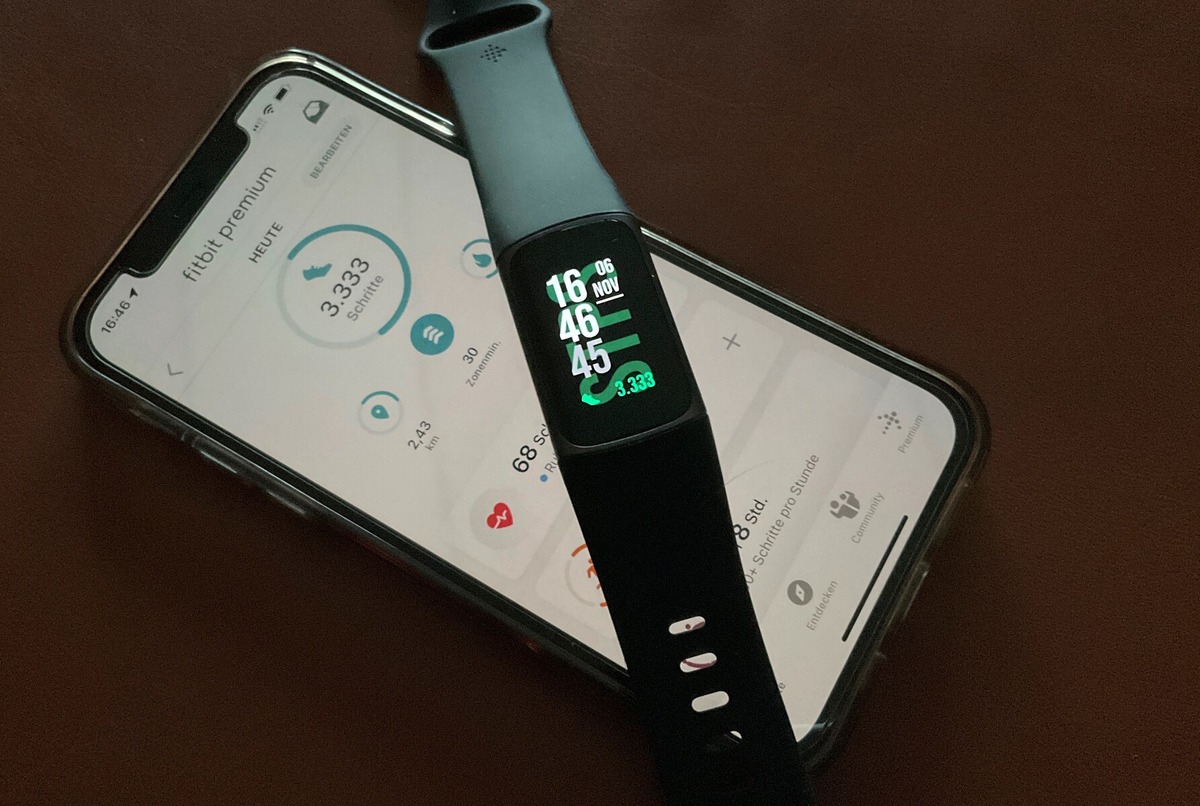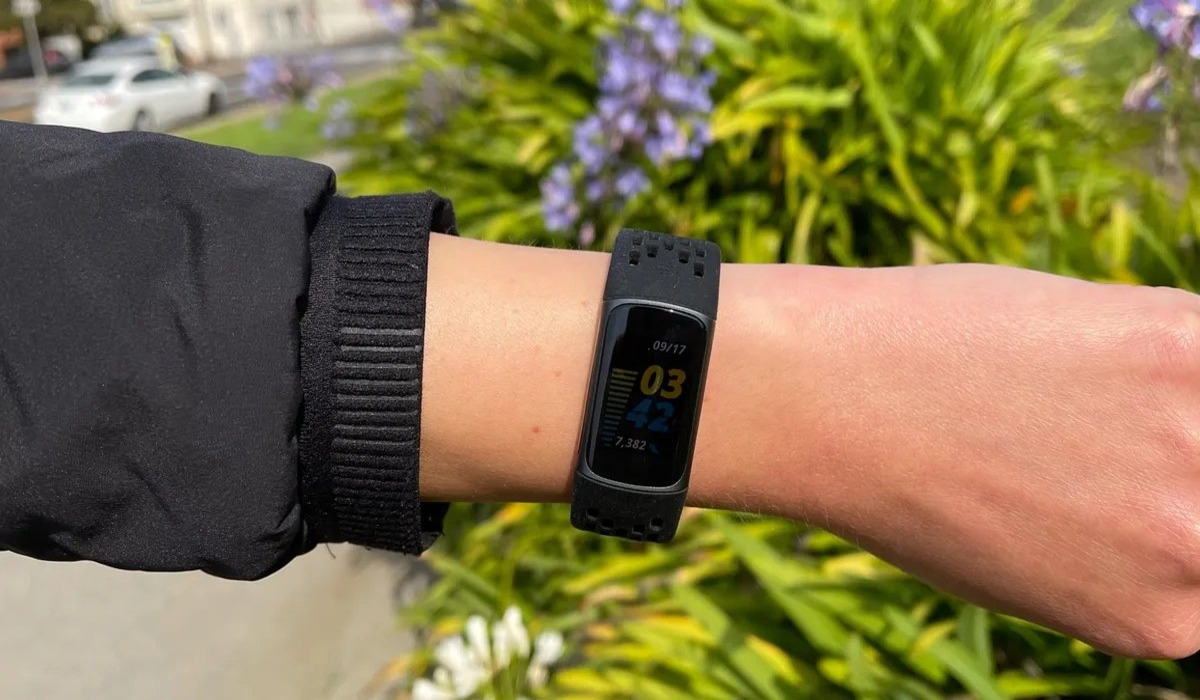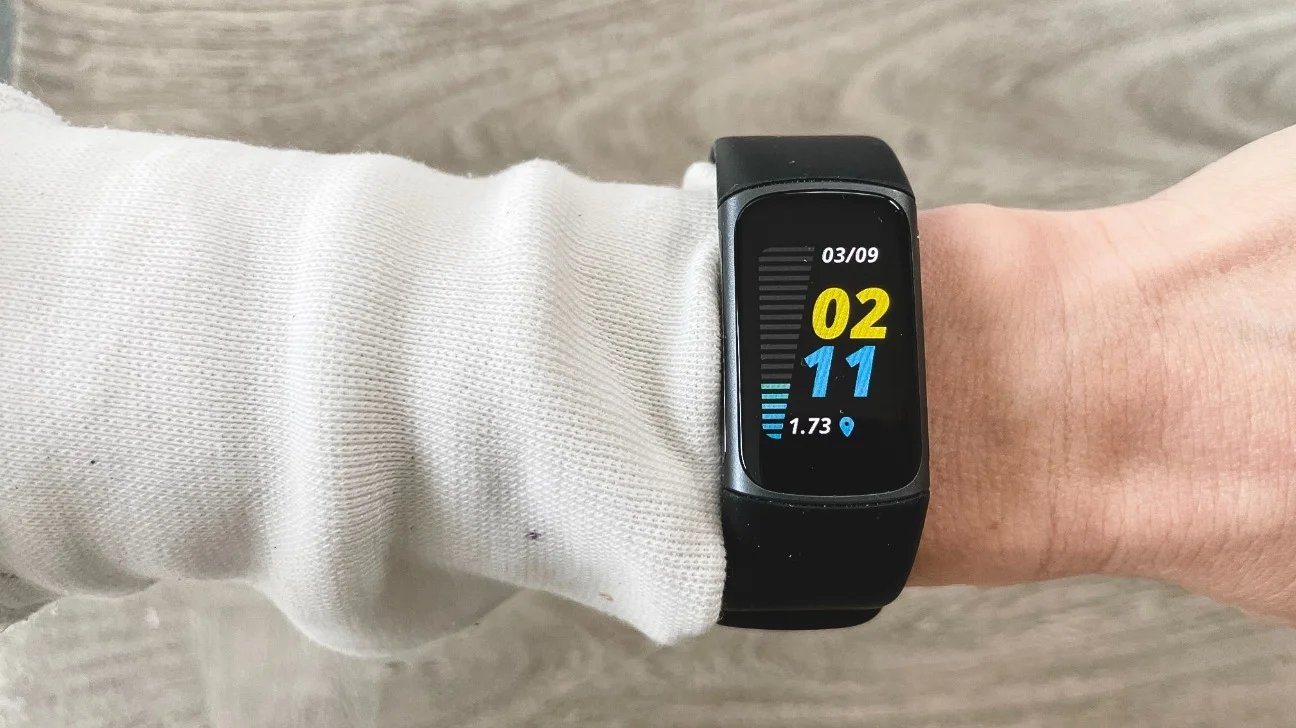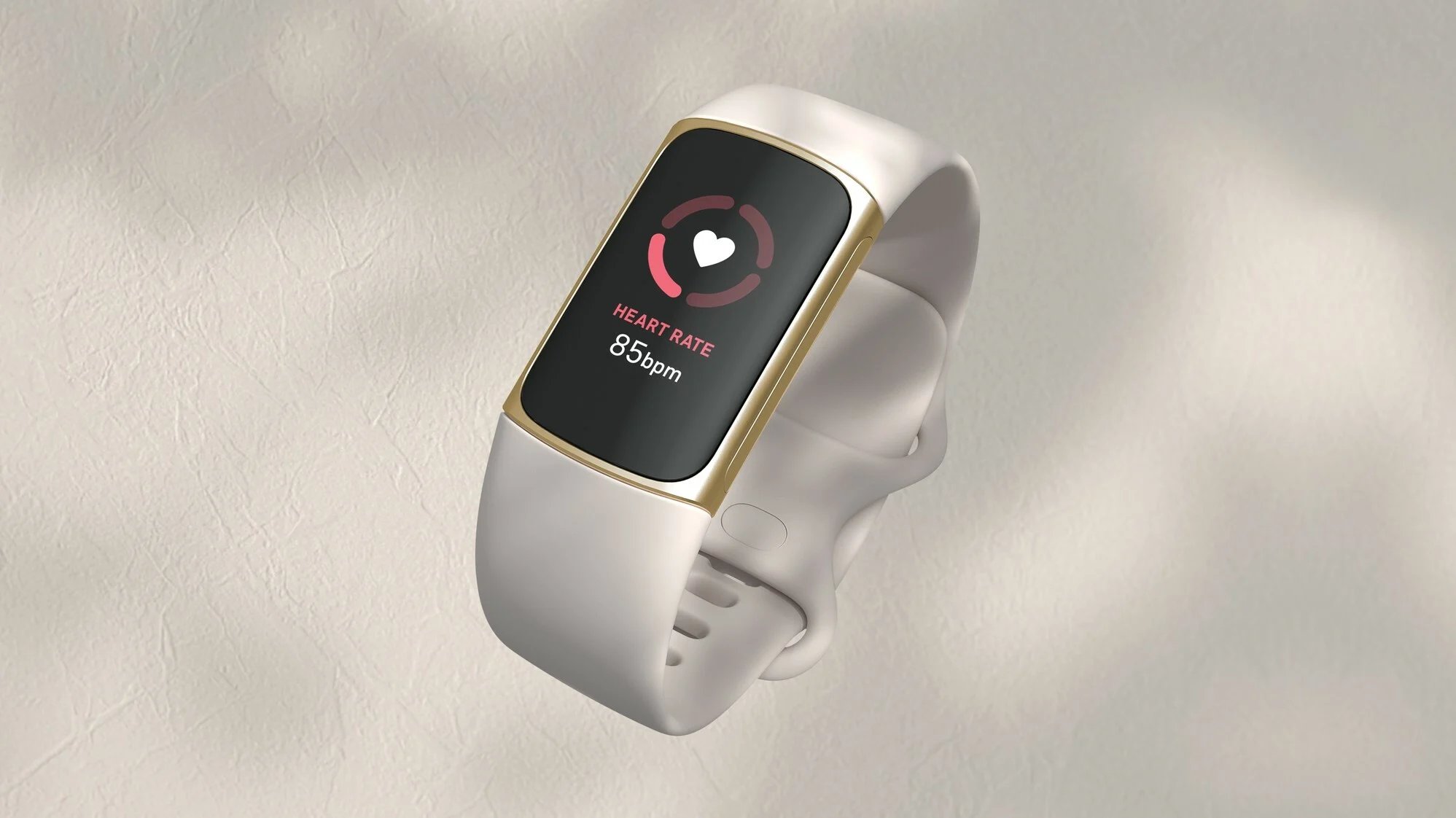
To change the clock face on your Fitbit Charge 5, you must use the Fitbit app on your phone; it cannot be done on the device itself. This is the quickest official method to change clock face Fitbit charge 5, and it works through two documented paths in the app.
How to change clock face on Fitbit charge 5
Open the Fitbit app and go to the Today tab. Tap your profile picture, then tap the Charge 5 tile. Tap Clock Faces, browse the available options, tap the one you want, and then tap Install.
If you are using the current Google/Fitbit app, the path is slightly different: go to the Today tab, tap the devices icon, select your device, tap Gallery, go to the Clocks tab, pick a face, and tap Install. Both methods sync the new clock face to your Charge 5. There is no documented way to change the clock face using buttons or the touchscreen on the Charge 5 itself.
What you can customize on your clock face
Customization options depend entirely on the specific clock face you choose. The official documentation does not guarantee editable complications, colors, or layouts for the Charge 5. If a clock face supports extra settings, such as changing color themes or displaying additional data, those options appear only after you install that specific face. Press and hold the clock face screen for a few seconds until it wiggles or vibrates to enter editing mode for customization settings. Tap 'Settings' after entering editing mode to access customization options like color themes, additional data, or layout. Not all clock faces offer customization.
Troubleshooting when the clock face won't change
If the screen is blank, unresponsive, or flickering after you install a new clock face, Google's official troubleshooting step is to select a different clock face from device settings. Go to device settings, select your profile icon and device name, then choose a different clock face.
Before that, check that your Charge 5 is connected to your phone via Bluetooth. Ensure your Fitbit Charge 5 is fully charged before attempting to change the clock face. Restarting the device by pressing and holding the side button for a few seconds can also resolve sync issues. If the problem persists, ensure the Fitbit app is up to date. Try uninstalling and reinstalling the Fitbit app if the clock face still won't change. Contact Fitbit customer support for further assistance if none of the troubleshooting steps work.
Frequently Asked Questions
Can clock faces be changed on the Charge 5 itself?
No. The official documentation only documents changing clock faces in the Fitbit app. There is no on-device clock-face picker for the Charge 5.
Is there a documented iPhone or Android difference?
No. The official pages do not list separate iPhone or Android steps for changing the clock face. The process is the same on both platforms.
How many clock faces can be saved on the Charge 5?
The official documentation does not state a limit on how many clock faces can be installed or saved on the Charge 5.
Does changing the clock face affect battery life?
Minimally. Some clock faces with graphic-intensive designs or animated backgrounds may require slightly more power, but the difference in battery consumption is typically insignificant.
How do I change the time on a Fitbit without the app?
You cannot change the time on a Fitbit without the app. The time syncs automatically from your phone, so you must use the Fitbit app to adjust time settings if needed. You can download additional clock faces from the Fitbit app by going to the Clock Faces section and tapping the 'All' tab, which includes both free and paid options.
Related reading: How To Change The Clock Face On Fitbit Charge 4 and How To Change Fitbit Versa 3 Clock Face.