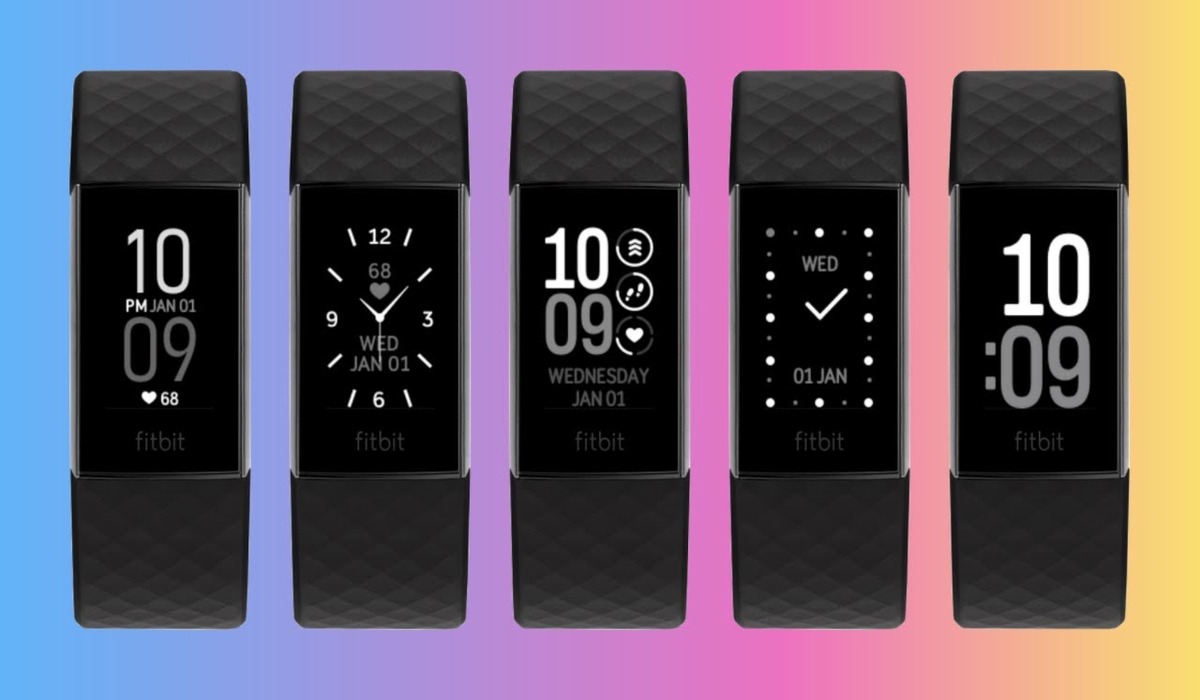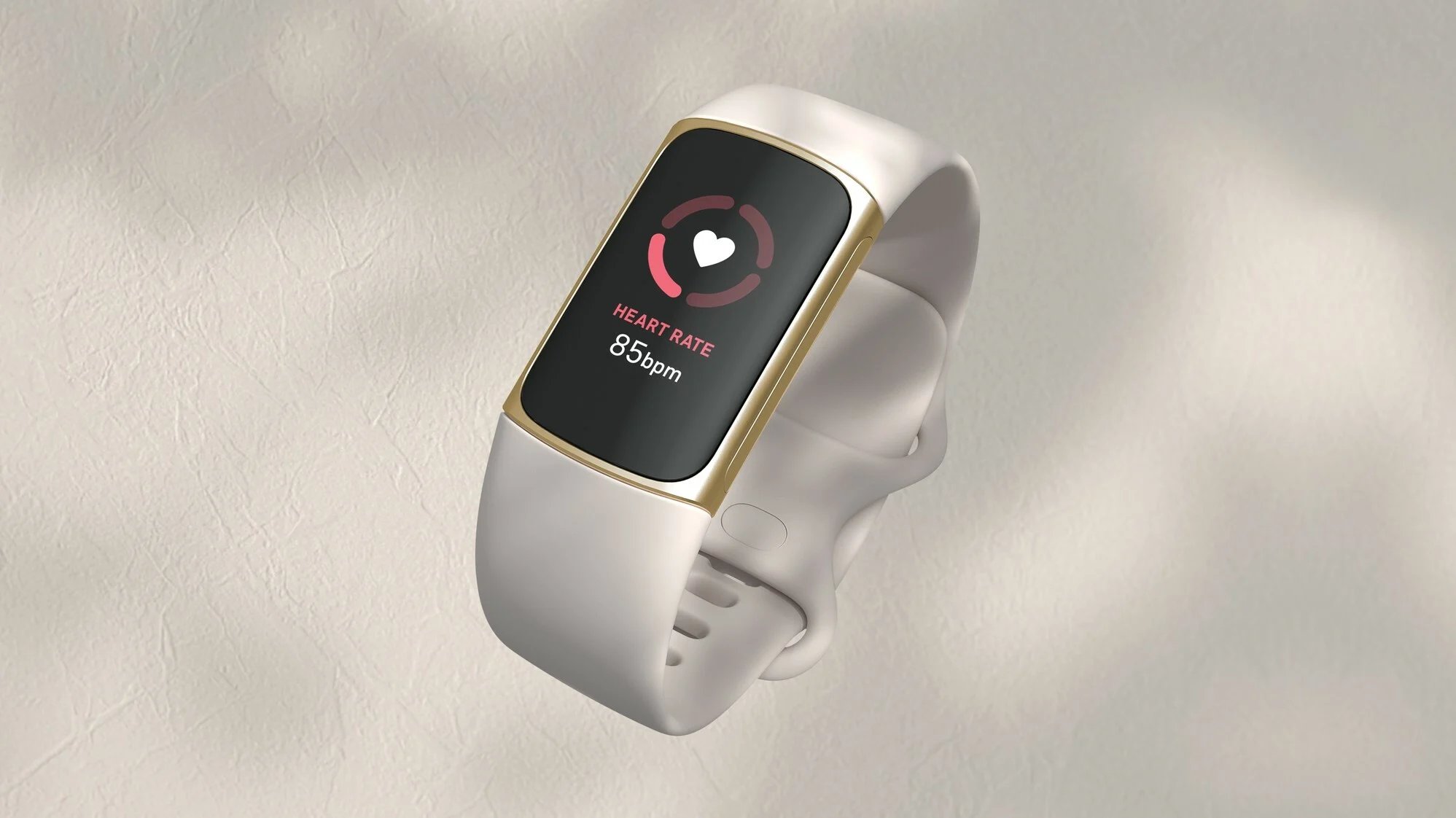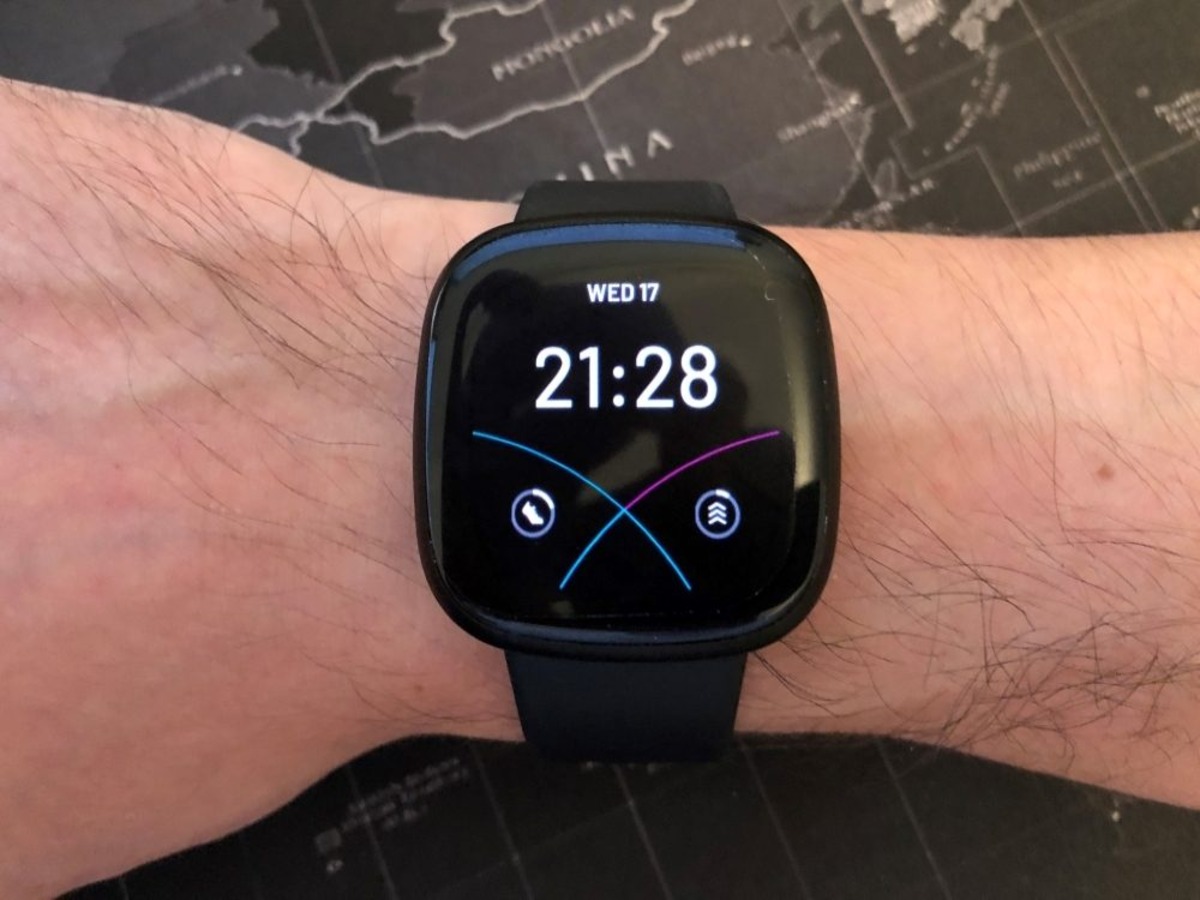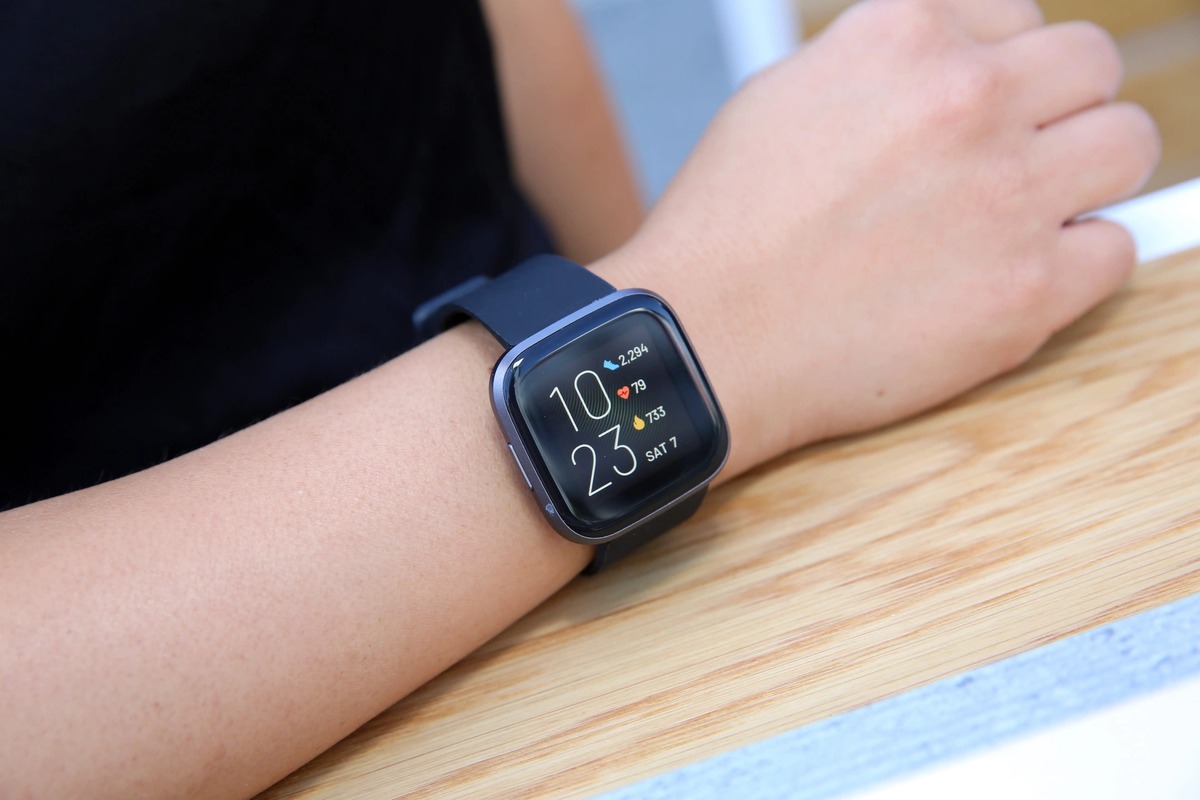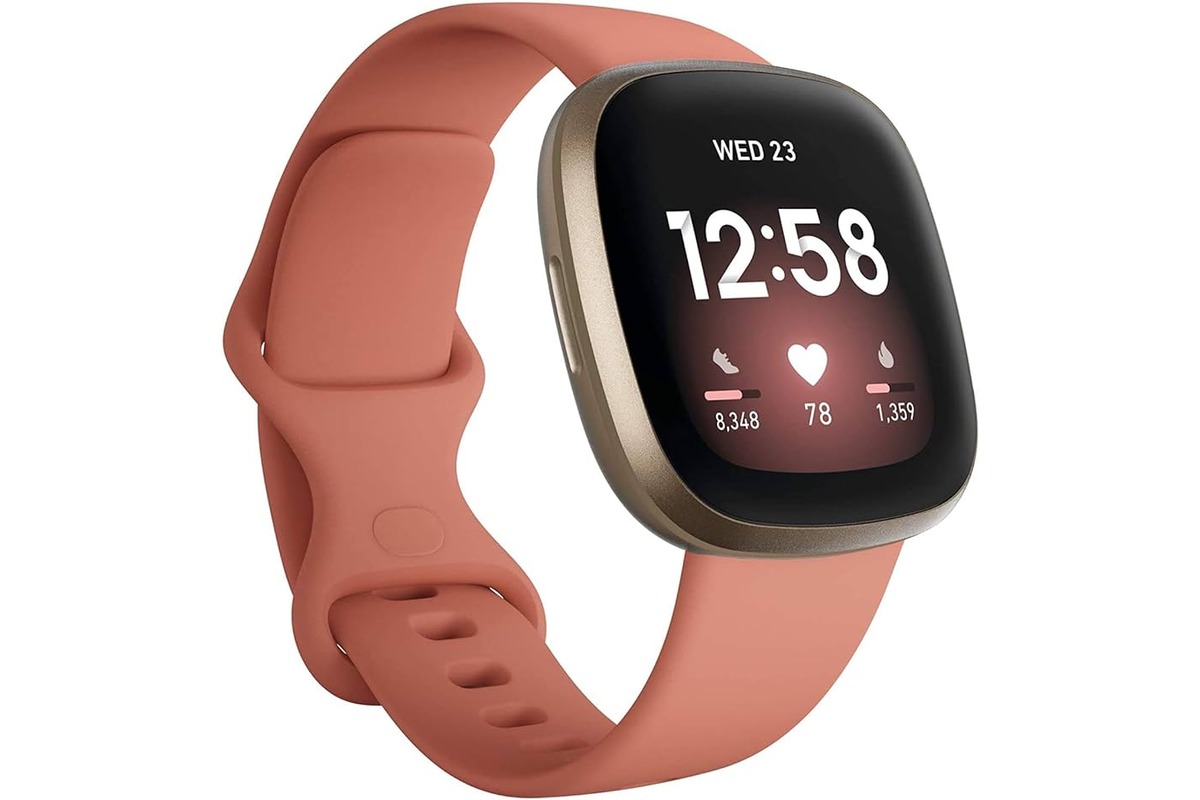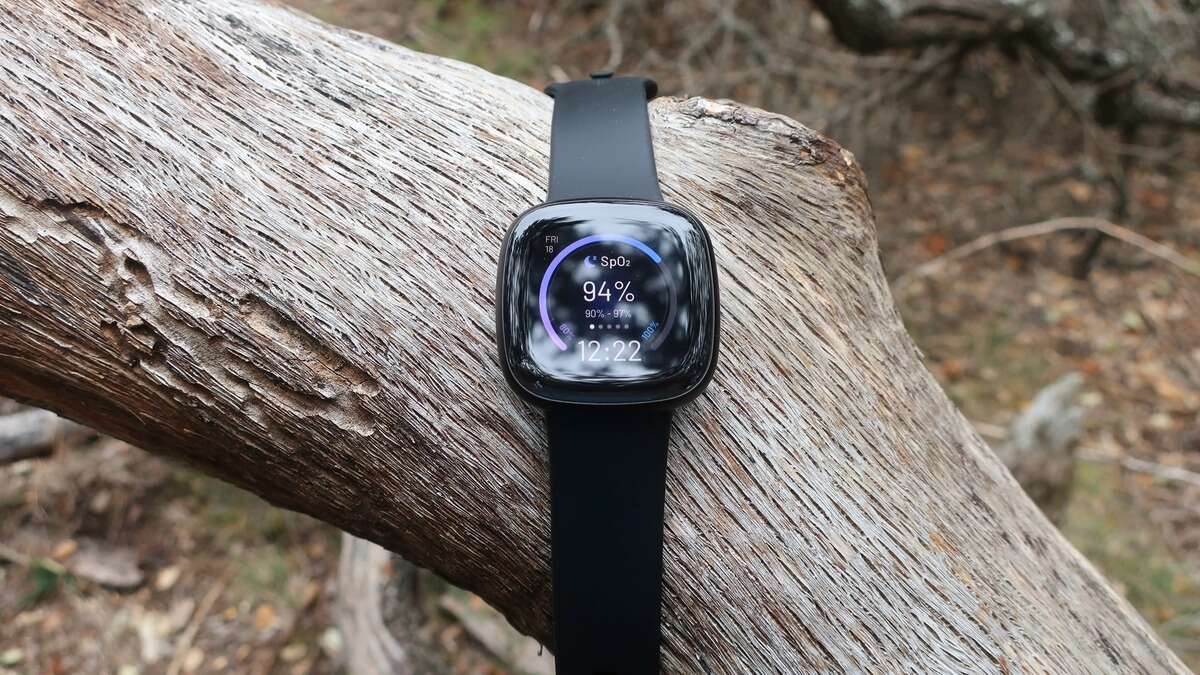
To change Fitbit Versa 3 clock face, open the Fitbit app on your phone and tap the Today tab, then tap the Devices icon or your device image. From there, tap Gallery or Clock Faces, then the Clocks tab, browse the available faces, tap one, and tap Install or Select to apply it to your watch.
How to change Fitbit versa 3 clock face in the app
The primary method for changing your clock face uses the Fitbit app on your phone. Your Versa 3 must be nearby and connected via Bluetooth for the change to sync. The Versa 3 manual documents the path Today tab > profile picture > Versa 3 tile > Clock Faces > All Clocks.
- Open the Fitbit app on your iPhone or Android phone.
- Tap the Today tab at the bottom of the screen.
- Tap the Devices icon or your device image (on some versions, tap your profile picture, then the Versa 3 tile).
- Tap Gallery or Clock Faces.
Browsing and selecting a new clock face
- Tap the Clocks tab to see all available clock faces.
- Browse the selection. You can scroll through the gallery to view different designs and categories.
- Tap a clock face to see its details and a preview of how it will look on your Versa 3.
Applying the clock face to your versa 3
Once you have chosen a clock face, tap Install or Select. When you select a new clock face, it is automatically saved unless you already have 5 saved clock faces. If you already have five saved clock faces on the watch, you must remove one before a new face can be saved.
Switching between your saved clock faces
You can switch between clock faces directly on your Versa 3 without opening the app. Open the Clocks app on the watch, swipe left or right to browse your saved faces, and tap the one you want. The documented limit is 5 saved clock faces on the watch.
Troubleshooting clock face problems
If a clock face will not change, first confirm your Versa 3 is nearby and synced to the app. If you cannot change faces in the Fitbit Gallery, Google says Fitbit removed the ability to install third-party apps and clocks from the Fitbit Gallery for users in the European Economic Area in June 2024. If you want to change the time on a Fitbit without the app, you can adjust the time zone or clock settings through the watch settings menu, but changing the clock face itself requires the app or the Clocks app on the device.
Frequently Asked Questions
Can I customize the clock face on my Fitbit Versa 3?
Some clock faces offer limited customization, such as color themes or which stats are displayed. The options depend on the specific face you choose; not every face includes editable settings.
Are there free clock face options available for the Fitbit Versa 3?
Yes, the Fitbit Gallery includes both free and paid clock faces. You can filter by price when browsing in the Clocks tab of the app.
How often can I change the clock face on my Fitbit Versa 3?
You can change the clock face as often as you like. There is no limit on how many times you can switch, but the watch can only store five saved faces at once.
Can Versa 3 use third-party clock faces?
Third-party clock faces are available through the Fitbit Gallery for most regions. However, users in the European Economic Area lost access to third-party apps and clock faces from the Gallery in June 2024.
Related reading: How To Change The Clock Face On Fitbit Charge 4 and How To Change Clock Face On Fitbit Charge 5.