This tag collects guides for using Google Docs specifically on mobile phones and tablets, aimed at anyone who needs to edit, format, or manage documents while away from a computer. Whether you are a student typing up an assignment on an Android phone, a professional signing a contract on the go, or someone who prefers writing with a stylus, these articles offer straightforward, step-by-step help for common mobile editing tasks.
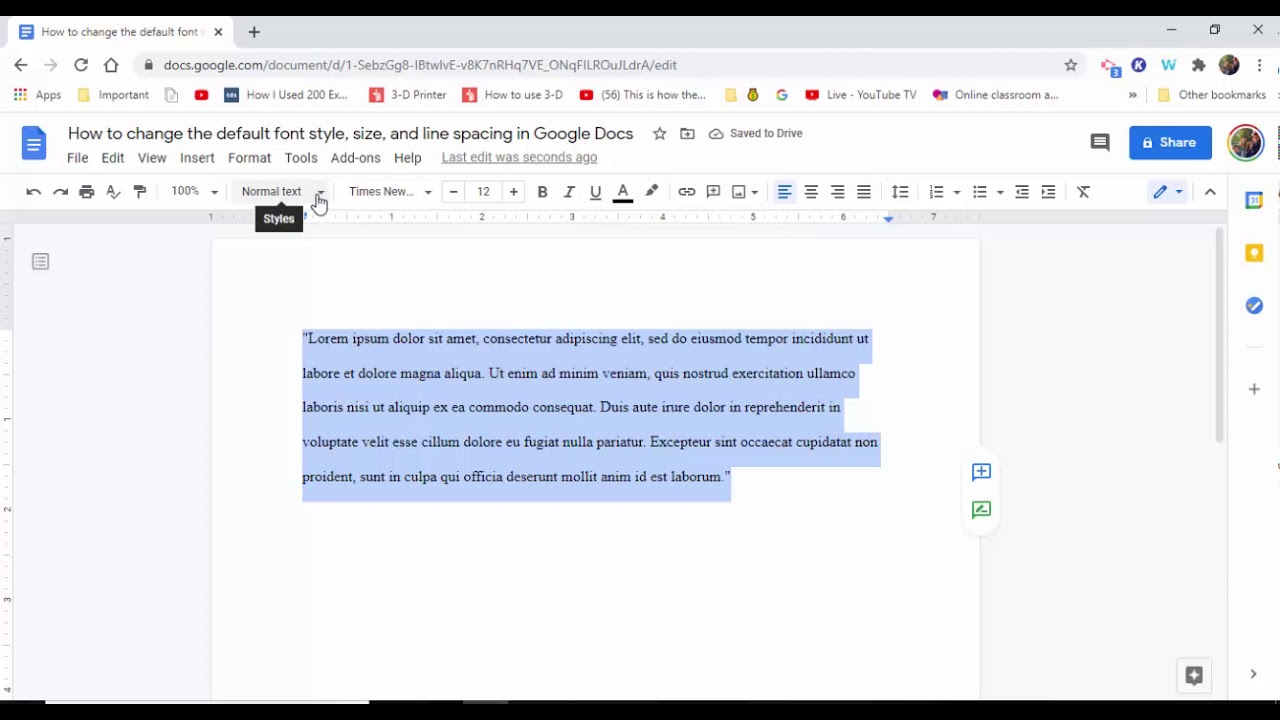
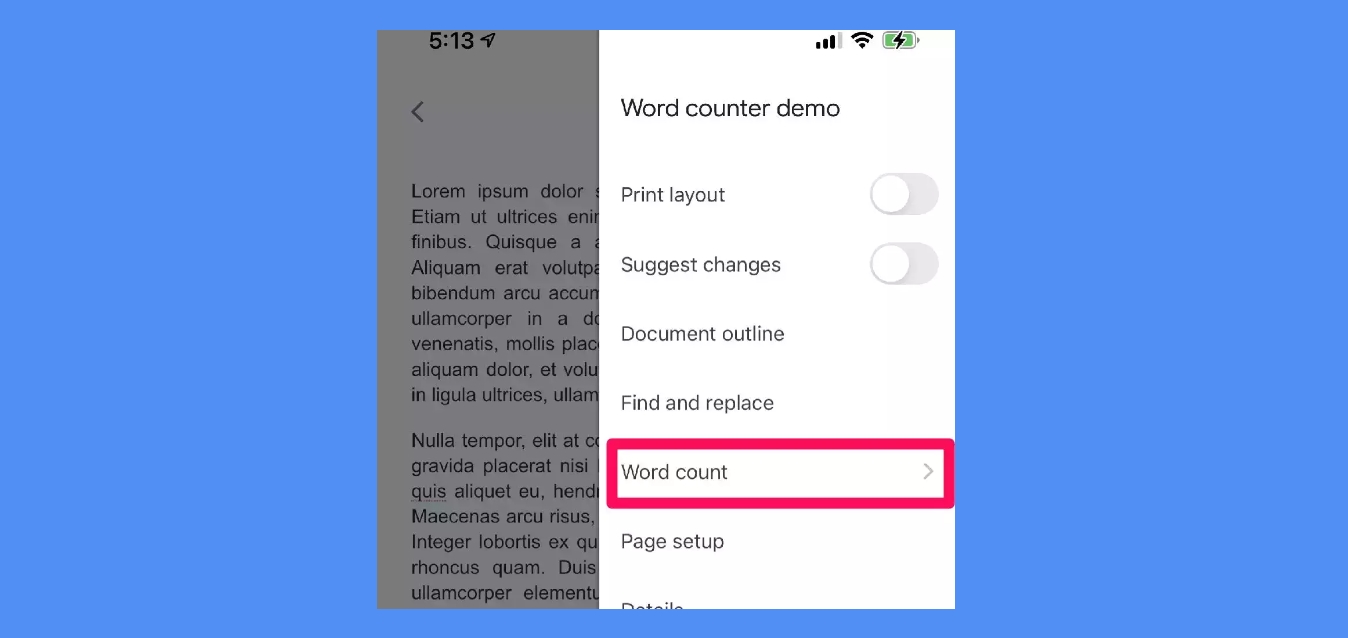
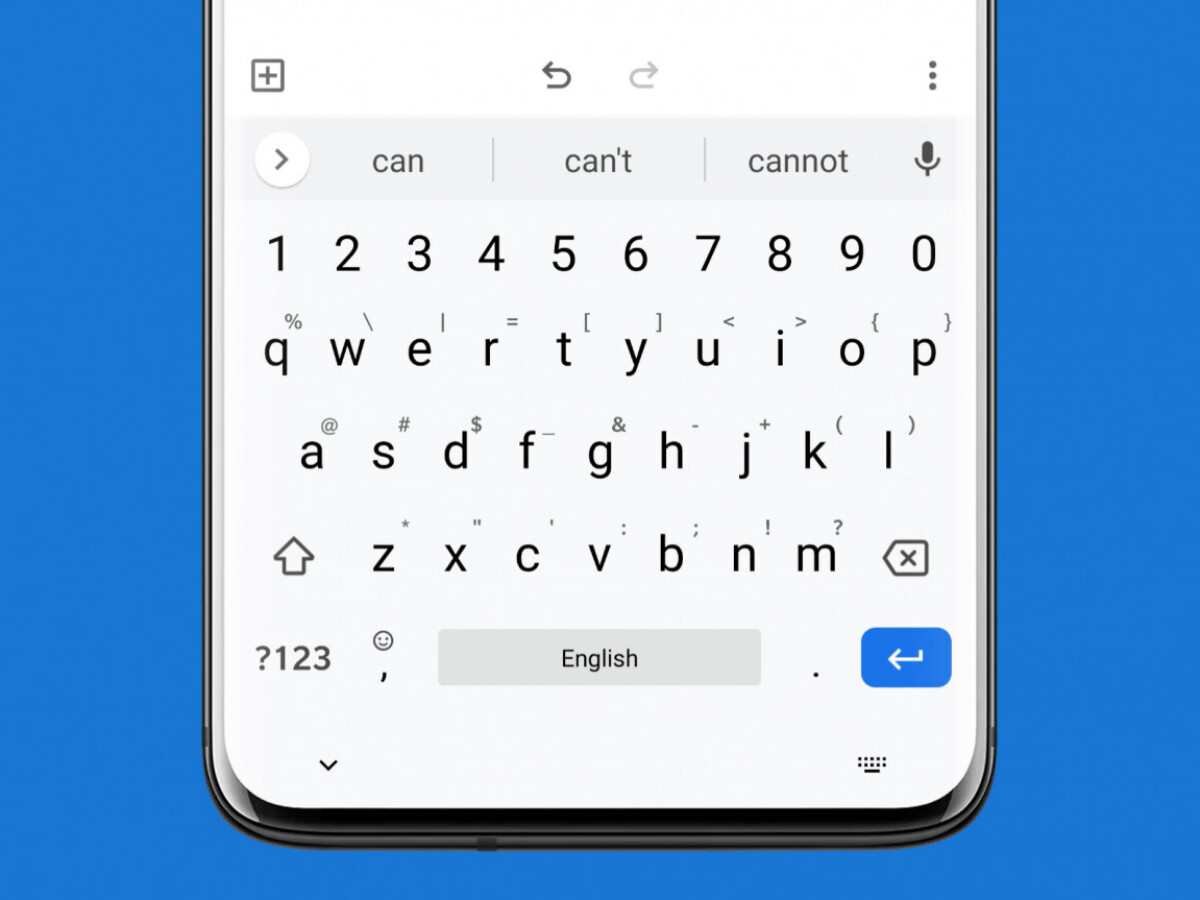
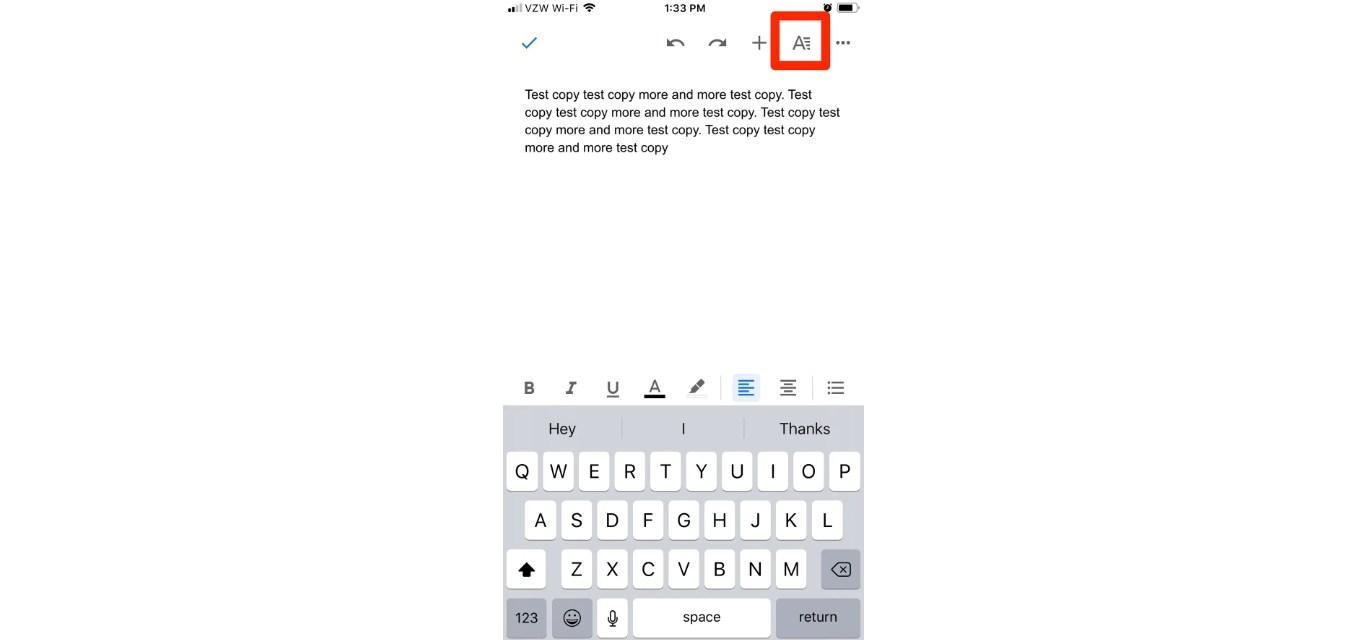
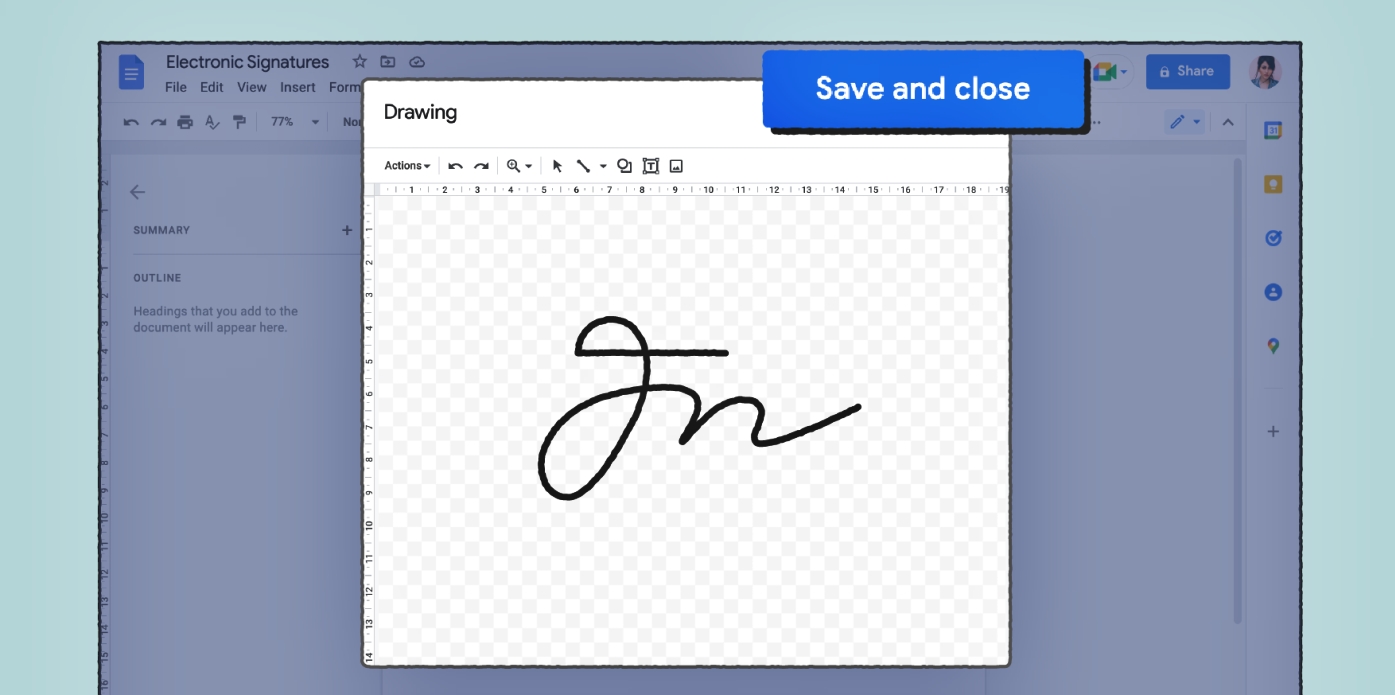
The articles here solve two main kinds of problems. First, they tackle formatting on small screens, showing you how to double space your text, indent paragraphs, and change the font size when working in the Google Docs mobile app. Second, they address document creation and management tasks, such as typing a letter directly on your Android device, signing a document without printing it, and checking the page count of your work. A few specific topics include how to sign a document in Google Docs, how to indent on mobile, and how to write effectively with a stylus.
These guides help you perform concrete actions: produce a properly formatted letter, adjust spacing and indentation, locate your document’s length, and use a stylus for handwritten notes or signatures. Each article focuses on a single, practical task so you can find the exact fix or instruction you need without extra information.