To change font size on Google Docs mobile, tap Edit, select your text, then tap Format and choose Size. This single, universal method works the same way on both iPhone and Android devices, letting you quickly adjust selected text without hunting for hidden menus.
Accessing Google Docs on mobile
You can access Google Docs directly through a mobile web browser without downloading the app. Download the Google Docs app from the App Store (iPhone/iPad) or Google Play Store (Android). Sign in with your Google account and open any document. On both iPhone and Android, tap the Edit button (usually a pencil icon or an "Edit" label) to enter editing mode before you can change the font size.
Changing font size on iPhone & iPad
- Open the document in the Google Docs app and tap Edit.
- Double-tap the text you want to change. Drag the blue selection handles to include more text if needed.
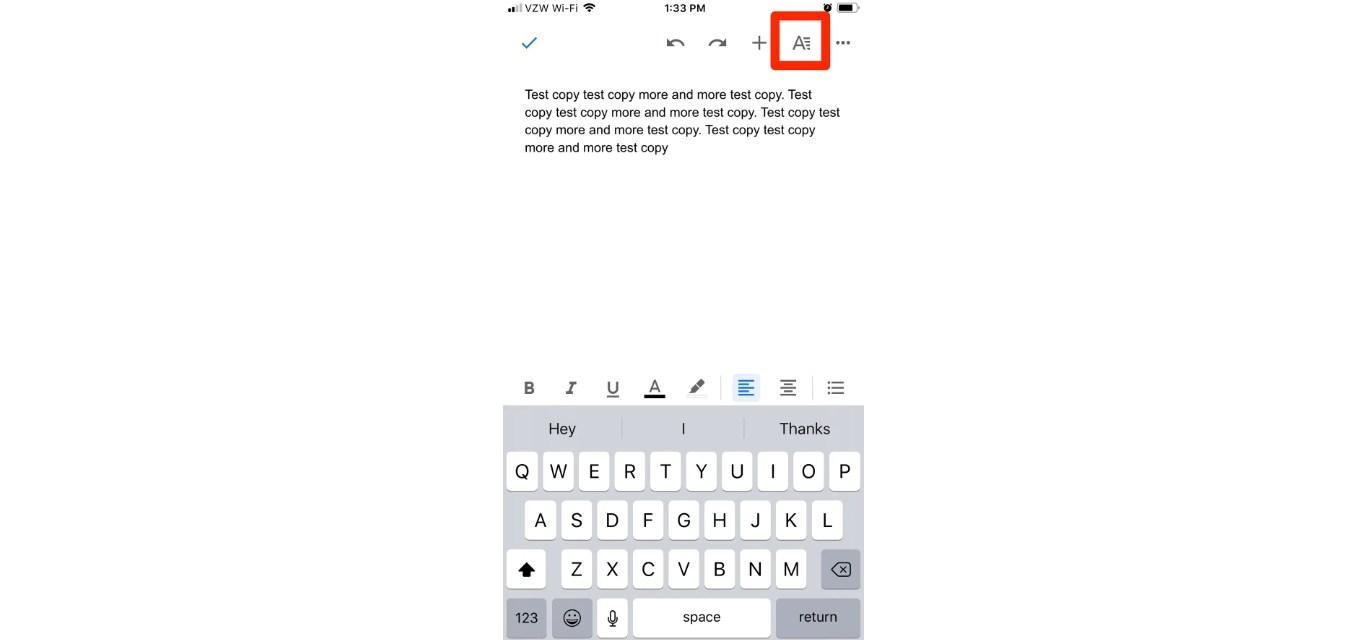
- Tap Format in the toolbar at the top of the screen.
- Tap Text in the formatting menu that appears.
- Tap Size to open the font-size options. Choose the new size from the list.
This path, Format, then Text, then Size, is the only documented way to adjust font size on iOS devices. If you need to increase font size on iPhone 11, simply follow these steps to select a larger number from the Size options.
Changing font size on Android
- Double-tap the text you want to change.
- In the text-formatting options that appear, tap Size.
- Choose the new font size from the list.
On Android phones and tablets, the menu path is Format, then directly tap Size in the text-formatting options. There is no separate "Text" submenu as on iOS; the Size control appears immediately after tapping Format.
What to expect from the Size option
The control is labeled Size on both platforms. Likewise, no minimum or maximum font size limits are stated in the official help, so the available sizes depend on the app version and device.
The Format button is the only documented entry point for text formatting on mobile. There is no separate toolbar button specifically labeled for font size outside of Format > Text > Size (iOS) or Format > Size (Android).
Frequently Asked Questions
What if the Size option seems missing?
Ensure you have tapped Edit first, selected your text, and then tapped Format. If the option still does not appear, try updating the Google Docs app or restarting it.
Does changing the font size affect the whole page?
No. Changing font size using the steps above only affects the text you selected before tapping Format.
Can I change the font size without selecting text first?
No. The documented process requires you to select the text you want to change by double-tapping and dragging the selection handles. Without selecting text, the Format > Text > Size path will not apply any changes.
Does the font size change carry over to the desktop version?
Yes. Font size changes made on mobile are saved to the document in the cloud and will appear the same when you open the document on a desktop or laptop computer, as long as you are signed into the same Google account.
Are there different font size options for iPhone and Android?
Both iOS and Android devices use the same Size control, though the exact sizes offered may vary slightly depending on the app version.
Does changing font size on Google Docs mobile affect the document's formatting?
No, it does not compromise overall formatting; the platform maintains consistency across devices.
Can I preview the document's appearance after changing the font size on mobile?
Yes, Google Docs provides a preview feature to assess appearance before finalizing.
Related reading: How To Indent On Google Docs Mobile and How To Double Space On Google Docs Mobile.