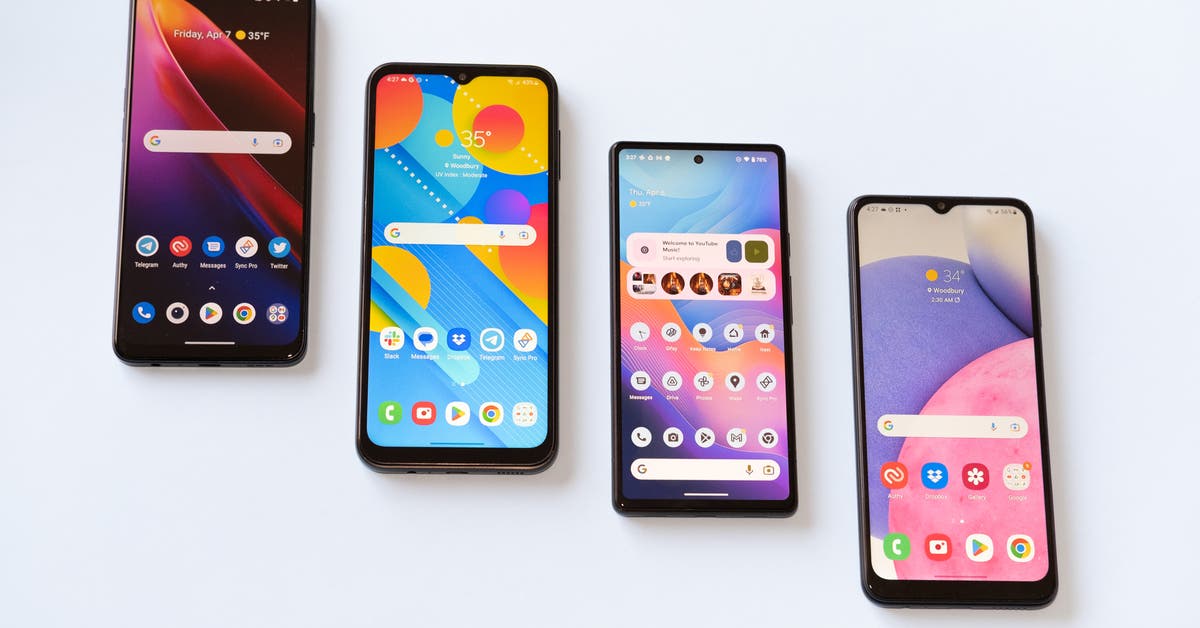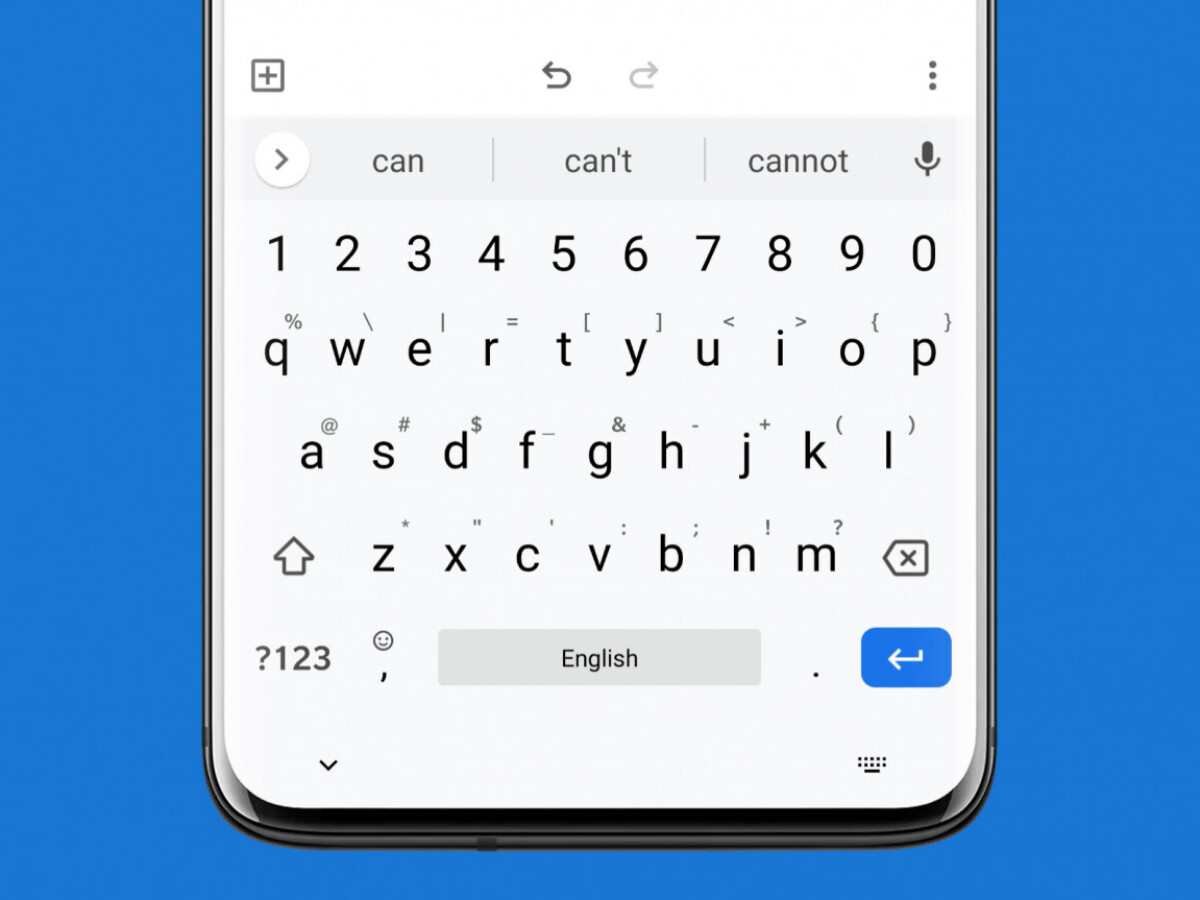
The easiest way to type a letter on an Android phone is to use the free Google Docs app, which is pre-installed on many Android devices and functions as a full word processor. You can use it to compose, format, and export a proper letter without needing a computer, and it also lets you edit Microsoft Word files.
How to type a letter on an Android phone with Google Docs
To type a professional letter, you need a word-processing app rather than your phone's notes app. The Google Docs app for Android is a solid choice because it is free, comes pre-installed on many Android devices, and supports creating and editing documents, including Microsoft Word files, directly on your phone. WPS Office is an alternative word processing app option. This approach gives you the formatting tools you need for a polished final product.
Step 1: Open the Google Docs app
Locate the Google Docs app icon on your Android phone's home screen or in your app drawer. Tap the icon to open the app and begin working on your letter. Enable offline mode within the app to type and edit letters without an internet connection.
Step 2: Create a new document
Once the app is open, you will see a list of your existing documents or a home screen. Tap the create button, which is typically a plus sign, and then select New document to start with a blank page. You may be prompted to give your document a title when creating it. This gives you a clean canvas for your letter. Google Docs for Android can also open and edit Microsoft Word files, so you are not limited to its own format.
Step 3: Enter the recipient's address
Enter the recipient's full name on the first line. Include the recipient's name or organization name in the address block. On the following lines, type their street address, including any apartment or suite numbers, followed by the city, state, and ZIP code. Spell out words like 'Street', 'Road', 'Avenue' in the address. Include the country name if sending the letter internationally. Ensure this information is accurate before moving on.
Step 4: Add the date
After the recipient's address, press Enter to move to a new line. Type the current date here. Use the numbers and symbols section of the virtual keyboard to insert date separators like '/' or '-'. This completes the heading of your letter and provides a clear reference point for the correspondence.
Step 5: Write the body of your letter
Now you can write the main content of your letter. Use a salutation like 'Dear Mr. Smith' for formal letters or 'Hi there' for casual ones. Then, write the body of your letter in clear, concise paragraphs, presenting each point separately. Conclude the letter with a closing remark like 'Thank you for your attention' and sign off with your name and contact information.
Step 6: Format the letter
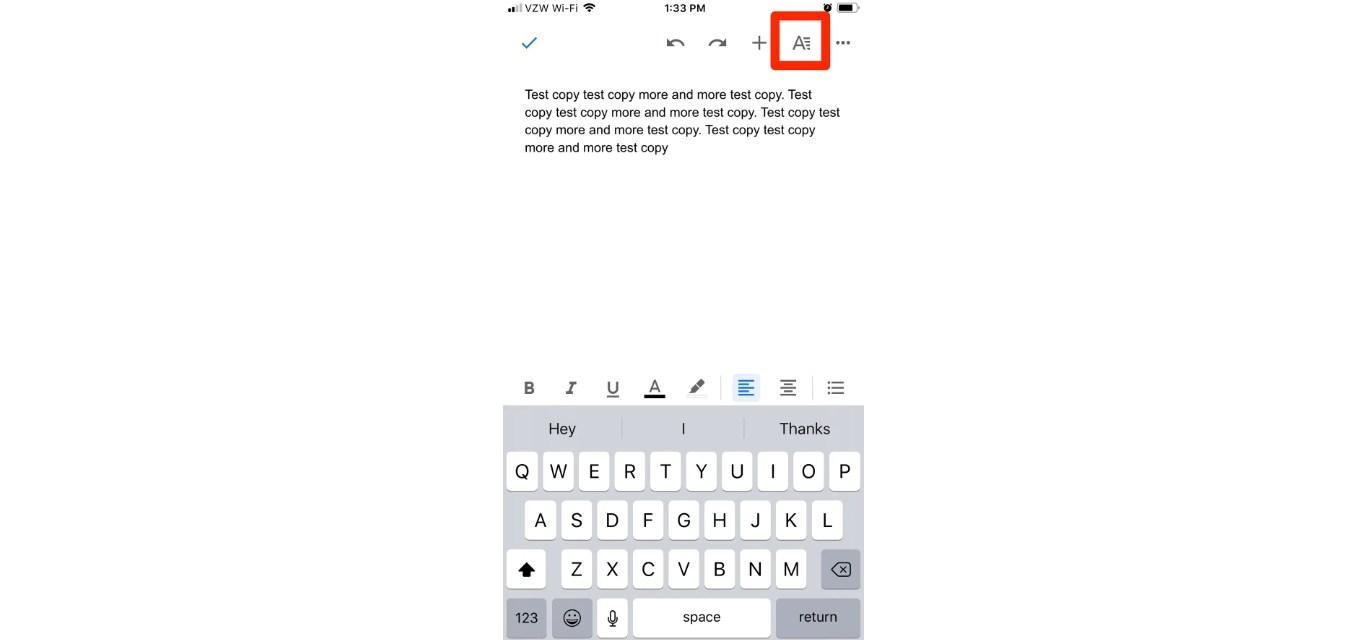
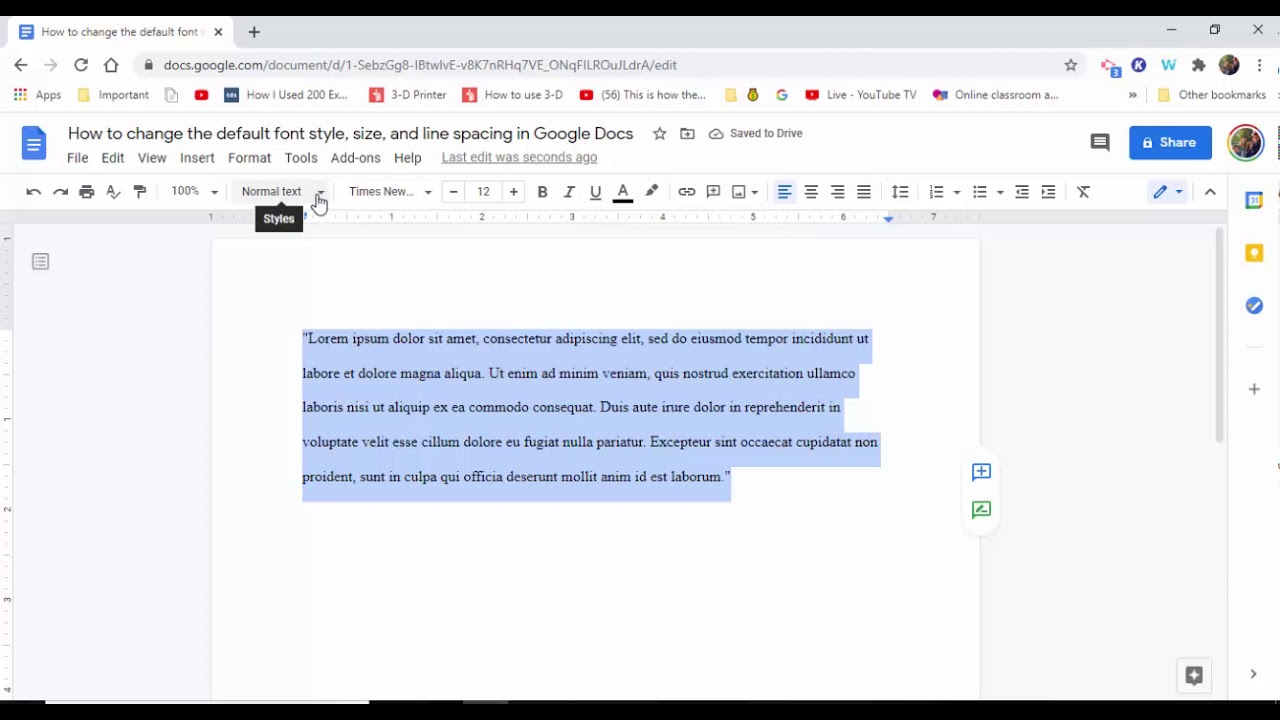
Use the editing controls in Google Docs to format your letter for a professional look. You can change the font style and size, adjust the alignment of your text, and modify line spacing. Use single or 1.5 line spacing for a clean look. Begin each paragraph with an indentation or a blank line. These controls allow you to ensure your letter is easy to read and well-presented.
Step 7: Save and export your letter
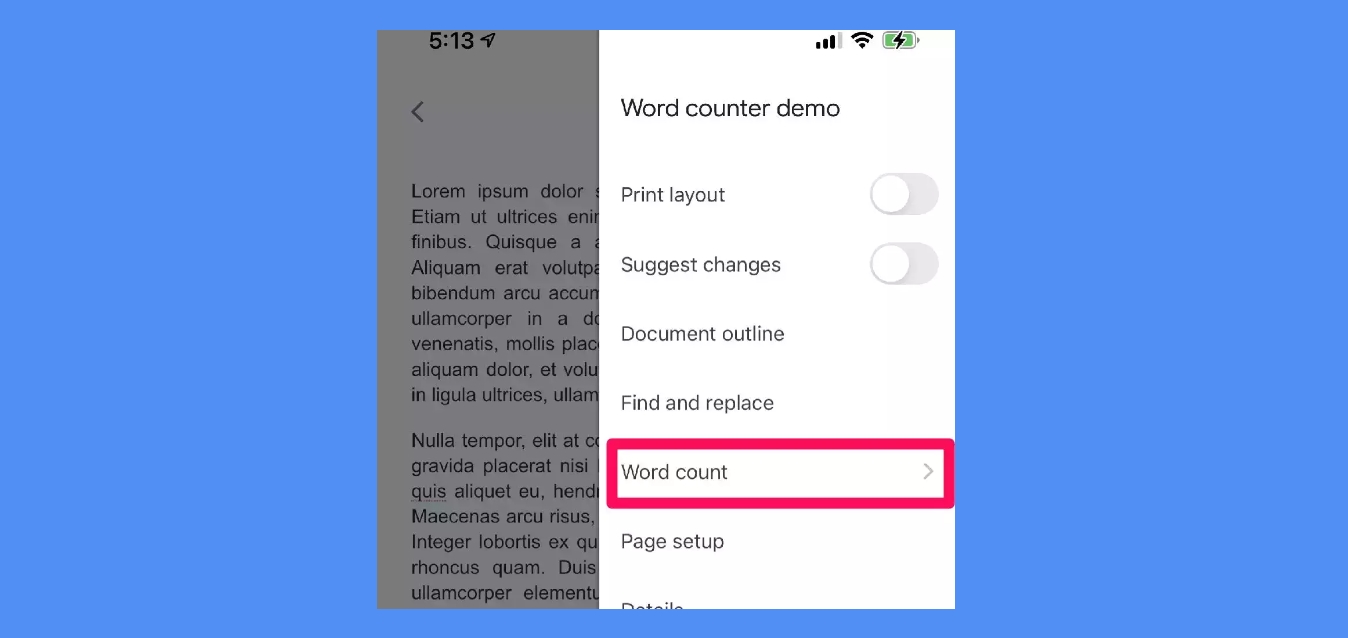
Google Docs saves your work automatically as you type, so you don't have to worry about losing your progress. To export the final letter, tap the menu icon and choose Share & export. From there, select Save As to choose a file format. Google Docs for Android can export your document as a DOCX, EPUB, RTF, TXT, PDF, ODT, or HTML file, so you can send it in the format you prefer.
Typing a letter on an iPhone
If you are using an iPhone, the process is similar. Open the Pages app and tap Choose a Template. Select the Word-processing template, which is designed for documents mainly made of text, including letters and reports. Then, type the recipient's address, date, letter text, and closing directly into the document. Pages can also export your letter as a PDF, Word document, EPUB, and more.
Frequently Asked Questions
Can I use a Bluetooth keyboard to type a letter on my Android phone?
Yes, you can connect a physical Bluetooth keyboard to your Android phone to make typing a letter more comfortable. This can be especially helpful if you are writing a long document and prefer a traditional keyboard layout.
Can I use voice typing to compose a letter on my Android phone?
Yes, Android phones have a built-in voice-to-text feature that you can use to dictate your letter. You can access this through the microphone icon on your keyboard, but you should always proofread the text afterward to catch any errors.
How do I check for spelling errors in my letter?
Google Docs has a built-in spell check feature that will highlight misspelled words as you type. You can review these suggestions in the app to correct any errors before you export or send your letter.
What is the difference between a word-processing document and a page-layout document?
A word-processing document is designed for text, like letters and reports, and flows text automatically from one page to the next. A page-layout document is for designs that need more control over the position of objects, such as newsletters or posters. For a letter, you should always use a word-processing document.
For the wider topic, see text messaging and T-Mobile texts.
Related reading: How To Double Space On Google Docs Mobile and How To See Page Count On Google Docs Mobile.