To hide mobile number when calling, you can turn off caller ID in your phone settings, use a one-call prefix like *67, or place the call through a service like Google Voice. These three verified methods work on iPhone, Android, and Samsung devices, with specific steps depending on your carrier and region.
Hide mobile number when calling from iPhone
- Open Settings.
- Tap Apps.
- Tap Phone.
- Tap Show My Caller ID.
- Turn Show My Caller ID off.
Apple says this prevents your Caller ID information from showing on outgoing calls, but if Show My Caller ID does not appear, your carrier may not allow you to turn it off. Apple says carrier support controls whether Show My Caller ID appears. Apple documents this for iPhone in iOS settings; the page does not name a minimum iOS version in the retrieved text.
Hide your caller ID on Android and Samsung phones
- Open the Phone app.
- Tap the More options icon (three vertical dots).
- Tap Settings.
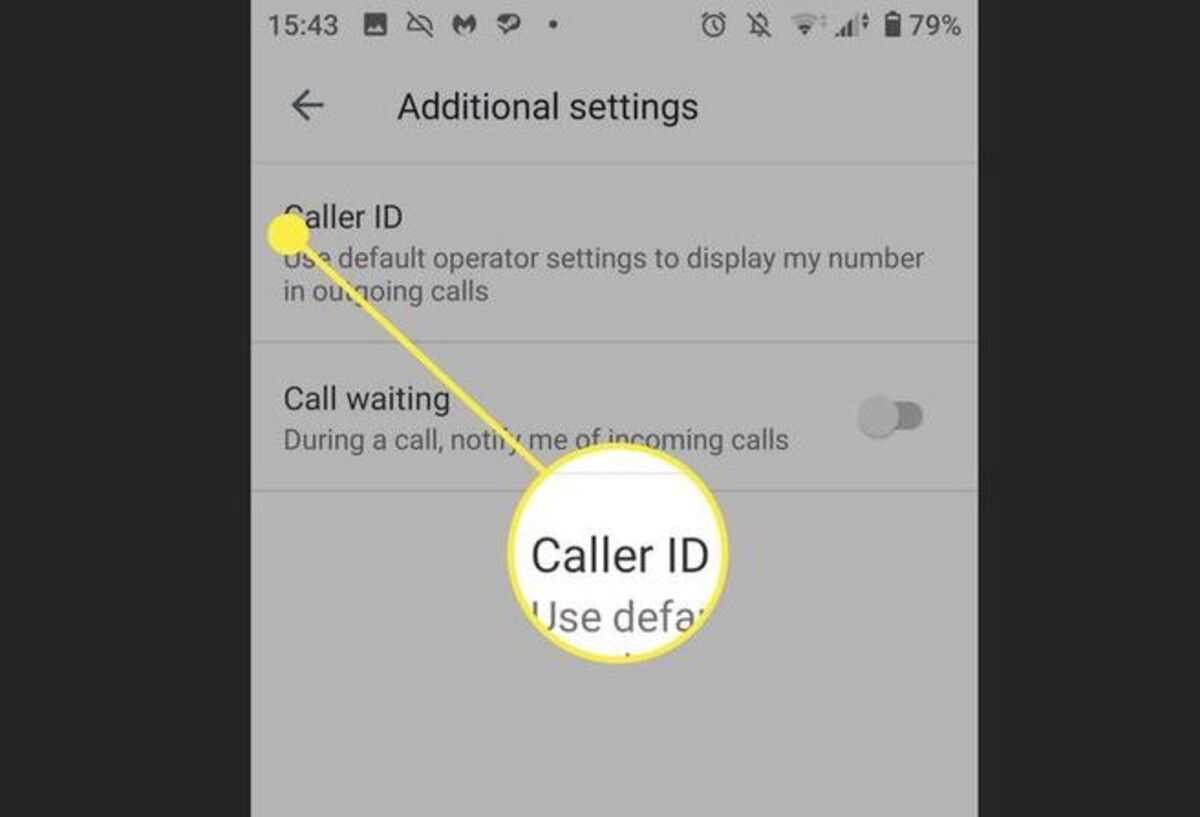
- Tap Supplementary services.
- Tap Show your caller ID.
- Choose Never to hide your number, Always to show it, or Network default where offered.
Samsung says older Android versions may place the option under Phone app > More options > Settings / Call Settings > More / Supplementary settings. Samsung documents the setting in the Android Phone app and notes that steps may differ on older Android versions. Samsung's page says the available path can vary by Android version and phone UI.
Hide your caller ID with Google Voice
Google Voice lets you hide caller ID for all calls on all devices signed in to the same account.
- Open the Google Voice app.
- Tap Menu.
- Tap Settings.
- Under Calls, turn on Anonymous caller ID.
Google also says you can hide caller ID for individual calls by entering a region-specific prefix before the number; for a US Google Voice number, that prefix is *67. Google Voice says hidden caller ID applies to all devices using the same Google Voice account when turned on in the app. This is a useful feature if you want to call back in 5 easy ways (Private Numbers: How to Call Back in 5 Easy Ways) without revealing your personal number.
Use a one-call prefix to block your number
Google Voice documents *67 for US Google Voice numbers and says the prefix depends on the country or region your Google Voice number is from. For individual calls, enter this prefix before the number you are calling.
Repeat for each call you want blocked.
Frequently Asked Questions
Can I hide my mobile number for all outgoing calls by default?
Yes, you can set your phone to hide your number for all outgoing calls by default using the settings described above for iPhone, Android, or Samsung. Google Voice also offers a permanent setting in its app.
Will hiding my mobile number affect call quality or reception?
No, hiding your mobile number does not affect call quality or reception. The feature only controls whether your number is displayed on the recipient's phone.
Can the recipient still identify my number if I hide it?
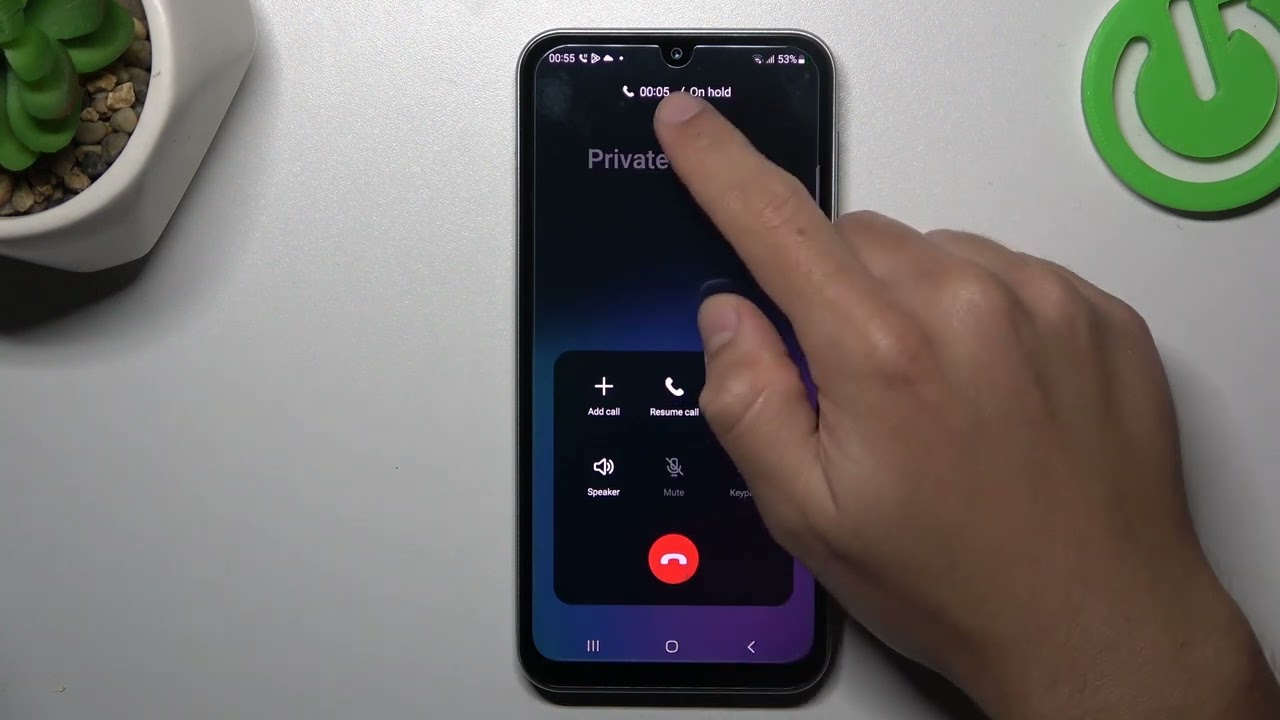
In most cases, the recipient will not be able to identify your number if you have successfully hidden it. Some carriers or services may display "Private" or "Restricted" instead of your number.
Are there any charges associated with hiding my mobile number?
Generally, there are no additional charges for hiding your mobile number when making calls. However, it is advisable to check with your service provider for any specific details, as carrier policies can vary.
What if the "Show My Caller ID" option is missing on my iPhone?
If the option does not appear, your carrier does not allow caller ID blocking through iPhone settings. You may need to contact your carrier or use an alternative method such as Google Voice or a one-call prefix.
Related reading: Can You Hide Phone Number When Texting and Why Has T-Mobile Service Been Bad.