To change your Snapchat username, open the Snapchat app, tap your profile icon or Bitmoji in the top-left corner, then tap the gear icon to open Settings. From there, go to My Account > Username > Change Username, enter your new username, tap Next, enter your password, and tap Confirm.
How to change your Snapchat username: The direct, official method
Snapchat now lets users change their username once a year directly in the app. This feature was initially trialed in Australia in late 2021 before wider release. It is available on both iPhone and Android, with no location restrictions or VPN requirements. The complete step-by-step path is:
- Tap the gear icon to open Settings.
- Tap My Account.
- Tap Username.
- Tap Change Username.
- Enter your new username.
- Tap Next.
- Enter your password.
- Tap Confirm.
Once confirmed, your username is locked for 365 days. You cannot change it again until that one-year period ends. Choose carefully, there is no undo button.
Display name vs username: what's the difference?
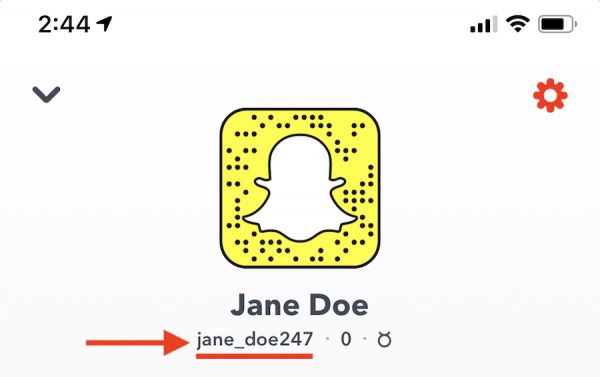
Your Snapchat username is a unique identifier that only your account can use. It is what friends search for to add you and what appears in your profile URL. Because it must be unique across all Snapchat users, Snapchat limits username changes to once per year. Your display name, on the other hand, is the name that appears above your username on your profile and in chats. Multiple users can have the same display name, and you can change it at any time without any restrictions. This distinction is similar to how Twitter separates its @handle from the display name that appears next to it.
How to change your Snapchat display name
Changing your display name is simple and can be done as often as you like. The process starts in the same place as changing a username:
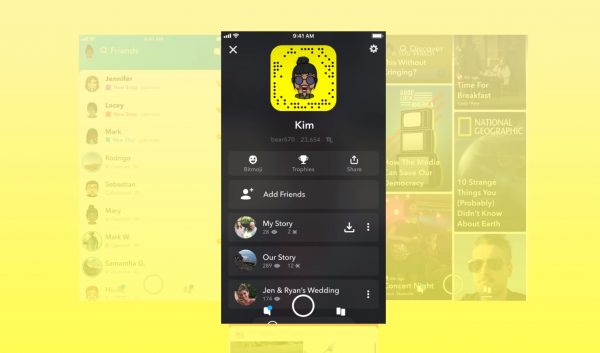
- Tap your profile icon or Bitmoji, then tap the gear icon to open Settings.
- Find the Name option under the My Account section.
- Enter your new display name and save the change.
Your display name updates immediately for new conversations and profile views. However, friends who already have you in their chat history may still see your old display name until they refresh the conversation. Existing friends will continue to see your previous display name, but newly added friends will see your new display name. This also applies to Snapchatters who have added you from their phonebook. This flexibility makes the display name ideal for testing nicknames, updating your personal brand, or fixing typos, all without using your once-yearly username change.
What about Snap Star usernames?
Verified Snap Star accounts, accounts with the official yellow star badge, cannot change their username through the in-app method described above. Instead, Snap Stars must use a separate, form-based process. They need to fill out a specific request form provided by Snapchat support to request a username change. This process is handled on a case-by-case basis and is not available to standard accounts. If you are not a Snap Star, the standard in-app method is your only option.
How to change your username by starting over with a new account
If you have already used your one yearly change and need a different username immediately, the only remaining option is to delete your current account and create a new one. This is a permanent decision that affects all your data, friends, and Snapstreaks. To delete your account:
- Open the Snapchat app and go to Settings > Account Actions > Delete Account. Alternatively, visit the Snapchat accounts portal in a web browser, sign in, and choose Delete my account. Account deletion can also be initiated via the Snapchat webpage (accounts.snapchat.com) by clicking the three horizontal bars, selecting 'Manage my Account', then 'Delete my Account'.
- Enter your password and tap Continue.
Your account is not deleted instantly. Snapchat deactivates it for 30 days. During this deactivation period, you can log back in at any time to reactivate the account and cancel the deletion. After those 30 days, the account enters a permanent deletion phase that takes another 30 days to complete. Once fully deleted, all your Snaps, chats, stories, and device data are removed from Snapchat's servers. After deletion, you can sign up for a new account with a fresh username by opening the app, selecting Sign Up, and following the registration steps with a new email or phone number.
Frequently Asked Questions
Can I change my Snapchat username more than once a year?
No. Snapchat enforces a strict once-per-year limit on username changes. The 365-day timer starts from the moment you confirm the change, not from when you first created the account.
Will changing my username affect my Snapstreaks?
No. Changing your username does not affect your Snapstreaks, friends list, or chat history. All your existing connections and streaks remain intact because the change updates the account's identifier without altering the underlying account.
Can I use the same username on a new account after deleting my old one?
Yes, but only after the old account is fully and permanently deleted. During the 30-day deactivation period, the username remains reserved for your old account. Once the 60-day deletion process completes, the username becomes available for anyone to claim.
Why does Snapchat limit username changes to once a year?
Snapchat limits username changes to maintain account security and prevent impersonation. Because usernames are unique identifiers, frequent changes could allow bad actors to cycle through names and confuse friends or evade blocks.
Do I need to update my Snapchat username on other apps or services?
Yes. If you use your Snapchat username to log into third-party apps, games, or services that connect through Snapchat, you will need to update those connections with your new username. Your old username will no longer work for those integrations.
For the wider topic, see changing names and labels on mobile.
Related reading: How to Change Your Spotify Username? [Step-by-Step Guide] and How To Change Voice On Snapchat With 2 Easy Methods (2024).


![How to Change Your Spotify Username? [Step-by-Step Guide]](/wp-content/uploads/2022/04/IMG_7960.jpeg)