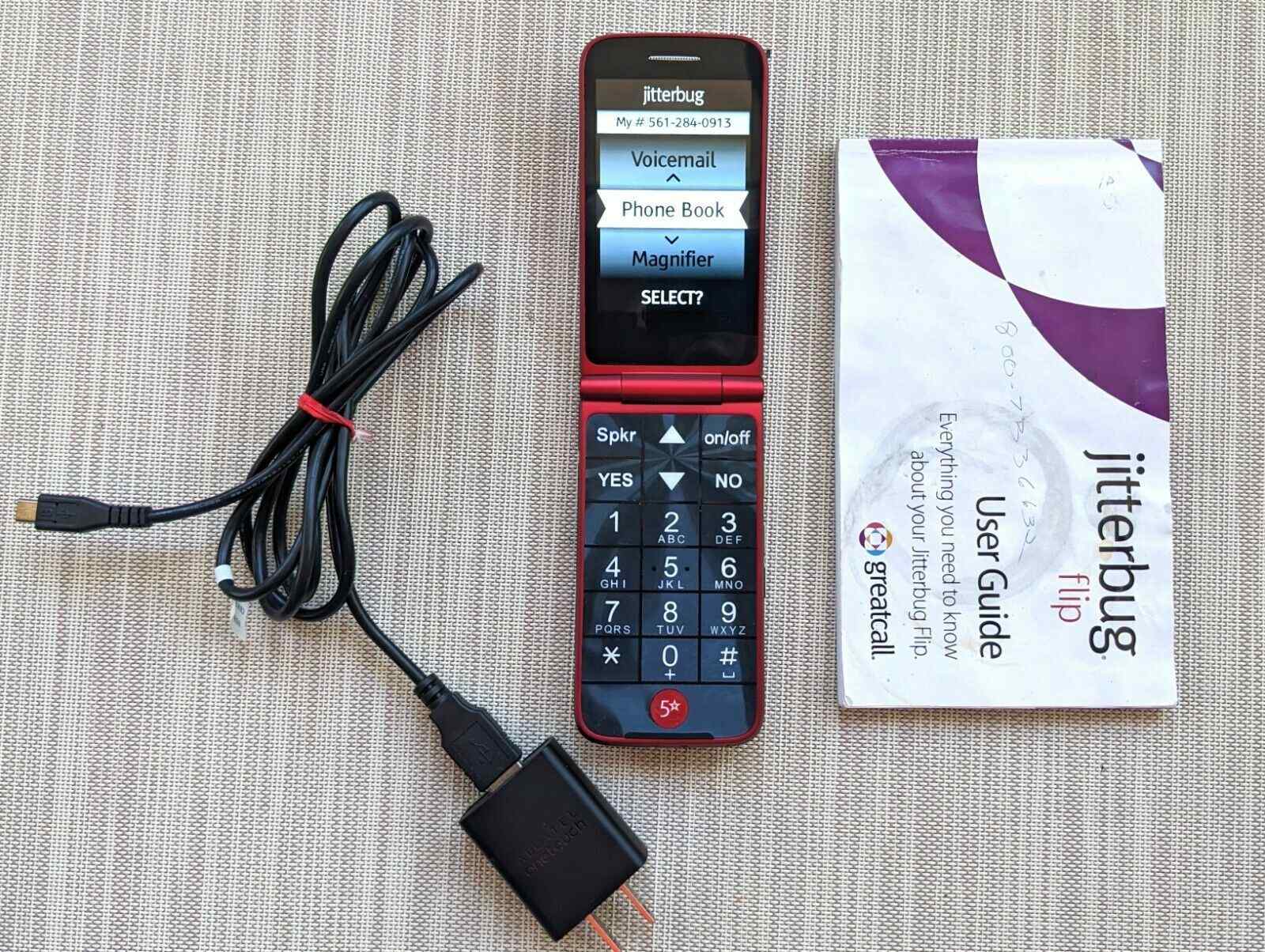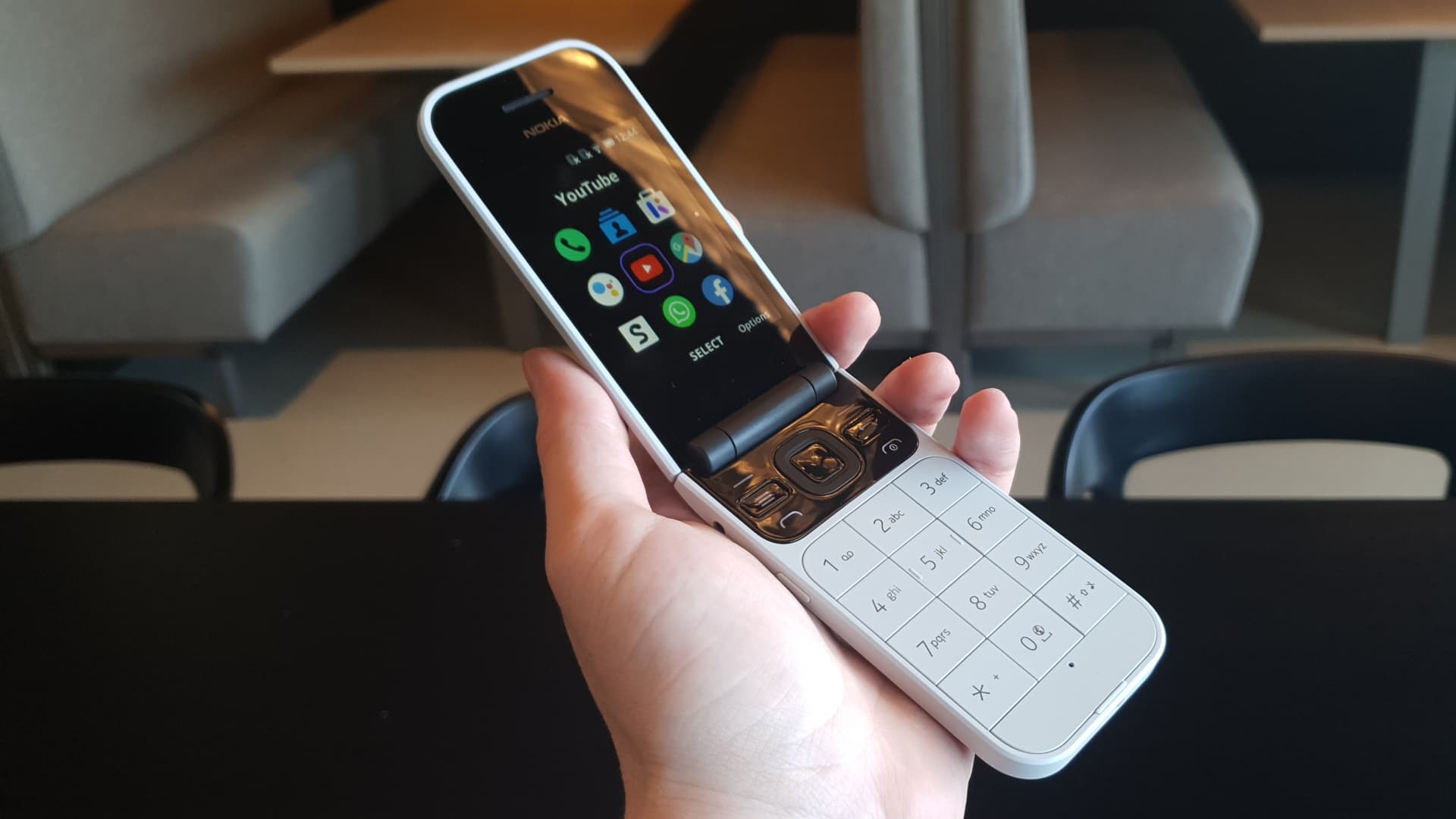
To switch to a flip phone, you need to complete two separate tasks: moving your data off the smartphone and moving or reactivating your phone number on the flip phone. Apple and Google document the data-transfer steps for iPhone and Android, but you will need your carrier’s help pages for the number transfer, since the exact activation method depends on your plan and device.
How to prepare for the switch
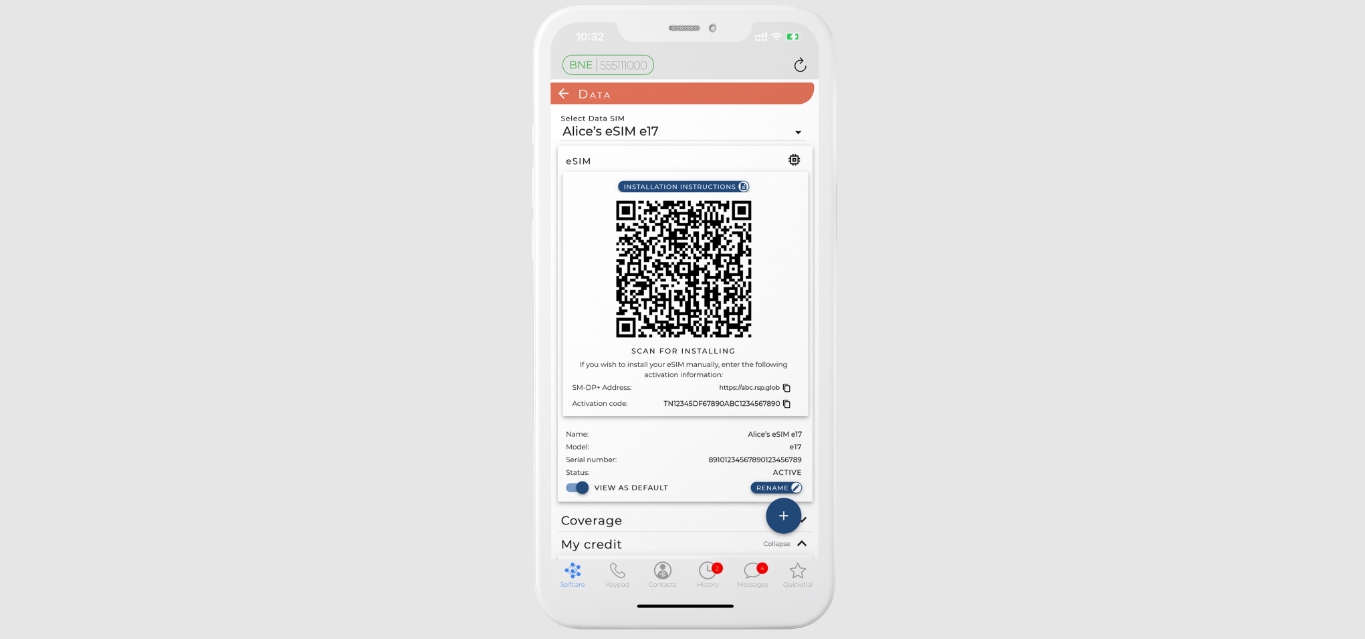
Back up your old phone before changing anything. Check whether the flip phone uses a physical SIM, eSIM, or carrier activation. Confirm the flip phone is supported by your carrier and that your plan allows activation on that device. Save or export contacts, photos, and messages you want to keep. One way to transfer contacts is by exporting them to a file and then importing them into the flip phone's address book. If your phone number is on an eSIM, keep the old phone nearby until activation is complete. The practical tradeoff is that many services stay tied to the smartphone, so the user should confirm which accounts, authenticator apps, and messaging services will still work before changing devices.
Steps to switch from iPhone
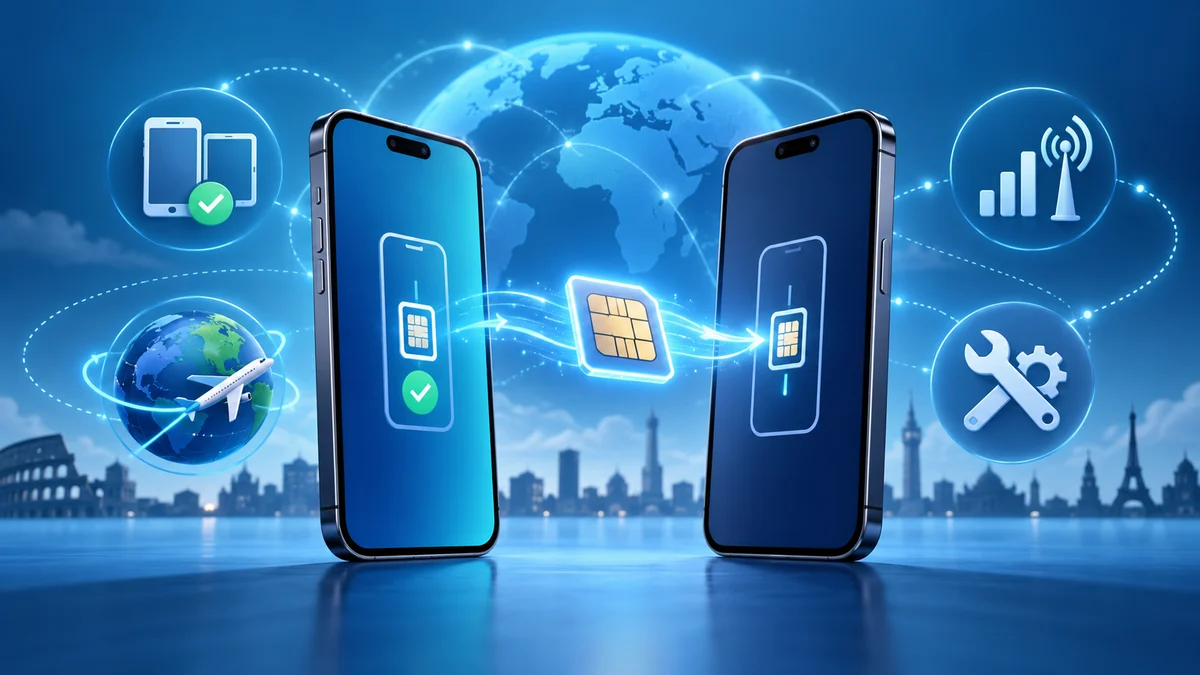
Apple’s documented iPhone-to-iPhone path for eSIM transfer goes through cellular settings, not by inserting the old SIM into the new device if the new device uses eSIM.
- Open the Settings app on the new iPhone.
- Tap Cellular.
- Tap Set Up Cellular or Add eSIM.
- Choose a cellular plan to transfer from another iPhone.
- If you do not see a list of numbers, tap Transfer From Nearby iPhone.
- Follow the instructions on the previous iPhone.
- Tap Transfer or enter the verification code shown on the new iPhone if prompted.
- Wait for activation to finish.
Apple says a transfer using eSIM Quick Transfer requires both devices to be signed in to the same Apple Account, both devices nearby, and Bluetooth turned on.
Apple also documents the conversion path for a physical SIM on the same iPhone. Go to Settings > Mobile Data, tap Convert to eSIM, tap Convert Mobile Data Plan, then tap Convert to eSIM again. Wait for activation, then remove the physical SIM and restart the iPhone.
Documented limits: iPhone-to-iPhone eSIM transfer requires iOS 16 or later on both devices. If Convert to eSIM does not appear, your network provider does not support that option. When the new plan activates, the previous SIM is deactivated. The carrier may redirect you to its own webpage to finish the transfer. You may want to set up call forwarding if you still plan to use your smartphone for specific purposes, such as internet browsing.
Steps to switch from Android
Google’s Android transfer flow is built around moving content to another Android phone during setup, with the SIM activation step handled separately.
- Turn on both phones.
- Follow the on-screen prompts on the new Android phone to set it up.
- Follow the instructions to activate your SIM, add your Google Account, and set up biometrics.
- If prompted, follow the instructions on the device to download or transfer data from your old Android phone.
Google says to make sure you can unlock the old Android device with a PIN, pattern, or password before switching to a new Android device.
After the transfer, confirm your carrier supports the flip phone and that the plan activates correctly on that device.
Carrier activation limits and device requirements
iOS 16 or later is required for eSIM transfer between iPhones. Carrier support is required for the Convert to eSIM option. When a new plan activates, the previous SIM is deactivated. For Android, the SIM activation step is handled separately from the data transfer, and you must confirm carrier support for the flip phone model. If you're switching to a flip phone on the same service provider, you can simply swap your SIM card. Ensure you have the correct SIM card size for your flip phone model.
Frequently Asked Questions
Can I keep my current phone number when switching to a flip phone?
Yes, in most cases you can keep your current phone number through a process called number porting. Your wireless carrier can assist with the steps required. Contact your carrier before making the switch to avoid complications.
Do flip phones support internet access?
Most flip phones do not have full internet capabilities like smartphones, but some models offer limited web browsing and email checking. If you rely heavily on apps and online services, a flip phone may not be the best choice. This is why many people interested in using basic flip phones check carrier-compatible models first.
What features should I look for in a flip phone?
Key features to consider include a clear display, long battery life, reliable interface, and a quality camera if you take photos. Durability is also important if you lead an active lifestyle. For current options, review the 13 best flip phones that are still trendy right now to match your needs.
Readers comparing a separate eSIM can browse uPhone eSIM plans and verify destination coverage, data allowance, and validity before buying.
More eSIM resources: Browse our eSIM guides and troubleshooting resources for compatibility, setup, travel-data and account-safety advice.
Related reading: How To Activate Unlocked Samsung Phone.