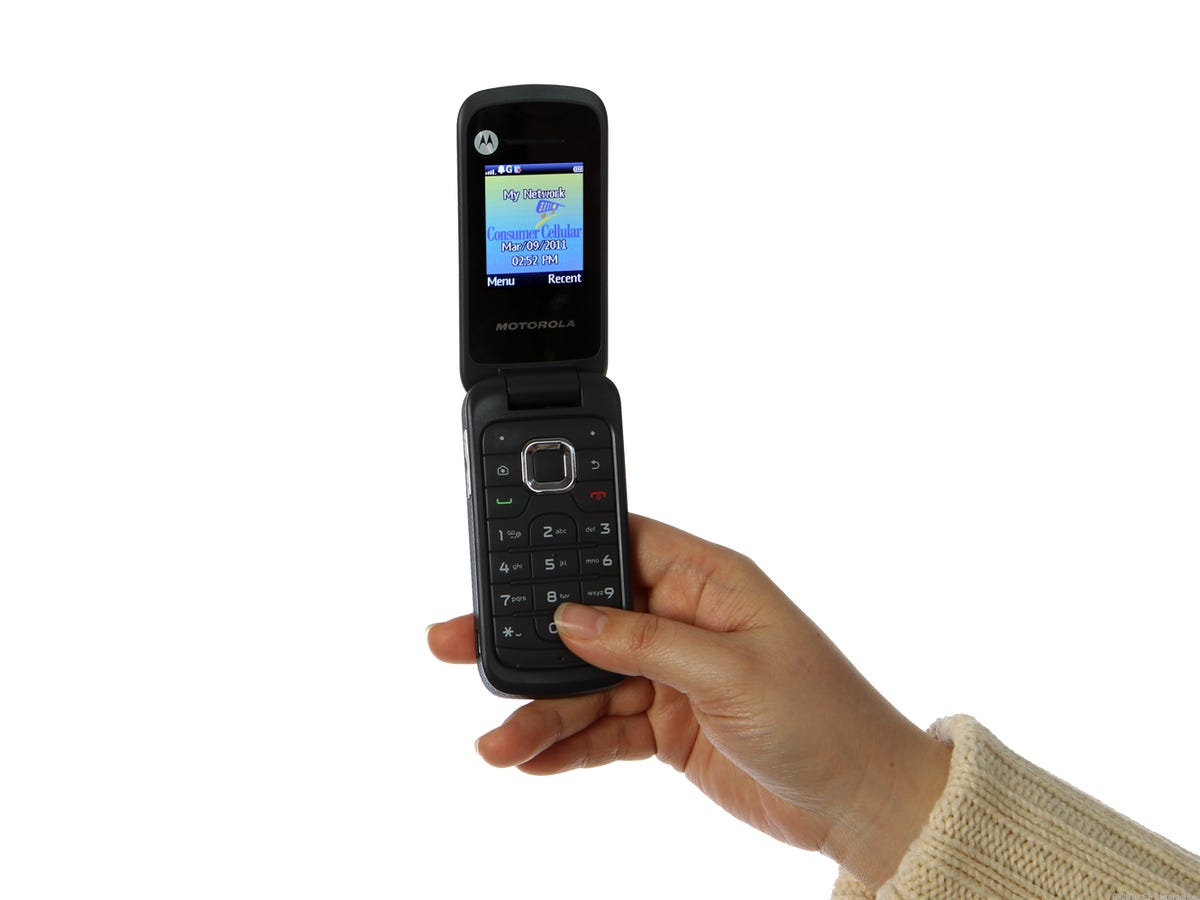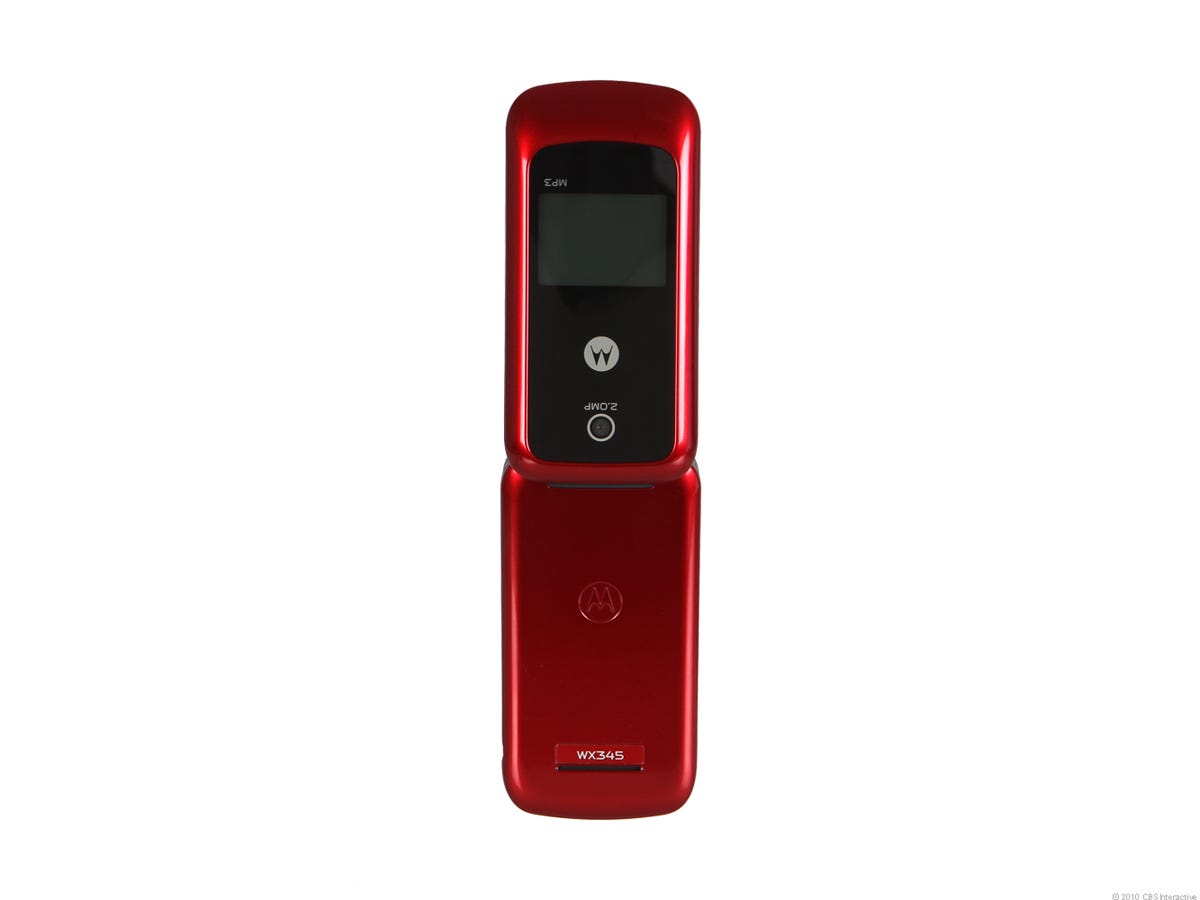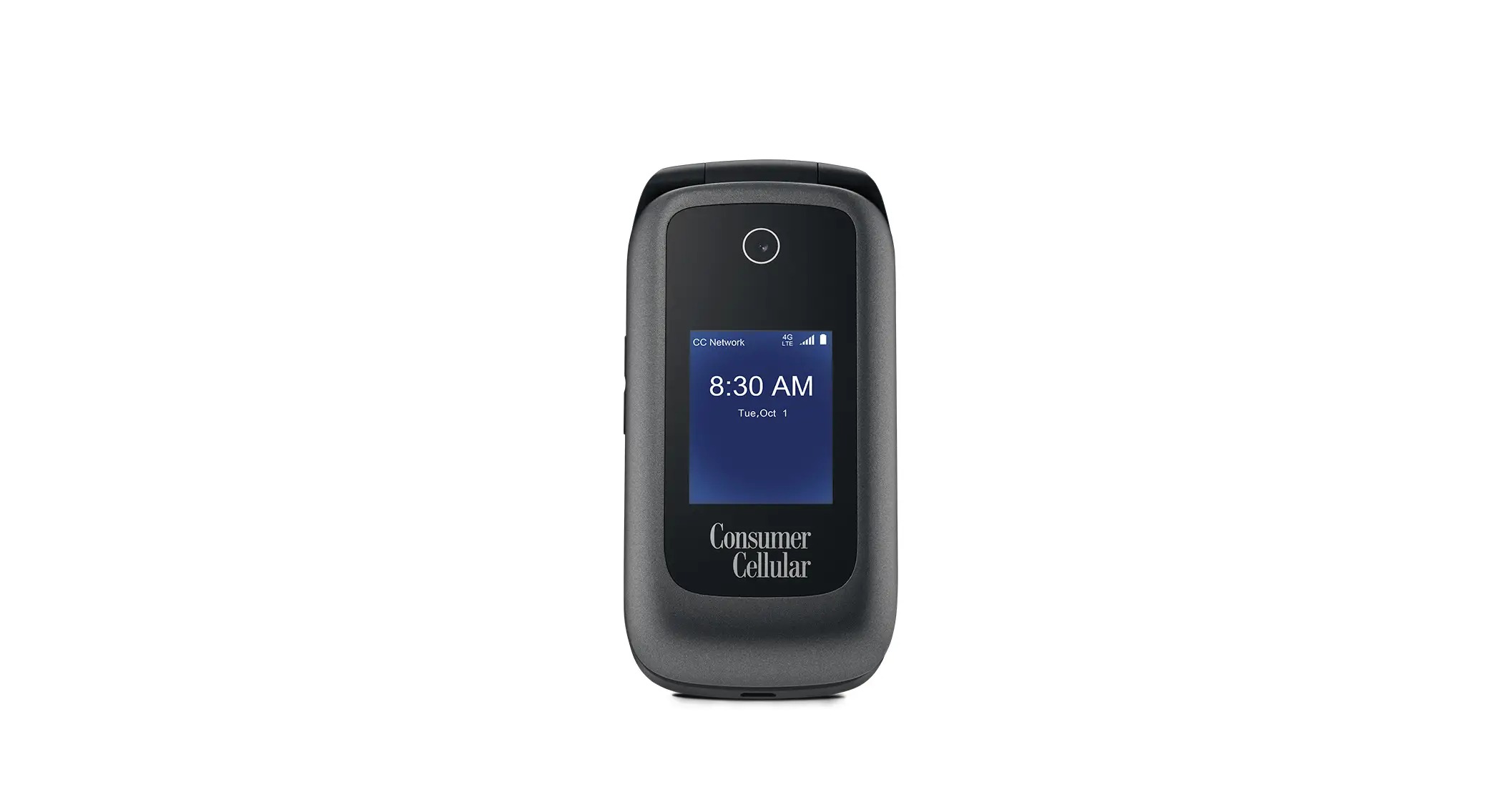
To turn off airplane mode on a Consumer Cellular flip phone, open the phone’s settings and go to Settings > Wireless & networks > Airplane mode, then select Off. This is the exact, verified step to disable airplane mode on your Consumer Cellular flip phone and restore calling, texting, and data connectivity.
How to turn off airplane mode on a consumer cellular flip phone
The documented path for Consumer Cellular flip phones, including the IRIS Easy Flip and the Link, is consistent. Follow these steps:
- Open the phone’s main menu and select Settings.
- Navigate to Wireless & networks.
- Select Airplane mode.
- Choose Off.
This action disables airplane mode and restores all wireless radios. There is no app-based control for this setting on these flip phones; it is a local phone setting only.
What happens when you turn off airplane mode
Turning off airplane mode restores the phone’s mobile network, Wi‑Fi, and Bluetooth connectivity. According to the Consumer Cellular guides for the IRIS Easy Flip and the Link, when airplane mode is on, Wi‑Fi, mobile networks, Bluetooth, and GPS are all turned off. Airplane Mode also disables emergency calling services on Consumer Cellular flip phones. Airplane Mode disables mobile hotspot functionality on Consumer Cellular flip phones. Disabling airplane mode re-enables these radios, allowing you to make calls, send texts, use mobile data, and connect to Wi‑Fi and Bluetooth devices. If you are using basic flip phones, this is the only method to regain full wireless functionality after airplane mode has been activated.
Troubleshooting: phone still has no service
If your phone still shows no service after turning off airplane mode, first confirm the setting is off. Re-navigate to Settings > Wireless & networks > Airplane mode and verify that the option is set to Off. A physical switch may exist on some flip phones to toggle Airplane Mode on or off; check and flip it a few times to reset connection issues. Restart the phone as a troubleshooting step if Airplane Mode won't turn off or service doesn't return. Update the phone's software as a potential fix for Airplane Mode functionality problems. Reset network settings as a troubleshooting step, noting this erases saved Wi-Fi networks, Bluetooth connections, and cellular settings. Low or depleted battery can affect the functionality of features including Airplane Mode; charge the phone before troubleshooting. If the problem persists, the documentation does not provide a further Consumer Cellular-specific airplane-mode solution. For issues with connectivity beyond airplane mode, such as the best fixes for cellular network not available for voice calls, consult your device’s user guide or contact Consumer Cellular support.
Frequently Asked Questions
Can airplane mode be turned off from an app on these flip phones?
No. It can only be changed through the phone’s settings menu.
Does airplane mode affect Wi‑Fi and Bluetooth on Consumer Cellular flip phones?
Yes. The manuals for the IRIS Easy Flip and the Link state that airplane mode turns off Wi‑Fi, mobile networks, Bluetooth, and GPS. Turning off airplane mode restores all of these radios.
Is the exact menu path the same for all Consumer Cellular flip phones?
The documented path for the IRIS Easy Flip and the Link is identical: Settings > Wireless & networks > Airplane mode. Other Consumer Cellular flip phones may vary, but the reviewed guides do not show a different path for these models.
Can I use Wi‑Fi while airplane mode is on?
No. On Consumer Cellular flip phones, airplane mode disables Wi‑Fi along with other radios. You must turn off airplane mode to use Wi‑Fi.
Related reading: How To Turn On A Consumer Cellular Flip Phone.