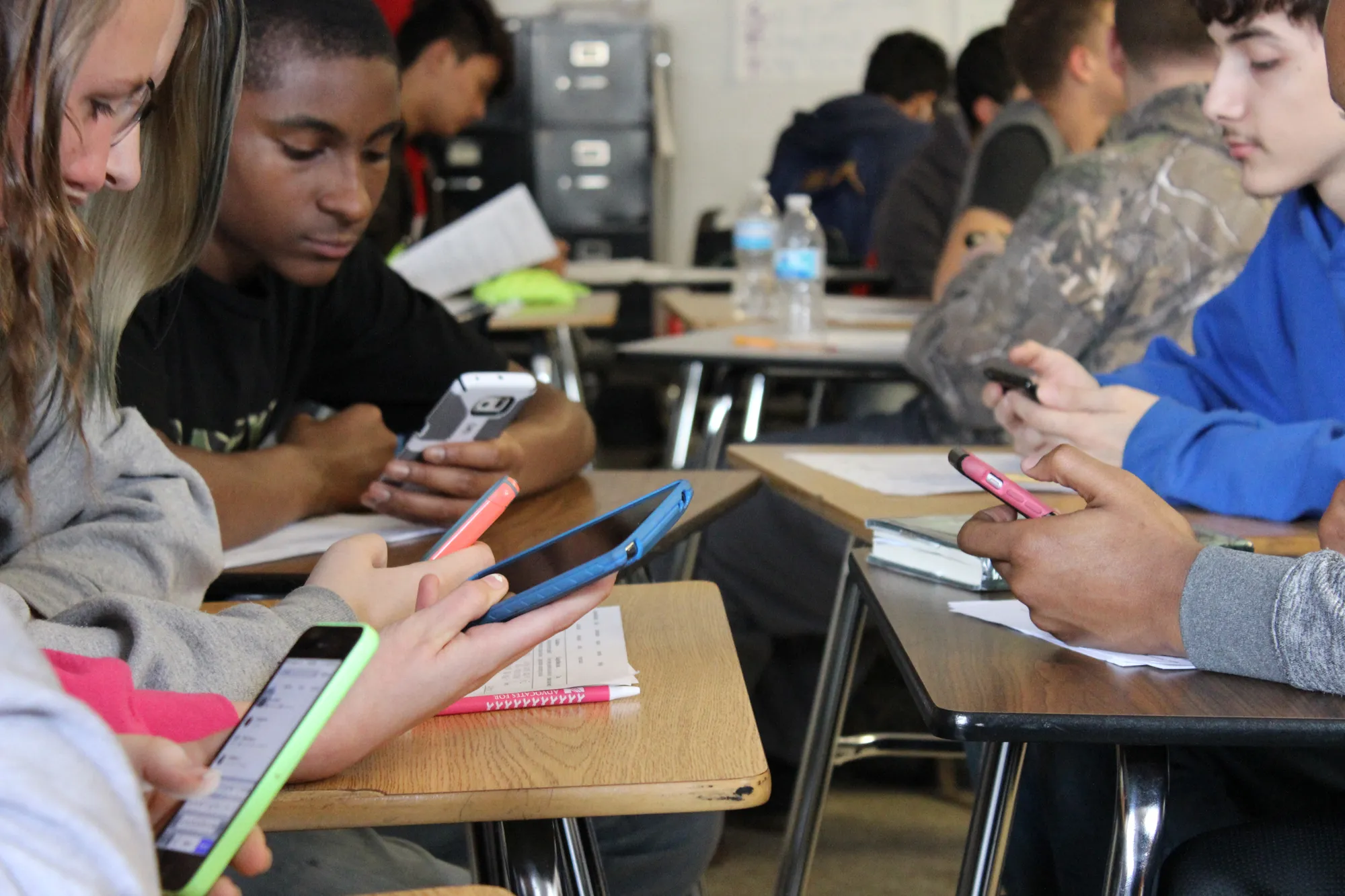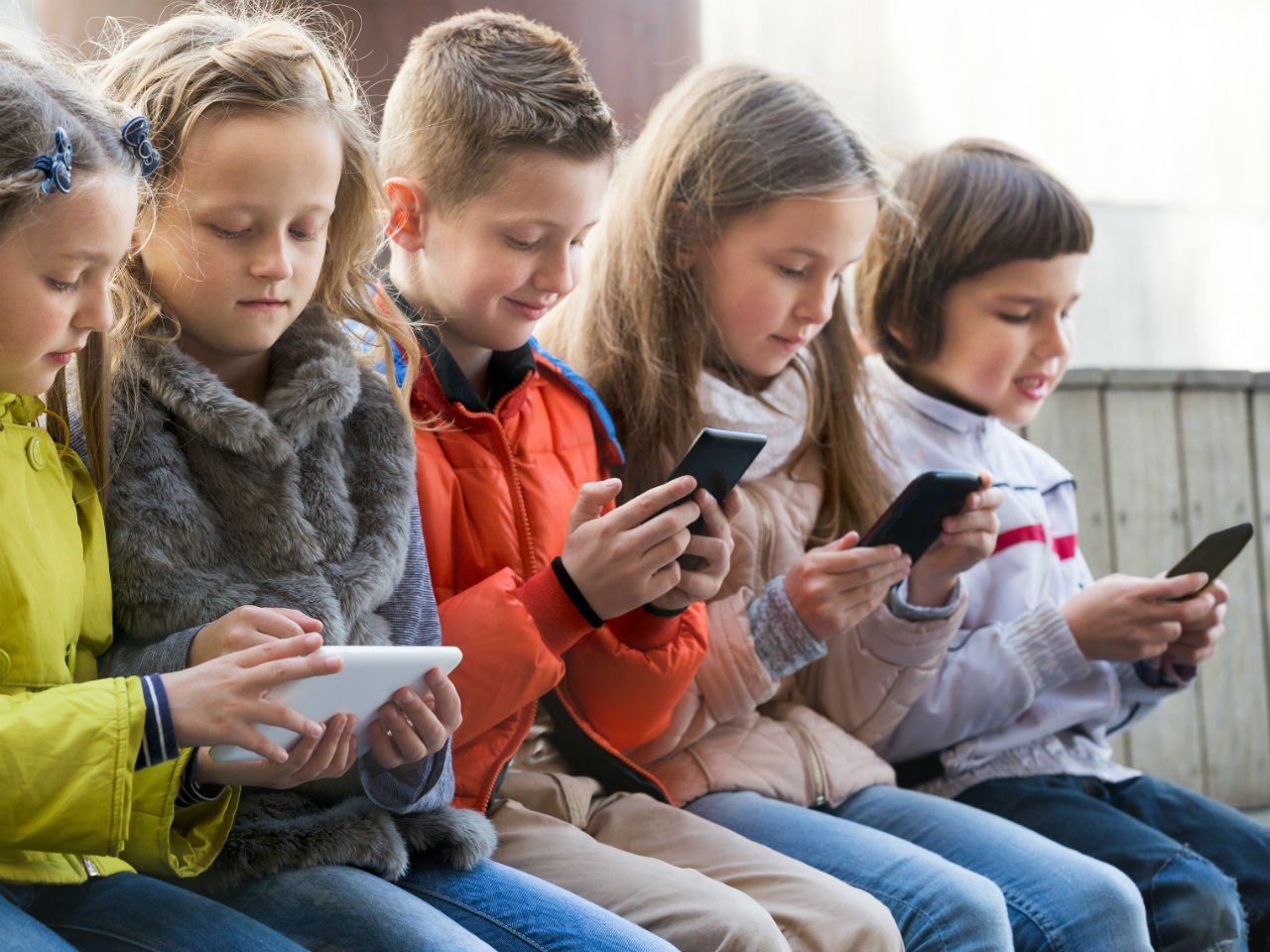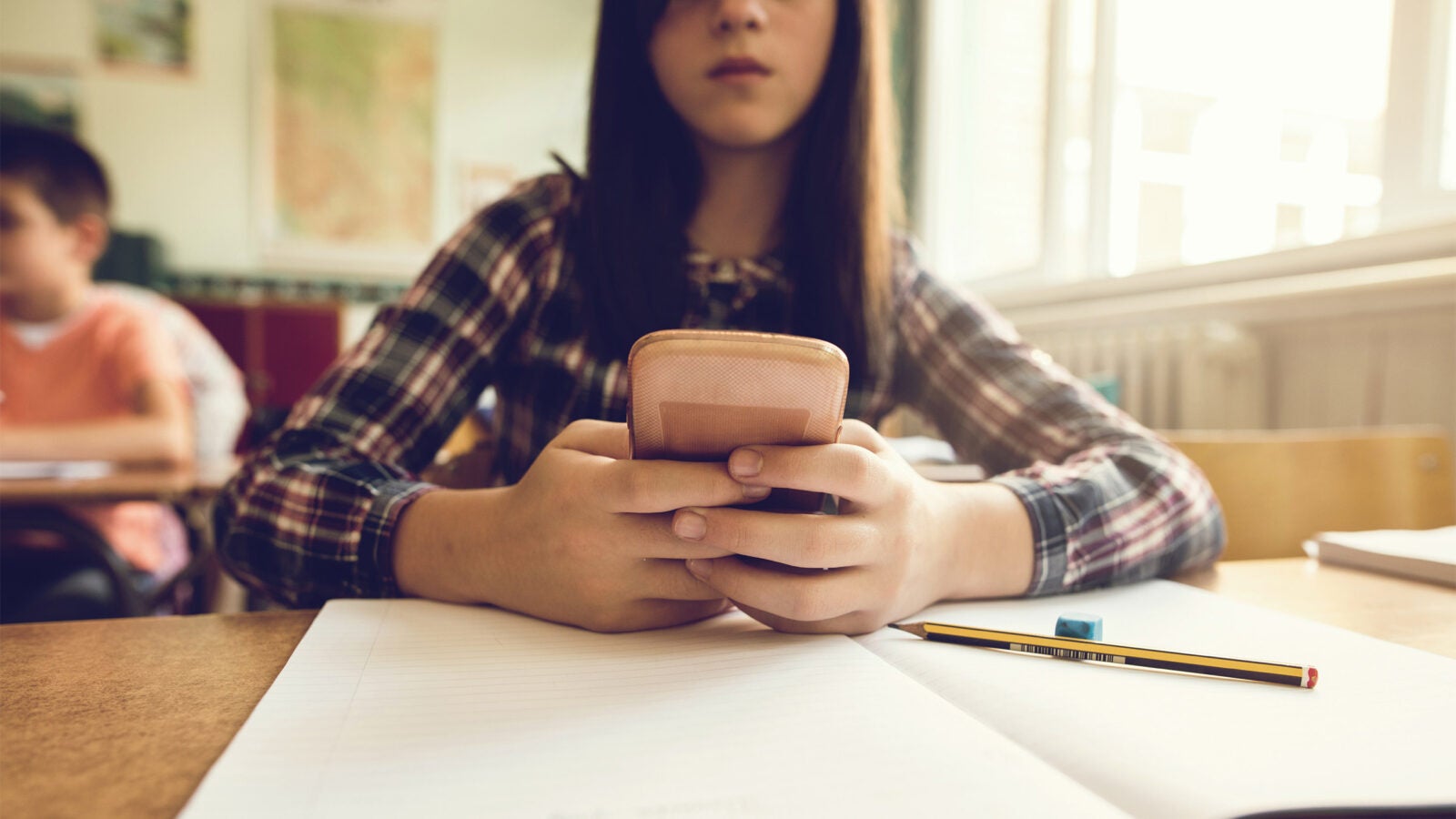
Why should cellphone be allowed in school? The practical case is straightforward: phones enable essential parent-student communication, provide access to digital learning tools, and ensure emergency readiness, all while official device controls make this manageable. When parents and educators ask why should cellphone be allowed in school, the answer rests on three documented benefits that work within the limits of built-in parental controls.
Why should cellphone be allowed in school: the practical case
Phones serve three core school-day purposes that official controls support. First, they allow students to communicate with parents about schedule changes, pick-up times, or urgent needs. Second, they give students access to digital textbooks, research databases, and educational apps that supplement classroom instruction. Third, they provide a direct line to emergency services and allow schools to quickly notify families during crises. Apple and Google have built controls that manage who students contact and when, making these benefits workable without constant distraction.
How to set communication limits on iPhone for school use
Apple’s Screen Time feature lets you restrict who your child can contact during school hours. Follow these steps:
- Open Settings and tap Screen Time.
- Tap Communication Limits.
- Under During Screen Time, Apple says you can choose Contacts Only, Contacts & Groups with at Least One Contact, or Everyone.
- Under During Downtime, Apple says you can choose Specific Contacts or Everyone.
- To manage a child’s contacts, go to Settings > Screen Time, select the family member under Family, tap Communication Limits, and turn on Manage [child’s name]’s contacts.
These limits apply to phone calls, FaceTime calls, and messages. During school hours, you can restrict communication to only approved contacts while still allowing emergency calls.
How to set school-time schedules on Android with Family Link
Google’s Family Link app lets you create dedicated school-time schedules. Here’s how:
- Open the Family Link app.
- Select your child’s account.
- Tap Screen time then Schedules.
- Turn on Downtime or School time.
When School time is active, the child’s device limits which apps and features are available, helping reduce distractions during class. Note that the official documentation does not list detailed app-by-app learning exceptions, supported phone models, or version limits for School time.
Emergency features that stay active during school hours
Both iPhone and Android preserve emergency access even when other restrictions are in place. On iPhone, you can activate Emergency SOS by rapidly pressing the side or top button five times, then tapping Emergency SOS. Apple says after making an emergency call, features that block or silence incoming calls may be disabled briefly so emergency services can call back, including Do Not Disturb, Silence Unknown Callers, and Screen Time. On iPhone models running iOS 16.1 or later in the US and Canada, Emergency SOS via satellite is also available when cellular and Wi-Fi signals are unavailable.
What the official controls do and do not cover
The documented controls are transparent about their scope. The retrieved Apple pages do not list a full supported-device matrix for Emergency SOS via satellite in the school context. The strongest documented case for phones in school is that iPhone and Android controls can limit who students communicate with and when, while emergency features remain available.
Frequently Asked Questions
Won't phones distract students even with these controls?
Controls limit who students contact and when, but they do not block all non-educational app use during class. Schools typically pair these controls with classroom policies that specify when phones should be put away or placed in designated storage.
At what age should a child get a phone for school?
There is no single recommended age, but many schools suggest waiting until a child can demonstrate responsible use, typically around middle school. Parental controls like Screen Time and Family Link can be adjusted as the child matures.
Do these controls work on school Wi-Fi or only on cellular?
The controls work regardless of the network connection. Screen Time and Family Link restrictions apply to the device itself, so they function on school Wi-Fi, cellular data, or even offline.
Can teachers override these controls during class?
No. The controls are set on the parent’s device and cannot be adjusted by school staff. Some schools use third-party classroom management software that works alongside these built-in controls.
Are these controls enough to satisfy a school's cellphone policy?
They address communication and emergency readiness, but they do not cover camera use, notification management, or app-by-app learning exceptions. Schools may require additional policies or apps to fully manage classroom phone use. For more cell phone facts and usage tips, consult your school’s technology policy and your device manufacturer’s support pages.
For the wider topic, see cell phone facts and usage.
Related reading: The Safest Phones For Kids.