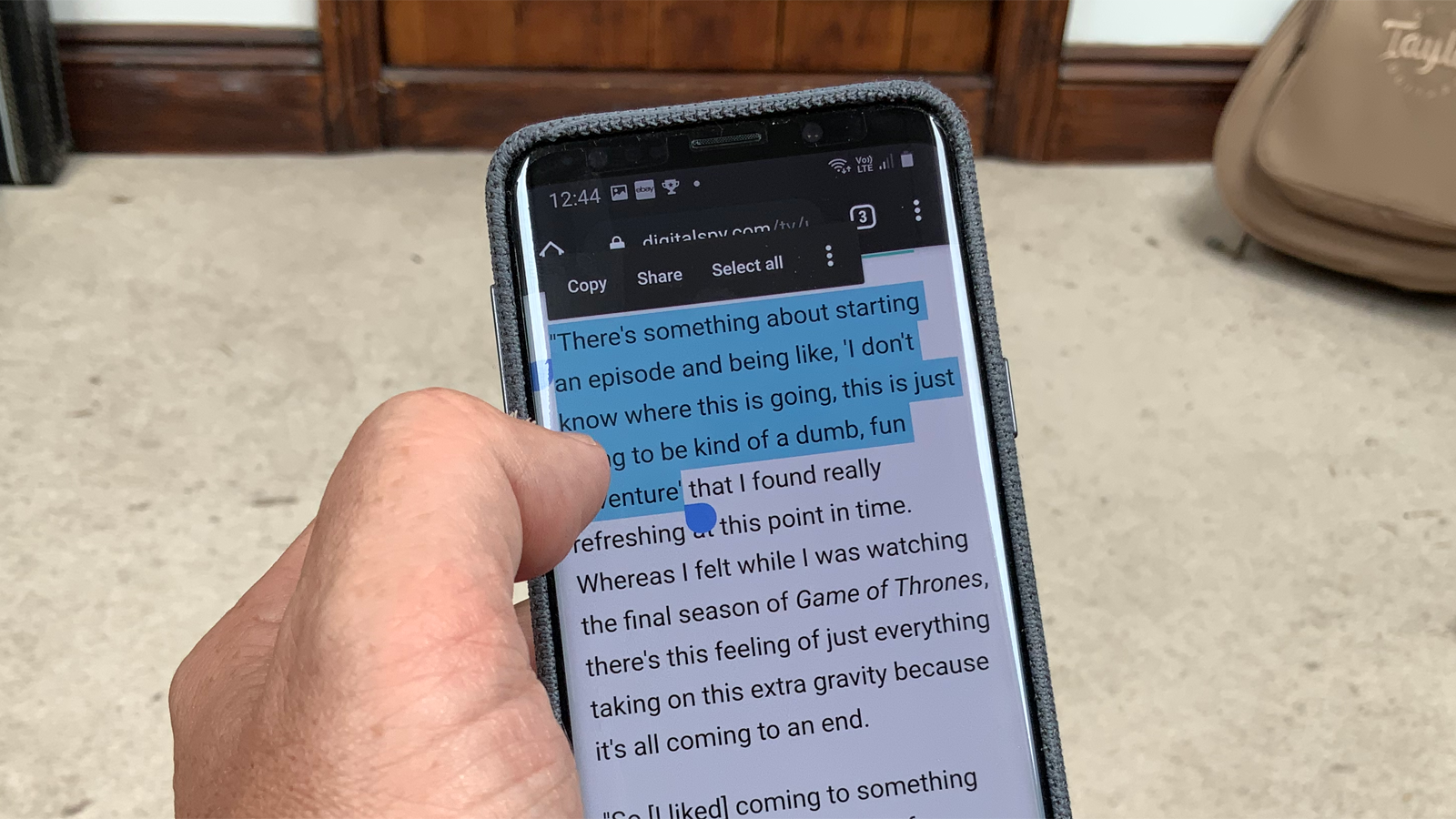
This tag collects articles about the everyday task of copying and pasting text on a mobile phone, written for anyone who has ever struggled to move a link, a password, or a note from one app to another. Whether you are using an Android device or an iPhone, these guides are designed to help you master the basic copy-and-paste commands and, just as importantly, to locate the temporary storage where your copied items go.
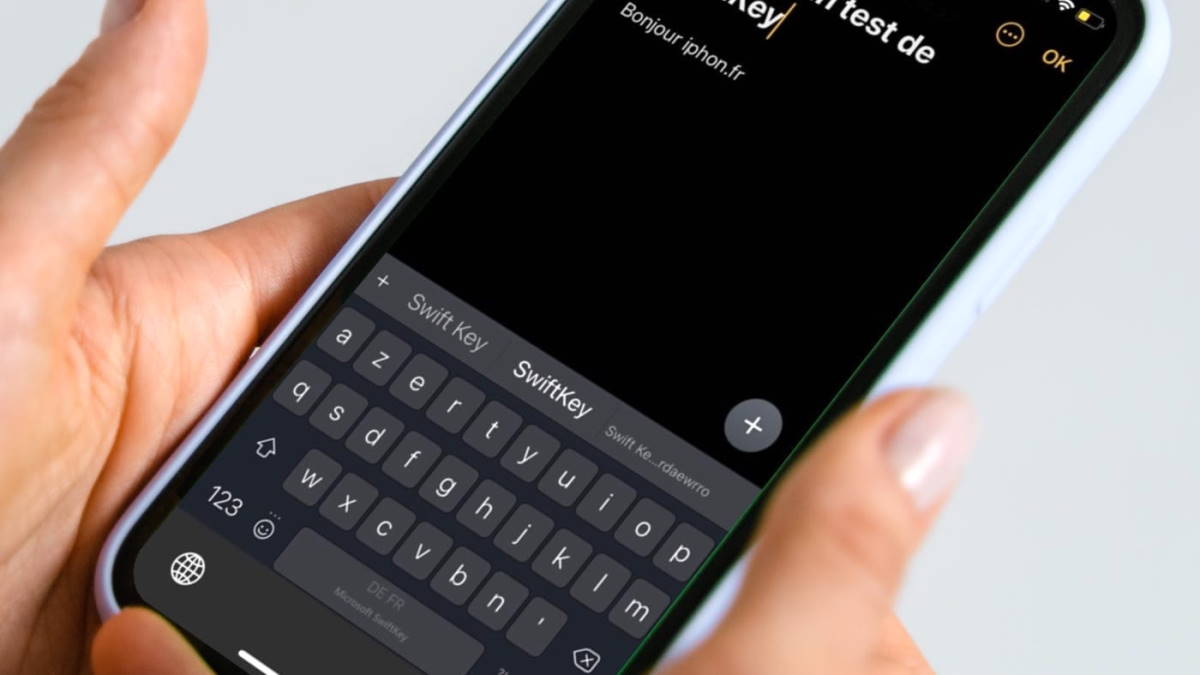
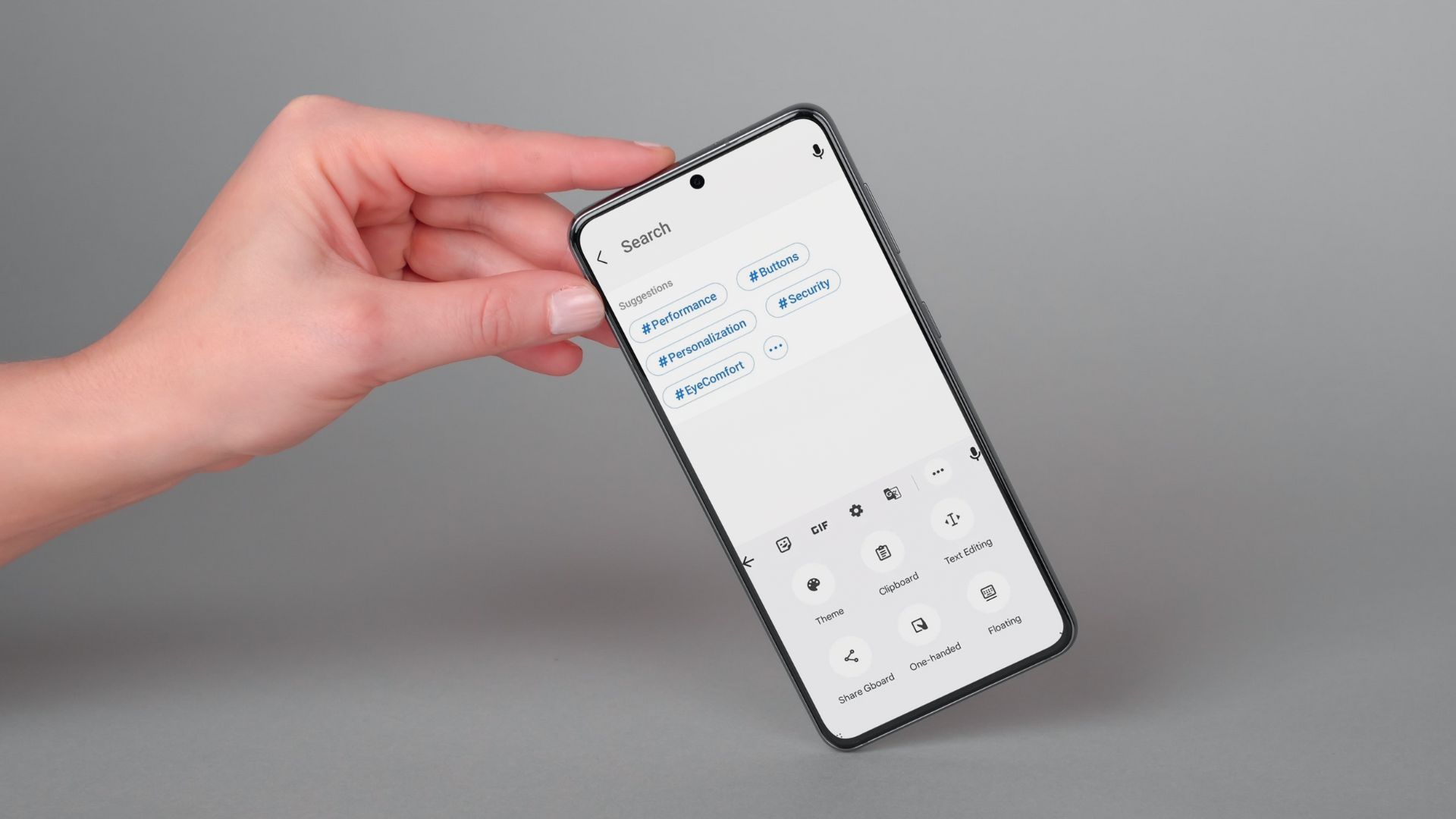
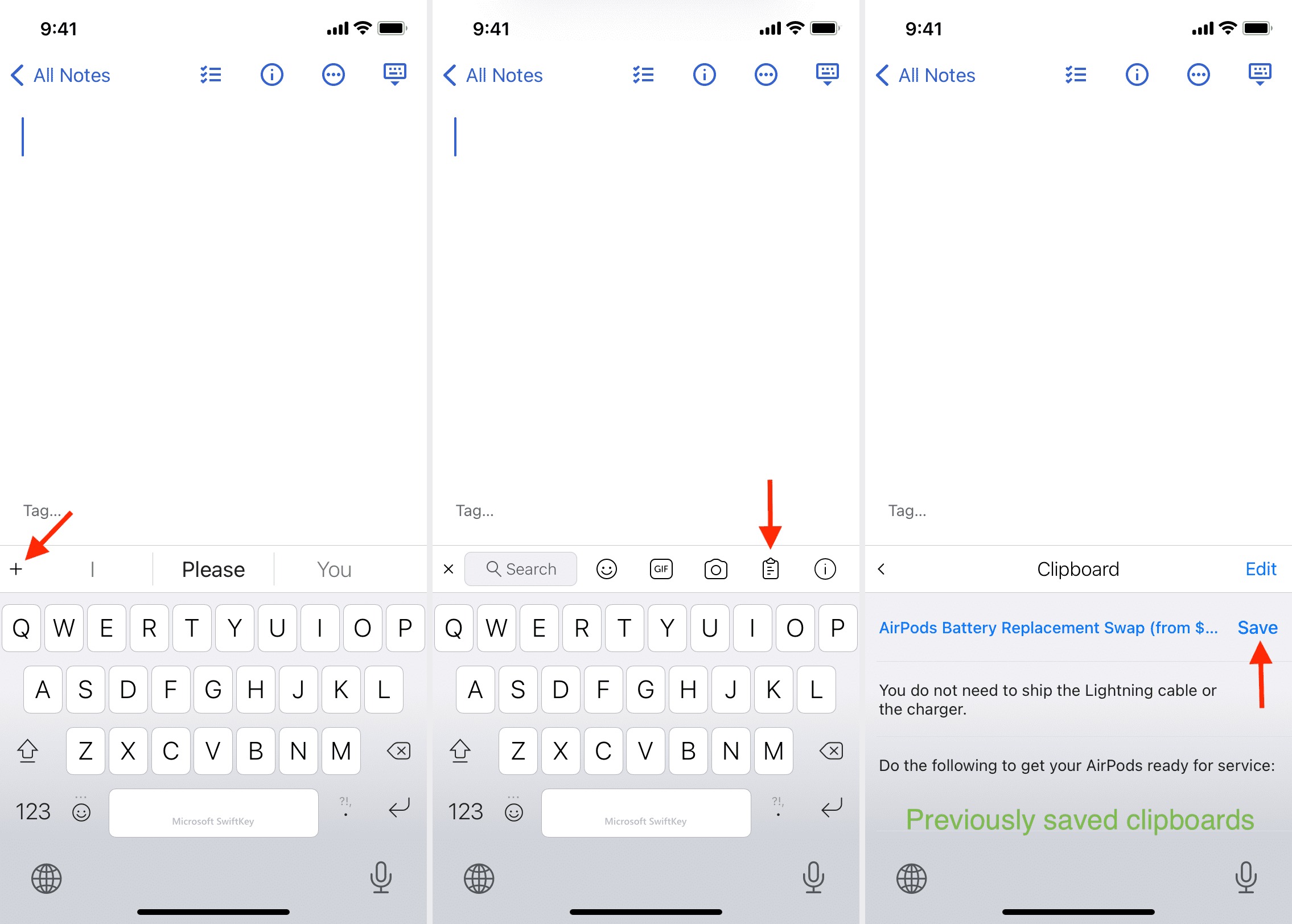
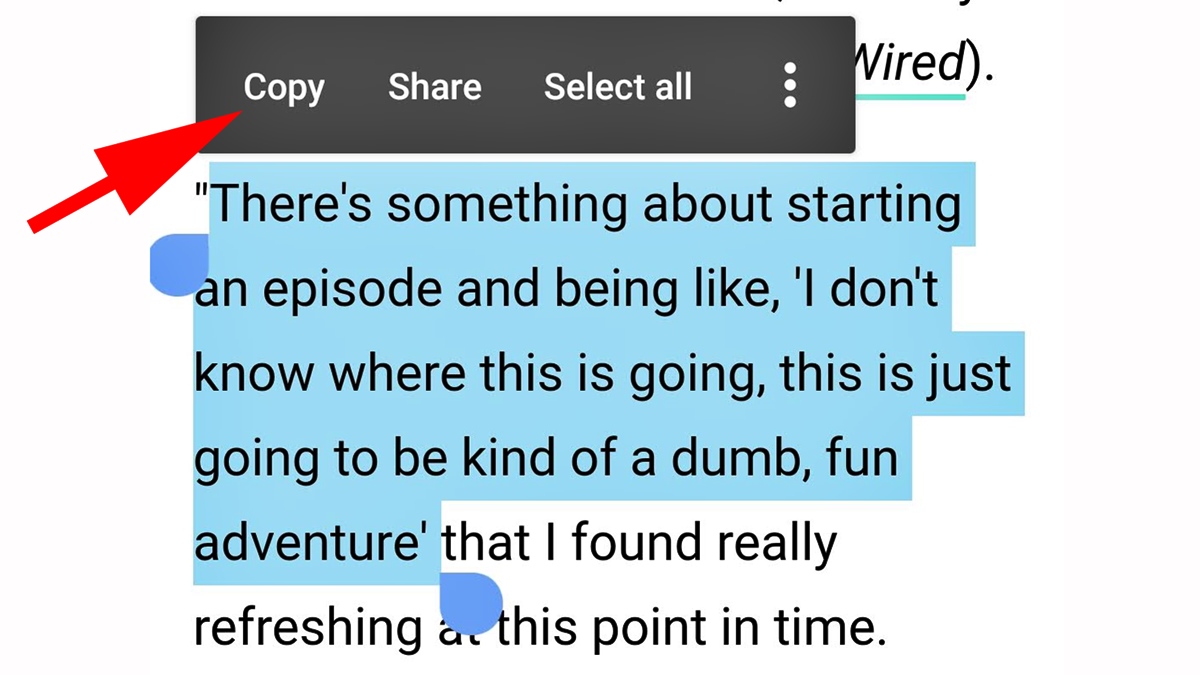
The articles here solve two main kinds of problems. First, they address the simple mechanics of selecting and copying text, as seen in guides like How To Copy And Paste On Mobile and How To Copy And Paste On An Android Phone. Second, they tackle the common frustration of finding where that copied text has vanished to, with specific help for different phone models. For instance, How To Find My Clipboard On My Phone offers general advice, while Where Is My Clipboard On iPhone 13 and Where Is The Clipboard On My iPhone 11 provide model-specific answers for Apple users.
Ultimately, these articles help you perform the specific actions of copying and pasting, and then retrieving your clipboard history when you need it. You will learn the exact steps to take on your own phone, so you can stop hunting through menus and get back to sharing information quickly.