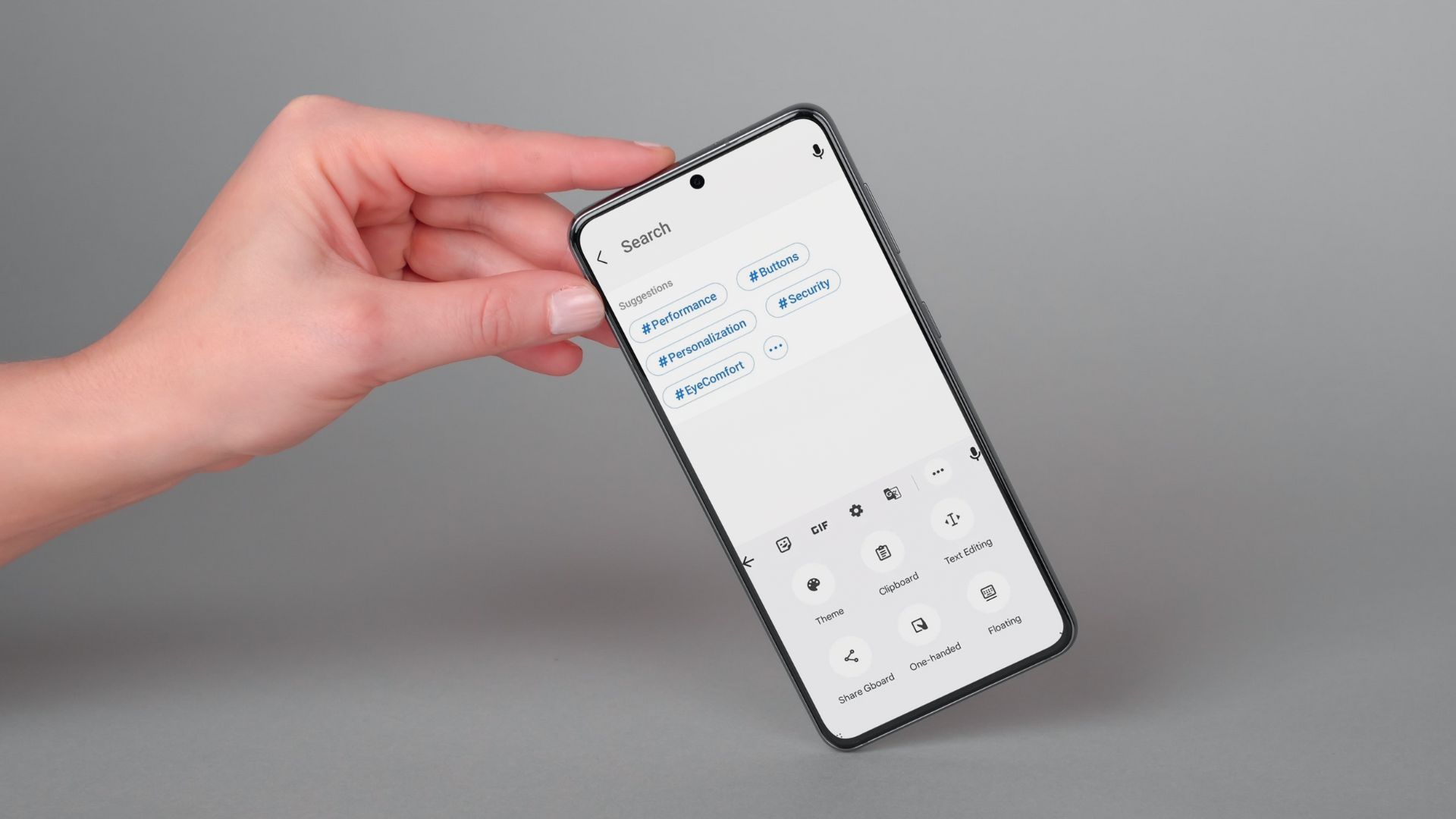
You won’t find a visible clipboard app, screen, or history where your clipboard is on iPhone 13. The iOS clipboard is a temporary, single-item storage that holds only the most recent thing you copied until you copy something else or it expires.
Where is my clipboard on iPhone 13?
The direct answer is that there isn't a clipboard folder or manager to open. Unlike a file system, the clipboard on iPhone 13 works silently in the background. It holds one item at a time, text, an image, or a link, and that item is available only briefly or until you copy something new. You cannot browse a list of past copies or find a clipboard icon on your home screen.
How the iPhone clipboard actually works
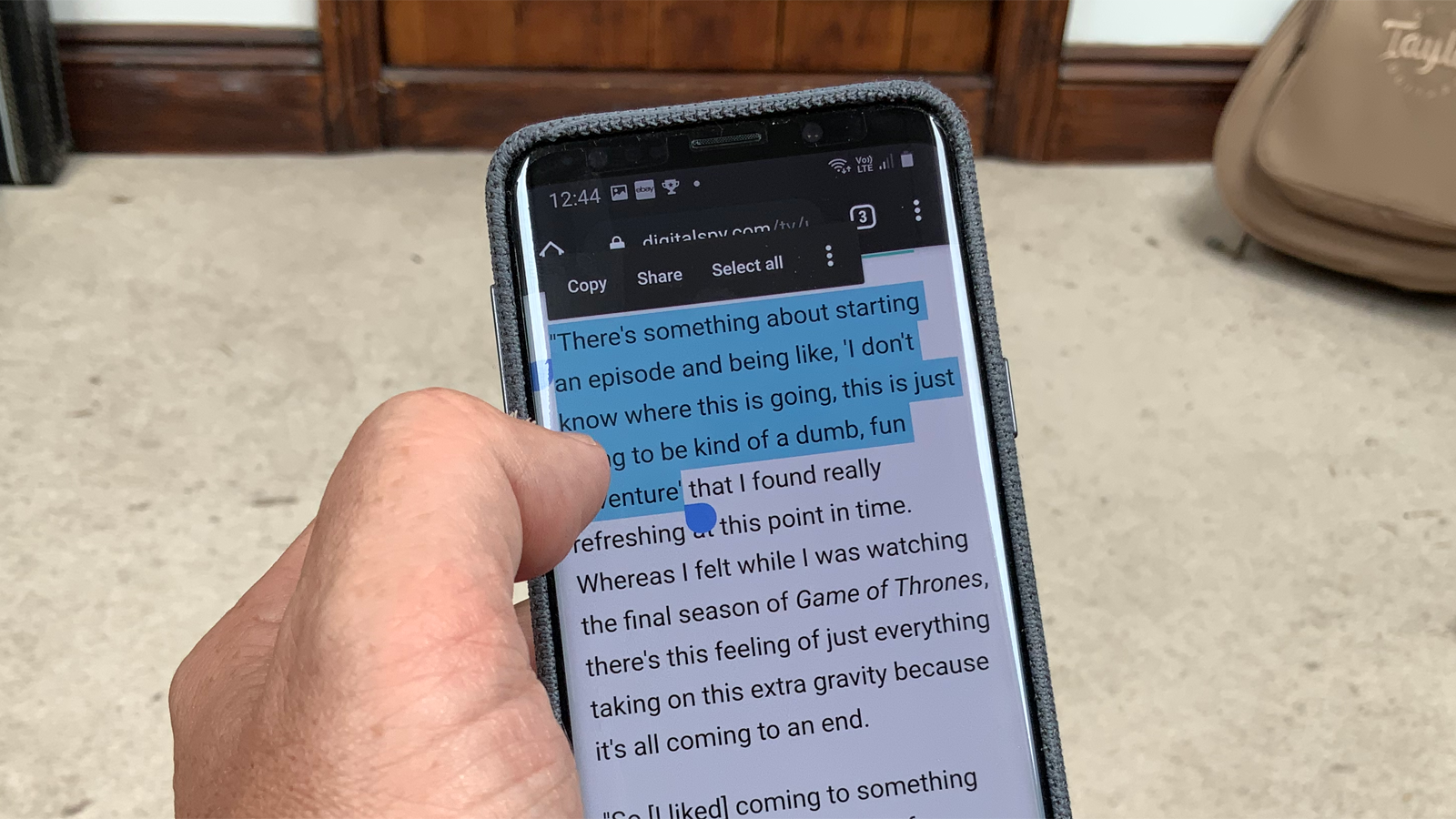
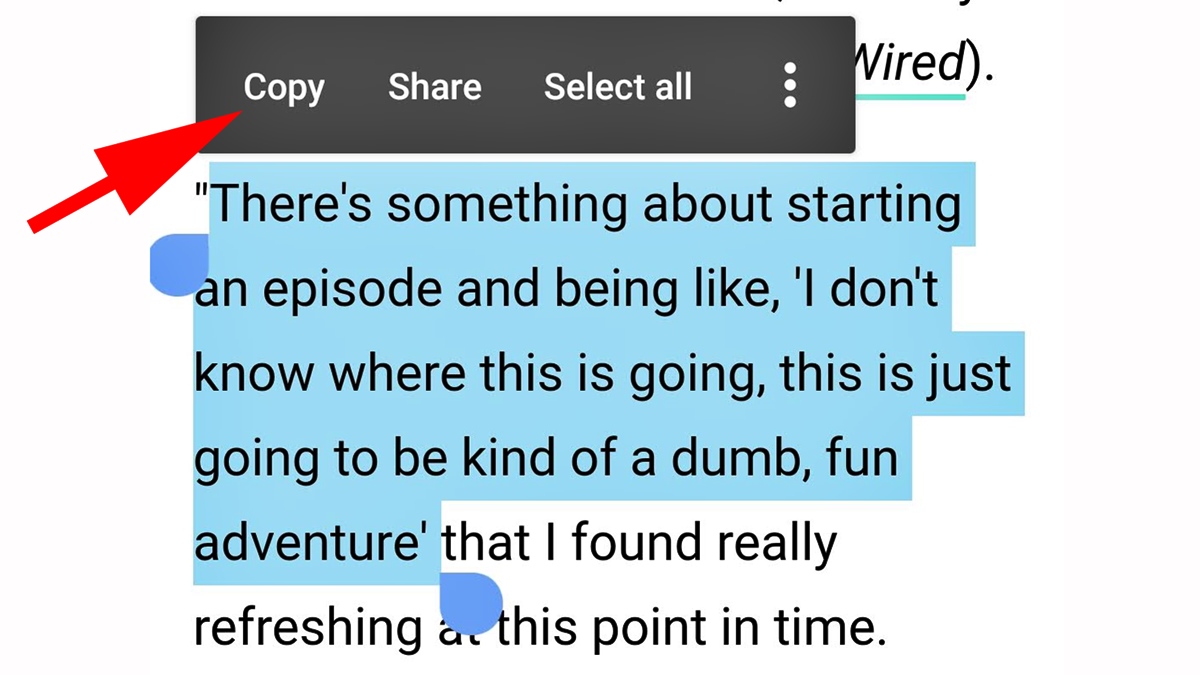
The clipboard is part of the standard copy and paste process. To copy, select text or an image, then tap Copy. On iPhone, double-tap to select a word and triple-tap to select a paragraph. To paste, tap in a text field and then tap Paste. The clipboard holds only the most recent item; copying something new overwrites the previous one.
How to paste your current clipboard content into Notes
You can see the single item currently on the clipboard by pasting it into a note. This is not a history viewer, it shows only the last copied item.
- Open Notes.
- Create a new note or tap an existing one.
- Tap in the note, then tap Paste.
The pasted content is whatever you most recently copied. Repeating these steps after copying something new will show the updated item.
Using Universal Clipboard with other Apple devices
Universal Clipboard lets you copy content on one Apple device and paste it on another nearby device. This works when you are signed in with the same Apple Account on compatible devices with Bluetooth and Wi‑Fi turned on and Handoff enabled. Supported devices include iPhone, iPad, Mac, and Apple Vision Pro running iOS 10 or later and macOS Sierra or later. Copy on one device, then paste on the other as usual, the clipboard still holds only one item at a time across devices.
How to clear your clipboard
There is no Clear button or history to manage. The only way to clear the clipboard is to copy something new. Copying a blank space or a single character overwrites the previous content. Apple documents that copied content is replaced when you copy something else and that Universal Clipboard content is available only for a short time.
Frequently Asked Questions
Can I view my clipboard history on iPhone 13?
No. iOS does not include a built‑in clipboard history viewer. The clipboard stores only the most recent copied item, and there is no menu or setting to access previous entries.
How do I recover something I accidentally overwrote on the clipboard?
You cannot recover overwritten clipboard content. Because the clipboard holds only one item, copying something new permanently replaces the old item. There is no undo or history to restore it.
Is there a clipboard manager app for iPhone 13?
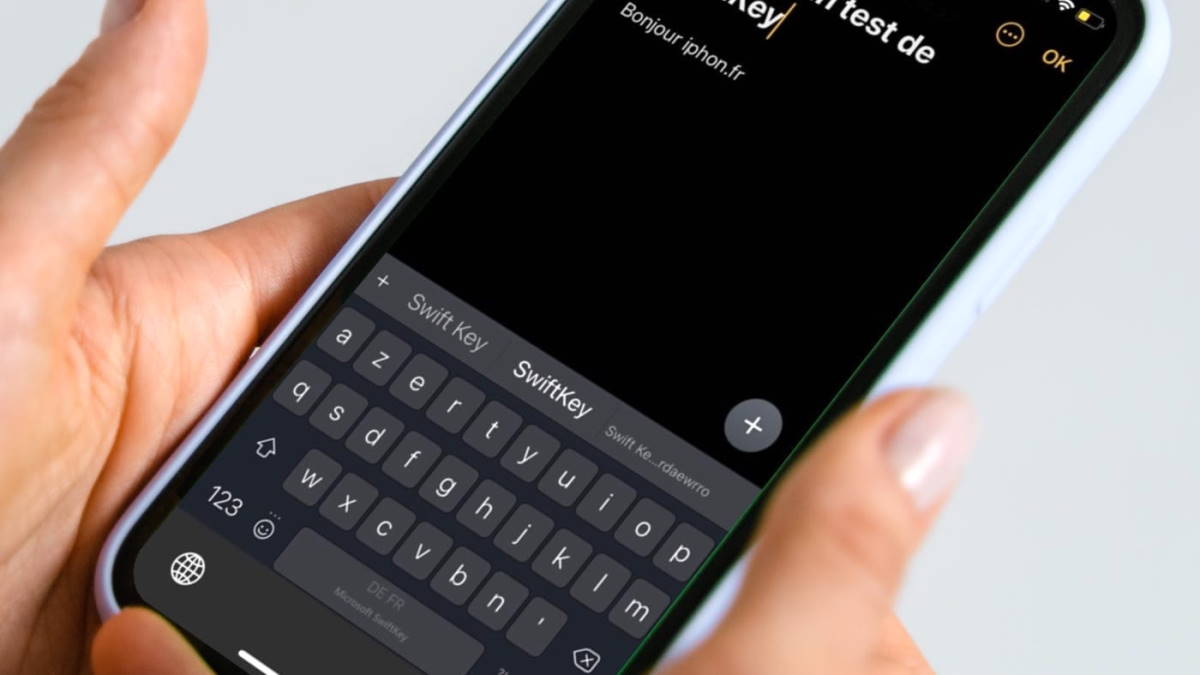
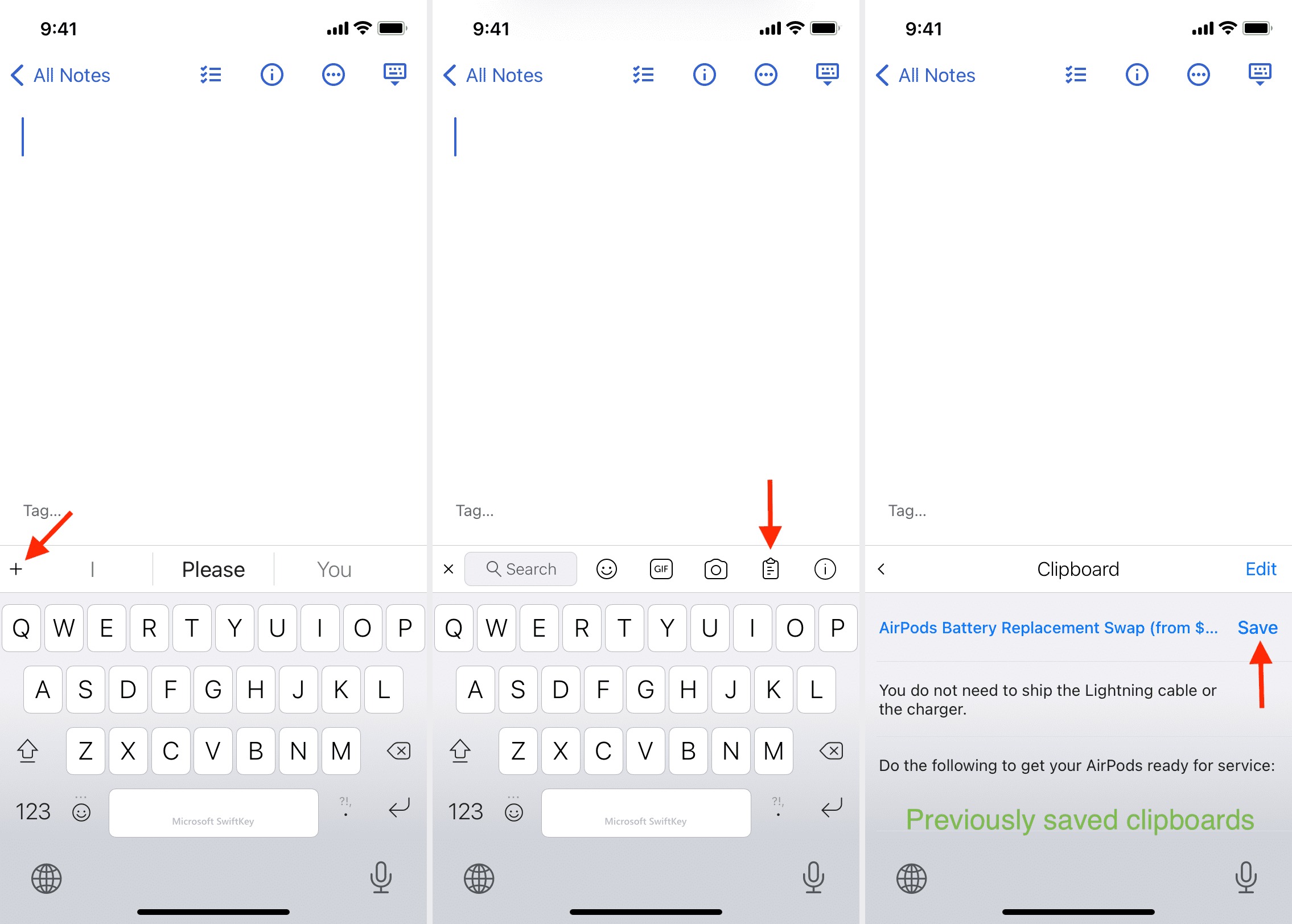
Yes, third‑party clipboard manager apps are available on the App Store. These apps can store multiple copied items and provide a history, but they are not built into iOS and require you to grant accessibility permissions to monitor the clipboard. Android 10 and later restricts background clipboard access, and an app’s “Monitor system clipboard” feature must use the AccessibilityService API after the user enables it and gives consent.
Does the Control Center show the clipboard?
No. The Control Center does not contain a clipboard icon or history list.
Can I save multiple items to the clipboard at once?
No. The built‑in clipboard on iPhone 13 supports only single‑item copy and paste. There is no native way to save or organize multiple clipboard items without a third‑party app.
For the wider topic, see navigating home screen and apps.
Related reading: Where Is The Clipboard On My IPhone 11.