This tag collects articles for Lenovo users, whether you own a smartphone, a ThinkPad laptop, or a wireless accessory. The guides here are written for anyone who needs straightforward, step-by-step help with hardware connections, device settings, and basic maintenance tasks.
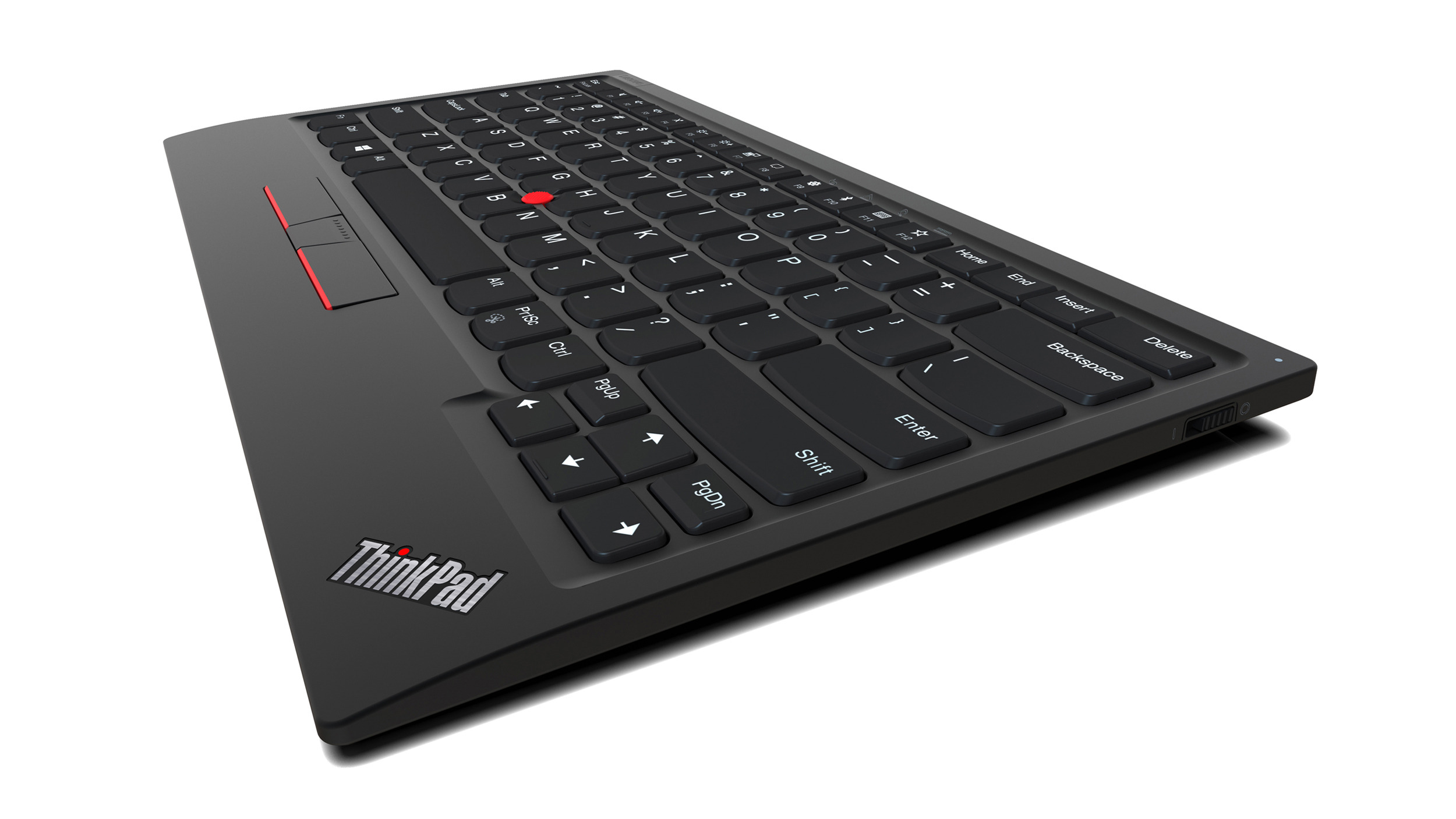
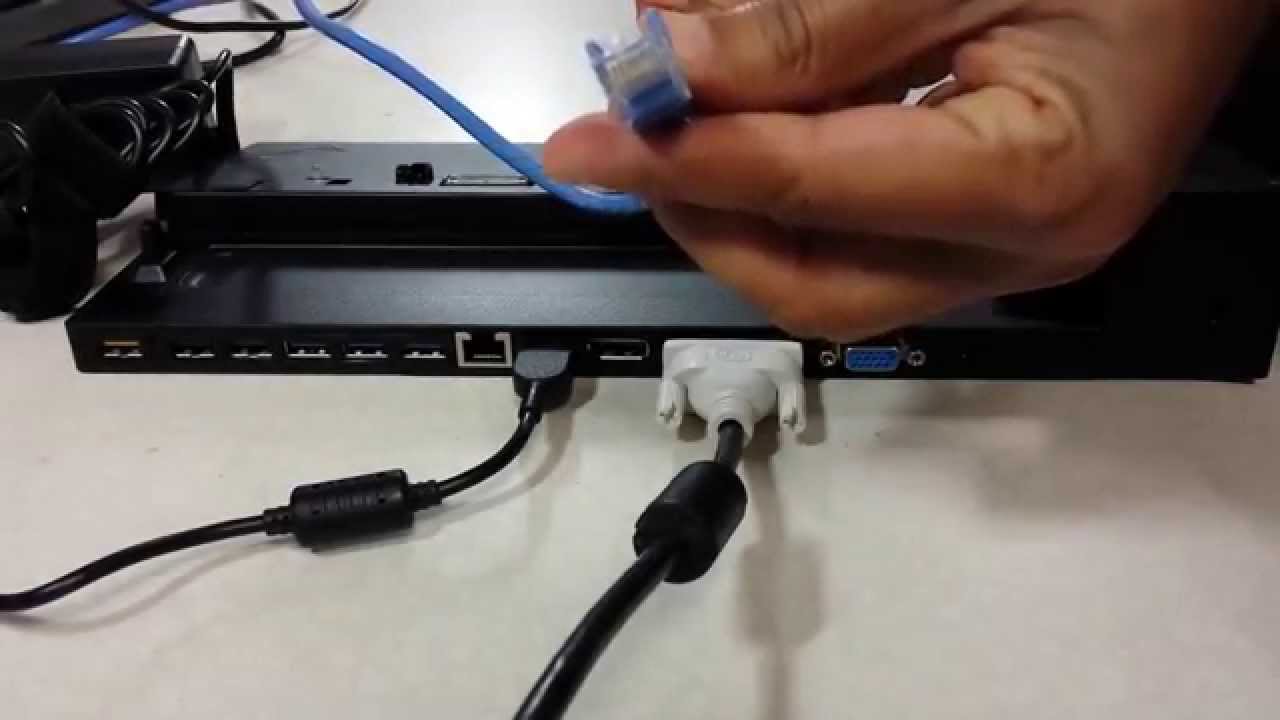
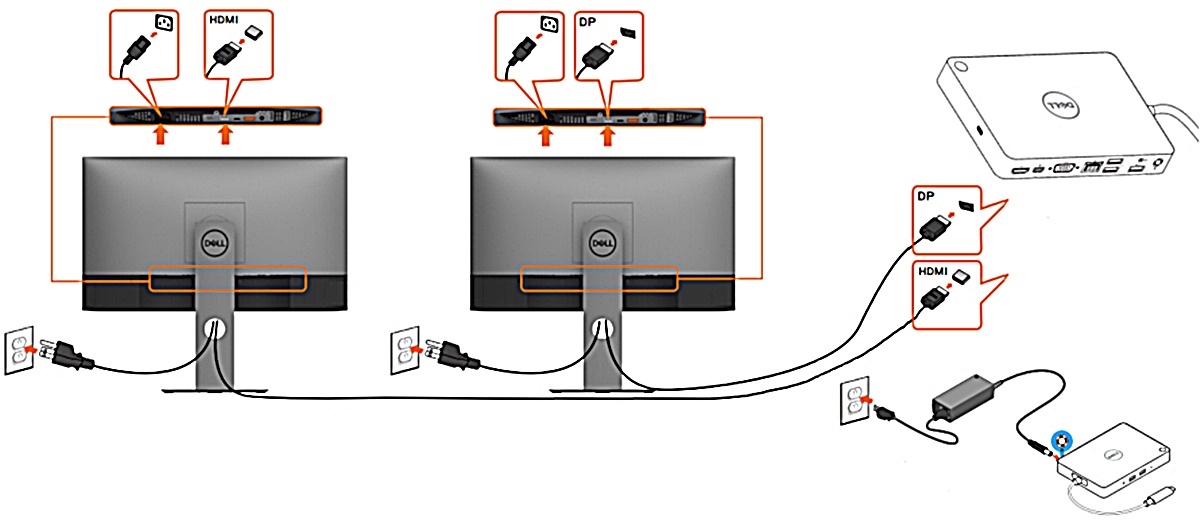
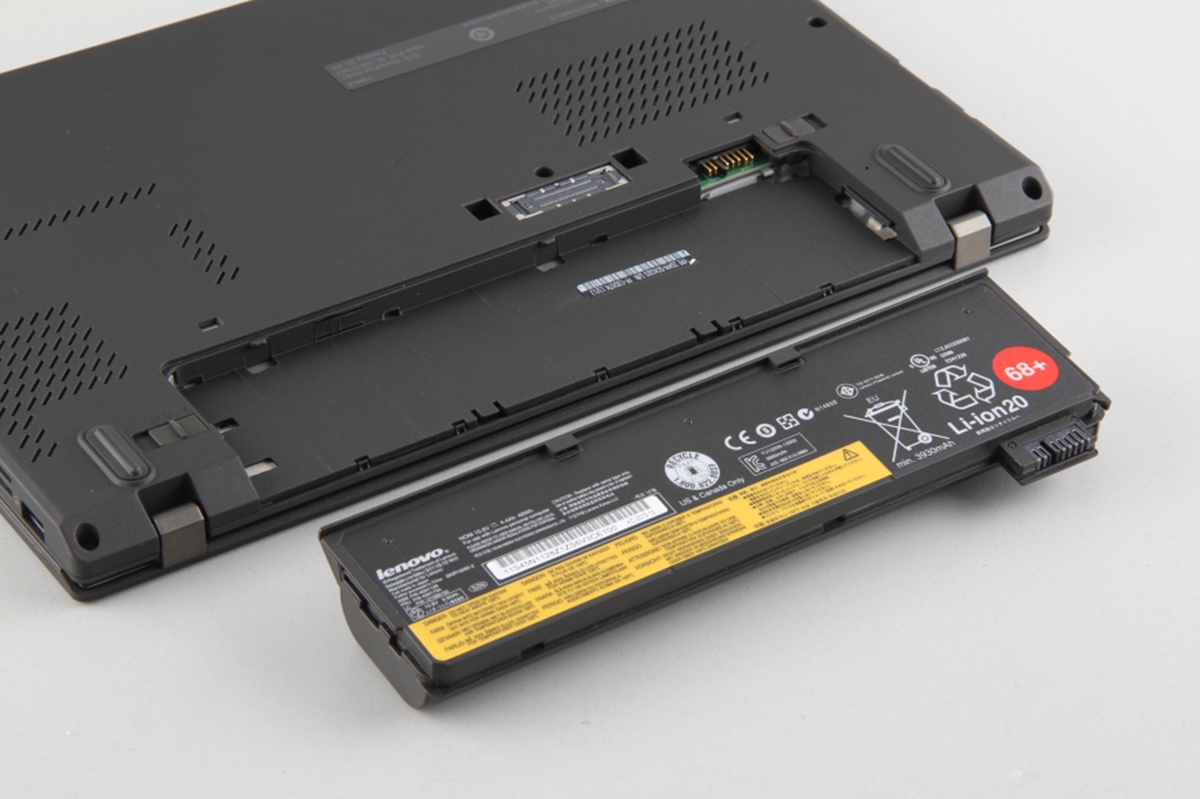
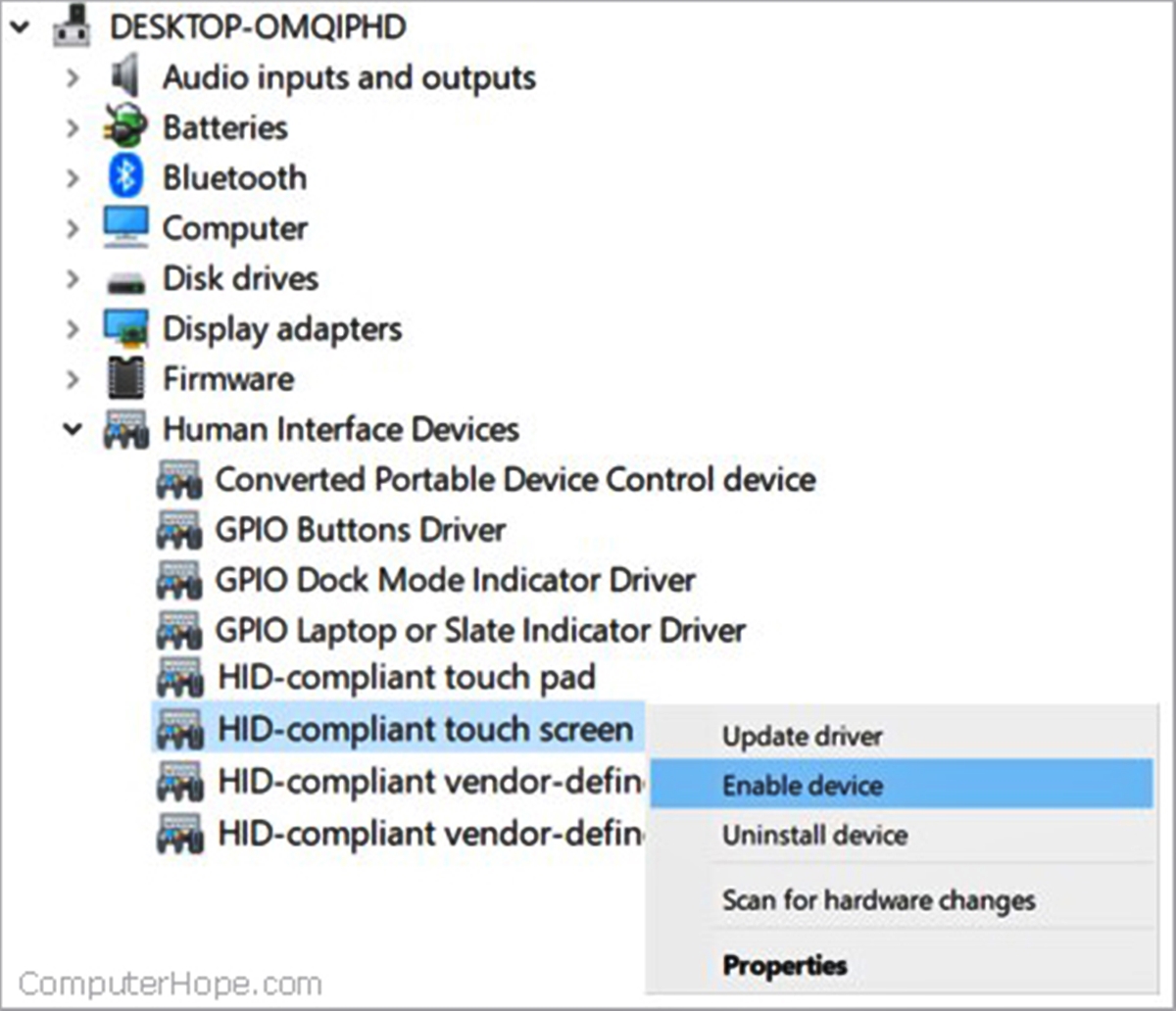
The articles solve practical problems you might run into with your Lenovo gear. One group of topics focuses on connecting external hardware: you can learn how to hook up two monitors to a ThinkPad docking station, and how to connect the docking station itself. Another set of articles deals with device controls and adjustments, for example, how to turn off the touchscreen on a Lenovo, and how to turn on a Lenovo wireless keyboard. A third area covers simple hardware fixes, like how to safely remove the battery from a Lenovo laptop.
Each article helps you complete a specific task, from setting up a multi-monitor workspace to troubleshooting a keyboard that won’t power on. No fluff, no extra promises, just clear instructions for the Lenovo products you already own.