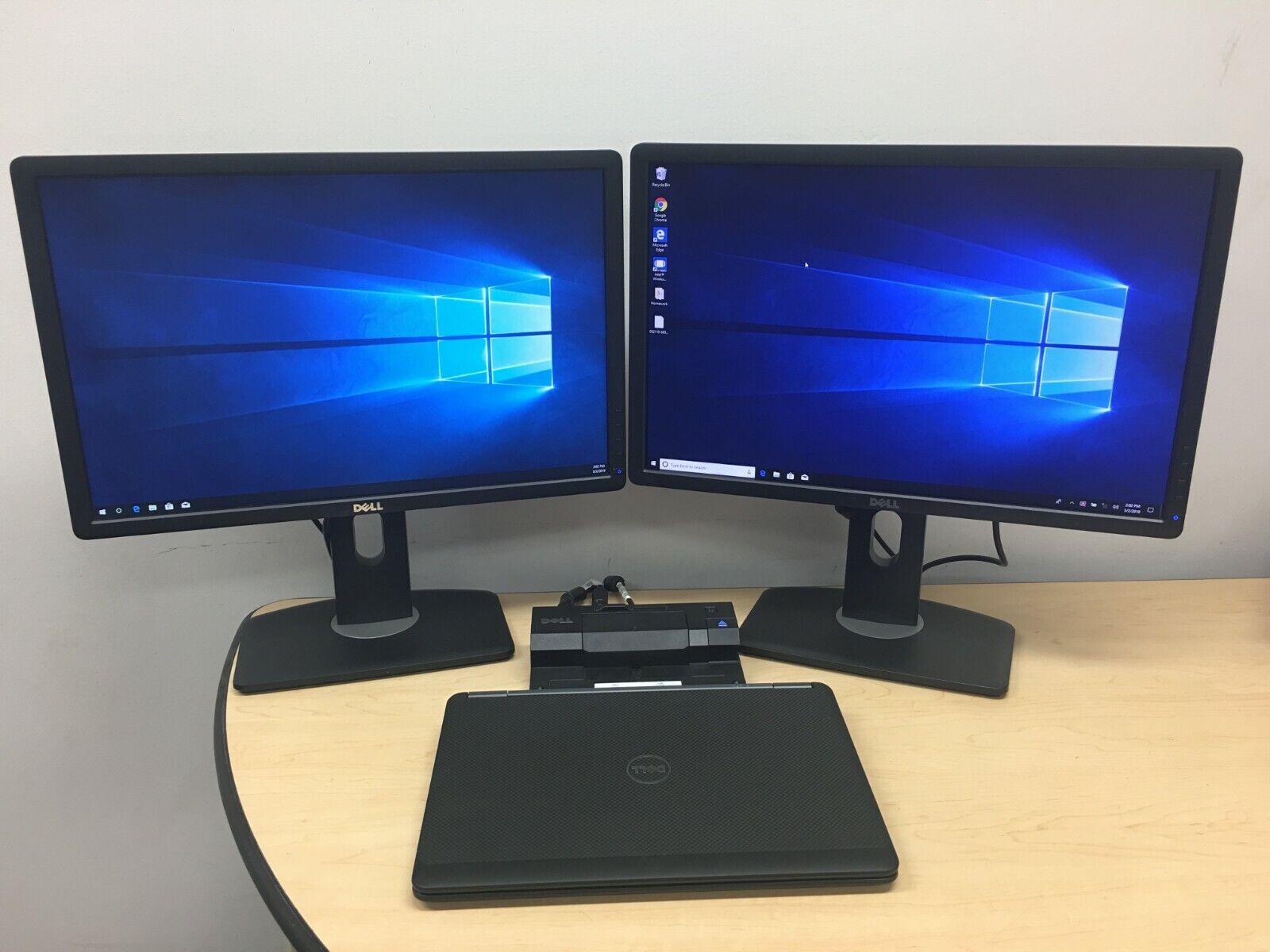
To connect two monitors to your ThinkPad using a thinkpad docking station two monitors setup, you need a compatible dock and a laptop that connects via Thunderbolt rather than standard USB-C, as Lenovo documents that some combinations limit output to a single display when using USB-C. The specific dock model and your laptop’s video output type determine whether you can run dual 4K monitors or only dual 1080p screens.
Before you start: is your ThinkPad docking station two monitors ready?
Dual-monitor support depends on your docking station model and how your laptop connects to it. Lenovo’s current documentation states that USB-C and Thunderbolt 4 docks can support up to two external displays, but some combinations are limited to one external video output if the computer is connected through USB-C instead of Thunderbolt. Check your dock’s specifications and your ThinkPad’s port type, Thunderbolt 3 or 4, before buying cables or adapters.
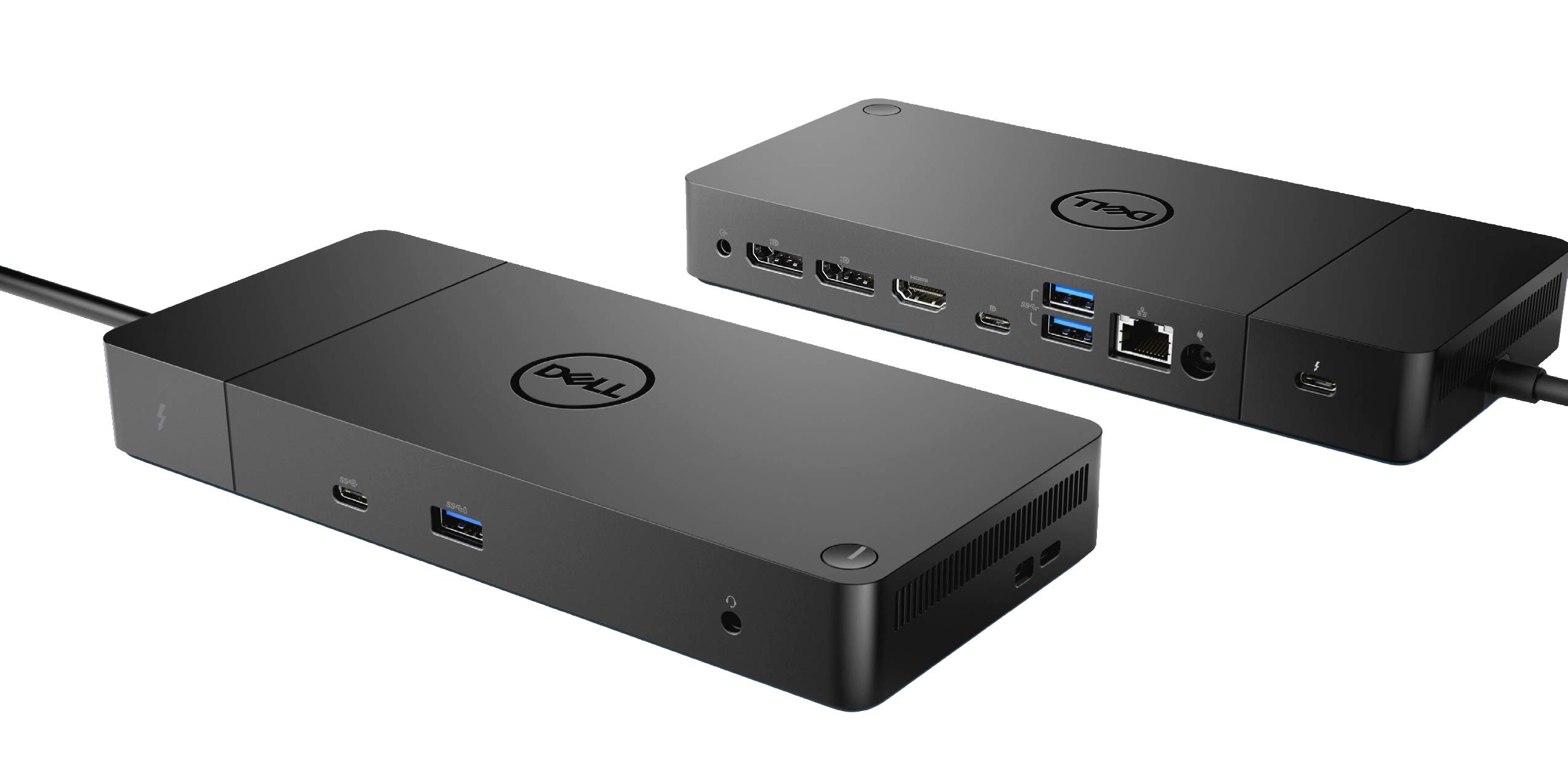
Compatible ThinkPad docking stations for dual monitors
Lenovo documents dual-monitor support for these docking stations. Actual output depends on your system’s video capabilities.
- ThinkPad USB-C Dock Gen 2: Supports up to 3 external monitors, with two at 4K@60 Hz, depending on the system’s video output.
- ThinkPad USB-C Dual 4K Docking Station: Supports dual monitors and, on Thunderbolt 4 Windows laptops, dual monitors up to 4K@60 Hz.
- ThinkPad Thunderbolt 4 WorkStation Dock: Supports up to four external monitors, including up to four 4K@60 Hz displays.
- ThinkPad Hybrid USB-C with USB-A Dock: Supports two external monitors and up to dual UHD 4K through DisplayPort and HDMI.
- ThinkPad Pro Dock: Listed as a compatible docking station option for dual monitors.
The one cable rule most people miss
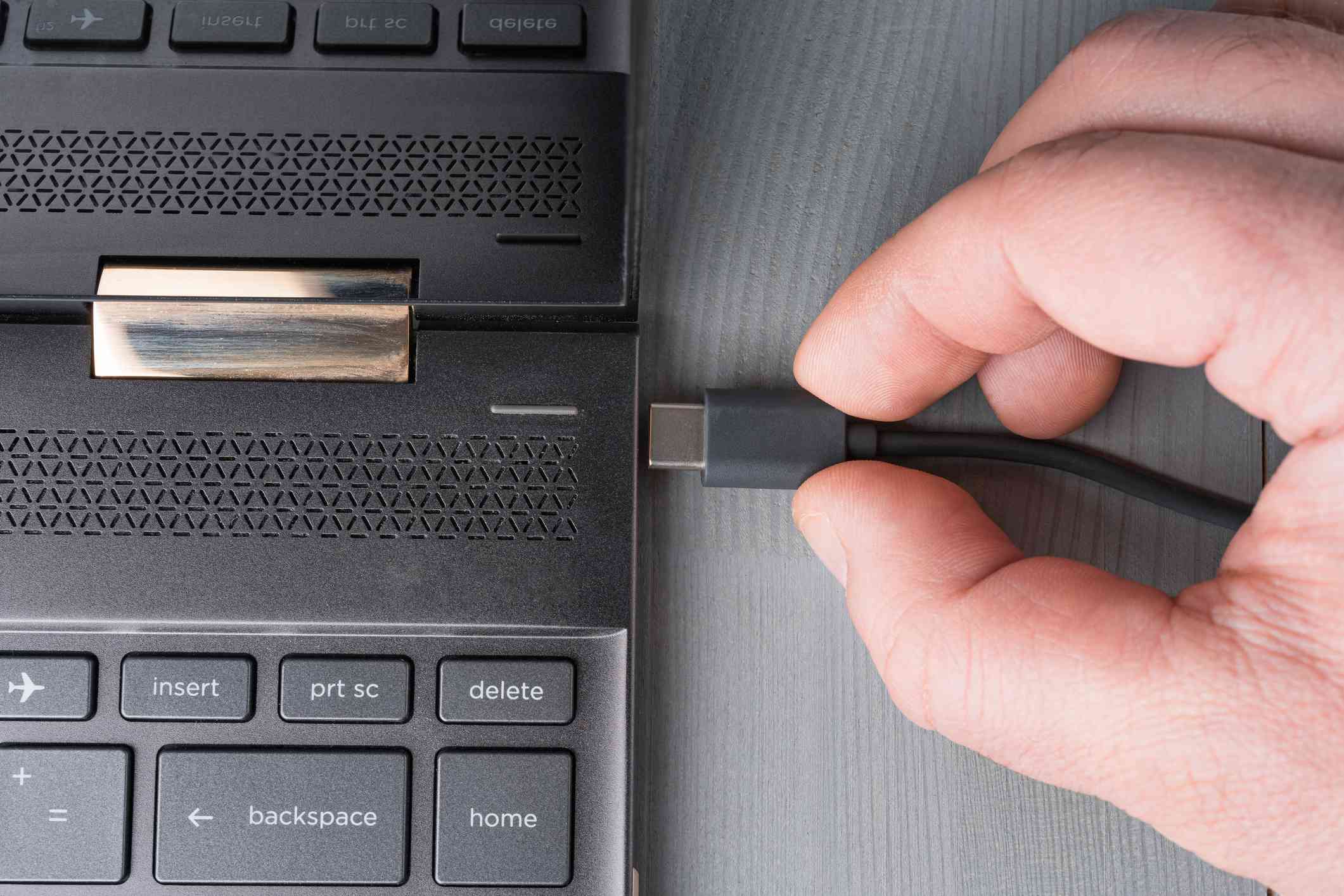
Lenovo documents that some ThinkPad and Lenovo docks support dual external monitors only when the notebook is connected to a Thunderbolt port. When connected to a standard USB-C port, only one video output is supported. If you plug the dock into a USB-C port instead of a Thunderbolt port, you may be limited to a single monitor regardless of the dock’s capability.
Understanding resolution limits for your dual-monitor setup
The bandwidth of your laptop’s USB-C Alt Mode determines what resolutions you can run. On Thunderbolt 4 Windows laptops, Lenovo documents dual monitors up to 4K@60 Hz for Thunderbolt-based docks. For USB-C Alt Mode HBR3 systems, Lenovo documents one 4K@60 Hz monitor or two 1440p@60 Hz monitors. For USB-C Alt Mode HBR2 systems, Lenovo documents one 4K@30 Hz monitor or two 1080p@60 Hz monitors. If you need dual 4K, ensure your laptop uses Thunderbolt and your dock supports it.
How to connect two monitors to the docking station
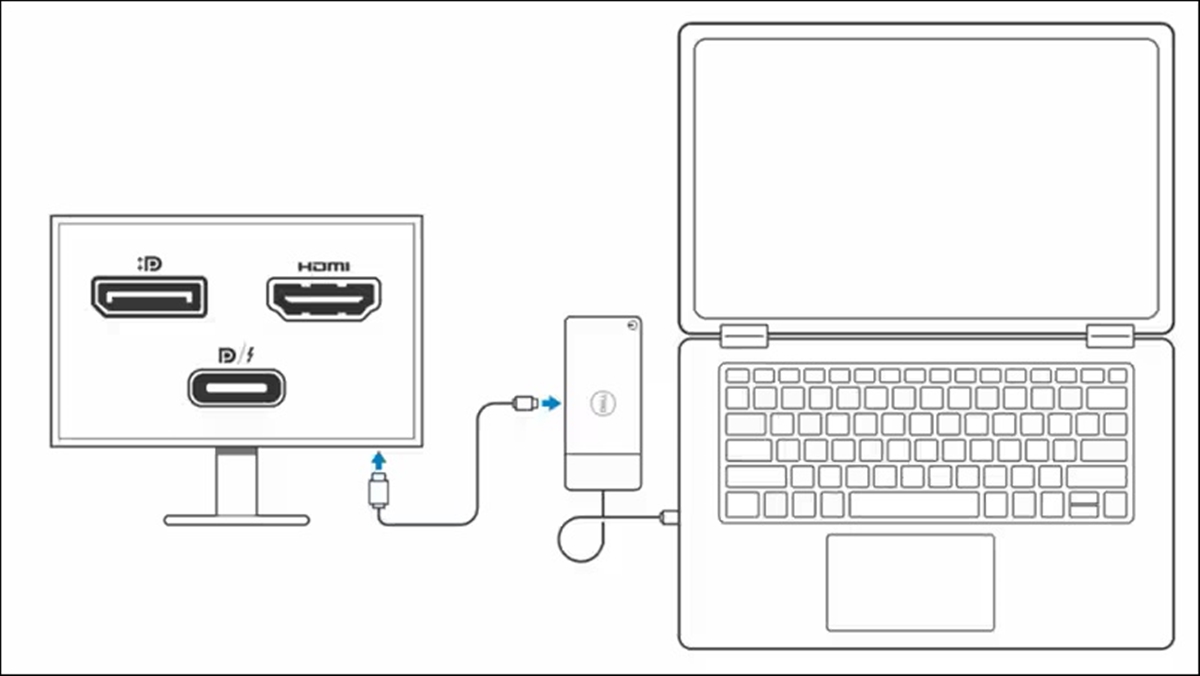
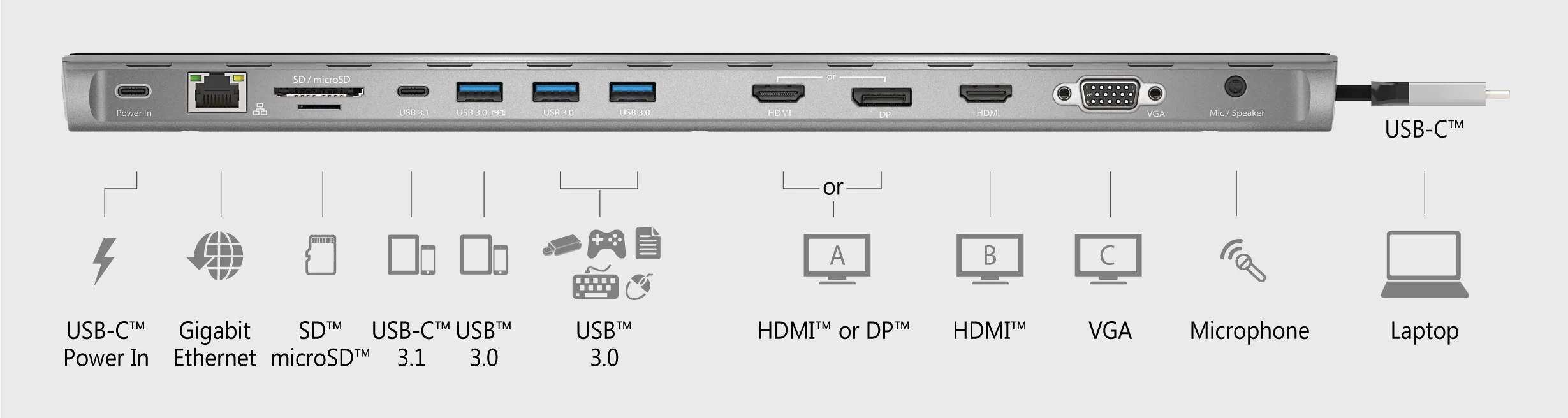
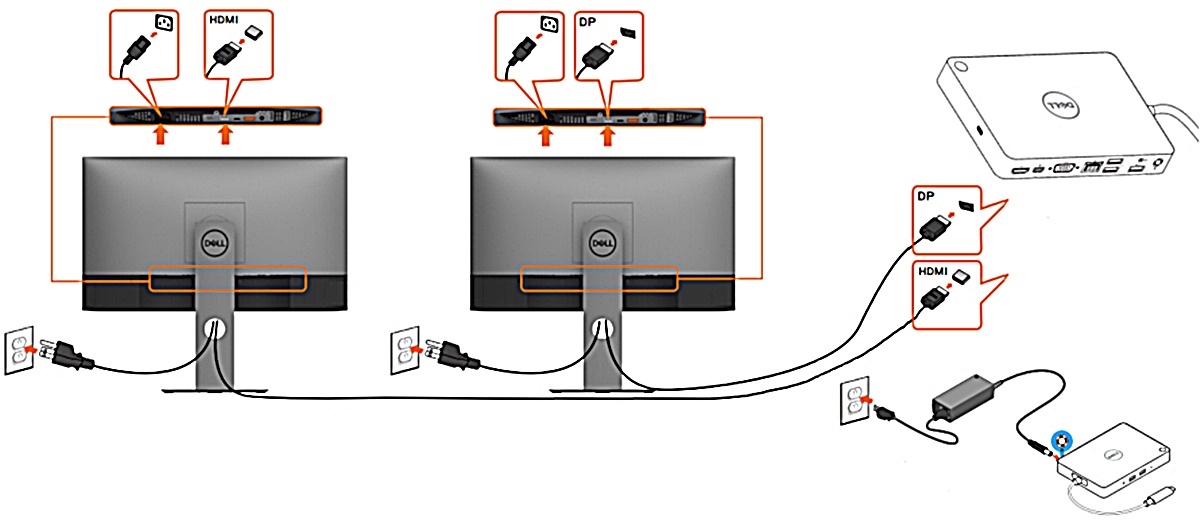
- Locate the downstream Thunderbolt 4 ports on your dock. Lenovo says up to two monitors can be attached through these ports using USB-C monitors, Thunderbolt monitors, or USB-C DP Alt Mode-to-video adapters (sold separately).
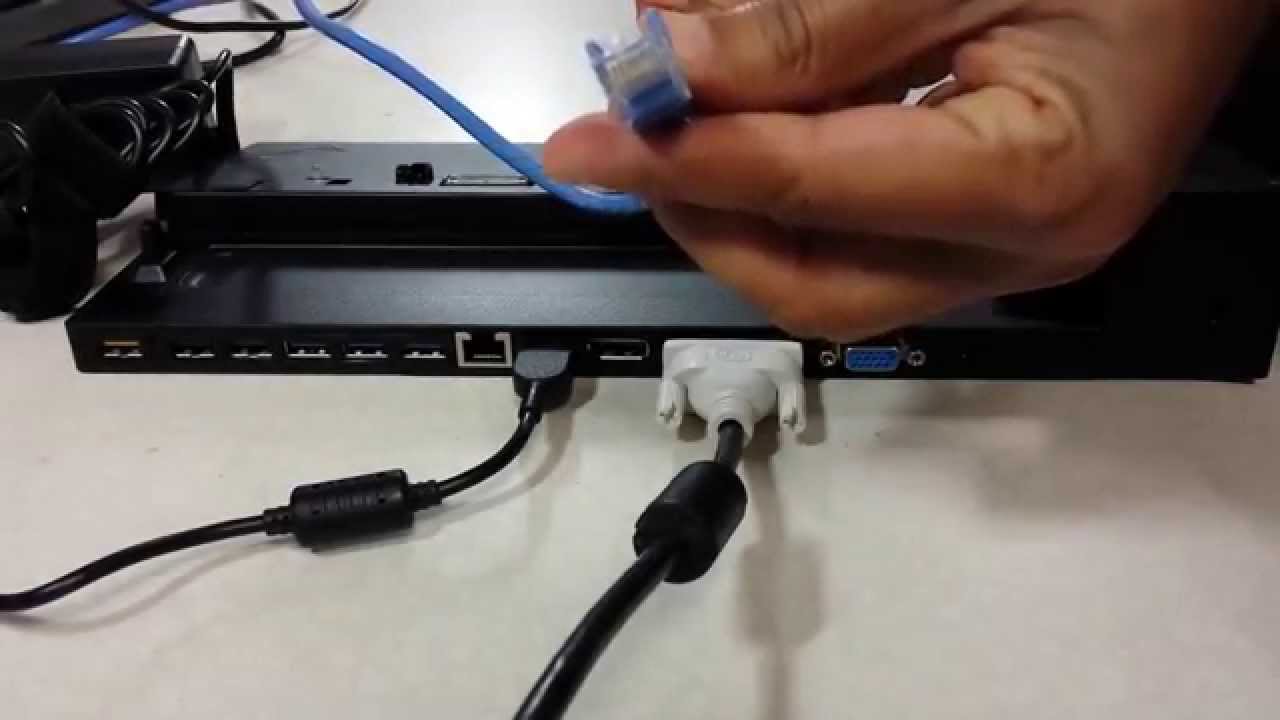
- Connect one monitor to a downstream port using the appropriate cable or adapter. For example, use a USB-C to HDMI cable if your monitor has HDMI input and your dock port supports DP Alt Mode. A Mini DisplayPort to HDMI adapter is a required cable/adapter option. A DisplayPort to HDMI adapter is a required cable/adapter option.
- Connect the second monitor to another downstream port using the same or a different cable type, depending on your monitor inputs.
- Ensure both monitors are securely connected.
Configuring your display settings in Windows
- Open display settings by right-clicking on the desktop and selecting Display settings.
- Select the Extend option to spread your desktop across both monitors, or choose Duplicate to mirror the same content on both.
- Arrange the monitors by dragging the monitor icons in the settings window to match their physical positions.
- Adjust resolution and other settings as needed. Each monitor can be selected individually in the settings window.
After applying the changes, your dual-monitor setup is ready.
Frequently Asked Questions
Can I use laptop docking stations with older ThinkPad models?
Yes, but compatibility depends on the dock and your laptop’s port type. Older ThinkPads with USB-C or Thunderbolt 3 ports can work with the docks listed above, but check Lenovo’s support page for your specific model to confirm dual-monitor support.
A typical cat 6 cable uses which connector for video?
A typical cat 6 cable uses which connector? Cat 6 cables use RJ45 connectors and are designed for Ethernet networking, not video. For monitor connections, use USB-C, DisplayPort, HDMI, or Thunderbolt cables as appropriate for your dock and monitor inputs.
Do I need the same brand of monitors for dual setup?
No, you can mix different monitor brands, sizes, and resolutions. However, for a consistent visual experience, Lenovo recommends choosing monitors with similar resolutions and refresh rates.
Can I connect three monitors to a ThinkPad docking station?
Some docks, like the ThinkPad USB-C Dock Gen 2 and Thunderbolt 4 WorkStation Dock, support three or more monitors. Check the specific dock’s documented limits, most dual-monitor docks listed here support only two external displays.
What if my monitor only has VGA input?
You can use a USB-C DP Alt Mode-to-VGA adapter, sold separately. Lenovo documents that adapters are available for downstream Thunderbolt 4 ports, but verify compatibility with your dock model and monitor.
Can I use different monitor models and sizes with a ThinkPad docking station?
Yes, you can use different monitor models and sizes with a ThinkPad docking station.