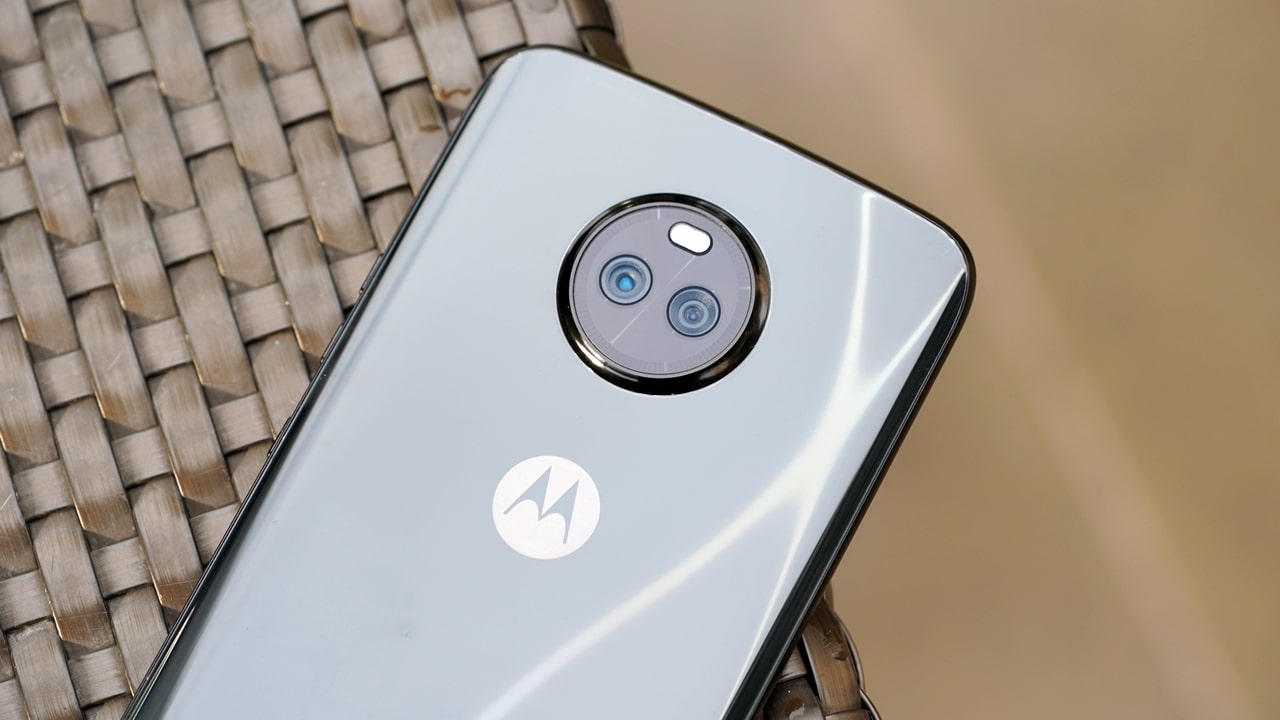
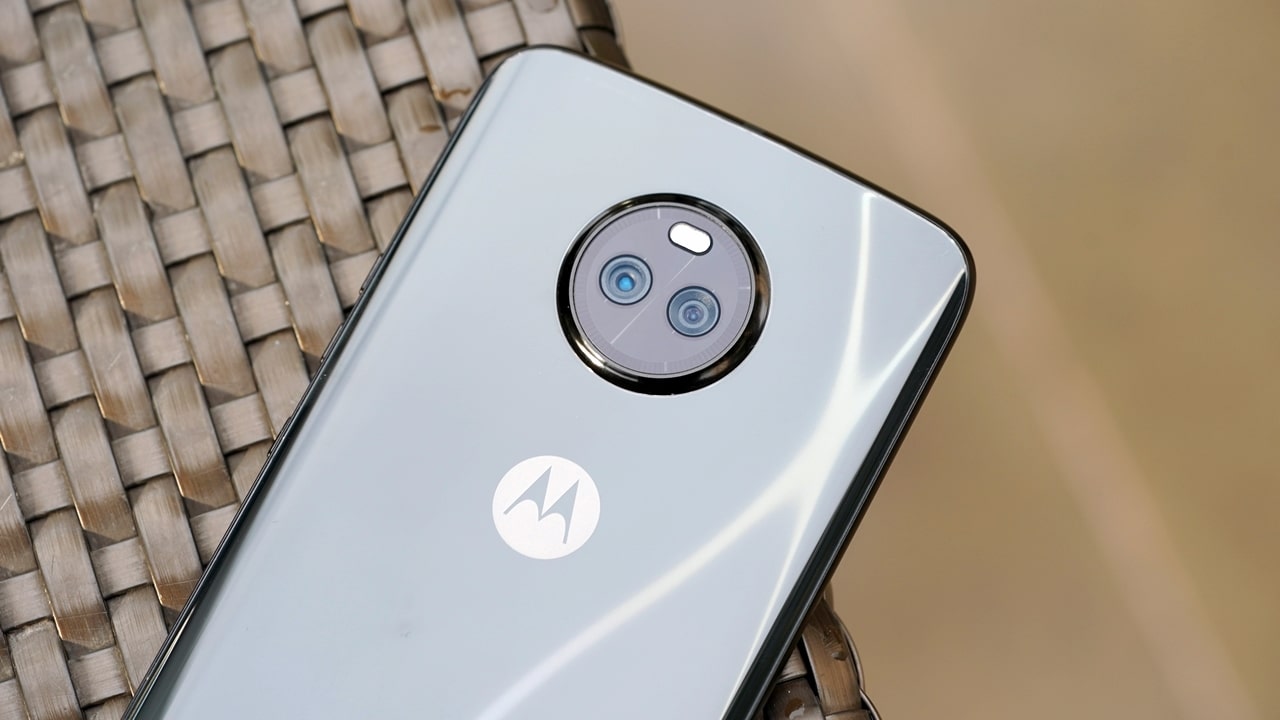
This tag collects all of CellularNews’s articles related to Motorola phones, from classic flip models to modern Android devices. It is intended for anyone who owns, is considering buying, or needs help troubleshooting a Motorola handset, as well as those curious about the brand’s role in mobile history.

The articles solve practical problems grouped around three clear themes. First, there are guides for basic operation and everyday tasks: how to turn a Motorola phone on or off, how to type on a flip phone, and how to take a screenshot on an Android Motorola. Second, several articles address troubleshooting and recovery, such as how to unfreeze a Motorola phone, how to reset a locked device, and how to get a phone out of emergency mode. Third, a handful of pieces cover security and data management, including how to find hidden apps, how to bypass a password or Google lock, and how to back up or erase the phone entirely.

Specific topics you will find here include instructions for using wireless charging on compatible Motorola models, advice on which smartwatch works with your phone, and historical pieces like who created cell phones and when the first cell phone was invented. Whether you need to change your screensaver, remove a virus, or simply learn how to open the phone, these articles provide direct, step-by-step help.
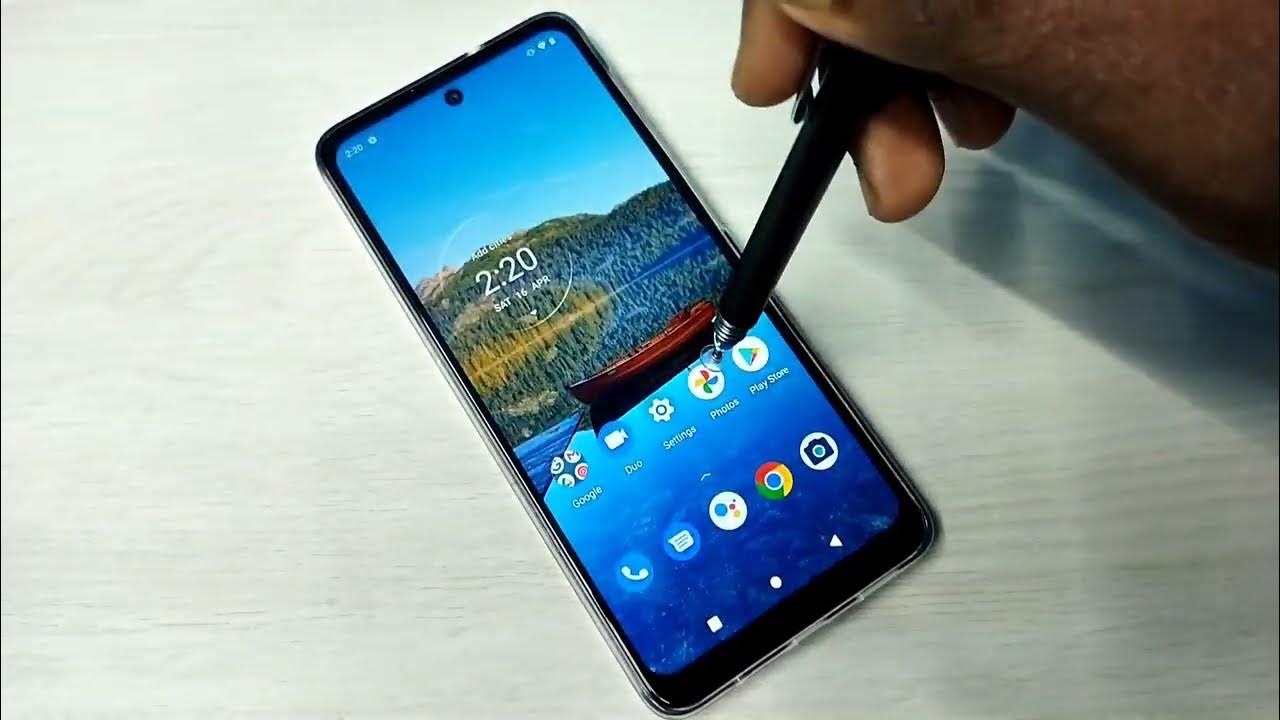
How To Screenshot On Android Motorola

To take a screenshot on Motorola Android, the fastest built-in method is pressing and holding the Power button and Volume Down button simultaneously for about 1-2 seconds. You will see...

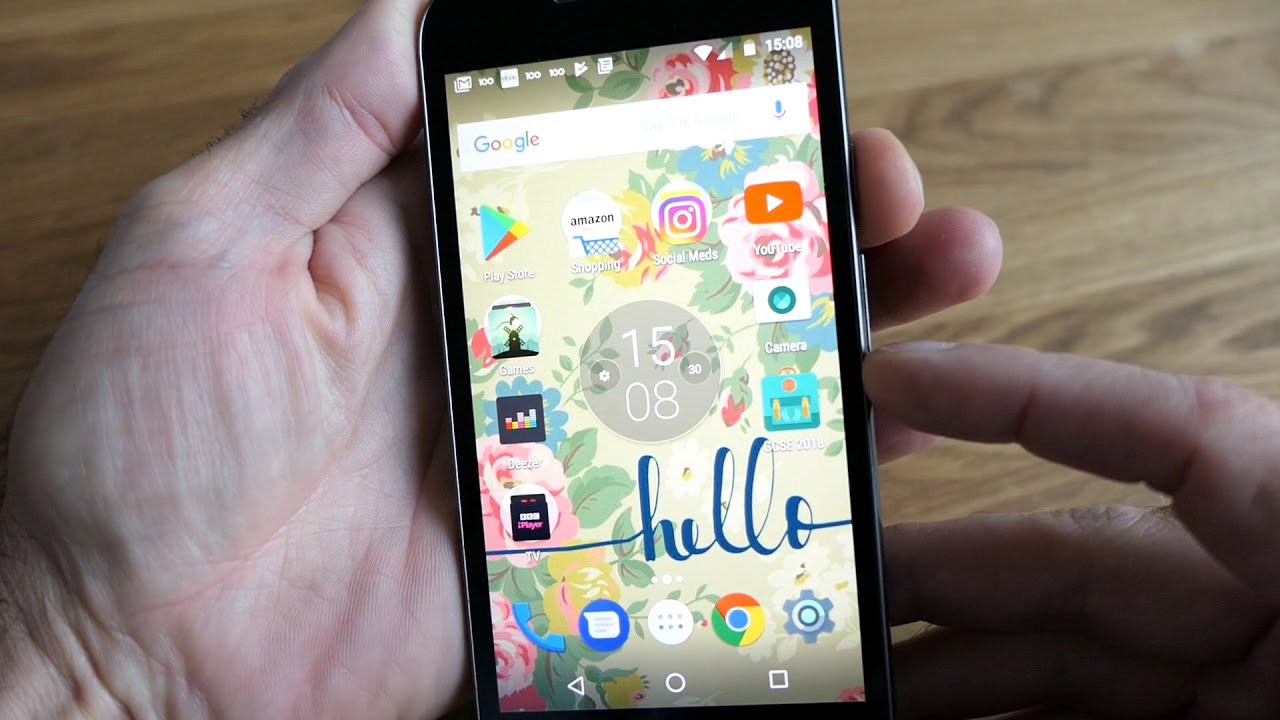
How To Take A Screenshot On My Android

The basics of taking a screenshot on Android To take a screenshot on Android, open the content you want, then press and hold the Power and Volume Down buttons at...

How To Change Screensaver On Android

To change screensaver on Android, open your phone's Settings app and look for the Screen saver option, which is typically found under Display settings but varies by manufacturer. This setting...

How To Find Hidden Apps On Motorola Android

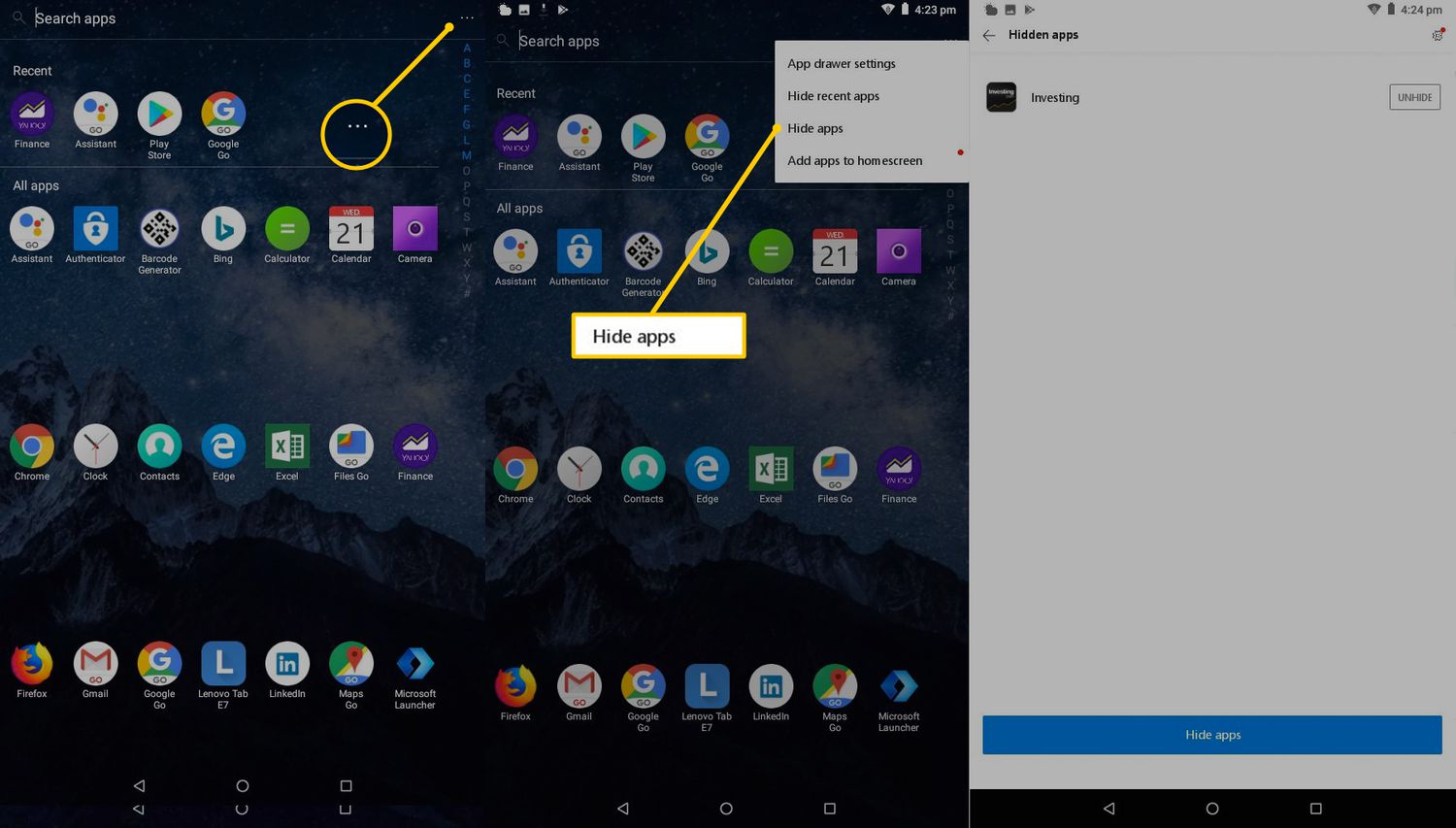
To find hidden apps on Motorola Android, start by checking Moto Secure, the only official hiding feature documented for Motorola phones. This method will help you locate apps you or...

How To Erase Motorola Phone

To erase a Motorola phone completely, use the on-device menu path Settings > System > Reset options > Erase all data (factory reset). This process wipes all personal data and...

How To Find Downloads On Motorola Phone

To find downloads on your Motorola phone, open the Files app and tap Downloads. This direct path works across recent Motorola models, letting you quickly locate any file you have...

How To Get Rid Of Virus On Motorola Phone

To remove virus from Motorola phone, start by restarting the device and updating the operating system, then boot into Safe Mode to uninstall any suspicious apps you find. If the...

How To Open A Motorola Phone

When you search for "how to open a Motorola phone," the answer depends on what you actually need to do. Most people are looking to physically disassemble the device to...

How To Reset A Motorola Phone

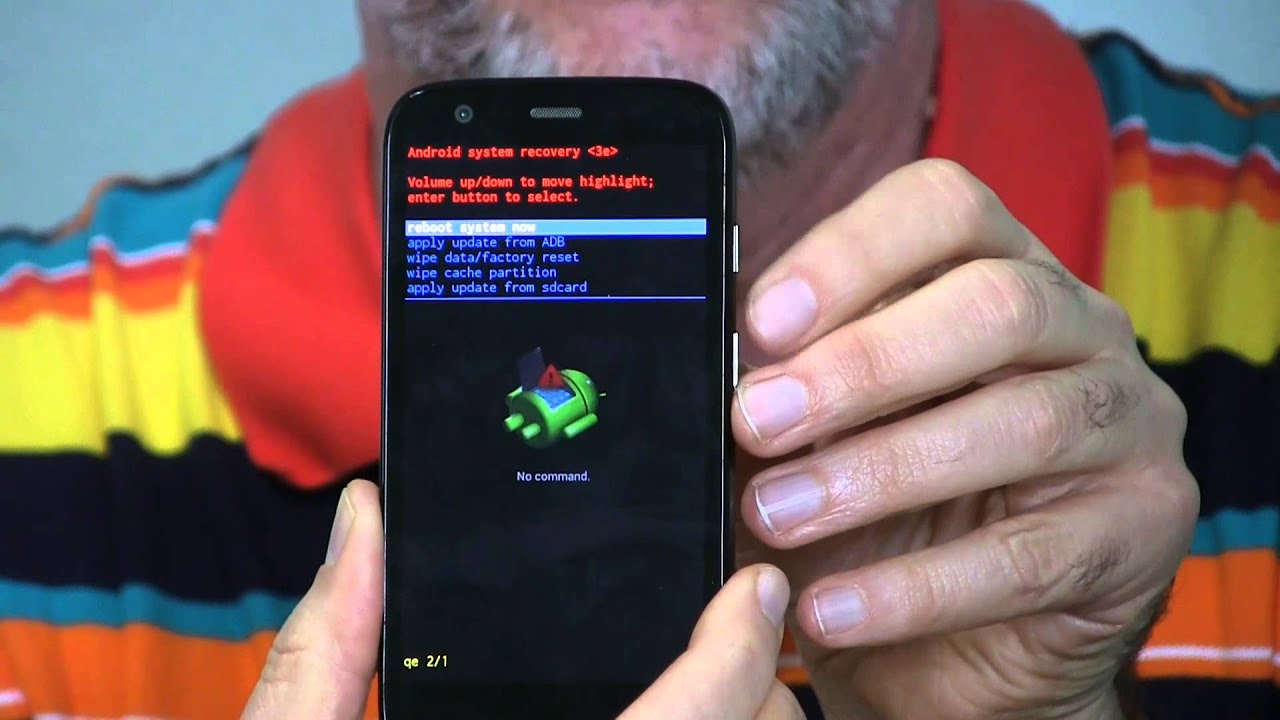
To reset a Motorola phone, use the Settings menu if the phone is operational, or Recovery mode if the screen is locked or the device is unresponsive. A factory reset...