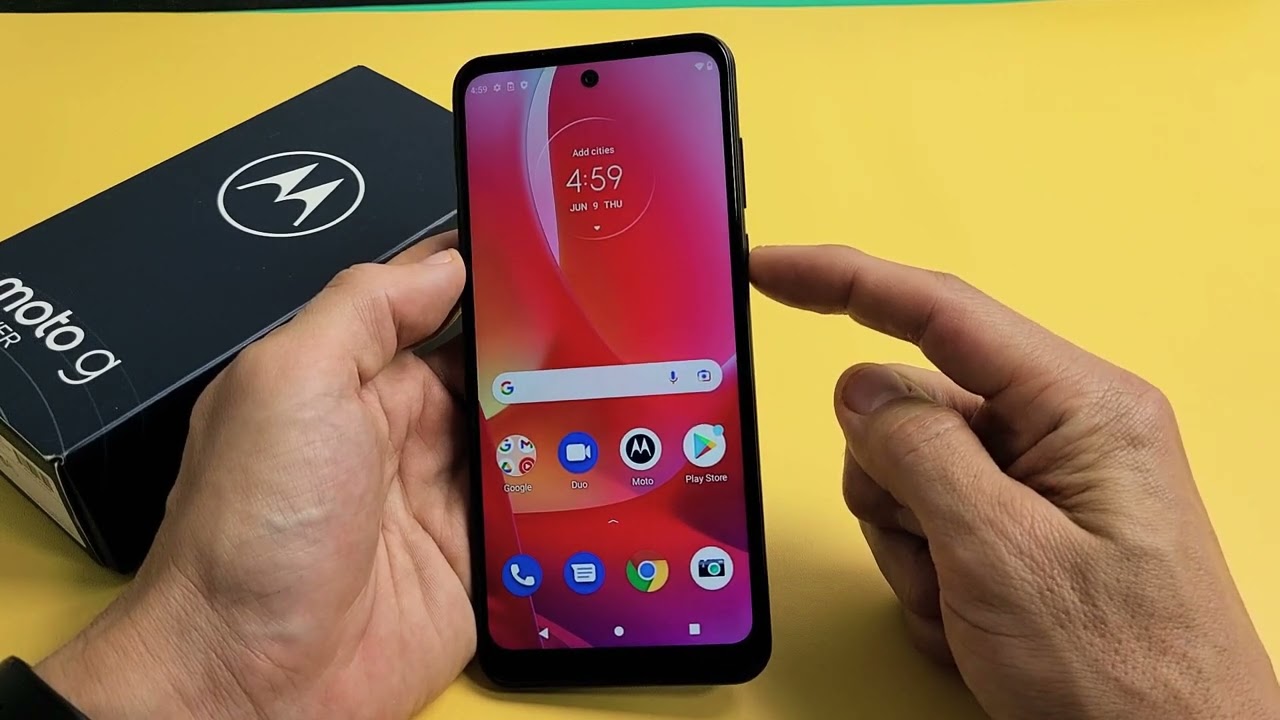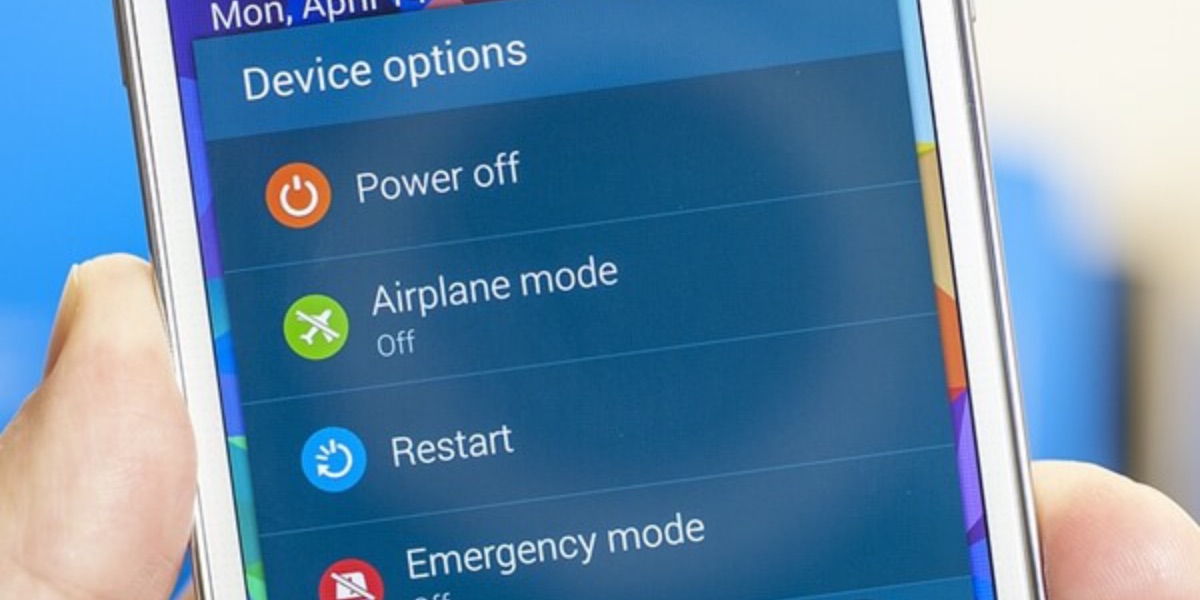
To get your Motorola phone out of emergency mode, start by checking your signal strength and then restarting the device to force it to reconnect to your carrier's network.
How to get a Motorola phone out of emergency mode: An immediate, clear answer
The "Emergency Mode" screen on a Motorola phone is a network state, not a phone setting. It appears when your device has lost connection to your mobile carrier's network. The first step is to check your signal and restart the phone. Motorola's documented emergency feature is Emergency SOS, found at Settings > Safety & emergency > Emergency SOS, and requires signing in to a Google account to access all emergency features. This is a different function from the network-disconnected screen you are seeing.
What the 'Emergency Calls Only' screen actually means
Motorola's documented emergency feature is Emergency SOS, which you set up in Settings > Safety & emergency > Emergency SOS. Specific Motorola models where the Emergency SOS path is documented include moto g64 5G and moto g power - 2025.
Step 1: Check your signal and location
- Move to an open area, near a window, or outdoors. Walls, basements, and underground parking can block cellular signals.
- If you are indoors, try stepping outside to see if the signal returns.
Step 2: Restart your Motorola phone
A simple restart is the most effective fix. Powering your phone off and back on forces it to re-register with the cellular network.
Still stuck? Check your SIM and carrier
If restarting does not work, the issue may be with your SIM card or your carrier account. Turn off your phone, remove the SIM card tray, and inspect the SIM card for damage. Reinsert it securely, making sure it clicks into place. If the problem persists, contact your mobile carrier to check for account issues, network outages in your area, or a problem with your line. They can also verify that your phone is properly provisioned on their network.
Frequently Asked Questions
Why does my Motorola phone keep saying "Emergency Calls Only"?
This usually means your phone cannot connect to your carrier's network due to a weak signal, a network outage, a problem with your SIM card, or an account issue. It is not a phone setting you can disable.
Is "Emergency Mode" the same as Emergency SOS?
No. Emergency SOS is a feature you can set up in Settings > Safety & emergency to quickly call emergency services or send alerts.
Will a factory reset fix the "Emergency Calls Only" screen?
A factory reset is unlikely to fix this issue because it is caused by a network connection problem, not a software glitch. Try checking your signal, restarting, and contacting your carrier first.
Can I still use my phone while it says "Emergency Calls Only"?
You can make emergency calls to 911 or other local emergency numbers, but you cannot make regular calls, send texts, or use mobile data until the phone reconnects to your carrier's network.
How do I turn on a Motorola Razr flip phone if it is stuck in emergency mode?
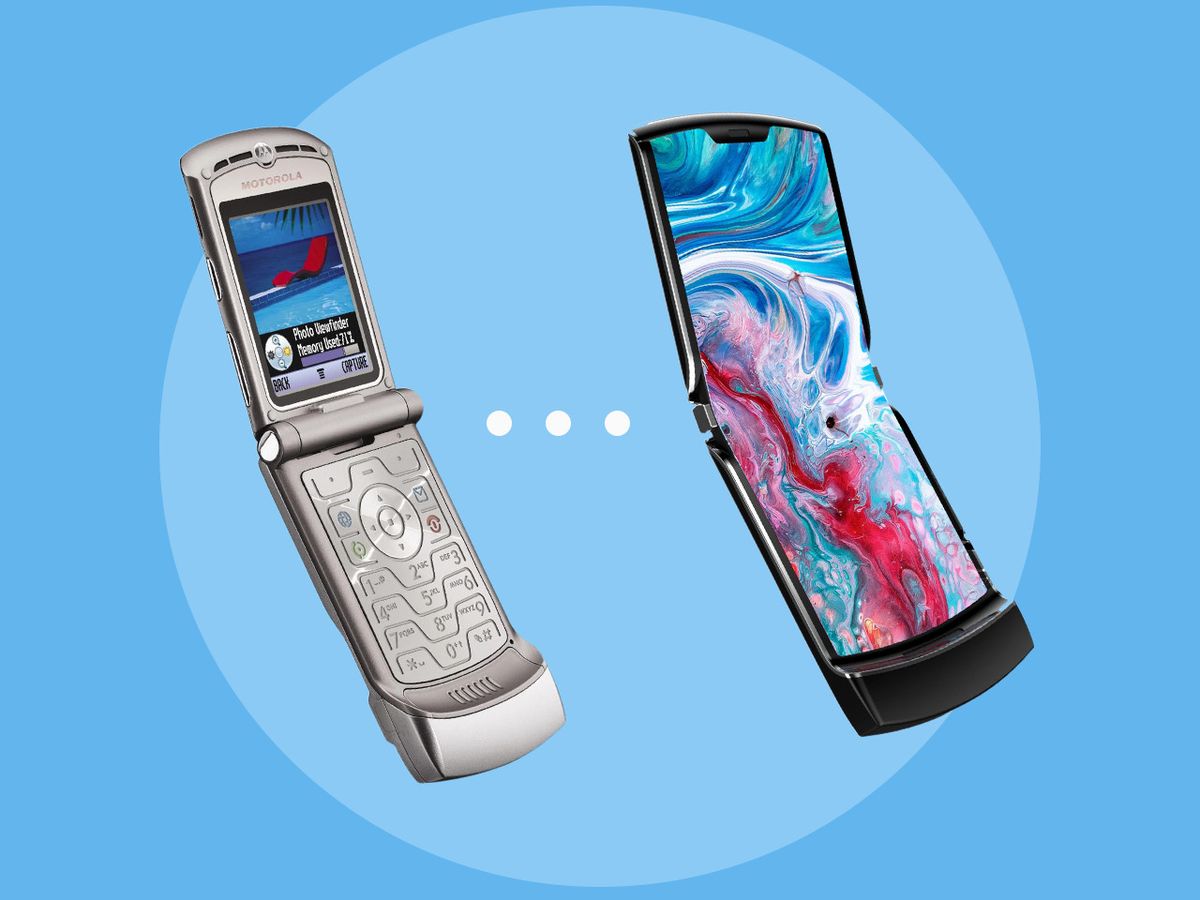
To turn on a Motorola Razr flip phone that is stuck on an emergency screen, press and hold the power button for 10-15 seconds until the device restarts. This forces the phone to reboot and attempt to reconnect to the network.
How do I unfreeze a Motorola phone that is stuck on the emergency screen?
To unfreeze a Motorola phone stuck on the emergency screen, perform a forced restart by pressing and holding the power button for about 10-15 seconds until the screen goes black and the Motorola logo appears. This clears the temporary state and allows the phone to re-register with the network. On iPhone, after texting 911, the device enters an emergency mode for 30 minutes, and the documented way to exit is to restart the iPhone.