Connecting and troubleshooting peripherals through docking stations and USB-C cables. This content is designed for anyone using a laptop, whether from HP, Dell, or Lenovo, who needs to set up a multi-monitor workspace or simply get their dock working correctly. The articles here address the practical, everyday challenges of making different brands of hardware talk to each other.
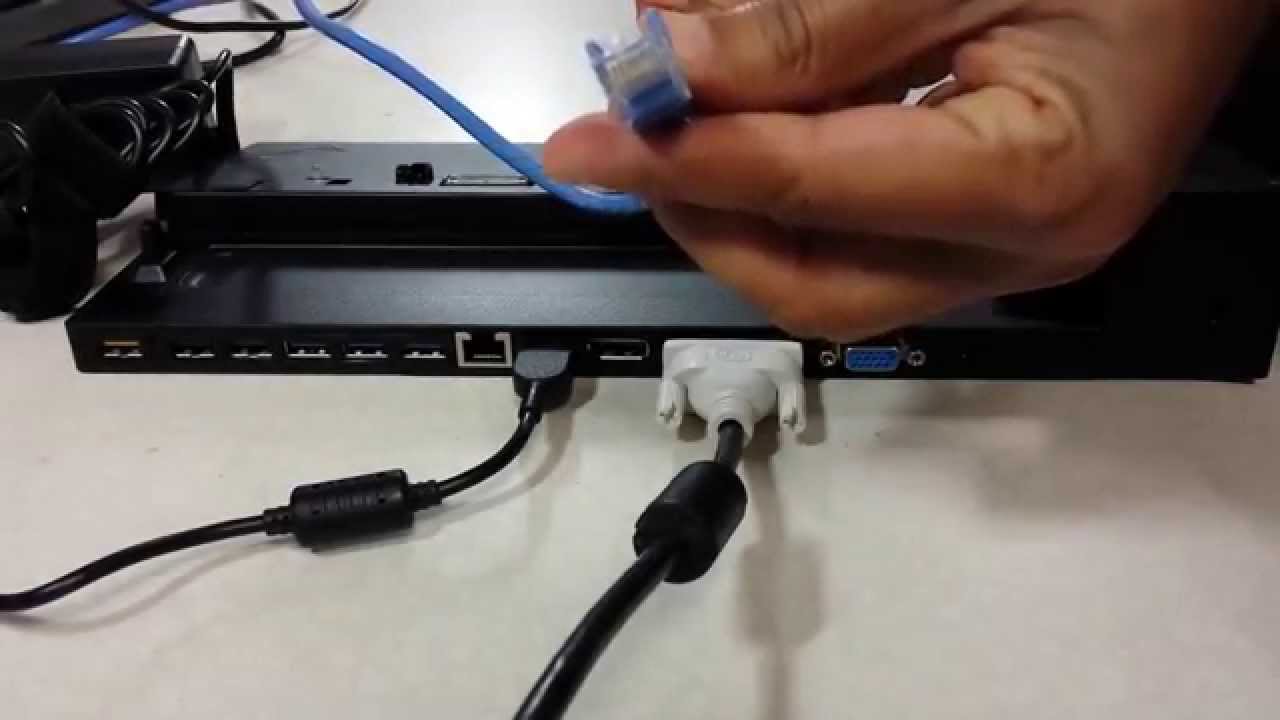
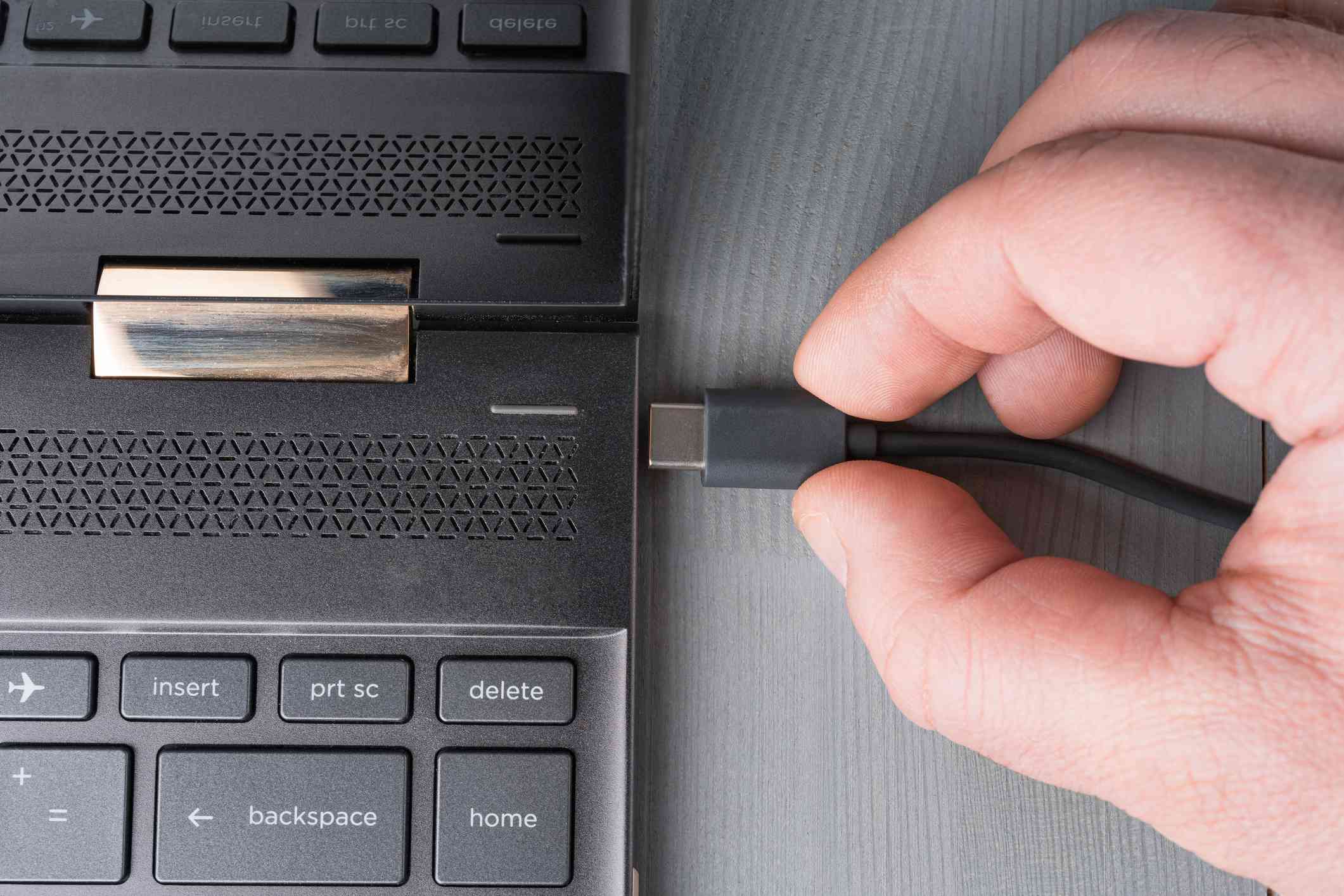
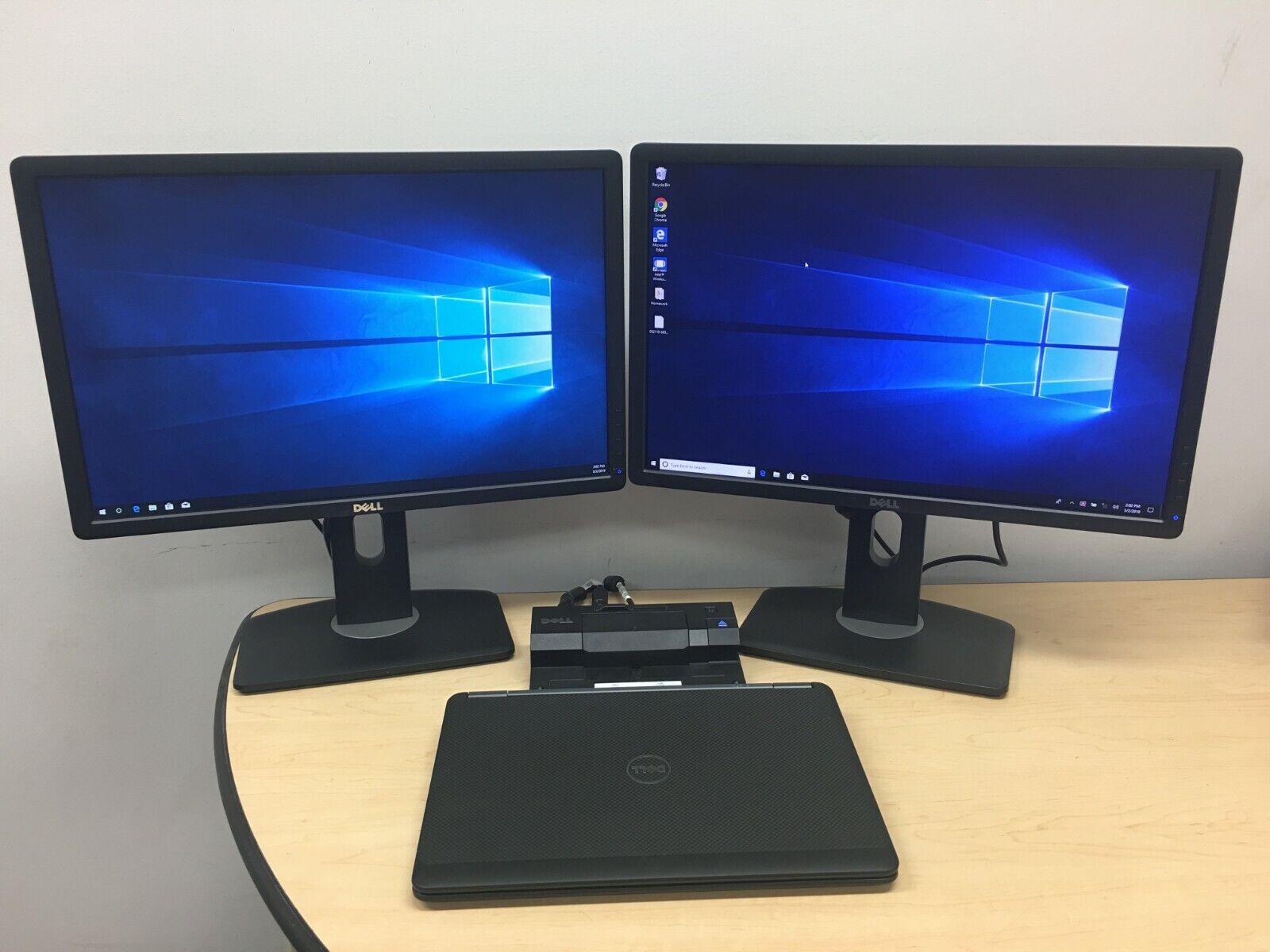
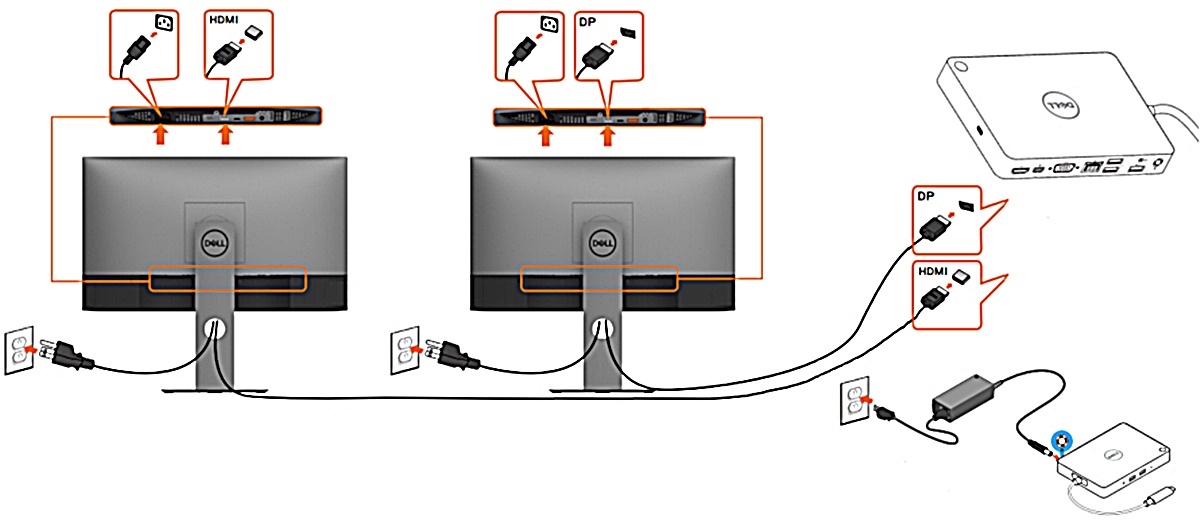
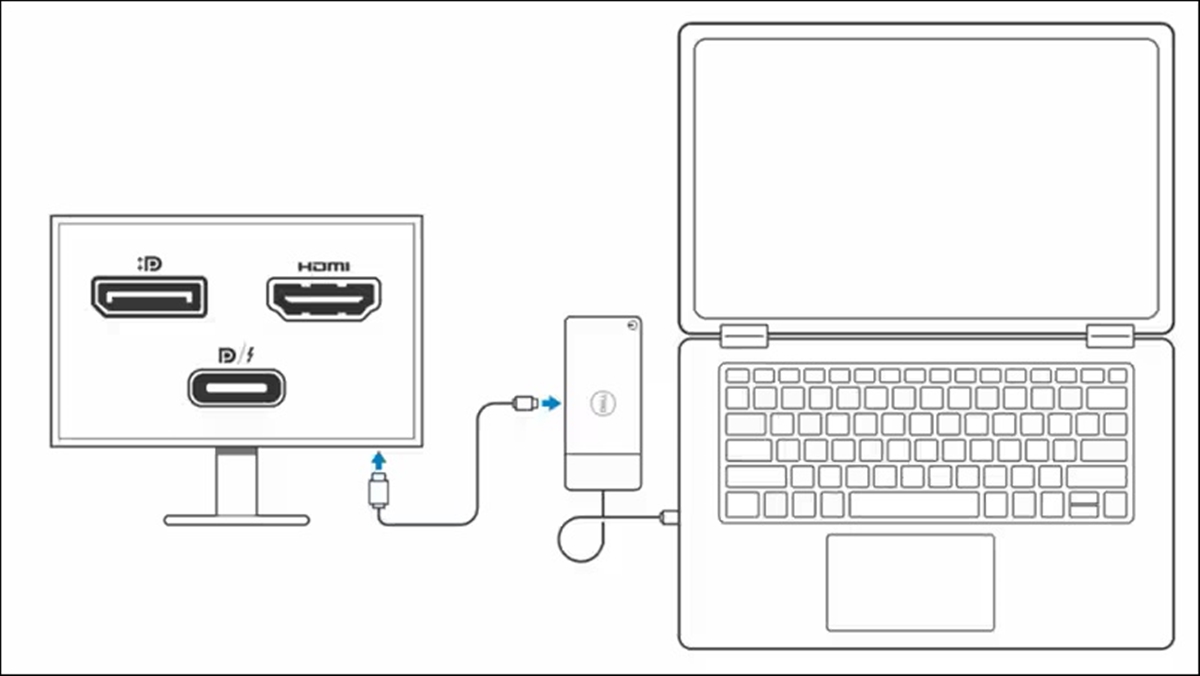
The problems these articles solve fall into two clear themes. First, they tackle multi-monitor setups, showing readers how to hook up two displays to specific docking stations like those from ThinkPad or Dell. Second, they cover the basics of compatibility and cost, including how to tell if a USB-C cable can actually transfer data and how much a docking station typically costs. A few specific topics you will find include guides on connecting an HP laptop to a Dell docking station and straightforward steps for connecting a Dell or ThinkPad docking station to your computer.
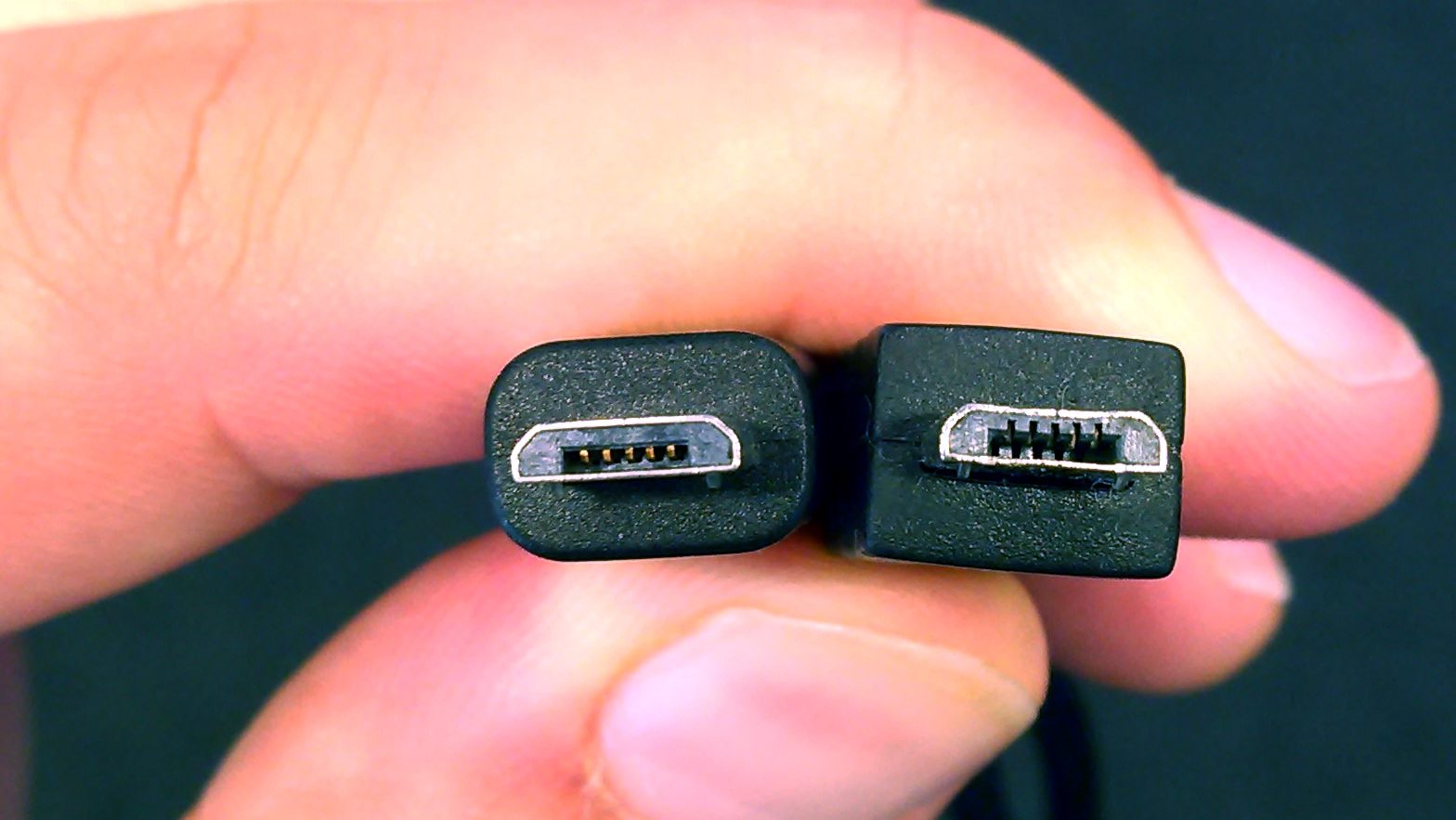
These articles help the reader perform concrete tasks: physically connecting a laptop to a dock, adding a second monitor to a workspace, and identifying the right cable for data transfer. They provide the step-by-step instructions needed to get hardware working without guesswork, focusing on the specific models and brands people actually own.