






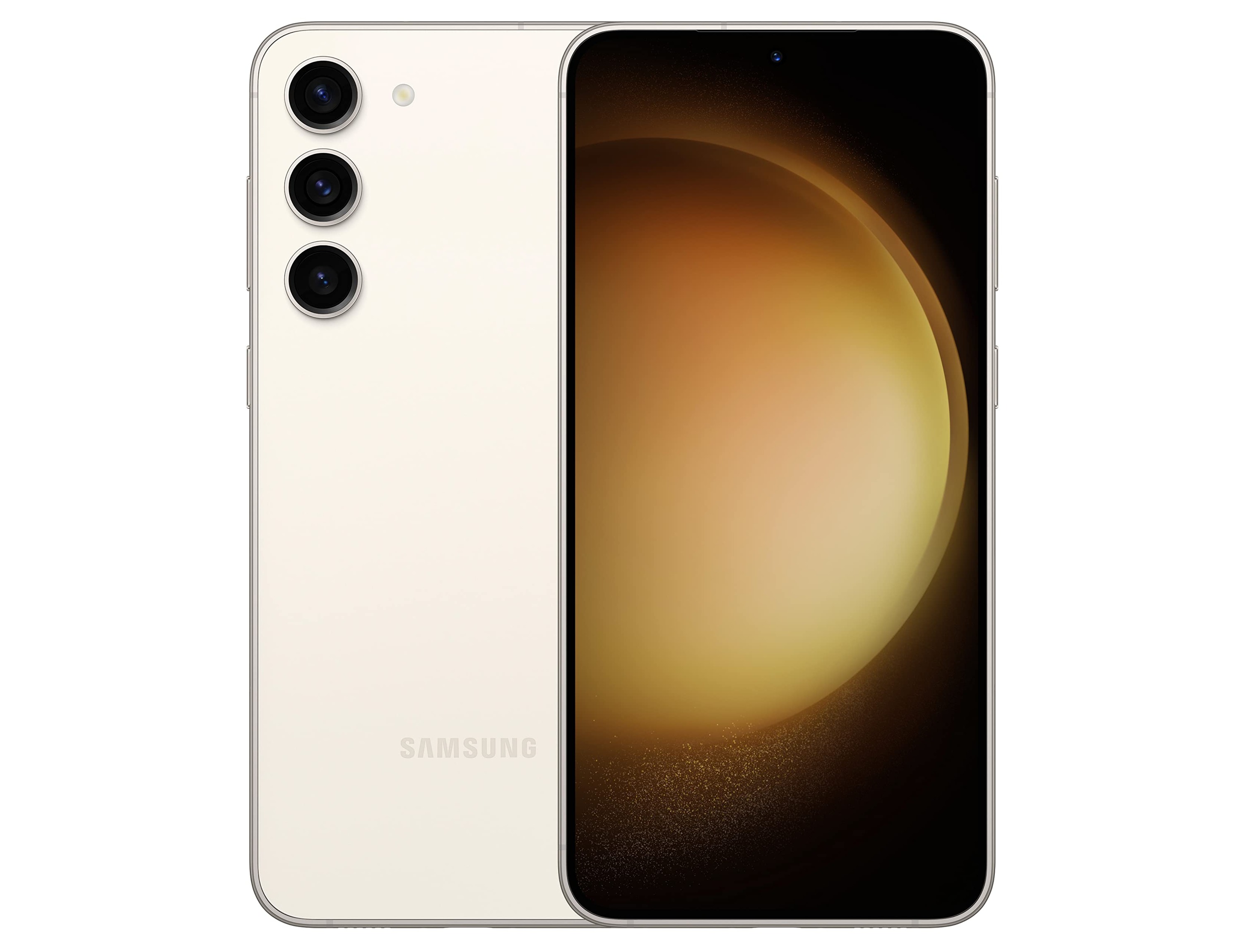
To use hotspot on Samsung, turn your phone into a portable Wi‑Fi network that shares its mobile data with other devices like laptops, tablets, or friends' phones. The first step is opening Settings, then tapping Connections followed by Mobile Hotspot and Tethering.
Setting up your Samsung mobile hotspot
- Open Settings on your Samsung phone or tablet.
- Tap Connections.
- Tap Mobile Hotspot and Tethering.
- Tap Mobile Hotspot and toggle the switch to turn it on.
You can also turn on the hotspot from the notification shade: swipe down twice, tap the Settings icon (gear), and use the hotspot control if it appears there. Once enabled, your Samsung device broadcasts a Wi‑Fi network that other devices can join.
Customizing your hotspot name, password, and band
After turning on the hotspot, tap its name (or tap Configure) to open the settings screen. The hotspot name is, by default, the same as the device name. Here you can change the Network name (SSID), which by default matches your device name. You can also change the Security type, set a custom Password (the default password is randomly generated; you can tap Password to create your own), and adjust the Band (2.4 GHz or 5 GHz) for better performance or range. These changes take effect immediately.
Connecting other devices to your Samsung hotspot
On the device you want to connect, open the Wi‑Fi settings and look for available networks. Select your Samsung phone’s hotspot name from the list, enter the hotspot password when prompted, and tap Connect. The device will now use your Samsung’s mobile data connection. The process for connecting devices to a hotspot is the same on any Android phone: find the network, enter the password, and connect.
Managing timeout and data settings
Samsung includes a Timeout settings option that automatically turns off the hotspot after a set period when no devices are connected. Timeout settings lets you choose how long the hotspot waits before turning off when no devices are connected. This saves battery and prevents unauthorized use. To set it, go to Mobile Hotspot settings and look for Timeout or Auto Hotspot options. It is also important to monitor your data usage while the hotspot is active, because sharing your mobile data counts against your plan’s data allowance.
Troubleshooting: Hotspot not working?
If your hotspot fails to turn on or devices cannot connect, the critical first step is to verify your carrier’s tethering plan policies and check your remaining data balance. Samsung's troubleshooting page says to verify your tethering plan policies and remaining data balance with your carrier when hotspot or tethering fails. Some carriers require a specific plan or may block hotspot use entirely. Also check for signal interference: move your Samsung device away from walls, other electronics, or metal objects, and ensure the connected device is within a reasonable range (typically 30 feet or less in open space).
Frequently Asked Questions
Does using the hotspot drain the battery quickly?
Yes, running a hotspot uses extra power because it keeps the Wi‑Fi radio active and transmits data. The drain depends on the number of connected devices and how much data they use. To conserve battery, turn off the hotspot when not in use or keep the phone plugged into a charger.
How many devices can connect to a Samsung hotspot at once?
The number depends on your phone model and carrier restrictions. Many Samsung devices support up to 10 simultaneous connections, but your carrier may limit it to fewer. Check your phone’s hotspot settings to see the current limit.
Can I use the hotspot without a data plan?
No. The hotspot uses your phone’s mobile data, so you need an active data plan from your carrier. Some carriers also require a specific tethering or hotspot add‑on to the plan.
Why is my hotspot not showing up on other devices?
First, confirm the hotspot is turned on in Settings > Connections > Mobile Hotspot and Tethering. Also check that your phone is not in Airplane Mode, and try toggling the hotspot off and on again. If the network still does not appear, restart both the Samsung device and the device trying to connect.

















