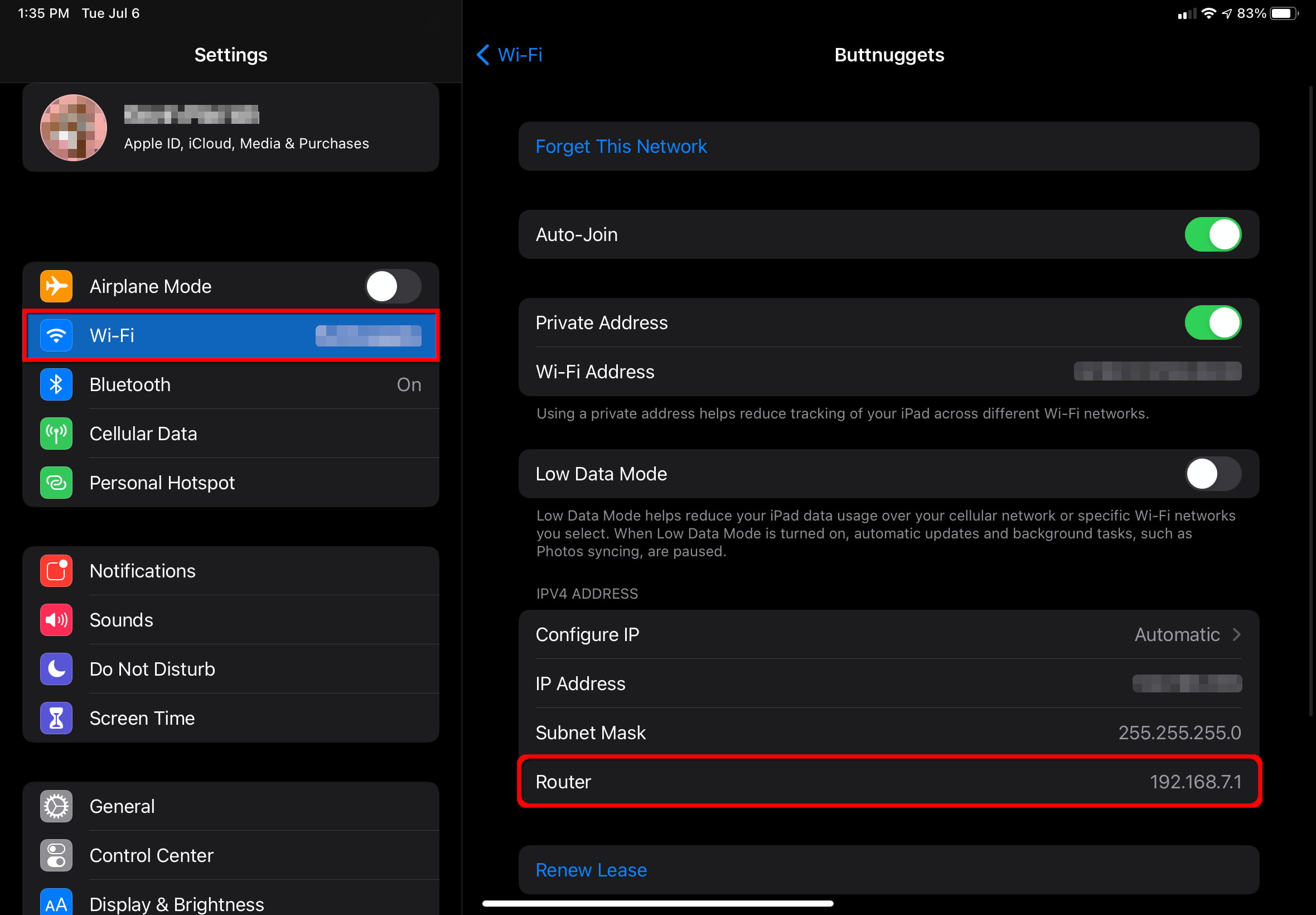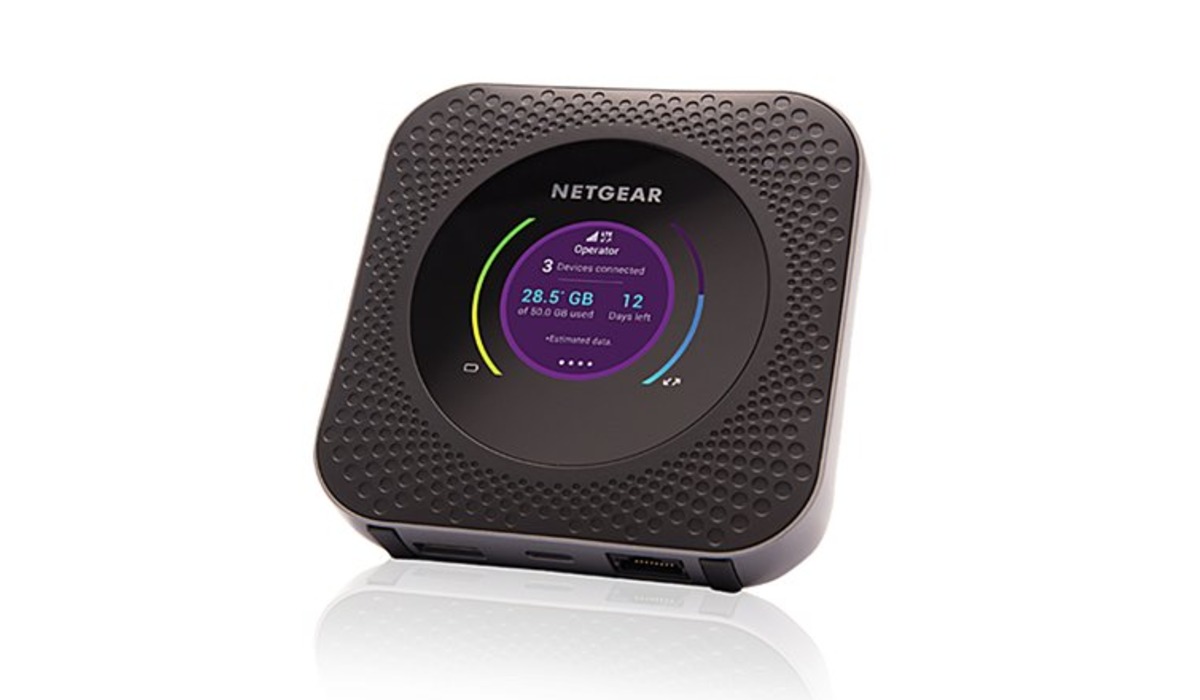
Your hotspot name is the network name (SSID) that appears when you search for Wi‑Fi on another device. To know your hotspot name quickly, check the mobile hotspot settings on your device, the exact path depends on whether you are using Windows, Mac, iPhone, or Android.
How to know my hotspot name on Windows
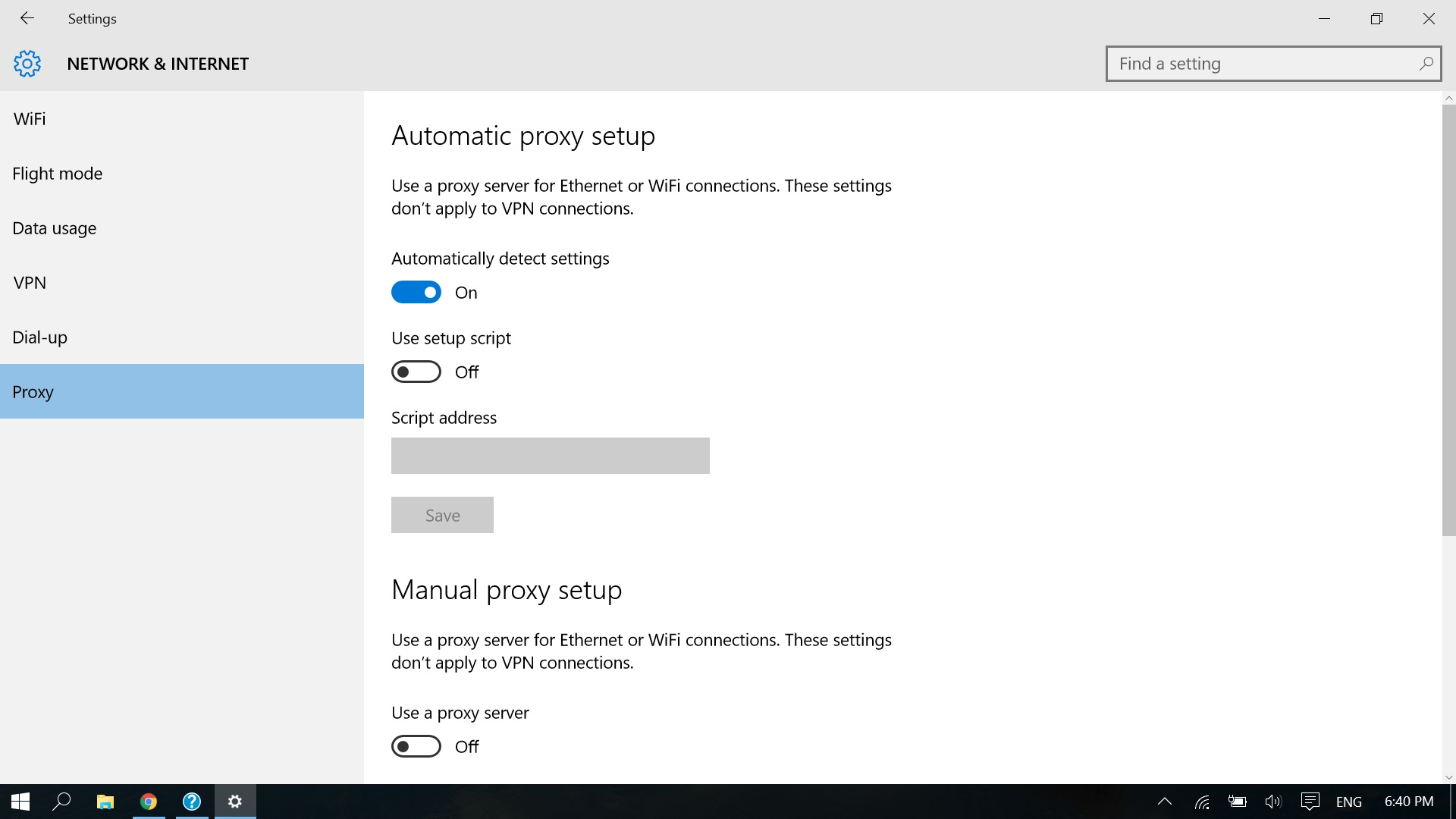
On Windows 10 and 11, the mobile hotspot name is displayed in the Settings app. Open the Start Menu, then select Settings > Network & Internet > Mobile Hotspot. In this window, the "Network Name" field shows your current hotspot name. This is the name other devices will see when they scan for available Wi‑Fi networks.
How to know my hotspot name on Mac
On macOS, the hotspot name is generally the computer’s name. To find it, go to the Apple menu > System Settings > General > About. The "Name" field shows the computer name, which is used as the hotspot name. Additionally, the local hostname (which also relates to the hotspot) can be found in System Settings > General > Sharing, at the bottom of the window.
How to know my hotspot name on iPhone and Android
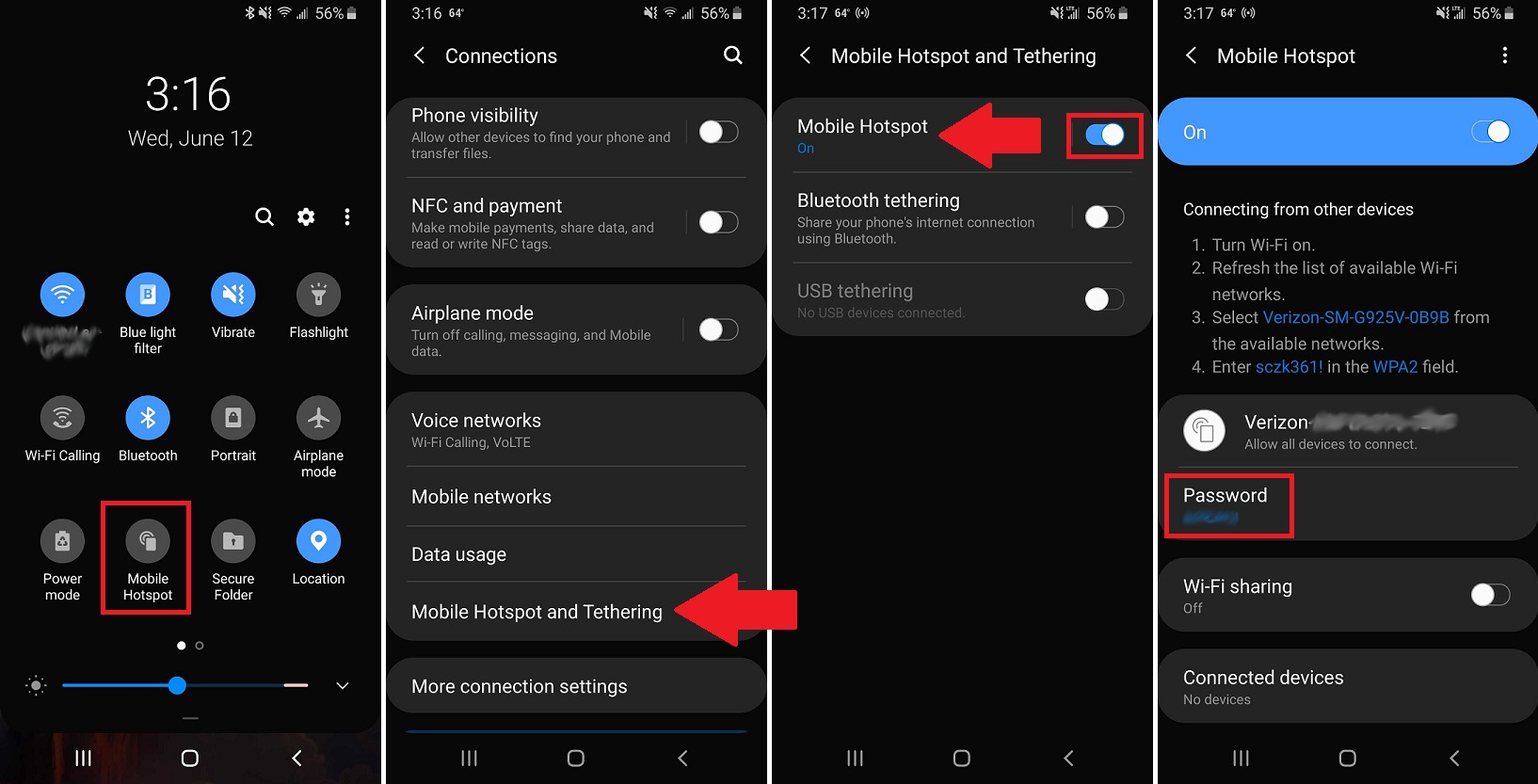
On an iPhone, open Settings > Personal Hotspot. The network name is shown at the top of this screen. This is the name you will see when connecting another device to your mobile hotspot.
How to change your hotspot name
On Windows, in the Mobile Hotspot settings, select "Edit" next to the "Network Name" field, enter a new name, and click "Save." On a Mac, you can change the hotspot name by changing the computer’s name in System Settings > General > About > Name. Alternatively, change the local hostname in System Settings > General > Sharing by clicking "Edit" in the "Local hostname" section. On a Mac, the local hostname can be changed by clicking 'Edit' in the 'Local hostname' section of Sharing settings. On mobile devices, you can rename the hotspot in the same settings screen where the name is displayed, look for an edit or rename option near the network name field.
Troubleshooting when you cannot find your hotspot name
If your hotspot name does not appear, start by restarting your device. Confirm that the hotspot feature is turned on and that mobile data is active. Check for software updates, as outdated software can sometimes cause hotspot functionality issues. As a last resort, reset network settings, note that this will erase all saved Wi‑Fi networks. Resetting network settings will erase all saved Wi-Fi networks. If the problem persists, consult the device’s user manual or contact customer support for further assistance. Using your mobile device as a hotspot may consume more data than usual, so monitor usage on limited or metered plans. For comprehensive Mobile Hotspot Basics and Troubleshooting, these steps cover the most common causes.
Frequently Asked Questions
Can I hide my hotspot name?
You cannot completely hide your hotspot name from being detected, but you can disable SSID broadcast in the hotspot settings. This prevents the name from appearing in public Wi‑Fi lists, though devices that already know the name can still connect.
How do I make my hotspot name secure?
Avoid using personal information in the name. Use a combination of letters, numbers, and symbols, and update the name periodically to reduce the risk of unauthorized access.
What should I do if the hotspot name still won’t appear after troubleshooting?
If the name remains missing, verify that your device’s mobile data plan supports hotspot usage. Some carriers restrict or require a separate plan for tethering. Contact your carrier to confirm that hotspot functionality is enabled on your account.
Knowing your hotspot name helps distinguish legitimate networks from potential spoofed or rogue access points that can compromise data security.
Related reading: How To Connect To Hotspot On HP Laptop and How To Find Ssid Of Mobile Hotspot Android.