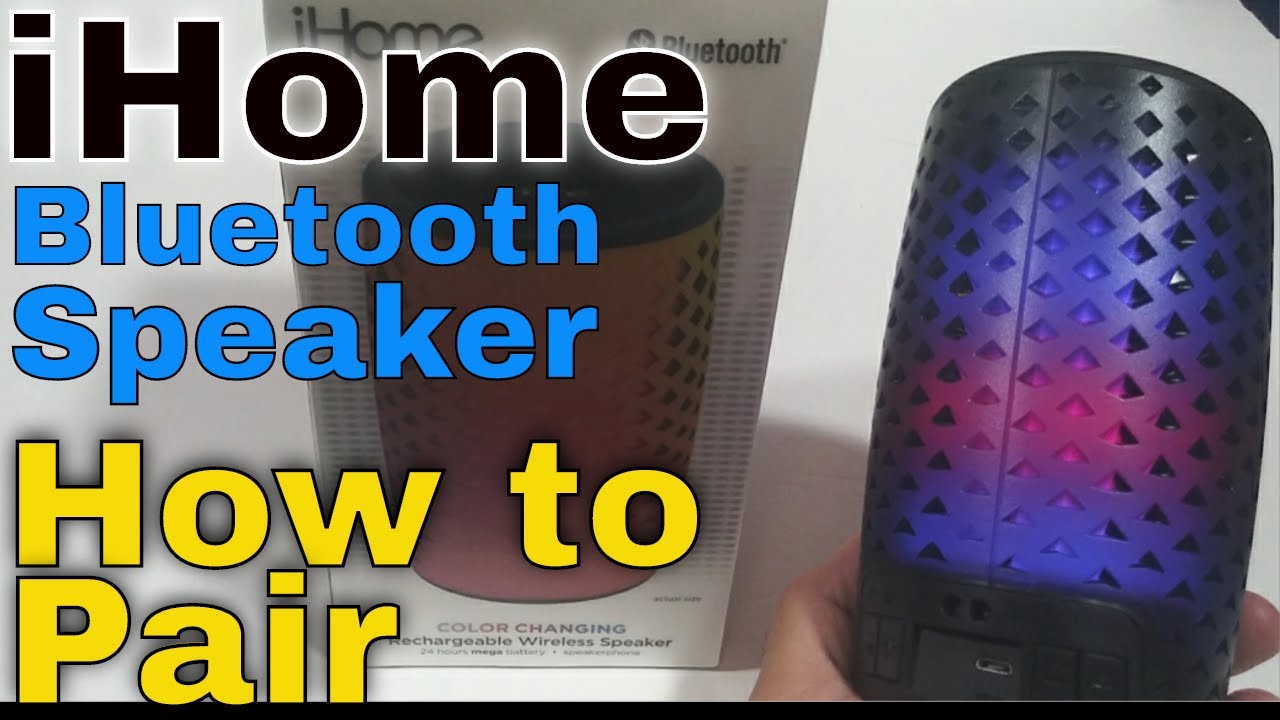
To pair iHome Bluetooth speakers, turn the speaker on, enable Bluetooth on your phone, put the speaker into pairing mode by holding its Bluetooth button for 2 seconds until you hear a beep or "PAIRING," then select the speaker name, such as "iHome iBT297", from your phone's Bluetooth list. This universal flow works for both iPhone and Android devices, with model-specific variations for entering pairing mode.
How to pair iHome Bluetooth speakers: The universal pairing flow
The core process for pairing any iHome Bluetooth speaker is consistent across models. Start by turning your speaker on. Next, open your phone's Bluetooth settings and make sure Bluetooth is enabled. Then, put the speaker into pairing mode, for most iHome models, this means pressing and holding the Bluetooth button for 2 seconds until you hear an audio cue. Finally, locate the speaker's model name (e.g., "iHome iBT297") in your phone's list of available devices and tap it to connect. If prompted for a passcode, enter 1234. The documented passcode for the iBT297 support article is specifically '1234'.
Pairing by iHome model
iBT297
On the iBT297, press and release the Mode button until the "BT" icon appears on the display, then press and hold the Bluetooth Pairing Button on the back of the unit for 2 seconds to enter pairing mode.
iBT16
For the iBT16, move the Power OFF/Bluetooth/Aux switch to the center Bluetooth position. On iBT16, the unit will try to auto-link to a previously paired device for 10 seconds before entering pairing mode.
iBT620 and iBT77V2
On the iBT620 and iBT77V2, the first time you power on the speaker it automatically enters pairing mode. For manual pairing on subsequent uses, hold the Bluetooth button for 2 seconds.
Pairing with an iPhone
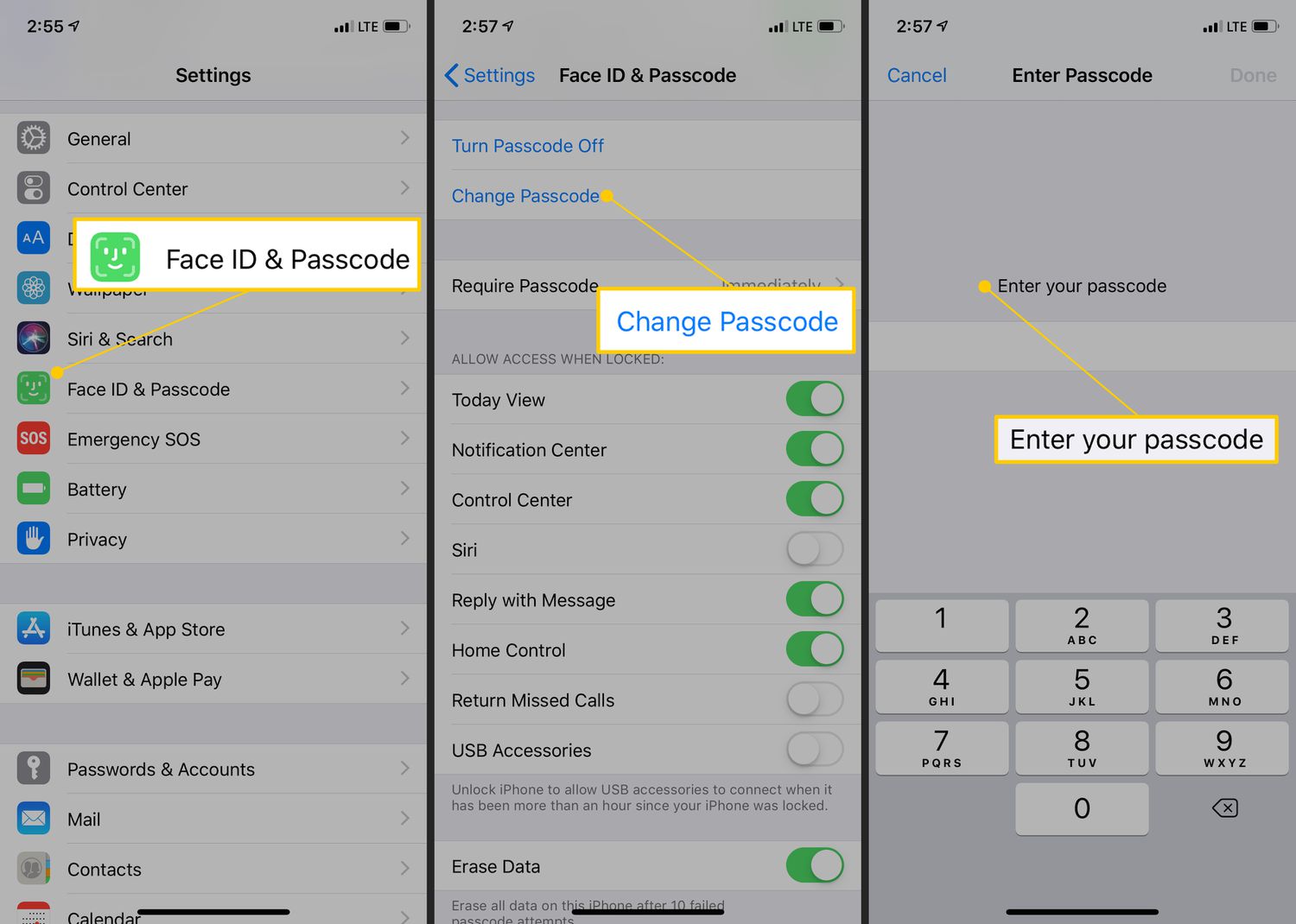
- Open the Settings app on your iPhone, then tap Bluetooth and turn Bluetooth on.
- Put the iHome speaker into pairing mode using the model-specific button or switch described above.
- Under the Bluetooth device list, tap the speaker name, such as "iHome iBT620" or "iHome iBT297", when it appears.
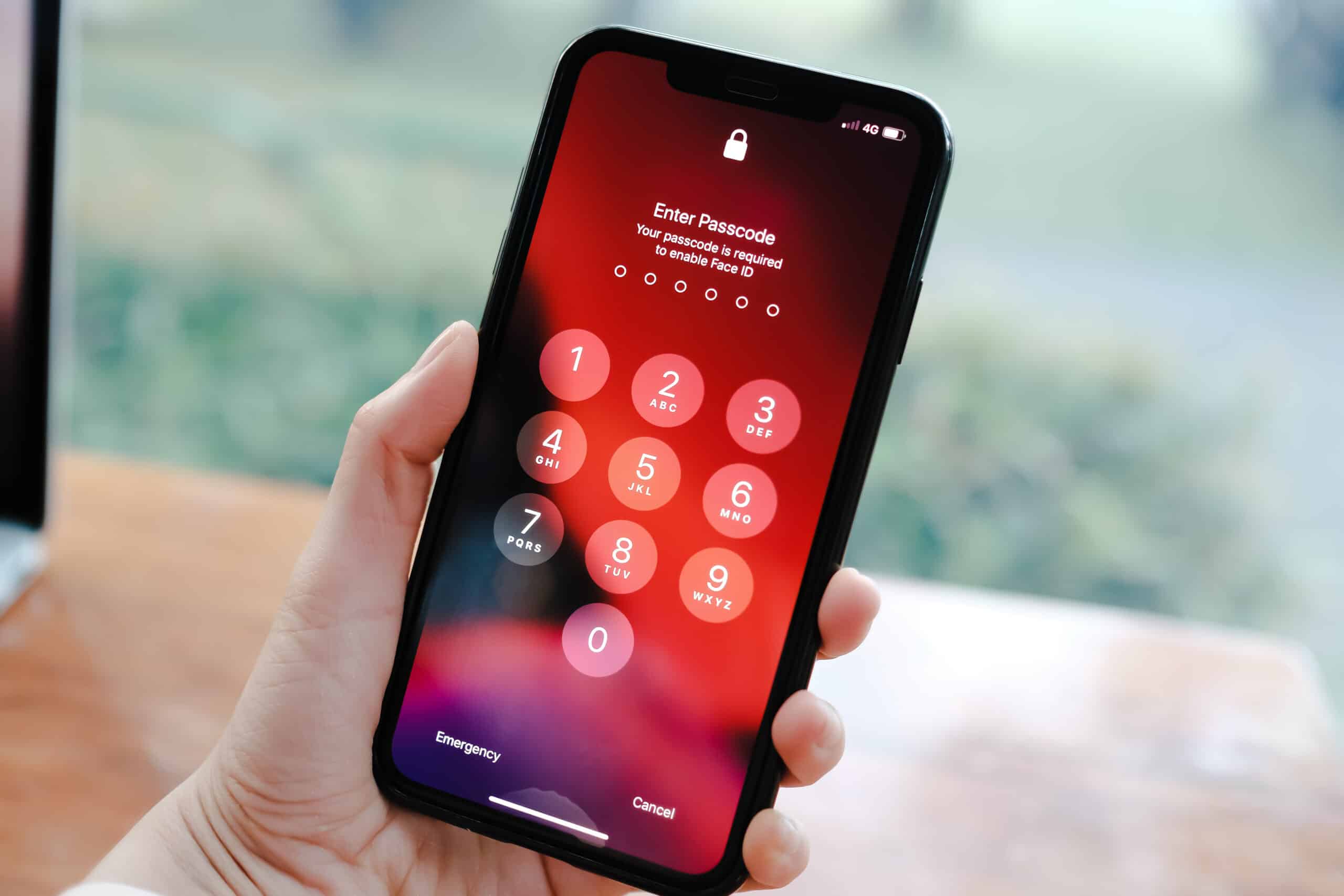
- If a passcode prompt appears, enter 1234 when instructed. iHome documents a passcode of '1234' for the iBT297 support article.
Pairing with an Android phone
- Open Settings on your Android phone, then go to the Bluetooth menu and turn Bluetooth on.
- Make the iHome speaker discoverable by entering pairing mode on the speaker.
- Select the iHome speaker name from the list of available devices to connect.
Troubleshooting iHome Bluetooth pairing problems
Speaker not appearing in the Bluetooth list: Confirm the speaker is turned on and in Bluetooth mode. Hold the Bluetooth button for the full 2 seconds until you hear a beep or the speaker says "PAIRING." Keep the phone and speaker within the documented Bluetooth range, iHome states approximately 30 to 33 feet, and remove any obstacles or interference sources like walls or other electronics. If the speaker fails to connect, check the power source and ensure the battery is sufficiently charged before attempting to pair.
Previously paired device interfering: If the speaker automatically connects to an old device instead of entering pairing mode, clear the paired devices list by performing a factory reset as described in your model's manual, or simply ensure the previously paired device is turned off or out of range.
Passcode prompt: If your phone asks for a passcode during pairing, use 1234.
Ensure your device's software or firmware and the iHome speaker's firmware are updated to the latest versions to avoid compatibility issues. If pairing fails, try resetting the Bluetooth on your device by disabling it, waiting a few seconds, and re-enabling it. If you're looking to connect Bose wireless speaker to a different system, the process varies by model. For recommendations on some good Bluetooth speakers, consider factors like sound quality, portability, and battery life. If you need to find lost Bluetooth headphones that are turned off Android, note that most Bluetooth trackers require the device to be powered on. To unforget Bluetooth device on Android, go to your Bluetooth settings, find the forgotten device in the "Previously connected" or "Saved" list, and tap it to reconnect. For a multi-speaker Bluetooth setup, check whether your iHome model supports simultaneous pairing, most do not, so you may need a dedicated multi-room audio system.
Frequently Asked Questions
Can I pair my iHome Bluetooth speaker with multiple devices?
Most iHome Bluetooth speakers support multi-device pairing, meaning they can remember connections to several devices. However, they typically connect to only one device at a time. To switch devices, disconnect the current device and select the speaker from the new device's Bluetooth list.
How do I unpair or forget my iHome Bluetooth speaker from a device?
On your phone, go to Bluetooth settings, find the connected iHome speaker, and tap "Forget" or "Unpair." This removes the pairing information so you can connect the speaker to a different device without interference.
Can I use my iHome Bluetooth speaker while it's charging?
Yes, most iHome Bluetooth speakers can be used while charging. Simply connect the speaker to a power source with the provided charging cable, and you can continue playing audio while the battery replenishes.
Is it possible to connect my iHome Bluetooth speaker to a non-Bluetooth device?
If your iHome speaker has an auxiliary (aux) input port, you can connect non-Bluetooth devices, such as MP3 players, computers, or gaming consoles, using a standard 3.5mm audio cable. Plug one end into the speaker's aux input and the other into the device's headphone or audio output port.
For the wider topic, see multi-speaker Bluetooth setup.