






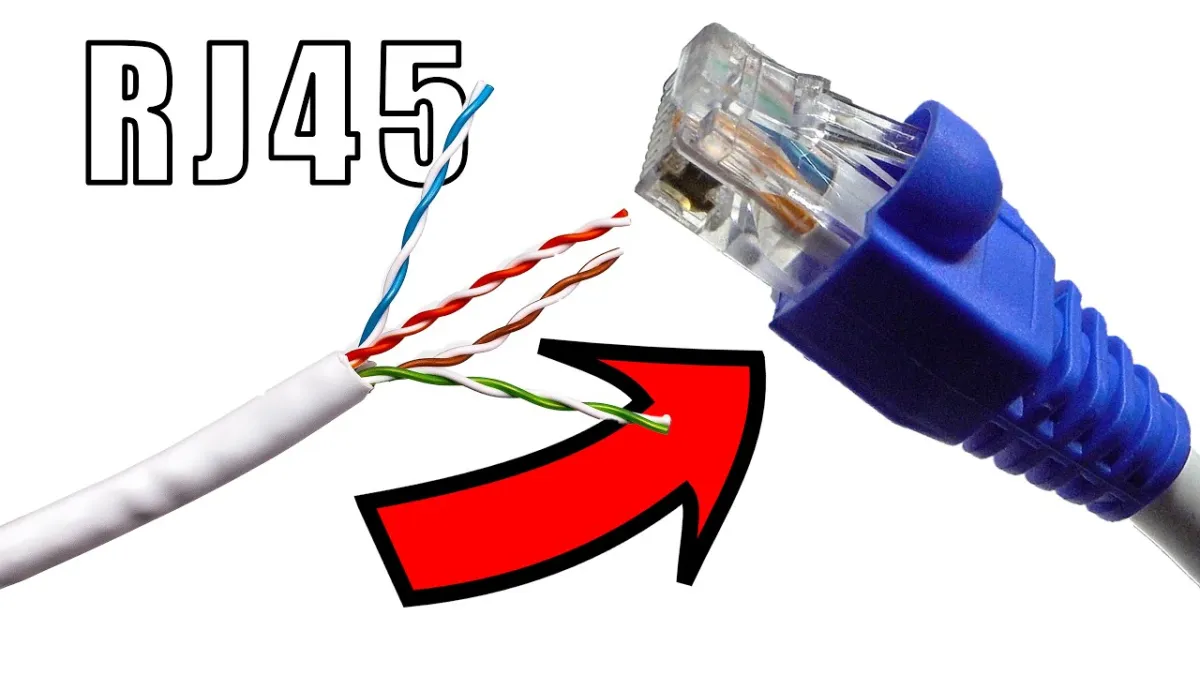
To connect RJ45 connector with Cat6 cable, you must follow the general termination process of stripping the outer jacket, arranging the internal wires to the T568B wiring scheme, and crimping the connector with a suitable tool.
What you need to know before you connect an rj45 connector with cat6 cable
It is not a replacement for the official instructions provided by the manufacturer of your specific connector or cable. Using the wrong wiring order or improper crimping technique can result in a failed connection or reduced network performance. Always consult the documentation supplied with your hardware for exact safety and accuracy requirements before starting any termination work.
What is an RJ45 connector?
An RJ45 connector is a modular physical plug used for Ethernet networking. It has eight pins that correspond to the eight wires inside a network cable, allowing data signals to be transmitted and received between devices such as computers, routers, and switches. The connector includes a plastic housing and a spring-loaded tab that locks it into a compatible port, providing a secure connection for local area networks (LANs) and wide area networks (WANs).
What is a Cat6 cable?
Category 6 cable, commonly called Cat6, is a twisted-pair cable standard designed for high-speed Ethernet networks. It supports data transfer rates up to 10 Gigabits per second over distances up to 55 meters and uses tighter specifications to reduce crosstalk compared to older standards like Cat5e. Cat6 cables are backward compatible with earlier networking equipment and are commonly used in homes, offices, and data centers where reliable, high-bandwidth connections are required for activities such as video streaming and large file transfers.
General steps for terminating Cat6 cable to an RJ45 plug
The following steps describe the common process used to terminate a Cat6 cable with an RJ45 connector. Always follow the instructions included with your connector and crimping tool for the best results.
- Strip the outer jacket of the Cat6 cable using a cable stripper, removing about an inch of the jacket while being careful not to damage the internal wires.
- Untwist the pairs of wires inside the cable, keeping them as twisted as possible until you reach the termination point to maintain performance.
- Arrange the wires according to the T568B wiring scheme, which is the most common standard for Ethernet connections. The T568B wiring order is specified as orange-white, orange, green-white, blue, blue-white, green, brown-white, brown.
- Trim the wires to an even length so they are neatly aligned and ready to insert into the connector.
- Insert the wires into the corresponding slots of the RJ45 connector, ensuring each wire is fully seated in its correct position.
- Crimp the RJ45 connector onto the cable using a crimping tool, applying enough pressure to secure the connection without damaging the connector or wires.
Using your new cable with phones and adapters
After you connect an RJ45 connector with a Cat6 cable, you may want to use it with a smartphone. Verified facts confirm that iPhone 15 models support wired Ethernet when used with a USB-C to Ethernet adapter. Older iPhone models do not support direct wired Ethernet connections; only Personal Hotspot is available for network sharing on those devices. Some third-party retailer listings suggest that a Lightning to Ethernet adapter may cause an Ethernet option to appear in Settings, but this information is not from an official manufacturer or carrier support page and should not be relied upon without verification.
Finding your manufacturer's official guide
To ensure a reliable connection, you must locate the specific instructions for the brand of RJ45 connector you are using. Official guides from the connector manufacturer provide exact wiring diagrams, recommended tools, and crimping specifications that are tailored to their product. These instructions are typically available on the manufacturer’s website or included in the product packaging. Using a generic guide for a task like connecting an RJ45 connector with a Cat6 cable can lead to errors, especially if your connector is a shielded or pass-through type that requires a different procedure. For example, if you are setting up a network to support a wireless printer setup, following the correct termination guide will help ensure stable connectivity for devices that rely on your wired infrastructure.
Frequently Asked Questions
Can I use a Cat6 connector with a Cat5e cable?
Yes, a Cat6 connector is backward compatible with Cat5e cable. However, using a Cat6 connector does not upgrade the performance of a Cat5e cable; the overall speed and reliability will still be limited by the cable's own specifications.
What is the difference between solid and stranded Cat6 cables?
Solid Cat6 cables use a single solid copper conductor and are best for in-wall or permanent installations. Stranded Cat6 cables are made of multiple smaller wires twisted together, making them more flexible and suitable for patch cords or applications where the cable is frequently moved.
Do I need to use shielded Cat6 cables?
Shielded Cat6 cables (STP) provide extra protection against electromagnetic interference (EMI) and are recommended for environments near power lines or industrial equipment. For standard home or office use, unshielded Cat6 cables (UTP) are typically sufficient.
Can I use a Cat6 cable for Power over Ethernet (PoE) applications?
Yes, Cat6 cables are suitable for PoE applications because of their higher bandwidth and performance. Ensure the specific cable you use is rated for PoE, as some are labeled "PoE-ready" or "PoE-compliant" to indicate they can handle power delivery alongside data.

















