






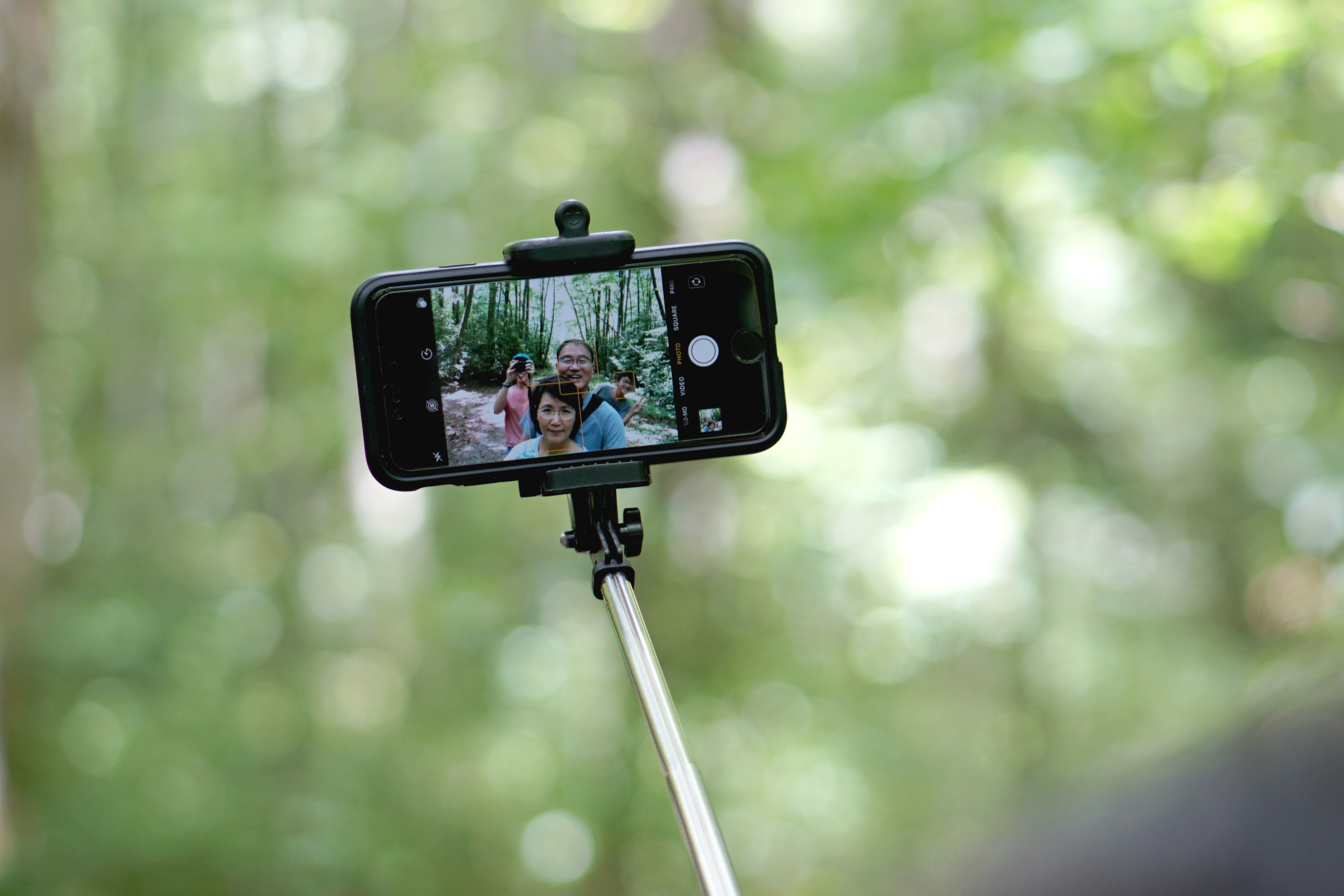
A selfie stick is a handheld telescoping pole with a phone clamp that extends your smartphone away from your body, allowing you to capture wider self-portraits and group photos. It works by giving you greater reach for better framing and often provides a physical shutter trigger so you don't have to awkwardly tap your phone's screen.
What is a selfie stick?
A selfie stick is a handheld pole or mount that lets you hold a phone farther away to frame self-portraits and group shots. It consists of a telescoping pole, typically made of lightweight materials like aluminum or stainless steel, with a phone holder at one end. By extending the stick, you position your phone farther from your body, enabling wider angles and more creative compositions.
How a selfie stick works
Selfie sticks work by extending the camera farther from your face and by providing a physical shutter trigger. The two main shutter trigger methods are:
- Using the phone's volume buttons via a cable: Some models are wired and connect to the phone's headset jack. Pressing a button on the stick's handle triggers the volume button on your phone, which acts as the shutter.
- Using a Bluetooth remote button: Bluetooth-enabled selfie sticks pair wirelessly with your phone. A button on the stick's handle or a separate remote triggers the shutter remotely.
Phone compatibility and setup
Support for selfie stick shutters varies by phone model and camera app. Here are the documented setup steps for common devices:
iPhone
- Open the Camera app.
- Use either volume button as the shutter to take a photo.
- To mute the shutter sound, use the Ring/Silent switch on the side of the phone; Silent mode is on when the switch shows orange.
For Bluetooth selfie-stick remotes, compatibility is accessory-dependent. Check with the accessory maker to confirm it works with your specific iPhone model. One accessory/app listing says iOS 7.0+ and Bluetooth 3.0 devices, with support listed for iPhone 4S/5/5s/5c/6/6 Plus/6s/6s Plus/7/7 Plus or later and several iPads.
Samsung Galaxy phones
- Open the Camera app.
- Tap the Gear icon (settings).
- Select Volume Key.
- Choose Camera / Capture or Camera Key.
A wired selfie-stick manual says Samsung phones may require: Camera > Gear icon > Volume Key > choose Camera / Capture or Camera Key.
On some other Android phones, if the volume-key setting is not available, you may need a third-party camera app for the shutter to work. Some Android phones lack the relevant volume-key option, so a selfie-stick shutter may not work unless the camera app supports it.
A vendor manual says its wired selfie stick is compatible with iOS 4.0 and Android 4.0 or above.
Benefits of using a selfie stick
Using a selfie stick provides several practical advantages:
- Increased reach for wider angles: You can capture a broader perspective, including more of the scenery or background.
- Fitting more people in the frame: Group shots become easier because the phone is farther away, letting everyone fit into the photo.
- Improved stability for less shaky photos: The extended pole helps reduce hand tremors, resulting in sharper, clearer images.
Types of selfie sticks
Selfie sticks come in several common designs to suit different needs:
- Wired: Connects directly to the phone via the headset jack; uses the phone's volume buttons as the shutter.
- Bluetooth-enabled: Pairs wirelessly with the phone for remote shutter control.
- Models with built-in tripods: Include a tripod base that can be extended and placed on a flat surface for steady shots, ideal for group photos or videos.
- Foldable/telescopic designs: Compact and portable, folding down to a smaller size for easy carrying.
Tips for using a selfie stick
For better results with your selfie stick, follow these practical tips:
- Find the right angle: Experiment with holding the stick higher or lower, or tilting it slightly, to find the most flattering composition.
- Hide the stick from the shot: Extend the stick fully and position it at an angle that keeps it out of the frame.
- Consider the background: Choose interesting or visually appealing surroundings to add depth and context to your photos.
- Be mindful of others in public: Avoid obstructing pathways or taking photos of strangers without their consent.
How do you use a selfie stick
To use a selfie stick, attach your phone securely to the holder, extend the pole to your desired length, and use either the volume button on your phone (if using a wired stick) or the Bluetooth remote button to trigger the shutter.
How to pair a selfie stick
To pair a selfie stick with Bluetooth, turn on the selfie stick's Bluetooth remote, go to your phone's Bluetooth settings, and select the device from the list of available devices. Follow any specific instructions that came with your selfie stick, as pairing steps can vary by model.
How does the selfie stick work
The selfie stick work by holding the phone farther away from your body and using either a cable connected to the headset jack or a Bluetooth button to trigger the phone's shutter, allowing you to take photos without touching the screen.
Frequently Asked Questions
Will a selfie stick work on my iPhone?
Apple documents that the iPhone Camera app supports using the volume buttons as a shutter. For Bluetooth remote selfie sticks, compatibility depends on the specific accessory; check with the accessory maker to confirm it works with your iPhone model.
Are selfie sticks allowed in all locations?
Some museums, tourist attractions, and concert venues may prohibit selfie sticks due to safety concerns or to prevent obstruction. Always check the rules of the specific location before using one.
Can I use a selfie stick for video recording?
Yes, selfie sticks can be used for recording videos, vlogs, or as a stabilizer for smoother footage. Some models include features like built-in tripods or LED lights for better video quality.
Do all Android phones support selfie stick shutters?
Not all Android phones have the volume-key shutter option in their camera app. If your phone lacks this setting, you may need a third-party camera app or a Bluetooth remote that works independently of the phone's volume keys.

















